AA

Featured products

    Popular categories

      Trending searches

        Articles

          Blog

            Products

              Categories

                Suggested searches

                  Searching…
                  No results
                  Something went wrong.
                  ↑↓ Select↵ OpenEsc Close search
                  • English
                  • Čeština
                  • Deutsch
                  • Español
                  • Français
                  • Italiano
                  • Polski
                  • 日本語
                  • Orders
                  • Address
                  • In-stock Alerts
                  • My Courses
                  • Subscription
                  • Edit Account
                  • 3D printers9+▾

                    3D printersnew

                    newPrusa CORE One L+Learn more
                    newPrusa CORE One+ (Gen 2)Learn more
                    newPrusa CORE One L+ INDX 8-ToolnewPrusa CORE One+ (Gen 2) INDX 8-ToolPrusa CORE One L+: Critical InfrastructureOriginal Prusa MK4SnewOriginal Prusa XL+Original Prusa XL+: Critical Infrastructure

                    Printer upgrades

                    newINDX Conversion KitsnewPrusa CORE One L to CORE One L+ upgradenewPrusa CORE One+ to Prusa CORE One+ (Gen 2)newPrusa XL to Prusa XL+ Upgrade
                    Prusa Reward ProgramLove your Prusa printer? Share your experience and earn $30 Prusa e-shop vouchers.
                    How to Choose a 3D Printer?We’ll walk you through the basics to find the exact machine for your space, budget, and ideas.
                    Free E-bookDownload a free e-book Basics of 3D Printing with Josef Prusa and make your first steps in 3D printing world
                    Original Prusa Printable PartsCollections of printable spare parts for Original Prusa 3D printers and upgrades.
                    Shipping informationRegularly updated info about the current manufacturing capacity and delivery times of our printers.
                    Custom 3D PrintingProfessional custom 3D printing from various materials according to your requirements.
                  • Materials▾

                    Filaments

                    PrusamentPLAPETGASA / ABSPC (Polycarbonate)PA (Nylon)FlexCompositesSpecialMaterials clearance sale

                    Resin

                    Prusament ResinResin Cleaner
                    Filament GuideCheck my Prusament Spool
                    Prusament.com
                  • Parts & Accessories▾

                    Accessories

                    EnclosuresNozzlesPrint SheetsEssential AccessoriesCameras & AddonsTools & CraftingAdhesives

                    Spare parts

                    Merchandise

                    Spare parts - All PrintersCORE OneMK4/S & MK3.9/SMK3/S/+XL
                    Merch
                  • For Business▾
                    Prusa Pro HT90Prusa Pro SLXPrusa Pro AFSPrusa Pro Medical OneOriginal Prusa XLOriginal Prusa XL: Critical Infrastructure
                    Prusa CORE One+Learn more
                    Prusa CORE One LLearn more
                    Prusa CORE One L: Critical Infrastructure Edition

                    3D Printing for

                    Manufacturing and R&DAutomotive IndustryHealthcareEducation and Academic ResearchArchitects and DesignersFilm IndustryCritical Infrastructure

                    3D Printing Stories

                    • How 3D printing started: About Rep-rap and open-source with Adrian Bowyer
                    • Teaching mathematics redefined with 3D printing at JKU Linz
                    • The story behind the LTT screwdriver
                    • Victoria Hand Project: Changing Prosthetic Care with 3D Printing
                    Official Prusa Resellers
                    Sustainability
                    Prusa Education
                    Contact and Inquiry
                    Custom 3D Printing
                    ISO Certified
                  • Software▾
                    PrusaSlicer

                    PrusaSlicerPrusaSlicer

                    PrusaSlicer is an open-source, feature-rich, frequently updated tool that contains everything you need to export the perfect print files for your 3D printer.

                    WindowsMacOSLinux
                    Prusa Connect

                    Prusa Connect

                    Prusa Connect is a cloud service enabling remote control and monitoring of your 3D printers, offering secure data handling, easy setup, and support for managing multiple printers from anywhere.

                    Log in to Connect
                    Prusa.app

                    Prusa.app

                    Control your printer/s remotely from anywhere using the Prusa Connect technology behind. Prusa.app brings a new level of Prusa printer experience to Android and iOS phones.

                    Try it now!
                    Drivers & FirmwareDownload the latest firmware and drivers for your 3D printer.
                    PrusaSlicer Support
                    Prusa Connect Support
                  • 3D Models▾
                    3D PrintersArt & DesignHobby & MakersHouseholdTabletop MiniaturesToys & GamesPrintables Store

                    Popular 3D models

                    • Strong garden hose holder
                    • Prusa Spool Bot
                    • Build Tray — Modular Organizer for Assembly, Disassembly and Maintenance
                    • Broom Holder
                    • Octagon Fabric
                    • Prusa CORE One ? (Mimic Skin)

                    Design Contests

                    • De Prototipo a Producto: Accesorios para Cámaras8/1/2026 – 9/14/2026
                    • Vuelta al Cole 20268/21/2026 – 9/6/2026
                  • Community▾

                    Upcoming Events

                    • Maker Faire Tokyo 20269/5/2026 – 9/6/2026 · Tokyo, Japan · Prusa Team
                    • IFA 20269/4/2026 – 9/8/2026 · Berlin, Germany · Prusa Team
                    • 3D Printopia 20269/26/2026 – 9/27/2026 · Pennsylvania, United States · Prusa Team
                    • Maker Faire Bay Area9/25/2026 – 9/27/2026 · Kalifornie, United States · Prusa Team

                    Prusa Forum

                    • INDX calibrations...
                    • Core One L to Core One L+ (aka Gen2) Discussion
                    • FW 6.10.1+16383 Y-axis homing failure
                    Prusa World MapPrusa World MapFind local 3D printing users and explore the community around you.
                  • Help▾
                    Guides & TutorialsPrusaSlicerPrusa ConnectMaterials

                    Printer Model

                    CORE One INDXCORE One LCORE One+CORE One

                    Hardware Troubleshooting

                    • Selftest failed (CORE One/+)
                    • Clogged nozzle (CORE One, CORE One L, XL, MK4/S, MK3.9/S)
                    • Adjusting belt tension (CORE One/+, CORE One INDX, CORE One L/+)
                    • Prusa Connect and PrusaLink explained

                    Drivers & Firmware

                    INDX familyCORE One familyMK4 familyXL familyMMU familyPRO family
                  • Courses▾

                    Become an expert in 3D printing

                    Prusa Academy offers online courses on various 3D printing related topics. Each course features:

                    • easy-to-read text with many pictures and short videos
                    • links for inspiration and further study
                    • quizzes for testing your knowledge along the way
                    • certificate of completion
                    Browse all coursesMy courses library
                    • 3D Modeling in Autodesk Fusion
                    • PrusaSlicer Masterclass – Beginner to Advanced
                    • Complete Guide to 3D Print Postprocessing, Painting, and Detailing
                    • Airbrush Your 3D Prints: From Basics to Advanced Tricks
                  • Blog▾
                    • PrusaSlicer 3.0 Preview – Built for the Future of 3D Printing
                    • Prusa CORE One+ (Gen 2) INDX, Shipping Has Started, Complete Printers Open for Orders
                    • Better Prints, Easier Use: Prusa XL+, CORE One L+ and CORE One+ (Gen 2), Our Big Product Upgrade
                    E-Book: Basics of 3D Printing
                  • Company▾

                    About Prusa Research

                    We are the largest maker of 3D printers in Europe and the United States.

                    Founded as a one-man startup in 2012 by Josef Prusa, a Czech hobbyist, maker, and inventor. In just 15 years, we've grown into a company of more than 1,200 people. Every month, we design, build, and ship over 10,000 innovative and secure 3D printers from our headquarters in Prague, Czech Republic, and Delaware, USA, to users in more than 160 countries.

                    Watch a video and find out how Prusa Research was born and what we achieved within only 10 years!

                    About UsTimelineSustainabilityOpen-source
                    About Us
                    Contact Us
                    Logo and Photos
                    ISO Certified
                  1. Support
                  2. PrusaSlicer 2.9 (Legacy)

                  Blog

                  • PrusaSlicer 3.0 Preview – Built for the Future of 3D Printing
                  • Prusa CORE One+ (Gen 2) INDX, Shipping Has Started, Complete Printers Open for Orders
                  • Better Prints, Easier Use: Prusa XL+, CORE One L+ and CORE One+ (Gen 2), Our Big Product Upgrade

                  Newsletter

                  Signup and get our monthly squeeze on updates, blog, printables and much more.

                  By clicking, you agree to receive our newsletter.

                  This site is protected by reCAPTCHA Enterprise and the Google Privacy Policy and Terms of Service apply.

                  Strong garden hose holder
                  E-shop
                  • 3D Printers
                  • Printer Upgrades
                  • Filaments
                  • Accessories
                  • Prusa Merchandise

                  © Prusa Research a.s.

                  Printables
                  • 3D Models
                  • Store
                  • Clubs
                  • 3D Design Contests
                  • Brands
                  Community
                  • World Map
                  • Forum
                  • User Groups
                  • Events
                  Help
                  • Prusa Help
                  • Prusa Academy
                  • 3D Printing Calculators
                  Software
                  • PrusaSlicer
                  • Prusa.app
                  • Prusa Connect
                  • Drivers and Software
                  Company
                  • About Us
                  • Blog
                  • Official Prusa Resellers
                  • Contact Us
                  • Certified for ISO 9001, ISO 14001, ISO 45001
                  • General Terms and Conditions
                  • General Terms and Conditions of Use of the PRUSA Websites
                  • Privacy Policy
                  • Information about cookies
                  • Customer Complaints Policy
                  • Status Page
                  • Do Not Sell or Share My Personal Information
                  • Supplemental Statements
                  • General Terms and Conditions
                  • General Terms and Conditions of Use of the PRUSA Websites
                  • Privacy Policy
                  • Information about cookies
                  • Customer Complaints Policy
                  • Status Page
                  • Do Not Sell or Share My Personal Information
                  • Supplemental Statements

                  © Prusa Research a.s.

                  JOSEF PRUSA®, PRUSA RESEARCH®, PRUSA POLYMERS®, PRUSA ORANGE®, PRUSA 3D ® AND PRUSAMENT® are registered trademarks of Prusa Development a.s. used by Prusa Research a.s. under licence from Prusa Development a.s.

                  Topics

                  • About PrusaSlicer
                  • Configuration and profiles
                  • User interface
                  • Input/output
                  • Left toolbar
                  • Top toolbar
                  • Print settings
                  • Filament settings
                  • Printer settings
                  • Advanced features
                  • Multi-material slicing
                  • SLA slicing
                  • Other (PrusaSlicer)

                  PrusaSlicer 2.9 (Legacy)

                  Download PrusaSlicer

                  Download PrusaSlicer

                  Stable releases The latest stable release of PrusaSlicer can be always found in the DRIVERS & APPS package and it’s available for Windows, Mac OS X, and Linux. The package also…

                  Layers and perimeters

                  Layers and perimeters

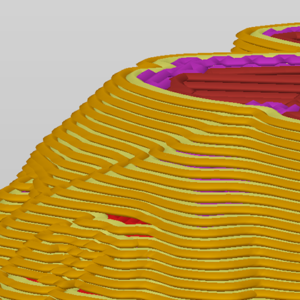
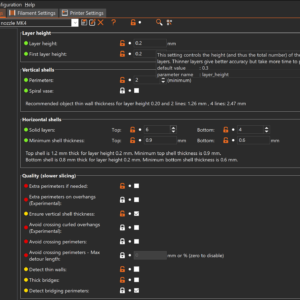
                  Some options will only appear when Expert mode is selected. Layer height Height of the individual slices/thickness of each layer. Layer height is the main factor affecting both: print…

                  Support material

                  Support material

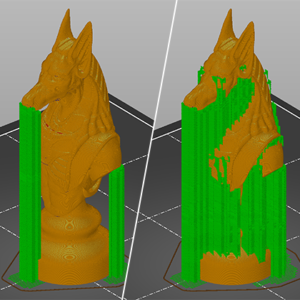
                  3D printers work by laying layer over layer of plastic to create a 3D object. Each new layer must be supported by the one beneath it. If part of your model starts in mid-air and…

                  Infill patterns

                  Infill patterns

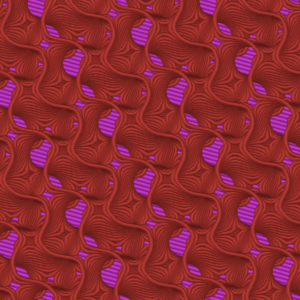
                  PrusaSlicer offers many infill patterns to choose from. When choosing an infill pattern, these are the main things to consider: Print speed Density per material used (better support…

                  Infill

                  Infill

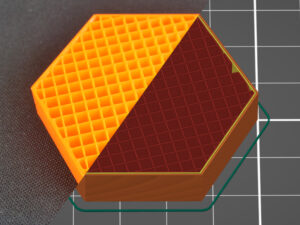
                  The main purpose of infill is to provide internal support for top layers, which would otherwise have to bridge over empty space. Infill also affects the speed of printing, structural…

                  Install PrusaSlicer

                  Install PrusaSlicer

                  Windows A stand-alone EXE installer of the latest stable release can be downloaded from PrusaSlicer introduction & download or our Github. When downloading from Github, make sure…

                  Skirt and Brim

                  Skirt and Brim

                  Some options will only appear when Expert mode is selected. Skirt The skirt is a printed outline of all of the models on the print bed. It's printed before any of the models and…

                  Color change

                  Color change

                  PrusaSlicer lets you schedule a filament change at a certain layer. This can be used to print basic multicolored models. The printer automatically pauses the print as soon as it…

                  Ironing

                  Ironing

                  What is Ironing and how does it work? It is possible to use the Ironing tool starting from version 2.3.0 of Prusa Slicer. Ironing smooths flat top surfaces by running a special…

                  Max volumetric speed

                  Max volumetric speed

                  The Maximum volumetric speed setting (MVS), sometimes referred to as AutoSpeed, is one of the most powerful features in PrusaSlicer. MVS is the maximum amount of plastic (mm³/s)…

                  Insert pause or custom G-code at layer

                  Insert pause or custom G-code at layer

                  PrusaSlicer lets you schedule a filament change at a certain layer. This can be used to print basic multicolored models. The printer automatically pauses the print as soon as it…

                  Fuzzy skin

                  Fuzzy skin

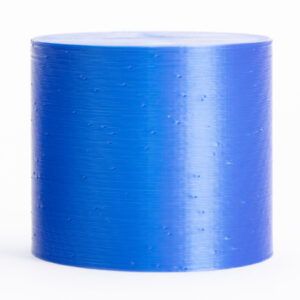
                  Some options will not appear when PrusaSlicer is in Simple mode. The Fuzzy skin feature lets you create a rough fiber-like texture on the sides of your models. If enabled, the…

                  PrusaSlicer General info

                  PrusaSlicer General info

                  To start printing, you need to convert your model to layer-by-layer instructions for the printer with a slicer. We recommend using the PrusaSlicer, especially if you have an Original…

                  Prusa firmware-specific G-code commands

                  Prusa firmware-specific G-code commands

                  This is a list of currently implemented G-Codes in Prusa firmware for i3 series printers. The description is only for Prusa Research-specific G-codes. The rest can be found on…

                  Seam position

                  Seam position

                  Unless you're printing in the Spiral vase mode, each perimeter loop has to start and end somewhere. This start/endpoint creates a potentially visible vertical seam on the side…

                  Variable layer height function

                  Variable layer height function

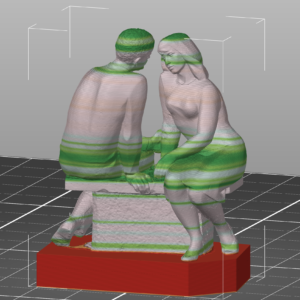
                  PrusaSlicer lets you define different regions of your model to be printed with a different layer height and automatically smooth the transition between them. This can result in…

                  Sequential printing

                  Sequential printing

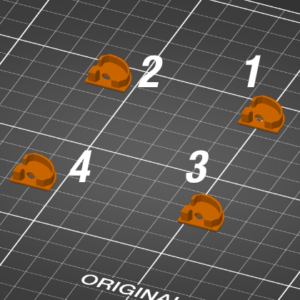
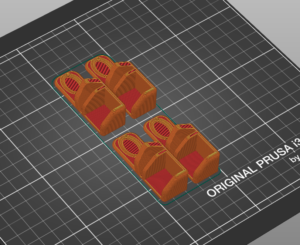
                  This option is unavailable when PrusaSlicer is in Simple mode. When printing multiple objects at once, you can finish them sequentially, one at a time. This differs from standard…

                  Cut tool

                  Cut tool

                  In some cases, you might want to cut a model into multiple pieces before printing: The model is too big to be printed in one piece. You only want to print a part of a model. A…

                  Tree supports

                  Tree supports

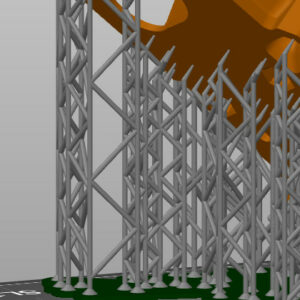
                  Unlike FDM supports, which are usually lattice or grid-like, SLA supports are scaffolding tree-like structures with thin tips. When removed, they’re easy to remove and leave little…

                  PrusaSlicer G-code viewer

                  PrusaSlicer G-code viewer

                  Standalone PrusaSlicer G-code Viewer is a lightweight application, which you can use to quickly preview G-codes from all popular slicers. Its behavior is identical to the preview…

                  First print with PrusaSlicer

                  First print with PrusaSlicer

                  If you are using PrusaSlicer for the first time to generate a gcode or bgcode for printing, you can follow the steps below. Click on the links to get more information about the…

                  Text tool

                  Text tool

                  The Text tool lets you easily add labels, notes, signs, serial or version numbers to your models directly in PrusaSlicer. You can add text to any type of surface, not just planar…

                  Cooling

                  Cooling

                  As soon as the melted plastic leaves the nozzle, it's no longer under the precise control of the extrusion system. There are two problems to consider: Printing must always be…

                  List of placeholders

                  List of placeholders

                  This is a list of variables available in custom G-Code macro language in PrusaSlicer. The macro language is described in detail in a separate page. Placeholders for configuration…

                  Organic Supports

                  Organic Supports

                  Organic supports are a type of support structure available in PrusaSlicer. PrusaSlicer previously always used a 2D grid-based approach to generate supports. Although this method…

                  How to import and export custom profiles in PrusaSlicer

                  How to import and export custom profiles in PrusaSlicer

                  In this guide, we'll cover how to import profiles in PrusaSlicer that are not included with the software, and how to export your custom PrusaSlicer profiles. Some 3rd party vendor…

                  Elephant foot compensation

                  Elephant foot compensation

                  This option is not available when PrusaSlicer is in Simple mode. When printing the first layer is squished against the heated print bed and as a result, it’s usually a bit wider…

                  Macros

                  Macros

                  Macros allow you to create conditions and evaluate math equations in the Custom G-code fields. PrusaSlicer macro language is not compatible with Slic3r conditional expressions. Constructs Conditional…

                  Modifiers

                  Modifiers

                  In some cases, you might want to change some settings just for a specific section of your model. For example, you might want part of your model to have denser infill or more perimeters…

                  Creating profiles for different nozzles

                  Creating profiles for different nozzles

                  The default nozzle diameter for most of today’s printers is 0.4 mm. If you decide to use a different diameter nozzle (you can read all about the benefits in our article) and there…

                  How to lift object from the print bed

                  How to lift object from the print bed

                  By default, PrusaSlicer places the bottom-most point of each object on the build plate. In the vast majority of cases, this saves the user time and prevents possible failed prints,…

                  Wipe tower

                  Wipe tower

                  Smart wipe tower The smart wipe tower ensures sharp color transitions and stable filament flow after a color change while aiming to waste as little filament as possible. There…

                  Arachne perimeter generator

                  Arachne perimeter generator

                  Starting from Prusa Slicer version 2.5.0, the standard perimeter generator is Arachne. The Arachne generator produces perimeter loops and gap fills with varying extrusion widths.…

                  Profiles for 3rd party printers

                  Profiles for 3rd party printers

                  PrusaSlicer includes profiles for 3rd party vendors (e.g. Lulzbot or Creality printers). You can select which vendor profiles you wish to enable in the Configuration Wizard. We’re…

                  Binary G-code

                  Binary G-code

                  Binary G-code is a new standard for encoding and compressing ASCII G-code files. G-code files are easy to read and interpret, but their downside is that the data is not saved efficiently,…

                  Split to objects/parts

                  Split to objects/parts

                  In 3D printing (and modeling, animation and more), objects are represented by their outer shell. This shell is represented as a triangle mesh. It’s possible to have several meshes…

                  Negative volume

                  Negative volume

                  The negative volume lets you subtract one mesh from another. That way you can, for example, create easily resizable holes directly in PrusaSlicer. Right-click on a model and pick…

                  Paint-on supports

                  Paint-on supports

                  PrusaSlicer provides a tool, which lets you paint directly on the object and select areas, where supports should be enforced or blocked. The tool is available from the left toolbar…

                  Sending files to Octoprint/Duet

                  Sending files to Octoprint/Duet

                  If you’re using Octoprint or Duet, you can send G-codes to your printer directly from PrusaSlicer. Upload list will be visible at Printer Settings - General - Print Host upload.  API…

                  Custom SVG and PNG bed textures

                  Custom SVG and PNG bed textures

                  PrusaSlicer supports custom print bed textures and models in both PNG and SVG formats. You can assign a custom model or texture by selecting Printers tab -> General -> Bed shape…

                  Post-processing scripts

                  Post-processing scripts

                  There are some things that PrusaSlicer simply doesn’t do. However, using post-processing scripts you can automatically modify the generated G-code to do (almost) anything you want. You…

                  Measurement tool

                  Measurement tool

                  The measurement tool is a feature long demanded by our community. It's available starting with PrusaSlicer 2.6 alpha. The measurement tool utilizes a geometry detection algorithm…

                  Opening models in PrusaSlicer from supported websites

                  Opening models in PrusaSlicer from supported websites

                  Starting from version 2.6.0, the built-in PrusaSlicer downloader provides a seamless one-click method to send 3D models from supported model websites directly to the build plate.…

                  Sending G-codes to printer via network (Prusa Connect, PrusaLink, Octoprint)

                  Sending G-codes to printer via network (Prusa Connect, PrusaLink, Octoprint)

                  PrusaSlicer separates the printer connection settings from the Printer profile into a Physical printer profile.  Using PrusaConnect through the Physical Printer settings is supported,…

                  Auto-arrange tool

                  Auto-arrange tool

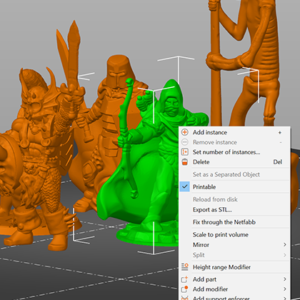
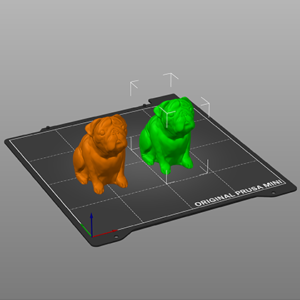
                  When you import multiple models or create many instances of the same model, arranging them on the print bed could be very time-consuming. PrusaSlicer features an auto-arrange tool…

                  Pressure equalizer

                  Pressure equalizer

                  This feature is only available in PrusaSlicer 2.5 and newer. 3D printer extruders love to extrude at a constant rate for the best extrusion consistency. However, during a print,…

                  Simplify mesh

                  Simplify mesh

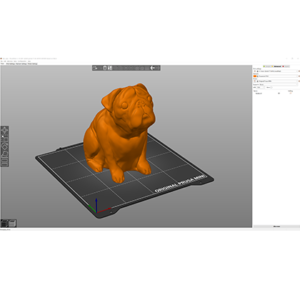
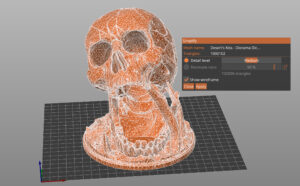
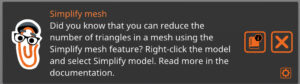
                  3D scans and sculpted models often have a huge number of triangles, making them difficult to work with. These files can slow PrusaSlicer down, take a very long time to slice and…

                  Per model settings

                  Per model settings

                  With PrusaSlicer, you can print multiple models at once, each with slightly different settings. For example, with different infill or layer height.  Right-click (Advanced mode)…

                  Configuration Wizard

                  Configuration Wizard

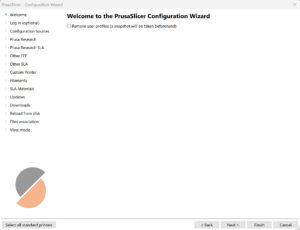
                  When you launch PrusaSlicer for the first time, a Configuration Wizard window opens automatically.  Configuration Wizard can also be launched manually from the top menu by selecting…

                  Multi material painting

                  Multi material painting

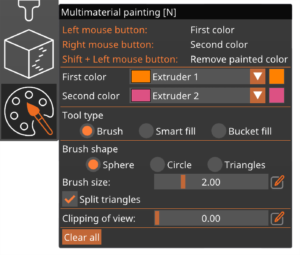
                  Preparing models for multi-material FDM prints used to be a fairly complicated and time-consuming process. Starting with PrusaSlicer 2.4, coloring an object for multi-material…

                  Seam painting

                  Seam painting

                  Starting from PrusaSlicer version 2.3, it is possible to paint on seams on your model.  The seam painting tool provides more detailed control over the seam placement. The tool…

                  FAQ - PrusaSlicer

                  FAQ - PrusaSlicer

                  Q: Is PrusaSlicer free? A: Yes. It’s also open-source, so anyone can contribute to the development. Check our GitHub. Q: Can I use it with other printers (not Original Prusa)? A:…

                  Move, Rotate, Scale tools

                  Move, Rotate, Scale tools

                  Move Left-mouse drag can move objects even when the move tool is inactive. Enabling the Move tool M displays a 3D widget, which lets the user adjust the object’s position in the…

                  Manual profile download for PrusaSlicer 2.9

                  Manual profile download for PrusaSlicer 2.9

                  As an alternative to online sources, profiles can also be updated by manually loading files containing the update. This is mostly useful on computers that are not connected to…

                  Supported file formats

                  Supported file formats

                  3MF The preferred file format also used to save Project files. STL Both binary an ASCII format is supported. STEP The STEP file is triangulated during import. OBJ Information such…

                  Speed settings

                  Speed settings

                  Speed settings for different print moves You can set different speed limits for each of the print move types. Keep in mind, that during printing, the print speeds are affected…

                  Purging volumes (MMU)

                  Purging volumes (MMU)

                  During a filament change, a small amount of melted plastic remains in the nozzle. As the new filament is loaded, it’s melted as well and starts pushing the nozzle content out.…

                  Hollowing

                  Hollowing

                  All objects sliced for the SLA printers are completely solid by default. There is no infill pattern like in FFF/FDM 3D printing. Solid objects printed from the liquid resin can…

                  Preferences

                  Preferences

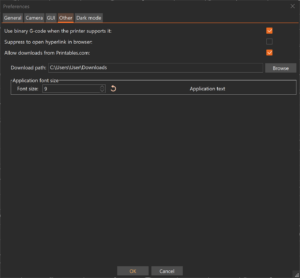
                  You can open the Preferences window by selecting Menu -> Configuration -> Preferences or pressing Ctrl + P. The preferences are split into multiple tabs for easier discoverability. General Remember…

                  Template filaments

                  Template filaments

                  We have added an additional profile that defines most of the commonly used filament materials and brands. It is possible to use these with any 3D printer. However, these universal…

                  ColorPrint with the MMU

                  ColorPrint with the MMU

                  PrusaSlicer supports the following scenarios: Single material printer (or MMU2 in Single extruder mode). In this case, color-changes (manual filament swaps) can be added, but…

                  Object orientation

                  Object orientation

                  Object orientation is crucial with (M)SLA printing. It greatly influences the resulting print quality and in the case of the SL1, which cures the whole layer at once, it directly…

                  Custom bed models

                  Custom bed models

                  PrusaSlicer lets you choose a custom STL and use it as the bed model. You can assign it by selecting Prints tab -> General -> Bed shape -> Set and using Load... in the Model section. If…

                  Keyboard shortcuts

                  Keyboard shortcuts

                  Almost every function of PusaSlicer can be accessed via a keyboard shortcut. In addition to that, many functions have an alternative mode that can be accessed with a modifier key.…

                  Configuration snapshots

                  Configuration snapshots

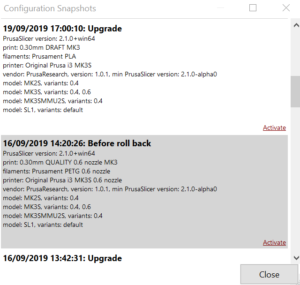
                  A snapshot contains complete configuration, most importantly all system and user profiles, from the point when the snapshot was taken. You can view and move back and forth between…

                  G-code substitutions

                  G-code substitutions

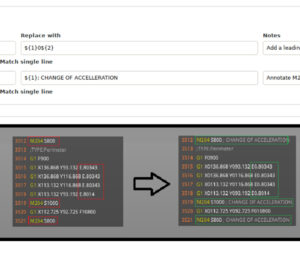
                  This feature will be available in PrusaSlicer 2.4.1 PrusaSlicer offers simple G-Code post-processing by specifying find and replace pairs, with optional regex matching, case sensitivity…

                  Reload from disk

                  Reload from disk

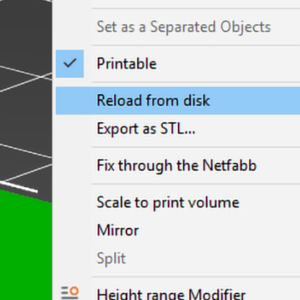
                  This feature is great for cases, where you created a newer version of your model and you wish to replace the old version in PrusaSlicer without having to set up things like custom…

                  Saving projects as 3MF

                  Saving projects as 3MF

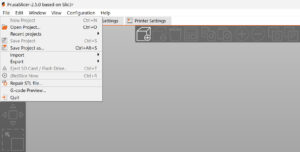
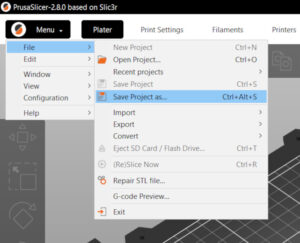
                  Menu -> File -> Save Project as saves a 3MF file containing all objects, settings, modifiers, and their parameters. It’s essentially a complete snapshot of PrusaSlicer. When you…

                  Buddy firmware-specific G-code commands

                  Buddy firmware-specific G-code commands

                  This is a list of currently implemented G-Codes in Prusa Buddy firmware for MINI/MINI+/XL/MK4/MK3.5 printers. The description is available only for Prusa Research-specific G-codes…

                  Assigning tools / colors  / extruders

                  Assigning tools / colors / extruders

                  Assigning tool heads/colors/extruders to different features You can assign different print features to be printed with a different tool in the Print Settings - Multiple Extruders…

                  Importing Multi Material model

                  Importing Multi Material model

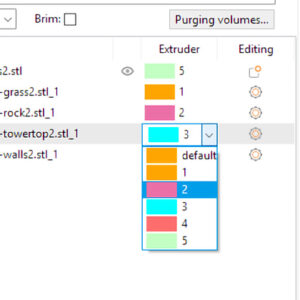
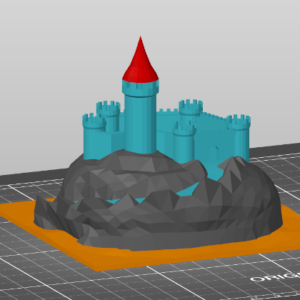
                  Importing multiple STL files as a single multi-material model First of all, switch the printer preset to a Multi Material printer (such as the MMU2S), otherwise, the following…

                  Minimum system requirements

                  Minimum system requirements

                  Hardware configuration CPU: Many computations in PrusaSlicer are multi-threaded and will benefit from a processor with multiple cores and threads. Memory: Minimum 4 GB RAM, recommended…

                  Object manipulation panel

                  Object manipulation panel

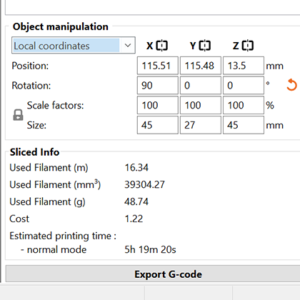
                  Whenever you have one or more objects selected, the Object manipulation panel appears in the right panel.  Using the text inputs, you can modify: Position Rotation Scale factor Size Three…

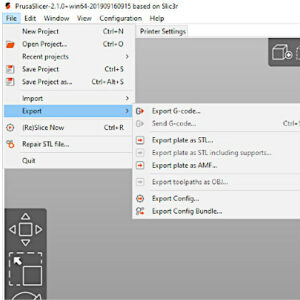
                  Export

                  Export

                  All models on the print bed and PrusaSlicer settings can be saved as a single 3MF Project file via the File -> Save Project as. Make sure to have the latest version of PrusaSlicer. Alternatively,…

                  Simple, Advanced, Expert modes

                  Simple, Advanced, Expert modes

                  The user interface changes in appearance depending on the mode you’re in. You can switch to a different mode using the drop menu on the top right. The reasoning behind the Simple…

                  Slicing mode / 3DLabPrint airplanes

                  Slicing mode / 3DLabPrint airplanes

                  Some options will not appear when PrusaSlicer is in Simple mode. It is possible to change the slicing mode in the PrusaSlicer by going to the printer menu in Print Settings ->…

                  Place on Face tool

                  Place on Face tool

                  It’s possible that a model will be oriented incorrectly after import. This happens especially when the model was exported from a 3D modeling software that uses a different axis…

                  UI overview

                  UI overview

                  PrusaSlicer has a fairly simple user interface. Most of the screen is dedicated to the 3D view, which is used to manipulate 3D models. The top toolbar (1, 2) adds and removes objects.…

                  Copy, paste, instances

                  Copy, paste, instances

                  Copy & paste You can select one or more models and copy/paste them using the buttons in the top toolbar or with the familiar shortcuts: Ctrl + C Copy Ctrl + V Paste Object copies…

                  Perspective/orthographic camera

                  Perspective/orthographic camera

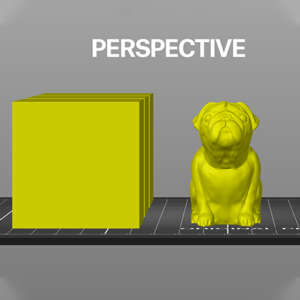
                  You can quickly switch between the perspective and orthographic camera using the K or in the top toolbar by ticking Configuration - Preferences - Use perspective camera. Both cameras…

                  Connecting Original Prusa SL1/SL1S to PrusaSlicer

                  Connecting Original Prusa SL1/SL1S to PrusaSlicer

                  Thanks to the advanced operating system available on the Original Prusa SL1/SL1S SPEED printer, the user is able to transfer the sliced .sl1 or .sl1s files directly from the PrusaSlicer.…

                  Shape Gallery

                  Shape Gallery

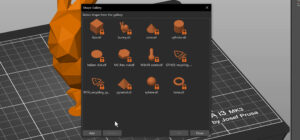
                  The built-in shape gallery provides a quick and easy way to access your most used models, whether you use them as modifiers or to be placed on the platter and printed. The default…

                  3Dconnexion devices

                  3Dconnexion devices

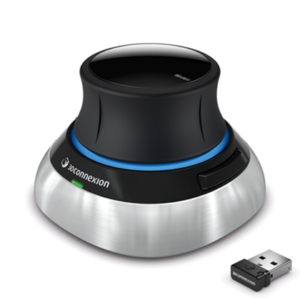
                  It seems that the latest 3DConnexion driver delivers a configuration file, which is no longer compatible with the 3DConnexion driver binary. We have reported this bug to 3DConnexion. If…

                  Get support

                  Get support

                  The search bar on top of this site searches the entire PrusaSlicer documentation as well as assembly guides and related printer hardware troubleshooting guides. If neither has…

                  Object list

                  Object list

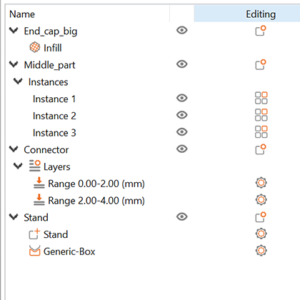
                  The Object list is located in the right panel and shows a hierarchy of: Objects (models) Instances Custom parameters for each object Modifiers - Height range modifiers and Modifier…

                  Miscellaneous

                  Miscellaneous

                  On the Print Settings, Filaments, or Printers tab, there is a menu on the top left side of the screen. This allows you to perform actions concerning the settings on that specific…
                  Dark mode

                  Dark mode

                  OSX and Linux PrusaSlicer supports dark mode on OSX and Linux natively. If you have dark mode enabled in your system settings, PrusaSlicer should automatically start in dark mode…

                  View

                  View

                  Left mouse button Rotate Right mouse button Pan Scrollwheel, I to zoom in, Oto zoom out Zoom   B Zoom on the entire print bed  Z Zoom on selected objects or on all objects if none…

                  Compare presets

                  Compare presets

                  You can easily compare the differences between 2 profiles with a special view. Enable it by selecting Window-Compare presets. You can also enable this view by clicking on a button…

                  Export SD/USB flash drive

                  Export SD/USB flash drive

                  PrusaSlicer automatically detects if you insert an SD card, USB flash drive, or other removable media. When detected, a new Export to SD/USB drive button will appear next to the…

                  Geometrically precise objects

                  Geometrically precise objects

                  Mechanical parts, objects that should fit together, joints, pegs, and similar things need to be printed precisely. While SLA 3D printers are more suitable for printing organic…
                  Export toolpaths as OBJ

                  Export toolpaths as OBJ

                  Exporting the sliced model as OBJ can be useful if you’re familiar with a 3D modeling and rendering program. When you slice a model, you can choose File - Export - Export toolpath…

                  Patterns - set extruder sequence

                  Patterns - set extruder sequence

                  PrusaSlicer lets you define a repeating pattern of color changes. You can access this feature by clicking the gear icon in the bottom right corner of the preview screen. The color…
                  SVG embossing tool

                  SVG embossing tool

                  The SVG emboss tool provides a convinient way to add intricate designs, logos, QR codes and patterns onto 3D printed objects, directly in PrusaSlicer. PrusaSlicer can also wrap…

                  Selecting models

                  Selecting models

                  Basic selection is done with the left mouse button. By holding down the Shift key and clicking on additional models you can add to your current selection. Shift + mouse drag Box…

                  Undo / Redo

                  Undo / Redo

                  All the actions accessible from the 3D editor view are undoable including object selection, actions at the sidebar (adding modifiers, changing their attributes) with the exception…

                  Experimental Printing with Different Nozzle Diameters

                  Experimental Printing with Different Nozzle Diameters

                  Printing with different nozzle diameters is an experimental workflow as it requires tweaking several settings in profiles, and some nozzle combinations may be incompatible, potentially…

                  Search function

                  Search function

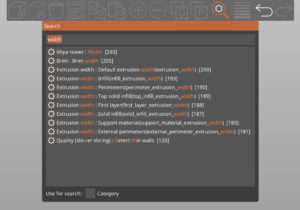
                  PrusaSlicer lets you search for a parameter to quickly access a particular settings page and parameter field. The search is accessible from both the Plater top toolbar and from…

                  Importing profiles (HT90)

                  Importing profiles (HT90)

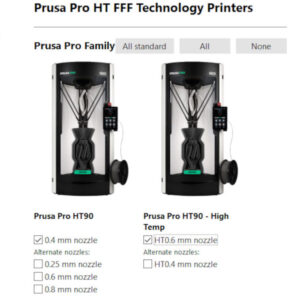
                  When slicing a project for the Prusa Pro HT90, a dedicated PrusaSlicer profile is needed. This profile is included directly within the software and can be activated using the built-in…

                  Tip Of The Day Notifications

                  Tip Of The Day Notifications

                  PrusaSlicer grows more powerful every day. Offering many unique features not found in other slicers. The downside of adding new features is the ever-increasing complexity of the…

                  Pressure Advance

                  Pressure Advance

                  Pressure Advance aims to improve the quality of printed parts by compensating for the pressure changes in the nozzle during printing.  It replaces Linear Advance on MK4/S, MK3.9/S,…

                  Multiple build plates on PrusaSlicer

                  Multiple build plates on PrusaSlicer

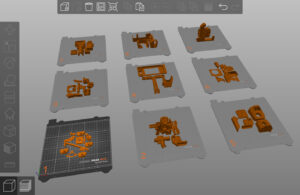
                  Starting from PrusaSlicer version 2.9.0, you can work on multiple build plates. This functionality allows users to manage many objects efficiently and better organize their projects.…

                  Printables in PrusaSlicer

                  Printables in PrusaSlicer

                  Starting from PrusaSlicer version 2.9.0, you can access printables directly from the slicer. The Printables tab is near the Printers tab at the top right. This integration enhances…

                  EasyPrint

                  EasyPrint

                  EasyPrint is a cloud-based slicing utility that allows you to quickly prepare a model for 3D printing from your phone, tablet, or computer and send it to your printer via Prusa…

                  Mutliple extruders settings, Interlocking & Advanced bonding

                  Mutliple extruders settings, Interlocking & Advanced bonding

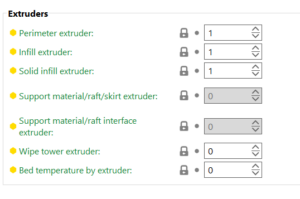
                  Extruders In this section, it is possible to choose which extruder in your printer to print specific parts. Perimeter extruder Extruder to use when printing perimeters and brim. Infill…

                  Belt tuning wizard

                  Belt tuning wizard

                  A new guided wizard has been added to the Prusa CORE One L to help users properly tension the X/Y belts. The printer uses controlled belt excitation combined with stroboscopic…