Prusa
  • SHOP
    • Learn more
    • All deals
    3D printers
    • CORE One+ (Gen2)
    • CORE One L+
    • XL+
    • MK4S
    • Mini+
    • HT90
    Consumables and Merch
    • Prusament
    • Resin
    • Buddy filament
    • Merch
    • Accessories
  • SHOP
    • Latest products
    BY CATEGORY
    • 3D printers
    • Upgrades
    • Materials
    • Accessories
    • Spare parts
    • Courses
    • Merch
    • Sales inquiry & Price quote
    QUICK LINKS
    • Shipping information
    • Refunds & returns
    • Payment options
    • Warranty
    • VAT & Customs fees
    • FAQ

    0 item in your cartitems in your cart

    Your cart is empty

    Go to cartShop 3D printers

    My profile

    Log in to see orders, saved items

    My profile

    Signed in as

    • Orders
    • Logout
  • 3D PRINTING
    • Explore 3D printing
    FOR BEGINNERS
    • 3D printing 101
    • Types of printers (FDM/SLA)
    • How to choose a 3D Printer
    • Printables (3D models)
    BY APPLICATION
    • Rapid prototyping
    • Manufacturing
    • Engineering
    • Research
    • Arts & design
    GO DEEPER
    • Materials guide
    • Courses
    • Webinars
    • Case studies
    • Custom 3D printing
  • 3D PRINTERS
    • All 3D printers
    FOR
    • Home or garageHobbyists, tinkerers and home printing
    • Shop or studioIn-house production for small teams
    • EnterpriseFleets, security and scale
    • How to choose a 3D Printer
    SHOP & BROWSE
    • CORE One+
    • CORE One+ INDX
    • CORE One L+
    • CORE One L+ INDX
    • XL+
    • MK4S
    • Prusa Pro HT90
    • Prusa Pro AFS
    • Prusa Pro SLX
    MORE FROM PRINTERS
    • Upgrades
    • Spare parts
    • Critical infrastructure
    • Case studies
    • Signature Oak
    • Kits
  • MATERIALS
    • All materials
    BY USE
    • Every-day & design
    • Functional engineering
    • Composites
    • Pro speciality
    • SLA resins
    PRUSAMENT
    • PLA
    • PETG
    • ASA
    • PC
    • PA11
    • Flex
    • TPU
    MORE FROM MATERIALS
    • Materials guide
    • We make material in house
    • Sustainability
    • Order on the store
  • SOFTWARE
    • All software
    PREPARE THE PRINT
    • PrusaSlicer
    PRINT & MONITOR
    • Prusa Connect
    • EasyPrint
    • iOS & Android app
    • Prusa Farm
    GET STARTED
    • Download & install
    • Knowledge base
    MORE FROM SOFTWARE
    • Printables (3D models)
  • SUPPORT
    • Explore support
    FIND ANSWERS
    • Knowledge base
    • Troubleshooting
    • Courses
    • Webinars
    GET HELP
    • Contact us
    • Livechat
    • Shipping information
    • Warranty
    • Refunds & returns
    • Spare parts
    • Factory repair
    COMMUNITY
    • Forum
    • Reddit
    • Printables
  • TRUST CENTER
    • Trust Center overview
    BY TOPIC
    • GDPR
    • Certificates
    • Security
    • Compliance
    COMMITMENTS
    • Sustainability report
    TALK TO US
    • Contact the security team
  • COMPANY
    • About Prusa
    GET TO KNOW US
    • Our story
    • How we make printers
    • Open source
    • Brand & media kit
    NEWS
    • Blog
    • Newsroom
    • Events
    TRUST & PARTNERS
    • Sustainability
    • Resellers & distributors
    • Affiliate program
    • Contact
    • English
    • Čeština
    • Deutsch
    • Español
    • Français
    • Italiano
    • Polski
    • 日本語
  • Signed in as

    • Orders
    • Address
    • In-stock Alerts
    • My Courses
    • Subscription
    • Edit Account
    • Logout

Log in to see orders, saved items

Signed in as
  • Orders
  • Address
  • In-stock Alerts
  • My Courses
  • Subscription
  • Edit Account
  • English
  • Čeština
  • Deutsch
  • Español
  • Français
  • Italiano
  • Polski
  • 日本語
Shop

0 item in your cartitems in your cart

Your cart is empty

Go to cartShop 3D printers

My profile

Log in to see orders, saved items

My profile

Signed in as

  • Orders
  • Logout
SHOP
  • Latest products
BY CATEGORY
  • 3D printers
  • Upgrades
  • Materials
  • Accessories
  • Spare parts
  • Courses
  • Merch
  • Sales inquiry & Price quote
QUICK LINKS
  • Shipping information
  • Refunds & returns
  • Payment options
  • Warranty
  • VAT & Customs fees
  • FAQ

Featured products

    Popular categories

      Trending searches

        Articles

          Blog

            Products

              Categories

                Suggested searches

                  Searching…
                  No results
                  Something went wrong.
                  ↑↓ Select↵ OpenEsc Close search
                  1. Support
                  2. Original Prusa MMU2S
                  3. QR Error codes
                  4. FINDA didn't trigger #04101 (MMU)
                   

                  Contents

                  • What happened?
                  • How to fix it?

                  Blog

                  • Prusa Black Friday 2026 Is Here! Grab the Biggest Deals of the Year
                  • 400°C HT Hotend is out! Plus: New Materials and HighTemp Sheets for CORE One+/L+.
                  • Blender for 3D Printing: The 5-Minute Guide to STL Editing

                  Newsletter

                  Signup and get our monthly squeeze on updates, blog, printables and much more.

                  By clicking, you agree to receive our newsletter.

                  This site is protected by reCAPTCHA Enterprise and the Google Privacy Policy and Terms of Service apply.

                  Heavy Duty Keyboard Holder (No Supports)
                  E-shop
                  • 3D Printers
                  • Printer Upgrades
                  • Filaments
                  • Accessories
                  • Prusa Merchandise
                  Prusa

                  © Prusa Research a.s.

                  Printables
                  • 3D Models
                  • Store
                  • Clubs
                  • 3D Design Contests
                  • Brands
                  Community
                  • World Map
                  • Forum
                  • User Groups
                  • Events
                  Help
                  • Prusa Help
                  • Prusa Academy
                  • 3D Printing Calculators
                  Software
                  • PrusaSlicer
                  • Prusa.app
                  • Prusa Connect
                  • Drivers and Software
                  Company
                  • About Us
                  • Blog
                  • Official Prusa Resellers
                  • Contact Us
                  • Certified for ISO 9001, ISO 14001, ISO 45001
                  • General Terms and Conditions
                  • General Terms and Conditions of Use of the PRUSA Websites
                  • Privacy Policy
                  • Information about cookies
                  • Customer Complaints Policy
                  • Status Page
                  • Do Not Sell or Share My Personal Information
                  • Supplemental Statements
                  Prusa
                  • General Terms and Conditions
                  • General Terms and Conditions of Use of the PRUSA Websites
                  • Privacy Policy
                  • Information about cookies
                  • Customer Complaints Policy
                  • Status Page
                  • Do Not Sell or Share My Personal Information
                  • Supplemental Statements

                  © Prusa Research a.s.

                  JOSEF PRUSA®, PRUSA RESEARCH®, PRUSA POLYMERS®, PRUSA ORANGE®, PRUSA 3D ® AND PRUSAMENT® are registered trademarks of Prusa Development a.s. used by Prusa Research a.s. under licence from Prusa Development a.s.

                  FINDA didn't trigger

                  #04101 (MMU)

                  Relevant for

                  MMU2S
                  MMU3
                  14 comments
                  Article is also available in following languages
                  English
                  Čeština
                  Polski
                  Deutsch
                  Français
                  Español
                  Italiano
                  日本語

                  What happened?

                  During Filament loading, either to the MMU unit or to the Nozzle, if the filament does not reach the  SuperFINDA or is not detected, the printer will show an error.

                  How to fix it?

                  FINDA

                  Follow this guide to make sure that your superFINDA is working and has been properly calibrated: FINDA setup and troubleshooting.

                  Assembly

                  • Check if the filament has been grabbed by the idler/pulley. In case it has not, the filament is too far back.
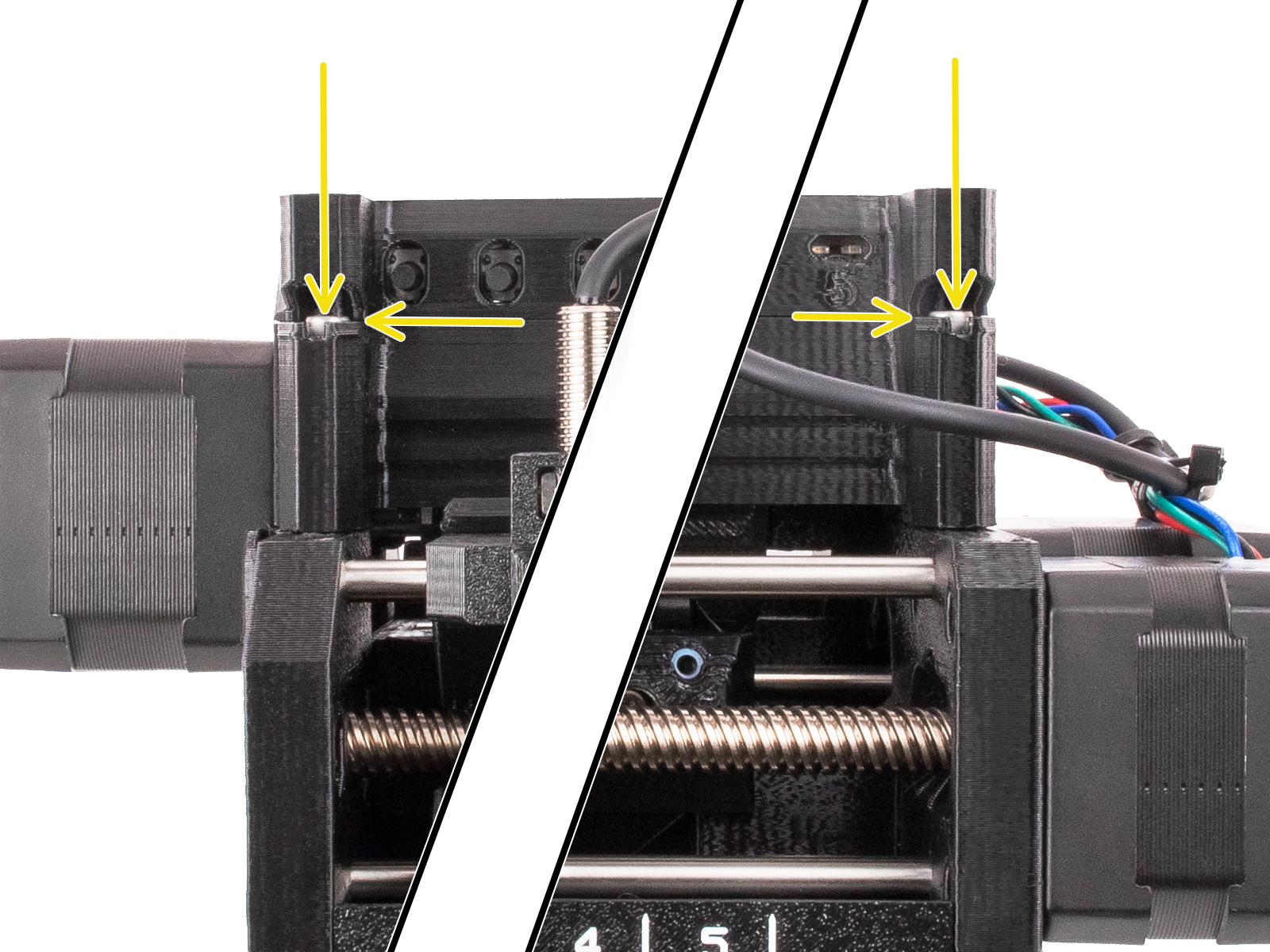
                  • Make sure that the two spring screws on the sides of the MMU unit are properly tightened.
                  • Inspect the filament spool and the buffer for excessive friction or filament jam. Make sure the filament can move freely.
                  • Go over the assembly manual and verify if the barrel is in the correct orientation.
                  • Check the pulley gears for any filament remains, and check if the teeth are clean.
                  • Check that the corresponding pulley inside the MMU unit is properly aligned with the filament and is clean.

                  Selector

                  • Verify if the selector is in the correct position for the given filament number. After several unsuccessful retries, the selector will re-home.
                  • Check the selector for any filament remains and filament strings accumulated.
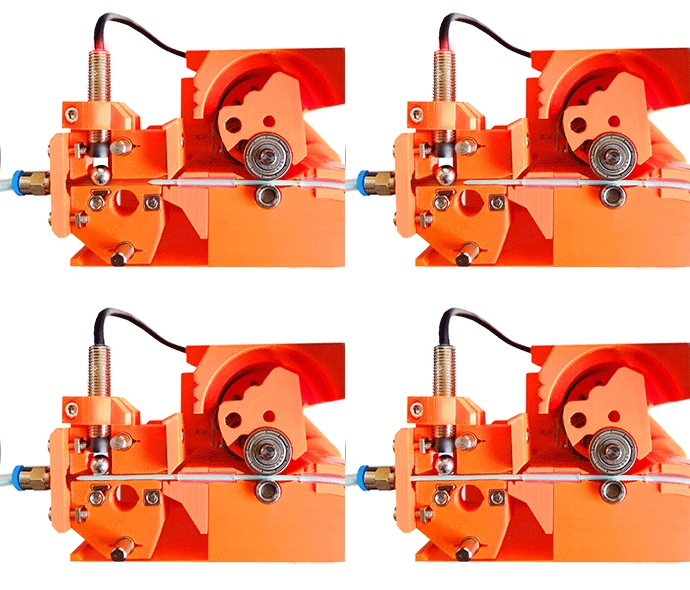
                  • On the MK3.5/S, MK3.9/S, MK4/S, and CORE One, go in the printer menu to Info - Sensor Info, and check if by passing a filament through the FINDA, the status will change.
                  • On the MK3/S/+, go to the printer menu to Support - Sensor Info, and check if by passing a filament through the FINDA the status will change.
                  Filament

                  • Make sure that the PrusaSlicer settings chosen match the filament you are using.
                  • Check if the filament needs to be dried: Drying filament.
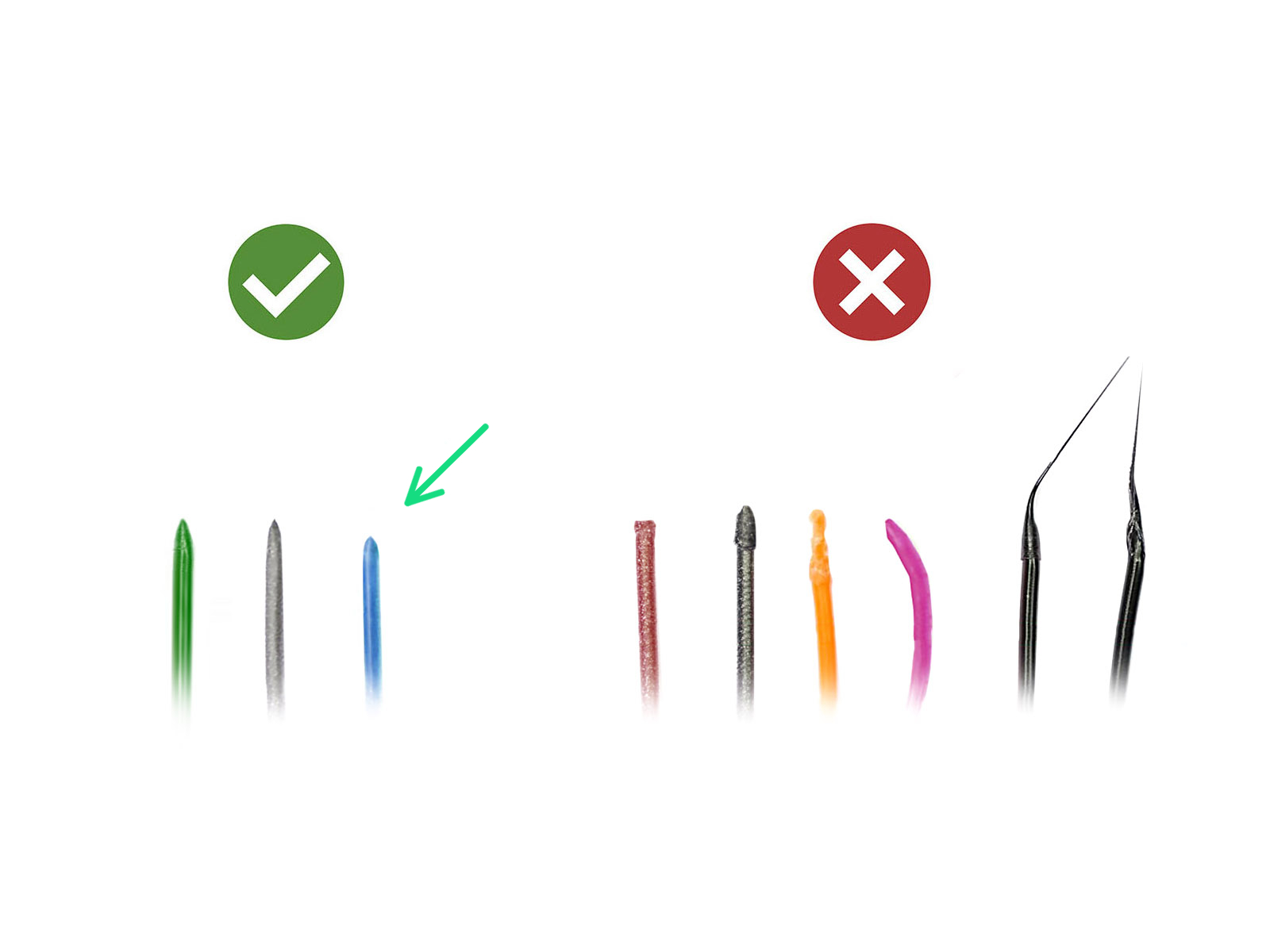
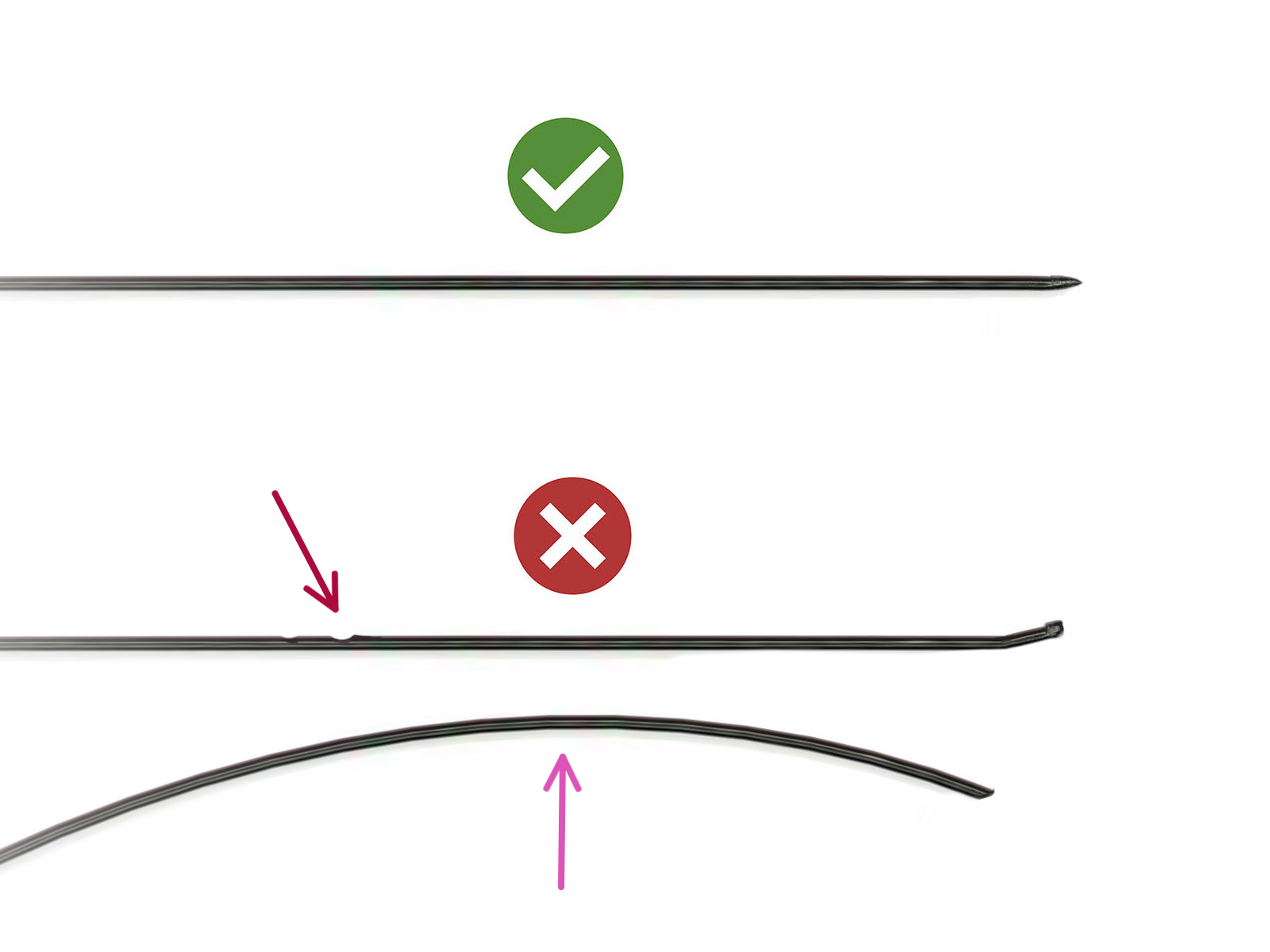
                  • The filaments must have a sharp tip in order to load properly into the printer. If the tip is deformed, bent, or larger in diameter, cut it off.
                  • Inspect the last 40cm (15") of each filament. Make sure there are no dents in it.
                  • If the filament is still not being pulled, check the assembly.


                  Was this article helpful?
                  This action is available only to registered users. Please log-in.

                  Topics

                  • Troubleshooting
                    • QR Error codes
                      • FINDA didn't trigger #04101 (MMU)
                      • FINDA: Filament Stuck #04102 (MMU)
                      • Filament sensor didn't trigger #04103 (MMU)
                      • Filament sensor: Fil. stuck #04104 (MMU)
                      • Pulley cannot move #04105 (MMU)
                      • Idler cannot home #04125 (MMU)
                      • Selector cannot home #04115 (MMU)
                      • Selector cannot move #04116 (MMU)
                      • Filament sensor too early #04106 (MMU)
                      • Inspect FINDA #04107 (MMU)
                      • MMU Overcurrent #31310 (CORE One) #35310 (CORE One L) #26310 (MK4S) #13310 (MK4) #27310 (MK3.9S) #21310 (MK3.9) #28310 (MK3.5S) #23310 (MK3.5)
                      • Load to extruder failed #04108 (MMU)
                      • Unload manually #04506 (MMU)
                      • Filament ejected #04507 (MMU)
                      • MMU Selftest failed #04305 (MMU)
                      • MMU not responding #04401 (MMU)
                      • Communication error #04402 (MMU)
                      • Firmware update needed #04504 (MMU)
                      • Firmware runtime error #04505 (MMU)
                      • TMC driver error #04301 (MMU)
                      • Invalid tool #04502 (MMU)
                      • Filament already loaded #04501 (MMU)
                      • Queue full #04503 (MMU)
                      • Unknown error #04900 (MMU)
                      • Warning: TMC too hot #04201 (MMU)
                      • Warning: TMC too hot #04211 (MMU)
                      • Warning: TMC too hot #04221 (MMU)
                      • TMC overheat error #04202 (MMU)
                      • TMC overheat error #04212 (MMU)
                      • TMC overheat error #04222 (MMU)
                      • TMC Driver reset #04302 (MMU)
                      • TMC Driver reset #04312 (MMU)
                      • TMC Driver reset #04322 (MMU)
                      • TMC Undervoltage error #04303 (MMU)
                      • TMC Undervoltage error #04313 (MMU)
                      • TMC Undervoltage error #04323 (MMU)
                      • MMU MCU Error #04306 (MMU)
                      • TMC driver error #04311 (MMU)
                      • TMC driver error #04321 (MMU)
                      • MMU Selftest failed #04315 (MMU)
                      • MMU Selftest failed #04325 (MMU)
                      • Filament change #04508 (MMU)
                      • MMU MCU Underpower #04307 (MMU)
                      • TMC driver shorted #04304 (MMU)
                      • TMC driver shorted #04314 (MMU)
                      • TMC driver shorted #04324 (MMU)
                      • Print preview MMU filament inserted #31806 (CORE One) #26806 (MK4S) #13806 (MK4) #27806 (MK3.9S) #21806 (MK3.9) #28806 (MK3.5S) #23806 (MK3.5)
                      • Print preview tools mapping #31814 (CORE One) #36814 (CORE One INDX) #17814 (XL) #26814 (MK4S) #13814 (MK4) #27814 (MK3.9S) #21814 (MK3.9) #28814 (MK3.5S) #23814 (MK3.5)
                      • MMU load unload error #31815 (CORE One) #26815 (MK4S) #13815 (MK4) #27815 (MK3.9S) #21815 (MK3.9) #28815 (MK3.5S) #23815 (MK3.5)
                      • Maintenance warning #31117 (CORE One) #26117 (MK4S) #13117 (MK4) #27117 (MK3.9S) #21117 (MK3.9) #28117 (MK3.5S) #23117 (MK3.5)
                      • Maintenance failure warning #28116 (MK3.5S) #23116 (MK3.5)
                      • Maintenance failure warning #31116 (CORE One) #26116 (MK4S) #13116 (MK4) #27116 (MK3.9S) #21116 (MK3.9)
                    • Diagnostics
                    • Print Quality Troubleshooting
                    • Printer troubleshooting
                    • Print Error Messages

                  10 comments

                  Log in  to post a comment
                  YuzuDrink
                  •
                  I had one of the grub screws in the MMU feeder fall out. Release the idler by unscrewing the top two tension bolts, then check the 5 feeder guys. You can twist the motor shaft by hand. The grub screws should all line up on the flat edge of the motor shaft, and the grub screws should all be tight enough that they don’t come undone and the feeder guys don’t slide back and forth on the motor shaft.

                  When you re-screw in the tensioner bolts, make sure you get the right tension. I currently have mine aligned with the top of the little viewer tunnel at the front of the tension shaft (not the very top of the lower piece, it’s about 3mm lower) and the print has resumed and it seems okay through a few filament changes so far…
                  Reply
                  Douglas Miller
                  •
                  I was printing a multi-color object with nearly 24 hours into the process and 87% complete when the SuperFINDA failed. The red indicator light would not illuminate when the filament cleared the sensor even though the ball bearing was free moving and had been performing perfectly in all prior prints. Other than checking the FINDA operation through the Core One+ having a method to check it with a VOM would provide a comfort factor before ordering a replacement. Since I am not familiar with the proximity sensor I am not sure what I should look for, although it may be an open/closed circuit indication or a specific resistance reading. Anyway, it would be interesting to note the reliability/failure rate of the sensor to get a feel for the life expectancy of the SuperFINDA. If anyone has some experience with this it would be interesting to know.
                  Reply
                  Brock Bascue
                  •
                  Help for issues regarding the retry.

                  First and foremost. Know the steps it takes to get the filament into the extruder. This will help you identify what issues you are having, and what steps you need to take to fix it.

                  1. If you are getting stuck when it feeds to the extruder and you don't get all the white blocks. 9 out of 10 its the tip. First remove the clear tube and hit retry. It is going to push out about 12 inches, feel for a flat spot as it comes out to eliminate the second issue also look at the tip. Once it starts to retract back in cut it at a 45 degree angle 4 inches back. Then put the clear tube back on it will try to feed a second time.

                  1 out 10 (not all white blocks) there is something in the extruder near the gears blocking the sensor. On a mk3, I take the top off and loose the screw with the spring on the left side. I opened the side door and clean the idler assembly out. Hit retry.

                  One time the finda sensor was not sensing. The filament had pulled out too far. I took the cartridge out and had to hand feed it back in. I also had to use a thin allen key to guide the tip back into the tube. I hit retry and gave a little pressure pushing the filament back in. Do not push hard. Make sure it is moving to the extruder. ****** If its completely out save yourself the trouble and cut the tip and look for a worn spot on the filament.

                  Lastly, I have seen filament be different sizes. You have to adjust the idler gear on the extruder to accommodate all your filaments.

                  If the filament has a stringy tip you will have to adjust the temp this could be for 5 different filaments. Honestly there is alot going on an takes patience.

                  Nothing is perfect but I have never lost a print to these failures. I am glad there is a "Retry"
                  Reply
                  Randy
                  •
                  I’m attempting to load CR-TPU. I have it in position 5 as suggested. I’ve tested 1-4 without issues. Position 5 has failed and I don’t know how to get the MMU out of the way so I can get the filament back into the MMU bushing. Do I hit reset so I can gel out of the load testing?
                  Reply
                  jl212k
                  •
                  Loosen the 2 screws to open the top. You can manually feed the filament back in. You will see the sensor light turn off. Pull it back until it turns back on. Retry. Been a bit of a learning curve and a tad frustrating but I am working through it. End result is well worth it.
                  Reply