Prusa
  • SHOP
    • Latest products
    BY CATEGORY
    • 3D printersnew
    • 3D printer upgradesnew
    • Materials
    • Accessories
    • Spare parts
    • Courses
    • Merch
    • Get a price quote
    QUICK LINKS
    • Shipping & delivery
    • Returns & refunds
    • Payment & financing
    • Warranty
    • VAT & Customs fees
    • FAQ

    0 item in your cartitems in your cart

    Your cart is empty

    Go to cartShop 3D printers

    My profile

    Log in to see orders, saved items

    My profile

    Signed in as

    • Orders
    • Logout
  • 3D PRINTING
    • Explore 3D printing
    FOR BEGINNERS
    • 3D printing 101
    • How FDM printing works
    • Buying your first printer
    • 3D model catalog
    BY APPLICATION
    • Rapid prototyping
    • Manufacturing
    • Engineering
    • Research
    • Arts & design
    GO DEEPER
    • Materials guide
    • Courses
    • Webinars
    • Case studies
    • Custom 3D printing
  • 3D PRINTERS
    • All 3D printers
    FOR
    • Home or garageHobbyists, tinkerers and home printing
    • BusinessIn-house production for small teams
    • EnterpriseFleets, security and scale
    • Which Prusa is right for me
    SHOP & BROWSE
    • CORE One+new
    • CORE One+ INDXnew
    • CORE One L+new
    • CORE One L+ INDXnew
    • XL+new
    • MK4S
    • Prusa Pro HT90
    • Prusa Pro AFS
    • Prusa Pro SLX
    MORE FROM PRINTERS
    • Parts & upgradesnew
    • Critical infrastructure
    • Case studies
    • Signature Oak
    • Kits
  • MATERIALS
    • All materials
    BY USE
    • Every-day & design
    • Functional engineering
    • Composites
    • Pro speciality
    • SLA resins
    PRUSAMENT
    • PLA
    • PETG
    • ASA
    • PC
    • PA11
    • Flex
    • TPU
    MORE FROM MATERIALS
    • Materials guide
    • We make material in house
    • Sustainability
    • Order on the store
  • SOFTWARE
    • All software
    PREPARE THE PRINT
    • PrusaSlicer 3.0New
    PRINT & MONITOR
    • Prusa Connect
    • EasyPrint
    • iOS & Android app
    • Prusa Farm
    GET STARTED
    • Download & install
    • Knowledge base
    MORE FROM SOFTWARE
    • 3D model catalog
  • SUPPORT
    • Explore support
    FIND ANSWERS
    • Knowledge base
    • Troubleshooting
    • Courses
    • Webinars
    GET HELP
    • Contact us
    • Livechat
    • Shipping & delivery
    • Warranty
    • Returns & refunds
    • Service & spare parts
    • Service & Repair
    COMMUNITY
    • Forum
    • Reddit
    • Printables
  • TRUST CENTER
    • Trust Center overview
    BY TOPIC
    • GDPR
    • Certificates
    • Security
    • Compliance
    COMMITMENTS
    • Sustainability report
    TALK TO US
    • Contact the security team
  • COMPANY
    • About Prusa
    GET TO KNOW US
    • Our story
    • How we make printers
    • Open source
    • Brand & media kit
    NEWS
    • Blog
    • Newsroom
    • Events
    TRUST & PARTNERS
    • Sustainability
    • Resellers & distributors
    • Affiliate program
    • Contact
    • English
    • Čeština
    • Deutsch
    • Español
    • Français
    • Italiano
    • Polski
    • 日本語
  • Signed in as

    • Orders
    • Address
    • In-stock Alerts
    • My Courses
    • Subscription
    • Edit Account
    • Logout

Log in to see orders, saved items

Signed in as
  • Orders
  • Address
  • In-stock Alerts
  • My Courses
  • Subscription
  • Edit Account
  • English
  • Čeština
  • Deutsch
  • Español
  • Français
  • Italiano
  • Polski
  • 日本語
Shop

0 item in your cartitems in your cart

Your cart is empty

Go to cartShop 3D printers

My profile

Log in to see orders, saved items

My profile

Signed in as

  • Orders
  • Logout
SHOP
  • Latest products
BY CATEGORY
  • 3D printersnew
  • 3D printer upgradesnew
  • Materials
  • Accessories
  • Spare parts
  • Courses
  • Merch
  • Get a price quote
QUICK LINKS
  • Shipping & delivery
  • Returns & refunds
  • Payment & financing
  • Warranty
  • VAT & Customs fees
  • FAQ

Featured products

    Popular categories

      Trending searches

        Articles

          Blog

            Products

              Categories

                Suggested searches

                  Searching…
                  No results
                  Something went wrong.
                  ↑↓ Select↵ OpenEsc Close search
                  1. Support
                  2. PrusaSlicer
                  3. Advanced features
                  4. Text tool
                   

                  Contents

                  • Adding text to existing models
                  • Creating standalone text objects
                  • Text manipulation
                  • Fonts
                  • Text presets
                  • Embossing, debossing and modifiers
                  • Make the text follow curved surfaces

                  Blog

                  • Print colorful and glowing Halloween decorations with our spooky offer
                  • Factorio Has Arrived on Printables
                  • Prusament PLA Lightweight: 65% lighter than regular PLA. Perfect choice for aircraft, cosplay, and more.

                  Newsletter

                  Signup and get our monthly squeeze on updates, blog, printables and much more.

                  By clicking, you agree to receive our newsletter.

                  This site is protected by reCAPTCHA Enterprise and the Google Privacy Policy and Terms of Service apply.

                  Factorio Transport Belts
                  E-shop
                  • 3D Printers
                  • Printer Upgrades
                  • Filaments
                  • Accessories
                  • Prusa Merchandise

                  © Prusa Research a.s.

                  Printables
                  • 3D Models
                  • Store
                  • Clubs
                  • 3D Design Contests
                  • Brands
                  Community
                  • World Map
                  • Forum
                  • User Groups
                  • Events
                  Help
                  • Prusa Help
                  • Prusa Academy
                  • 3D Printing Calculators
                  Software
                  • PrusaSlicer
                  • Prusa.app
                  • Prusa Connect
                  • Drivers and Software
                  Company
                  • About Us
                  • Blog
                  • Official Prusa Resellers
                  • Contact Us
                  • Certified for ISO 9001, ISO 14001, ISO 45001
                  • General Terms and Conditions
                  • General Terms and Conditions of Use of the PRUSA Websites
                  • Privacy Policy
                  • Information about cookies
                  • Customer Complaints Policy
                  • Status Page
                  • Do Not Sell or Share My Personal Information
                  • Supplemental Statements
                  • General Terms and Conditions
                  • General Terms and Conditions of Use of the PRUSA Websites
                  • Privacy Policy
                  • Information about cookies
                  • Customer Complaints Policy
                  • Status Page
                  • Do Not Sell or Share My Personal Information
                  • Supplemental Statements

                  © Prusa Research a.s.

                  JOSEF PRUSA®, PRUSA RESEARCH®, PRUSA POLYMERS®, PRUSA ORANGE®, PRUSA 3D ® AND PRUSAMENT® are registered trademarks of Prusa Development a.s. used by Prusa Research a.s. under licence from Prusa Development a.s.

                  Text tool

                  Relevant for

                  PrusaSlicer
                  52 comments
                  Article is also available in following languages
                  English
                  Čeština
                  Polski
                  Deutsch
                  Français
                  Español
                  Italiano
                  日本語

                  The Text tool lets you easily add labels, notes, signs, serial or version numbers to your models directly in PrusaSlicer. You can add text to any type of surface, not just planar faces, but even to curved surfaces. The text entities are fully editable even after re-opening a saved project file. 
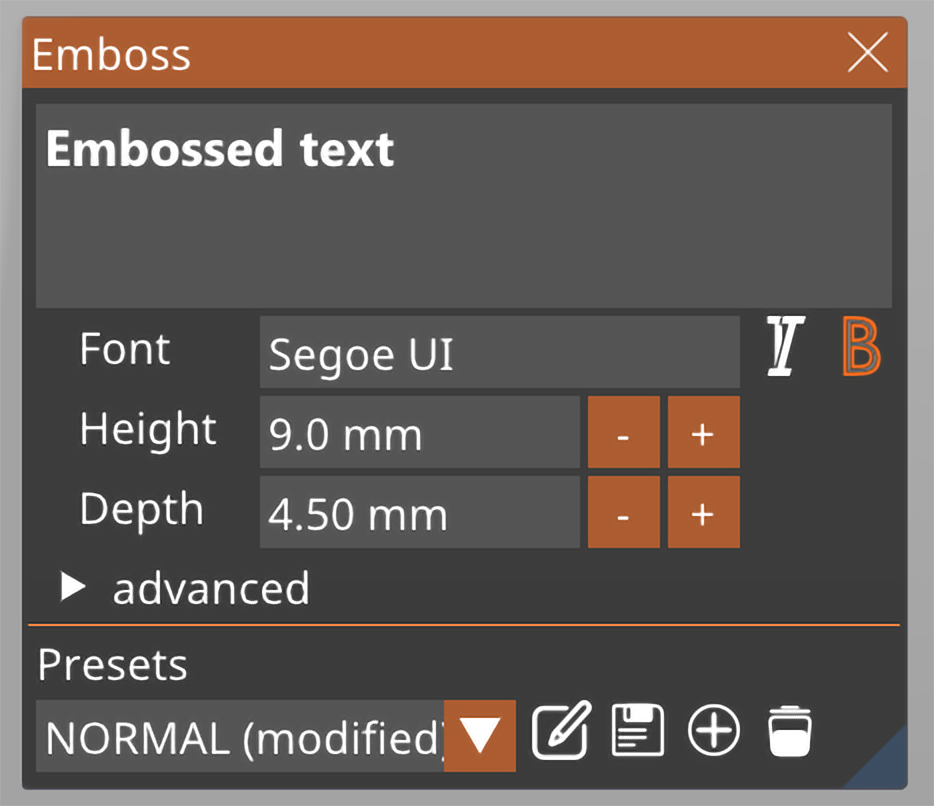
                  Adding text to existing models

                  Select the target model and press the T key. Alternatively, you can right-click on the model and select Add part - Text, from the context menu.

                  Creating standalone text objects

                  Right-click the platter and select Add shape - Text. This will create a standalone object not connected to other objects in the project.

                  Text manipulation

                  You can manipulate the text by dragging it around the object and placing it in the desired position. When you're dragging the text object on the model, a white marker will appear, highlighting the position at which the surface normal is calculated.

                  You also have the option to rotate the text along the Z-axis (Z-rot) and elevate it along the Z-axis (Z-move).

                  Fonts

                  The text tool automatically import's the font library on your device. Any TrueType Font (TTF) should work correctly. If you install a new font on your device, you don't have to restart PrusaSlicer to be able to use it, simply close and open the text tool again and PrusaSlicer will load the newly added fonts.

                  Text presets

                  You can save and load text presets. These include all the text settings, such as the selected font, the text height, and depth, but also all of the advanced settings. Text presets are especially useful if you want to maintain a consistent text style when creating version numbers and similar labels.

                  Embossing, debossing and modifiers

                  In the Text tool context menu, you can select whether the text is to object:

                  • Added - this creates a new part and embosses the text
                  • Subtracted - this creates a negative volume, which debosses the text
                  • Modifier - this creates a modifier

                  You can also switch between these object types later. Simply right-click the Text object in the Object list and select Change type from the context menu.
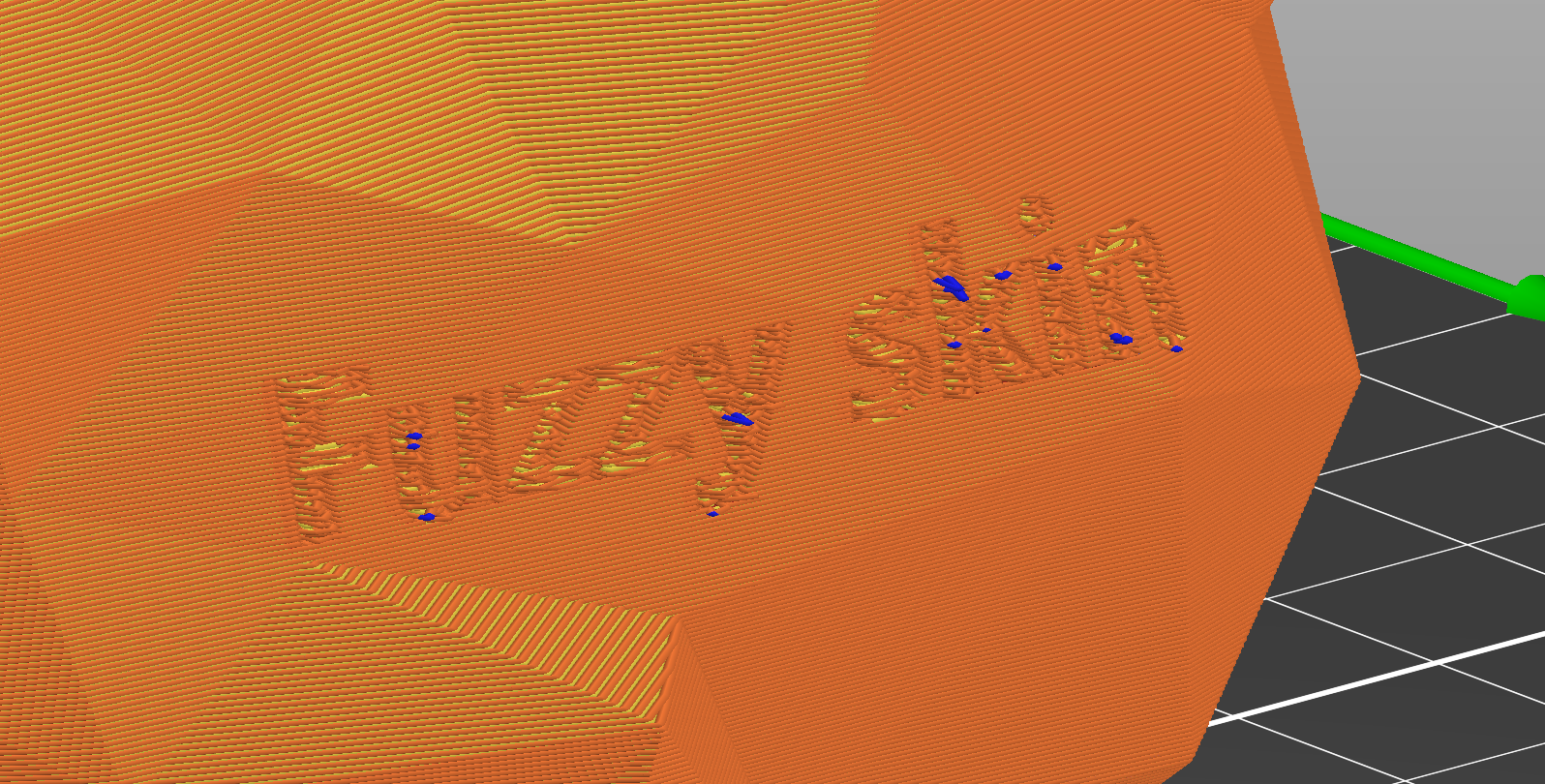
                  Text used as a modifier to turn on Fuzzy skin


                  Make the text follow curved surfaces

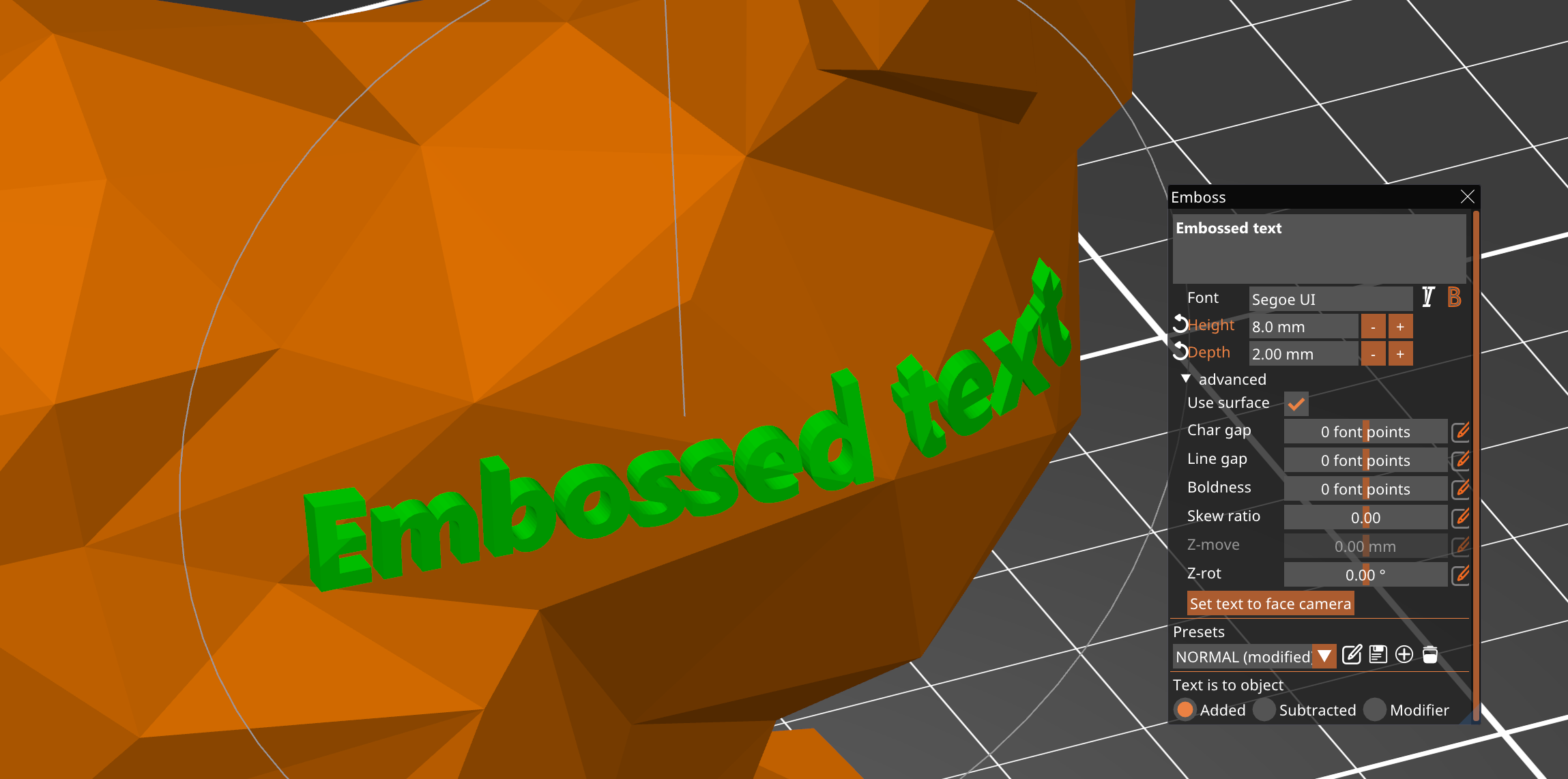
                  If you expand the advanced text menu, you have the option to enable the Use surface option. The text will curve along the surface beneath it.

                  However, the limit is 90 degrees. As you approach this angle, the text will become more and more deformed.


                  Was this article helpful?
                  This action is available only to registered users. Please log-in.

                  Topics

                  • PrusaSlicer 2.9 (Legacy)
                    • Advanced features
                      • Per model settings
                      • Color change
                      • Modifiers
                      • Reload from disk
                      • Insert pause or custom G-code at layer
                      • Negative volume
                      • Simplify mesh
                      • Post-processing scripts
                      • Shape Gallery
                      • Compare presets
                      • G-code substitutions
                      • Text tool
                      • SVG embossing tool
                      • Pressure Advance
                    • About PrusaSlicer
                    • Configuration and profiles
                    • User interface
                    • Input/output
                    • Left toolbar
                    • Top toolbar
                    • Print settings
                    • Filament settings
                    • Printer settings
                    • Multi-material slicing
                    • SLA slicing
                    • Other (PrusaSlicer)

                  29 comments

                  Log in  to post a comment
                  Tinker Labs
                  •
                  I have placed an Emboss Text on an STL, and under the Alignment tab inside Advanced, it's set to "Center" and "Middle". Center makes sense, and is working properly, but "Middle" is weird. When I resize the Height of the text, it's not maintaining the "Middle" of the text position, it moves *down* a bit. I say a "bit" because if I select "Bottom" then it holds the bottom of the text in place, and shrinks from the top, selecting "Top" holds the top in place, shrinking from the bottom upwards. BUT "Middle" shrinks from the top AND the bottom (as expected) but the text drifts down of the old Middle Center point on my STL. What is "Middle" supposed to do?
                  Reply
                  Mondegrue
                  •
                  I should be able to use a function like "place on face" to put the text on a specific face and then slide it around on that face using mouse or arrow keys If it's cut (which should be called "embossed") it should be below the face. If it's join (which should be called "extruded" or "debossed"), it should be above the face. As it is, I find it impossible to get the text where I want it.
                  Reply
                  Steve
                  •
                  I'm also having issues with making the font flush with the surface I'm placing it on. Please fix this. I guess for now I'll just modify the part in Fusion 360, which is an extra step I'd rather not have to do. I was excited when I first found this function, but now I'm disappointed.
                  Reply
                  MagnusVesper
                  •
                  You can add the text as a modifier, then add the "extruder" setting to it. Then right click on the text in the list of objects on the right and select "Add Settings -> Extruders". Each filament slot on the MMU is considered an extruder here.
                  The text modifier object will have an extruder column in the object list that you can change like how you normally set the color of different objects. But that doesn't work here, you have to use the "Add Settings" method.
                  Reply
                  userprintly
                  •
                  If I right-click on the surface I want to place the font on then select "Add Modifier --> Text" it defaults to aligning the text with the surface. E.g. if I'm adding text to a 4-sided pyramid, then the text will align to whichever face I right click on when adding the modifier.
                  Reply
                  Fred
                  •
                  I have a Prusa XL 5 tool printer. The modify text option is inconsistent. I try to use it to indentify a model ID for printed models. I want the text flush with the bottom of the model in a different color used in the model. It works great sometimes but not a all other times. The model shows the text but when sliced the text is not shown or printed at times. I use both add modified - text or add part - text and than change text to modifier. The result is the same works sometimes and not others. Changing extruder has no impact and color has no impact. I'm at a loss on how to use this great feature reliably.
                  Reply
                  Fred
                  •
                  The modify text option is inconsistent. I try to use it to indentify a model ID for printed models. I want the text flush with the bottom of the model in a different color used in the model. It works great sometimes but not a all other times. The model shows the text but when sliced the text is not shown or printed at times. I use both add modified - text or add part - text and than change text to modifier. The result is the same works sometimes and not others. Changing extruder has no impact and color has no impact. I'm at a loss on how to use this great feature reliably.
                  Reply