AA

Featured products

    Popular categories

      Trending searches

        Articles

          Blog

            Products

              Categories

                Suggested searches

                  Searching…
                  No results
                  Something went wrong.
                  ↑↓ Select↵ OpenEsc Close search
                  • English
                  • Čeština
                  • Deutsch
                  • Español
                  • Français
                  • Italiano
                  • Polski
                  • 日本語
                  • Orders
                  • Address
                  • In-stock Alerts
                  • My Courses
                  • Subscription
                  • Edit Account
                  • 3D printers9+▾

                    3D printersnew

                    newPrusa CORE One L+Learn more
                    newPrusa CORE One+ (Gen 2)Learn more
                    newPrusa CORE One L+ INDX 8-ToolnewPrusa CORE One+ (Gen 2) INDX 8-ToolPrusa CORE One L+: Critical InfrastructureOriginal Prusa MK4SnewOriginal Prusa XL+Original Prusa XL+: Critical Infrastructure

                    Printer upgrades

                    newINDX Conversion KitsnewPrusa CORE One L to CORE One L+ upgradenewPrusa CORE One+ to Prusa CORE One+ (Gen 2)newPrusa XL to Prusa XL+ Upgrade
                    Prusa Reward ProgramLove your Prusa printer? Share your experience and earn $30 Prusa e-shop vouchers.
                    How to Choose a 3D Printer?We’ll walk you through the basics to find the exact machine for your space, budget, and ideas.
                    Free E-bookDownload a free e-book Basics of 3D Printing with Josef Prusa and make your first steps in 3D printing world
                    Original Prusa Printable PartsCollections of printable spare parts for Original Prusa 3D printers and upgrades.
                    Shipping informationRegularly updated info about the current manufacturing capacity and delivery times of our printers.
                    Custom 3D PrintingProfessional custom 3D printing from various materials according to your requirements.
                  • Materials▾

                    Filaments

                    PrusamentPLAPETGASA / ABSPC (Polycarbonate)PA (Nylon)FlexCompositesSpecialMaterials clearance sale

                    Resin

                    Prusament ResinResin Cleaner
                    Filament GuideCheck my Prusament Spool
                    Prusament.com
                  • Parts & Accessories▾

                    Accessories

                    EnclosuresNozzlesPrint SheetsEssential AccessoriesCameras & AddonsTools & CraftingAdhesives

                    Spare parts

                    Merchandise

                    Spare parts - All PrintersCORE OneMK4/S & MK3.9/SMK3/S/+XL
                    Merch
                  • For Business▾
                    Prusa Pro HT90Prusa Pro SLXPrusa Pro AFSPrusa Pro Medical OneOriginal Prusa XLOriginal Prusa XL: Critical Infrastructure
                    Prusa CORE One+Learn more
                    Prusa CORE One LLearn more
                    Prusa CORE One L: Critical Infrastructure Edition

                    3D Printing for

                    Manufacturing and R&DAutomotive IndustryHealthcareEducation and Academic ResearchArchitects and DesignersFilm IndustryCritical Infrastructure

                    3D Printing Stories

                    • How 3D printing started: About Rep-rap and open-source with Adrian Bowyer
                    • Teaching mathematics redefined with 3D printing at JKU Linz
                    • The story behind the LTT screwdriver
                    • Victoria Hand Project: Changing Prosthetic Care with 3D Printing
                    Official Prusa Resellers
                    Sustainability
                    Prusa Education
                    Contact and Inquiry
                    Custom 3D Printing
                    ISO Certified
                  • Software▾
                    PrusaSlicer

                    PrusaSlicerPrusaSlicer

                    PrusaSlicer is an open-source, feature-rich, frequently updated tool that contains everything you need to export the perfect print files for your 3D printer.

                    WindowsMacOSLinux
                    Prusa Connect

                    Prusa Connect

                    Prusa Connect is a cloud service enabling remote control and monitoring of your 3D printers, offering secure data handling, easy setup, and support for managing multiple printers from anywhere.

                    Log in to Connect
                    Prusa.app

                    Prusa.app

                    Control your printer/s remotely from anywhere using the Prusa Connect technology behind. Prusa.app brings a new level of Prusa printer experience to Android and iOS phones.

                    Try it now!
                    Drivers & FirmwareDownload the latest firmware and drivers for your 3D printer.
                    PrusaSlicer Support
                    Prusa Connect Support
                  • 3D Models▾
                    3D PrintersArt & DesignHobby & MakersHouseholdTabletop MiniaturesToys & GamesPrintables Store

                    Popular 3D models

                    • Strong garden hose holder
                    • Prusa Spool Bot
                    • Build Tray — Modular Organizer for Assembly, Disassembly and Maintenance
                    • Broom Holder
                    • Octagon Fabric
                    • Prusa CORE One ? (Mimic Skin)

                    Design Contests

                    • Ponowne wykorzystanie płyty głównej Framework Laptop 129/1/2026 – 9/30/2026
                    • 🏆 Wyzwanie dla projektantów: Magiczne sztuczki!9/1/2026 – 9/22/2026
                    • Organizery do makijażu9/4/2026 – 9/20/2026
                  • Community▾

                    Upcoming Events

                    • 3D Printopia 20269/26/2026 – 9/27/2026 · Pennsylvania, United States · Prusa Team
                    • Maker Faire Bay Area9/25/2026 – 9/27/2026 · Kalifornie, United States · Prusa Team
                    • Hobby Messe10/2/2026 – 10/4/2026 · Sachsen, Germany · Prusa Team
                    • Mezinárodní strojírenský veletrh10/6/2026 – 10/9/2026 · Jihomoravský kraj, Czechia · Prusa Team

                    Prusa Forum

                    • CoreOne with MMU upgrade to INDX
                    • Worm gear problems......how do I print it?
                    • Issues with printing on new CORE ONE +
                    Prusa World MapPrusa World MapFind local 3D printing users and explore the community around you.
                  • Help▾
                    Guides & TutorialsPrusaSlicerPrusa ConnectMaterials

                    Printer Model

                    CORE One INDXCORE One LCORE One+CORE One

                    Hardware Troubleshooting

                    • Selftest failed (CORE One/+)
                    • Clogged nozzle (CORE One, CORE One L, XL, MK4/S, MK3.9/S)
                    • Adjusting belt tension (CORE One/+, CORE One INDX, CORE One L/+)
                    • Prusa Connect and PrusaLink explained

                    Drivers & Firmware

                    INDX familyCORE One familyMK4 familyXL familyMMU familyPRO family
                  • Courses▾

                    Become an expert in 3D printing

                    Prusa Academy offers online courses on various 3D printing related topics. Each course features:

                    • easy-to-read text with many pictures and short videos
                    • links for inspiration and further study
                    • quizzes for testing your knowledge along the way
                    • certificate of completion
                    Browse all coursesMy courses library
                    • 3D Modeling in Autodesk Fusion
                    • PrusaSlicer Masterclass – Beginner to Advanced
                    • Complete Guide to 3D Print Postprocessing, Painting, and Detailing
                    • Beginner's Guide to Blender for 3D Printing: Edit and Remix STLs
                  • Blog▾
                    • Prusament PLA ColorMix: Print 45 color shades using just five filament spools (and more)
                    • Back-to-School 2026 Deals Are Here!
                    • PrusaSlicer 3.0 Preview – Built for the Future of 3D Printing
                    E-Book: Basics of 3D Printing
                  • Company▾

                    About Prusa Research

                    We are the largest maker of 3D printers in Europe and the United States.

                    Founded as a one-man startup in 2012 by Josef Prusa, a Czech hobbyist, maker, and inventor. In just 15 years, we've grown into a company of more than 1,200 people. Every month, we design, build, and ship over 10,000 innovative and secure 3D printers from our headquarters in Prague, Czech Republic, and Delaware, USA, to users in more than 160 countries.

                    Watch a video and find out how Prusa Research was born and what we achieved within only 10 years!

                    About UsTimelineSustainabilityOpen-source
                    About Us
                    Contact Us
                    Logo and Photos
                    ISO Certified
                  1. Support
                  2. Original Prusa MINI
                  3. General Information
                  4. SD cards and USB drives
                   

                  Contents

                  • Make sure your SD card is not locked!
                  • Storage over 32 GB
                  • How do I format the USB drive/SD card?
                  • How to format on Windows
                  • How to format on Mac

                  Blog

                  • Prusament PLA ColorMix: Print 45 color shades using just five filament spools (and more)
                  • Back-to-School 2026 Deals Are Here!
                  • PrusaSlicer 3.0 Preview – Built for the Future of 3D Printing

                  Newsletter

                  Signup and get our monthly squeeze on updates, blog, printables and much more.

                  By clicking, you agree to receive our newsletter.

                  This site is protected by reCAPTCHA Enterprise and the Google Privacy Policy and Terms of Service apply.

                  Strong garden hose holder
                  E-shop
                  • 3D Printers
                  • Printer Upgrades
                  • Filaments
                  • Accessories
                  • Prusa Merchandise

                  © Prusa Research a.s.

                  Printables
                  • 3D Models
                  • Store
                  • Clubs
                  • 3D Design Contests
                  • Brands
                  Community
                  • World Map
                  • Forum
                  • User Groups
                  • Events
                  Help
                  • Prusa Help
                  • Prusa Academy
                  • 3D Printing Calculators
                  Software
                  • PrusaSlicer
                  • Prusa.app
                  • Prusa Connect
                  • Drivers and Software
                  Company
                  • About Us
                  • Blog
                  • Official Prusa Resellers
                  • Contact Us
                  • Certified for ISO 9001, ISO 14001, ISO 45001
                  • General Terms and Conditions
                  • General Terms and Conditions of Use of the PRUSA Websites
                  • Privacy Policy
                  • Information about cookies
                  • Customer Complaints Policy
                  • Status Page
                  • Do Not Sell or Share My Personal Information
                  • Supplemental Statements
                  • General Terms and Conditions
                  • General Terms and Conditions of Use of the PRUSA Websites
                  • Privacy Policy
                  • Information about cookies
                  • Customer Complaints Policy
                  • Status Page
                  • Do Not Sell or Share My Personal Information
                  • Supplemental Statements

                  © Prusa Research a.s.

                  JOSEF PRUSA®, PRUSA RESEARCH®, PRUSA POLYMERS®, PRUSA ORANGE®, PRUSA 3D ® AND PRUSAMENT® are registered trademarks of Prusa Development a.s. used by Prusa Research a.s. under licence from Prusa Development a.s.

                  SD cards and USB drives

                  Relevant for

                  MK4 family
                  MMU family
                  MINI family
                  MK3 family
                  MK3.5 family
                  +
                  49 comments
                  Article is also available in following languages
                  English
                  Čeština
                  Polski
                  Deutsch
                  Français
                  Español
                  Italiano
                  日本語

                  As there are ways of remotely transferring files and starting prints, an SD card or USB flash drive is the most common and reliable way to get your files to your machine. Though common and convenient, flash memory is not the most reliable in itself and your storage can be corrupted or fill up without any obvious signs. Therefore, we have put together a small guide on how to maintain, format, and purchase memory for your Original Prusa printer.

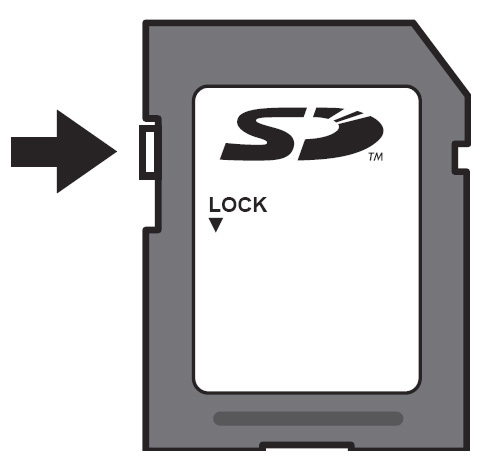
                  Make sure your SD card is not locked!

                  The SD card has a latch on the side. Before using your SD card, make sure that the latch is not set to the Locked position. In case it is locked, you will not be able to save files on the card, and the printer will not be able to open the SD card.
                  Storage over 32 GB

                  There is no upper size limit on compatible storage media, but the built-in Windows formatting tool does not support formatting storage media from a size of 32 GB or more to FAT32. It will only provide the option for exFAT, which is currently not supported by our printers. There are similar limitations under various versions of Apple's OSx, where a third-party application must be used to format it correctly.

                  To format such a drive you need a third-party application, like Rufus, FAT32 format, or EaseUS Partition Master. Be careful when using such programs so you do not accidentally format the wrong storage media, like your hard drive. However, 8-16 GB is more than enough for most use cases, as a G-code file rarely exceeds 100 MB.

                  How do I format the USB drive/SD card?

                  If your SD card or USB drive is full or if you can't read the content of the drive, but the drive is recognized by windows, most often all you need to do is to format the drive.
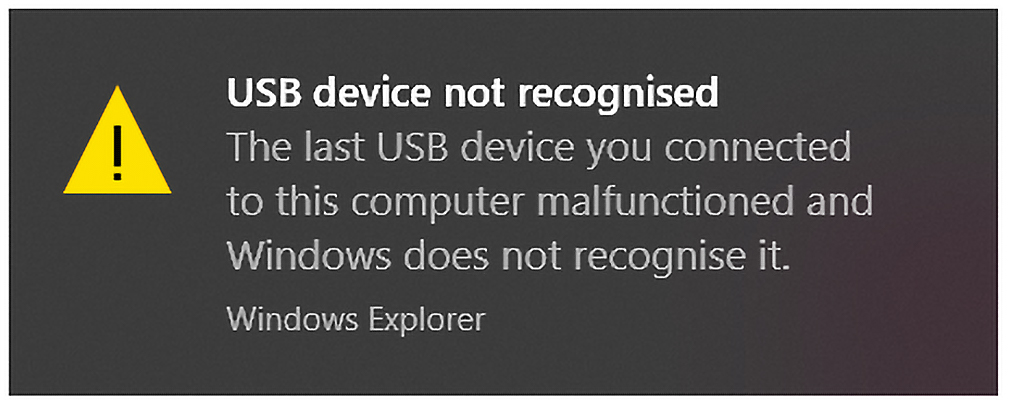
                  If your USB drive or SD card does not even show up in your computer file explorer it is probably corrupted beyond repair, or at least beyond the scale of this article. If you get an error like the one in the picture below and it does not show up anywhere, off to google you go, but you might have to consider this card/USB drive lost and get a new one.

                  How to format on Windows

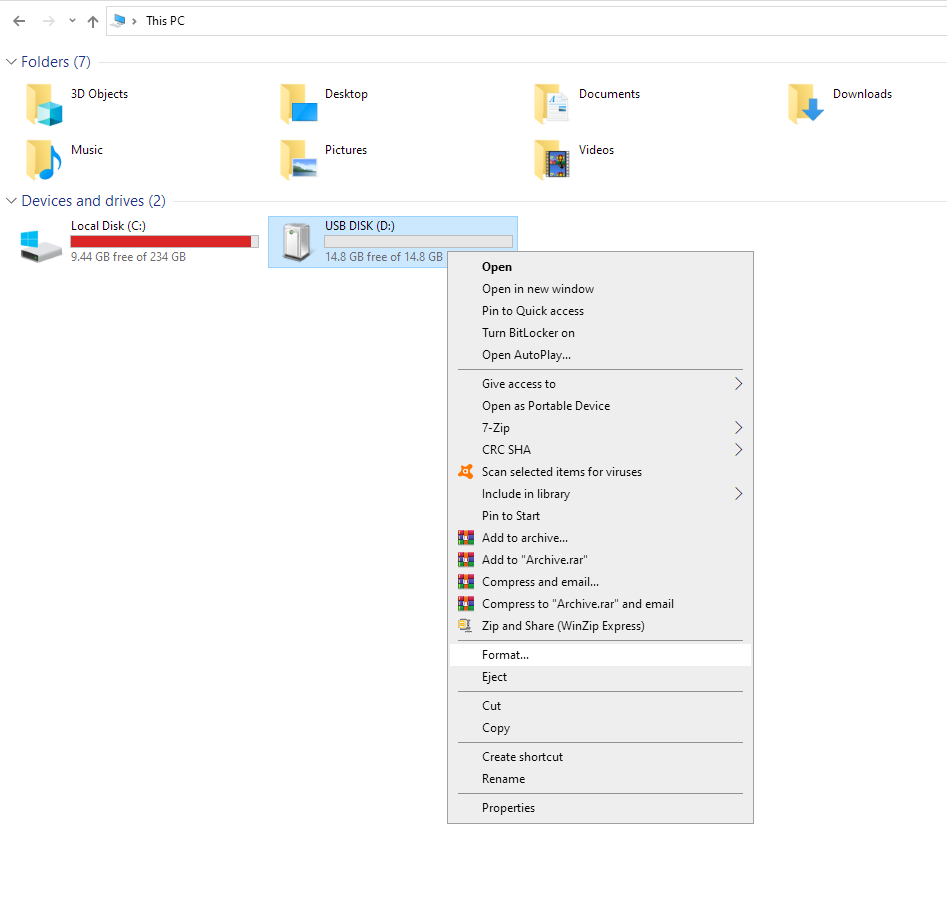
                  On Windows, this is very simple. Locate your USB drive or SD card in my computer, right-click, and choose format.
                  A new small window will pop up. Most of the time you can simply leave everything to default, but the most important thing is that the File System is set to FAT32. This and the Volume Label (Name of the drive) is the only thing you want to touch here. Click Start and your drive will be formatted in a matter of seconds.
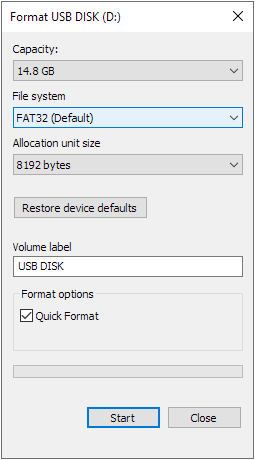
                  Formatting any drive will delete all the content of the drive! Back up your stuff!

                  If the USB stick will not work even after this procedure, it is either broken or its "partitioning scheme" is set as GPT, which is incorrect. It must be set as MBR (Master Boot Record). For how to change this, please see Microsoft's official documentation.

                  How to format on Mac

                  On Mac, it is a few more steps, but still very accessible. Again, you want to choose FAT32 as your file system, but you also have the option of changing the "partitioning scheme", which should always be MBR (Master Boot Record).
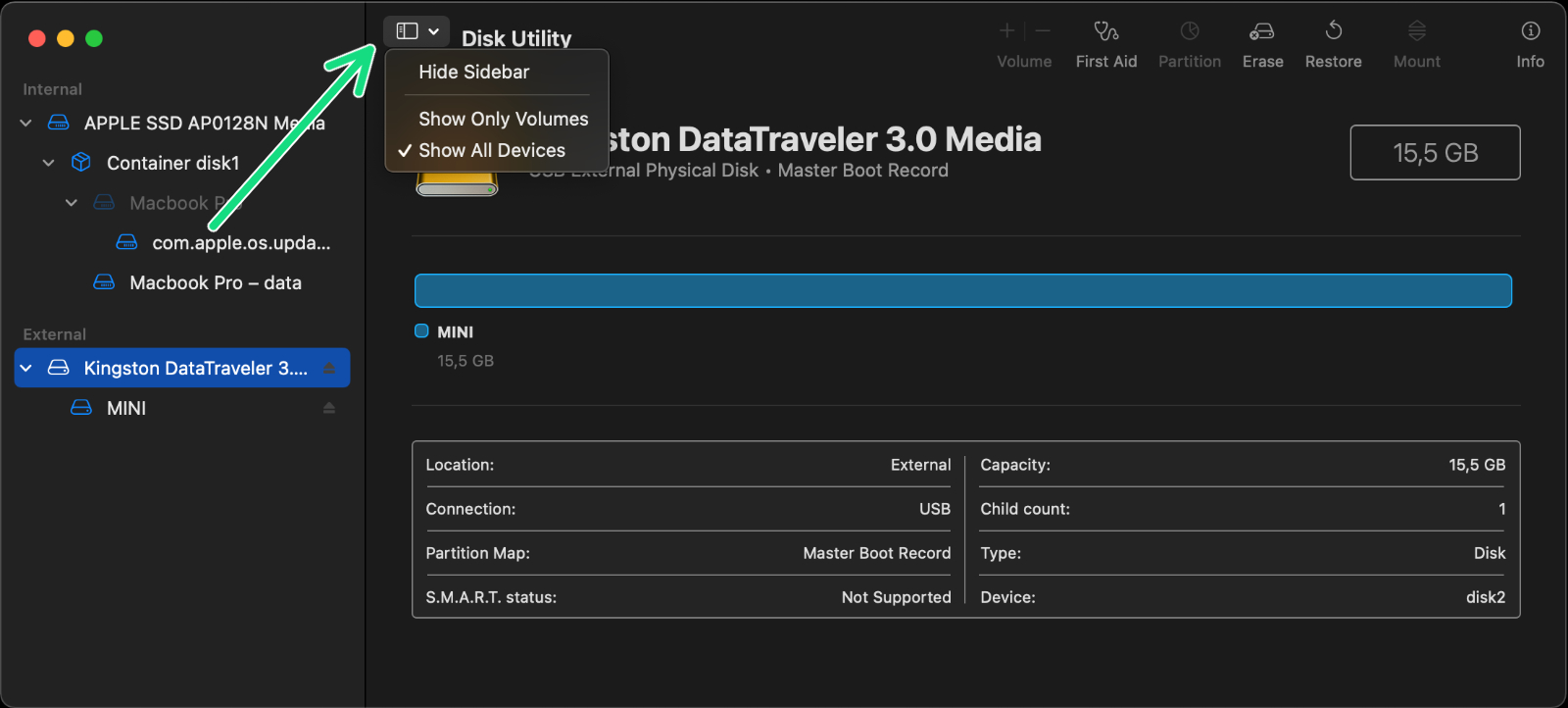
                  This process deletes all content from the drive.
                  1. Plug the USB drive or SD card into your Mac.
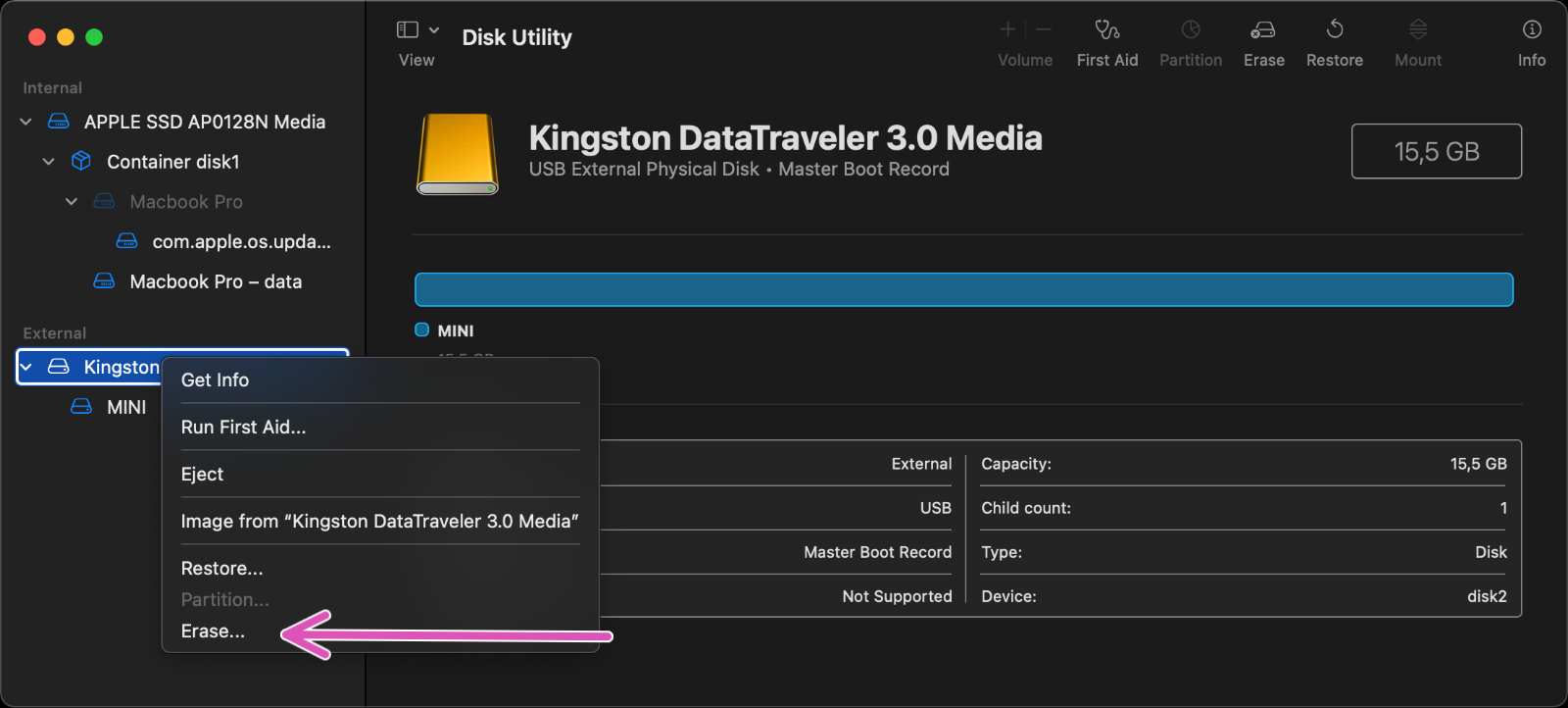
                  2. Go to Applications -> Utilities and launch Disk Utility.
                  3. Click on the icon in the top-left (green arrow) and select "Show All Devices" from the drop-down menu.

                  macOS Big Sur 11.6

                  1. Right-click on the USB drive/SD card in the sidebar under "External". Select the top entry for your drive, not a partition located below.
                  2. Select Erase in the Disk Utility-toolbar (purple arrow).

                  macOS Big Sur 11.6

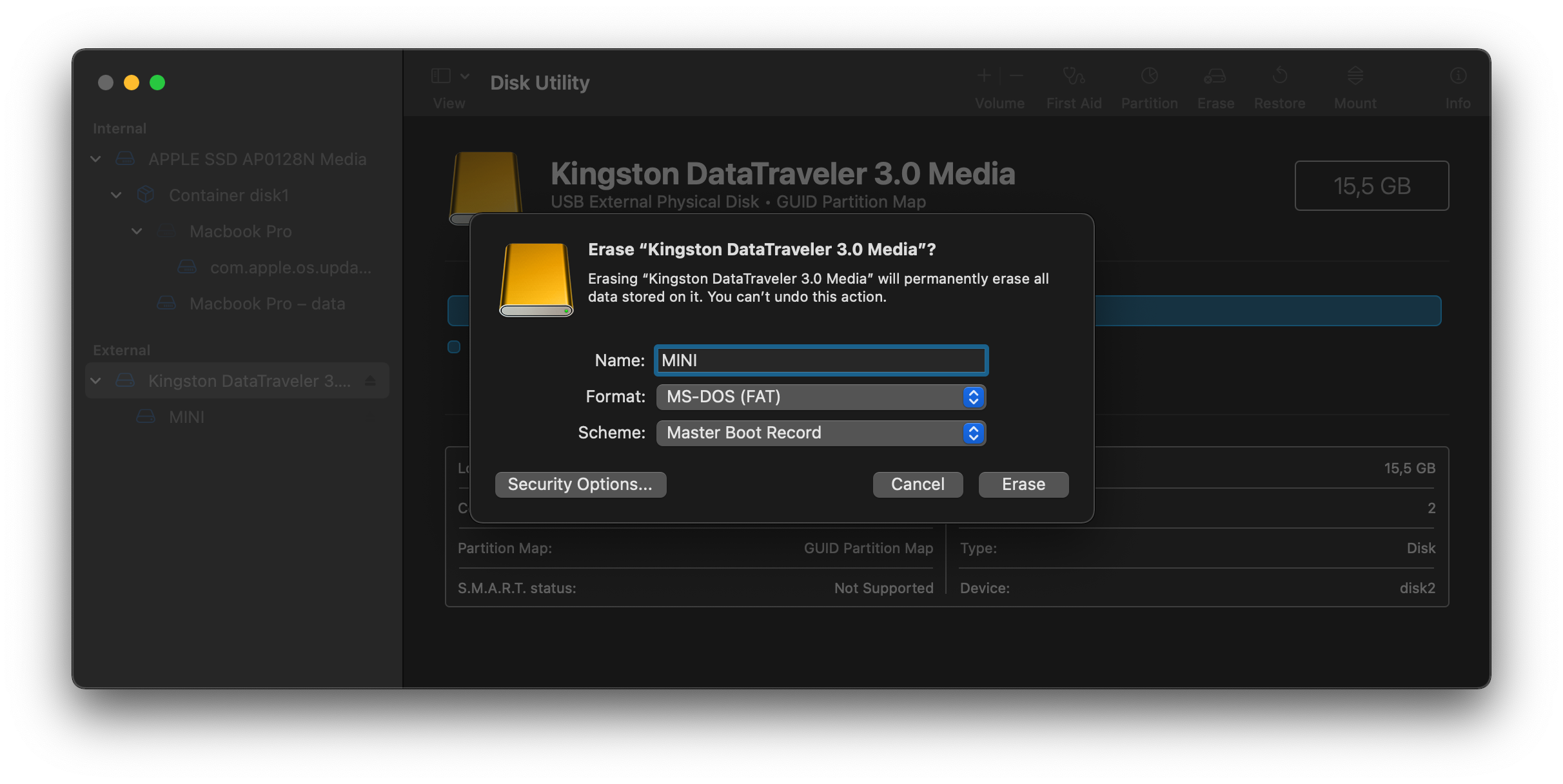
                  1. Enter a name for the formatted disk.
                  2. Click on the Format menu and choose MS-DOS (FAT).
                  3. Make sure the Scheme is set to "Master Boot Record".

                  macOS Big Sur 11.6

                  1. Click Erase.
                  2. Your USB drive will now be erased and re-formatted correctly.
                  If your SD card is not detected by the printer at all, be sure to check out SD card not working for further information.
                  Was this article helpful?
                  This action is available only to registered users. Please log-in.

                  Topics

                  • About your printer
                    • General Information
                      • VAT (Value Added Tax) & Customs fees
                      • FAQ - Frequently Asked Questions
                      • Unpacking an assembled i3 printer
                      • Prusa Account creation
                      • Assembly manuals
                      • Packing i3 printer for return
                      • Packing the Prusa MINI for return
                      • Photo and video documentation
                      • Food safe FDM printing
                      • Types of printers and their differences
                      • FAQ - Extended buyers-guide
                      • Printer Handbooks
                      • Glossary i3-Series
                      • Glossary MMU2S
                      • Glossary MINI
                      • Original Prusa Serial Number
                      • Packing Multi Material upgrade for return
                      • Packing i3 printer for return - Custom Packing Material
                      • Packing i3 printer for return - Original Packing Material
                      • UPS backup for your printer
                      • Order status
                      • Prusa Academy
                      • How do Prusameters on Printables work?
                      • E-shop order creation
                      • FAQ - Orders
                      • Supplemental Statements valid on Prusa websites
                      • Packing the Original Prusa MK4 for return - Original Packing Material
                      • MMU3 Compatibility
                      • LoveBoard status LEDs (MK4)
                      • Printed Solid Service center USA
                      • Purchasing and managing licenses for Prusa Academy courses
                      • Payment error
                      • Prusa Printer Upgrades
                      • Printer repair centers
                      • Buddy3D brand
                      • MK4S glossary
                      • Packing MINI printer for return - Custom Packing Material
                      • SD cards and USB drives
                    • Printer description
                    • Printer features

                  22 comments

                  Log in  to post a comment
                  Baba.yaga
                  •
                  I have reformatted 4 times now and the Core One still won't stop giving me the file error
                  Reply
                  RyFi
                  •
                  If you're on a Mac use these instructions. Be careful not to format a different drive by accident!

                  1. Open terminal. Run this command:
                  diskutil list

                  2. Identify the disk that matches the flash drive and unmount it (replace 'disk8' with whatever disk you need)
                  diskutil unmountDisk /dev/disk8

                  3. Run this command to reformat it (The MBR format is what you'll miss if you format another way)
                  eraseDisk FAT32 PRUSA3D MBRFormat /dev/disk8
                  Reply
                  RyFi
                  •
                  PS: I added this because the included mac instructions didn’t always work on a differently formatted drive. I flashed linux onto my drive originally and this was the only way that worked.
                  Reply
                  vega480
                  •
                  diskUtil eraseDisk FAT32 PRUSA3D MBRFormat /dev/disk8
                  Don't forget diskUtil, otherwise it will not find the command. At least for me it did. After that it worked. Thank you!
                  Reply
                  craikan
                  •
                  Ahoj, mám problém s Prusa MINI+, pokud mám flashdisk připojený k tiskárně a je jedno zda zkouším flashovat firmware nebo je prázdná, vždy dostanu chybu: ERROR #12613
                  Když chci tisknout nějaký gcode, tak je tiskárna ani nevidí, včetně složek.
                  Prostě musím vždy při zapnutí/restartnutí odpojit flashku, aby to naběhlo.

                  Bootloader 2.3.4
                  Firmware 5.1.2+13478

                  Kdo poradí? Děkuji všem!
                  Reply
                  VINNIE3000
                  •
                  Hey I have tried so many things but am still unable to flash the firmware on my mini. I am getting frustrated!Bootloader 1.1.0. Firmware 4.3.4.I tried: multiple USB Sticks including formatting according to Article (Disk Utility on MAC) and the suggested SD Card Formatter as in the comments. Nothing works so far, MINI always just boots 4.3.4. and does not seem to recognise the boot files.Please help!
                  Reply
                  Sajo
                  •
                  Did you get any answers ?I have exactly same problem, except I have even older firmware 4.05.
                  Reply
                  David B.
                  •

                  Hi! To update the firmware from 4.0.5, try this: First update to 4.3.4.  Then, update to 4.4.0 (use BOTH .bbf files. Then, update to the latest 5.xx version. (select the bbf file with the language selection you prefer).
                  To start the update, insert the USB drive with the corresponding firmware file/ files, restart the printer and keep clicking the encoder wheel until the printer shows the FW update screen.

                  Reply
                  bp
                  •
                  This was exactly the solution:
                  Update to 4.3.4
                  then update to 4.4.0
                  then update to 6.2.4 (for me).
                  I used a reformatted (to 32FAT) drive instead of the included one.

                  Thanks for posting the info!
                  Reply
                  Amatér35
                  •
                  Mám MK4 (11/2023), přes WiFi jsem přenášel soubor do tiskárny (ne poprvé), najednou se dodaný USB stál nečitelný a nenaformátovaný, USB byl správně zasunutý, předtím jsem tiskl. V PC (Win11) jsem musel USB naformátovat a ze zálohy zpátky nahrát soubory. Další tisky byli OK. Nechápu, jak se to mohlo stát. Jsem první nebo již někdo má obdobnou zkušenost ?
                  Reply
                  Jakub Dolezal
                  •

                  Dobrý den, je možné, že se něco pokazilo při zápisu na flashku a systém ji pak vyhodnotil jako poškozenou. Osobně jsem to u nás nezažil a to mi rukama prošly desítky kusů. Nicméně, pokud by se to stalo znovu napište na podporu a kolegové na to kouknou :) 

                  Reply