Prusa
  • SHOP
    • Latest products
    BY CATEGORY
    • 3D printersnew
    • 3D printer upgradesnew
    • Materials
    • Accessories
    • Spare parts
    • Courses
    • Merch
    • Get a price quote
    QUICK LINKS
    • Shipping & delivery
    • Returns & refunds
    • Payment & financing
    • Warranty
    • VAT & Customs fees
    • FAQ

    0 item in your cartitems in your cart

    Your cart is empty

    Go to cartShop 3D printers

    My profile

    Log in to see orders, saved items

    My profile

    Signed in as

    • Orders
    • Logout
  • 3D PRINTING
    • Explore 3D printing
    FOR BEGINNERS
    • 3D printing 101
    • How FDM printing works
    • Buying your first printer
    • 3D model catalog
    BY APPLICATION
    • Rapid prototyping
    • Manufacturing
    • Engineering
    • Research
    • Arts & design
    GO DEEPER
    • Materials guide
    • Courses
    • Webinars
    • Case studies
    • Custom 3D printing
  • 3D PRINTERS
    • All 3D printers
    FOR
    • Home or garageHobbyists, tinkerers and home printing
    • BusinessIn-house production for small teams
    • EnterpriseFleets, security and scale
    • Which Prusa is right for me
    SHOP & BROWSE
    • CORE One+new
    • CORE One+ INDXnew
    • CORE One L+new
    • CORE One L+ INDXnew
    • XL+new
    • MK4S
    • Prusa Pro HT90
    • Prusa Pro AFS
    • Prusa Pro SLX
    MORE FROM PRINTERS
    • Parts & upgradesnew
    • Critical infrastructure
    • Case studies
    • Signature Oak
    • Kits
  • MATERIALS
    • All materials
    BY USE
    • Every-day & design
    • Functional engineering
    • Composites
    • Pro speciality
    • SLA resins
    PRUSAMENT
    • PLA
    • PETG
    • ASA
    • PC
    • PA11
    • Flex
    • TPU
    MORE FROM MATERIALS
    • Materials guide
    • We make material in house
    • Sustainability
    • Order on the store
  • SOFTWARE
    • All software
    PREPARE THE PRINT
    • PrusaSlicer 3.0New
    PRINT & MONITOR
    • Prusa Connect
    • EasyPrint
    • iOS & Android app
    • Prusa Farm
    GET STARTED
    • Download & install
    • Knowledge base
    MORE FROM SOFTWARE
    • 3D model catalog
  • SUPPORT
    • Explore support
    FIND ANSWERS
    • Knowledge base
    • Troubleshooting
    • Courses
    • Webinars
    GET HELP
    • Contact us
    • Livechat
    • Shipping & delivery
    • Warranty
    • Returns & refunds
    • Service & spare parts
    • Service & Repair
    COMMUNITY
    • Forum
    • Reddit
    • Printables
  • TRUST CENTER
    • Trust Center overview
    BY TOPIC
    • GDPR
    • Certificates
    • Security
    • Compliance
    COMMITMENTS
    • Sustainability report
    TALK TO US
    • Contact the security team
  • COMPANY
    • About Prusa
    GET TO KNOW US
    • Our story
    • How we make printers
    • Open source
    • Brand & media kit
    NEWS
    • Blog
    • Newsroom
    • Events
    TRUST & PARTNERS
    • Sustainability
    • Resellers & distributors
    • Affiliate program
    • Contact
    • English
    • Čeština
    • Deutsch
    • Español
    • Français
    • Italiano
    • Polski
    • 日本語
  • Signed in as

    • Orders
    • Address
    • In-stock Alerts
    • My Courses
    • Subscription
    • Edit Account
    • Logout

Log in to see orders, saved items

Signed in as
  • Orders
  • Address
  • In-stock Alerts
  • My Courses
  • Subscription
  • Edit Account
  • English
  • Čeština
  • Deutsch
  • Español
  • Français
  • Italiano
  • Polski
  • 日本語
Shop

0 item in your cartitems in your cart

Your cart is empty

Go to cartShop 3D printers

My profile

Log in to see orders, saved items

My profile

Signed in as

  • Orders
  • Logout
SHOP
  • Latest products
BY CATEGORY
  • 3D printersnew
  • 3D printer upgradesnew
  • Materials
  • Accessories
  • Spare parts
  • Courses
  • Merch
  • Get a price quote
QUICK LINKS
  • Shipping & delivery
  • Returns & refunds
  • Payment & financing
  • Warranty
  • VAT & Customs fees
  • FAQ

Featured products

    Popular categories

      Trending searches

        Articles

          Blog

            Products

              Categories

                Suggested searches

                  Searching…
                  No results
                  Something went wrong.
                  ↑↓ Select↵ OpenEsc Close search
                  1. Support
                  2. PrusaSlicer
                  3. Multi-material slicing
                  4. Experimental Printing with Different Nozzle Diameters
                   

                  Contents

                  • Before Starting
                  • Handling of Profiles
                  • Print Settings Changes
                  • Managing Compatible Printers Condition
                  • Note to the Wipe Tower
                  • Printer Settings Changes
                  • Incompatible Filament Profiles

                  Blog

                  • Print colorful and glowing Halloween decorations with our spooky offer
                  • Factorio Has Arrived on Printables
                  • Prusament PLA Lightweight: 65% lighter than regular PLA. Perfect choice for aircraft, cosplay, and more.

                  Newsletter

                  Signup and get our monthly squeeze on updates, blog, printables and much more.

                  By clicking, you agree to receive our newsletter.

                  This site is protected by reCAPTCHA Enterprise and the Google Privacy Policy and Terms of Service apply.

                  Factorio Transport Belts
                  E-shop
                  • 3D Printers
                  • Printer Upgrades
                  • Filaments
                  • Accessories
                  • Prusa Merchandise

                  © Prusa Research a.s.

                  Printables
                  • 3D Models
                  • Store
                  • Clubs
                  • 3D Design Contests
                  • Brands
                  Community
                  • World Map
                  • Forum
                  • User Groups
                  • Events
                  Help
                  • Prusa Help
                  • Prusa Academy
                  • 3D Printing Calculators
                  Software
                  • PrusaSlicer
                  • Prusa.app
                  • Prusa Connect
                  • Drivers and Software
                  Company
                  • About Us
                  • Blog
                  • Official Prusa Resellers
                  • Contact Us
                  • Certified for ISO 9001, ISO 14001, ISO 45001
                  • General Terms and Conditions
                  • General Terms and Conditions of Use of the PRUSA Websites
                  • Privacy Policy
                  • Information about cookies
                  • Customer Complaints Policy
                  • Status Page
                  • Do Not Sell or Share My Personal Information
                  • Supplemental Statements
                  • General Terms and Conditions
                  • General Terms and Conditions of Use of the PRUSA Websites
                  • Privacy Policy
                  • Information about cookies
                  • Customer Complaints Policy
                  • Status Page
                  • Do Not Sell or Share My Personal Information
                  • Supplemental Statements

                  © Prusa Research a.s.

                  JOSEF PRUSA®, PRUSA RESEARCH®, PRUSA POLYMERS®, PRUSA ORANGE®, PRUSA 3D ® AND PRUSAMENT® are registered trademarks of Prusa Development a.s. used by Prusa Research a.s. under licence from Prusa Development a.s.

                  Experimental Printing with Different Nozzle Diameters

                  Relevant for

                  XL
                  PrusaSlicer
                  14 comments
                  Article is also available in following languages
                  English
                  Čeština
                  Polski
                  Deutsch
                  Français
                  Español
                  Italiano
                  日本語

                  Printing with different nozzle diameters is an experimental workflow as it requires tweaking several settings in profiles, and some nozzle combinations may be incompatible, potentially causing unsuccessful prints. However, we would like to open this option to experienced users and developers. We look forward to collecting your feedback to improve this feature and continue its development.

                  This article is only for experienced users.

                  Due to it being a difficult process, this article will explain how to print with different nozzle diameters in a step-by-step example. We used:

                  • Printer: XL 5T – use of 2 tools
                  • Used nozzles: Tool 1: 0.25 mm, Tool 2: 0.6 mm
                  • Usage: Nozzle 0.25 mm for perimeters and support structure, Nozzle 0.6 mm for object infill
                  • Supports: Organic Supports


                  Before Starting

                  Change the nozzles on your XL by following the manual How to replace the Prusa Nozzle (XL multi-tool). To achieve a successful print, it is recommended to do a Tool Offset Calibration, which can be found in the printer menu in Control -> Calibrations & Tests.

                  Handling of Profiles

                  Select the Correct Profile

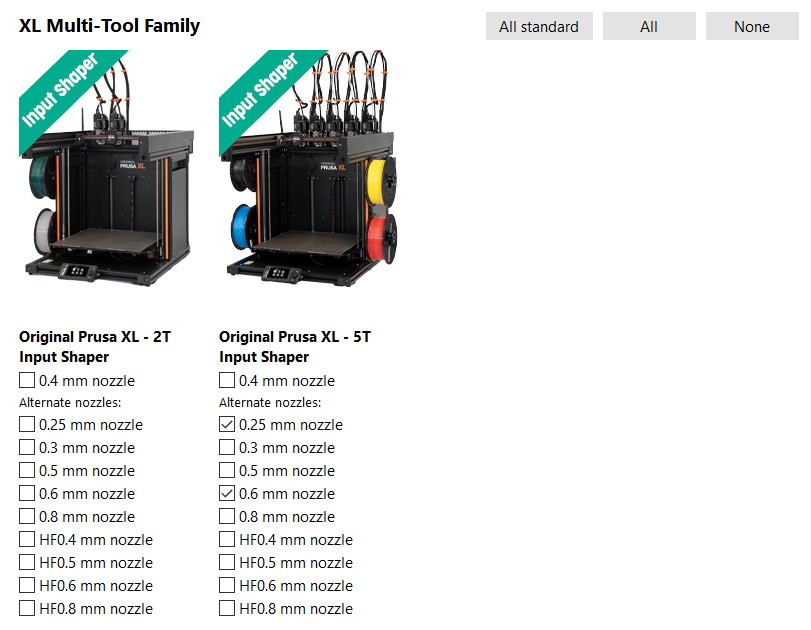
                  To switch between available profiles, go to the Wizard (Configuration -> Configuration Wizard -> Prusa Research) and select the printers with the nozzles you want to use. See the example below where the 0.25 mm and 0.6 mm nozzles that are used are selected.
                  Print Settings Changes

                  Combining infill

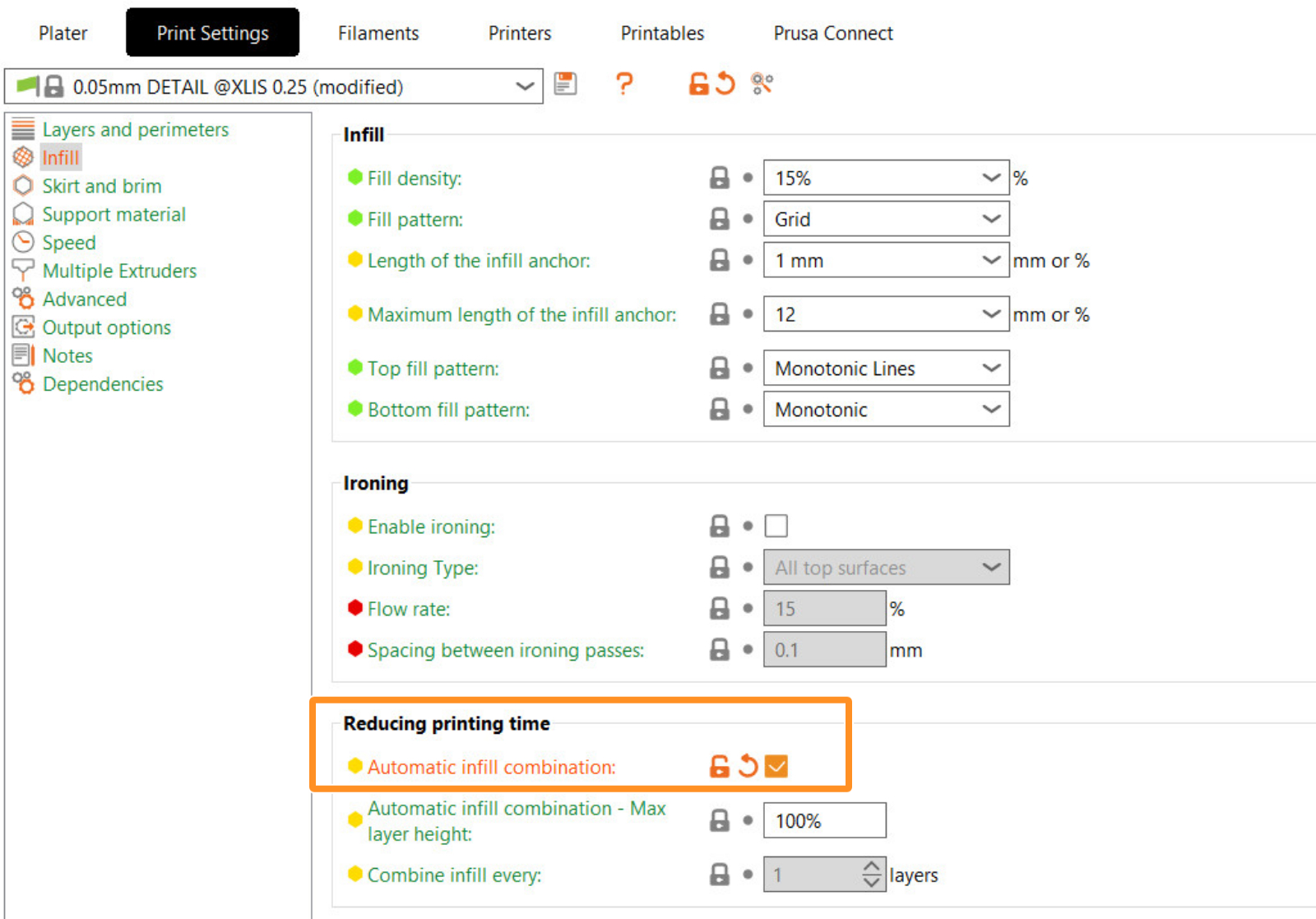
                  For some use cases, when printing with different nozzle diameters it may be useful to print infill every nth layer, typically when the infill is printed with a larger nozzle. To cover these scenarios, you can set it up manually (infill_every_layers) or switch to automatic infill combining (Print Settings -> Infill -> Automatic infill combination).
                  Enable supports

                  Enable the supports in Print settings -> Support material -> Generate support material. In Style, choose Organic.

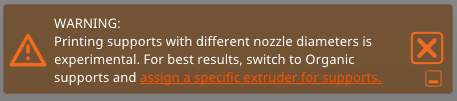
                  When printing with different nozzles, compatibility of supports with the wipe tower and the option to select the support material extruder is critical. Therefore, we highly recommend using Organic Supports. Organic Supports synchronize layers with the object, making things much simpler. This allows you to choose the support material extruder and at the same time have the wipe tower active.
                  Assigning Extruders

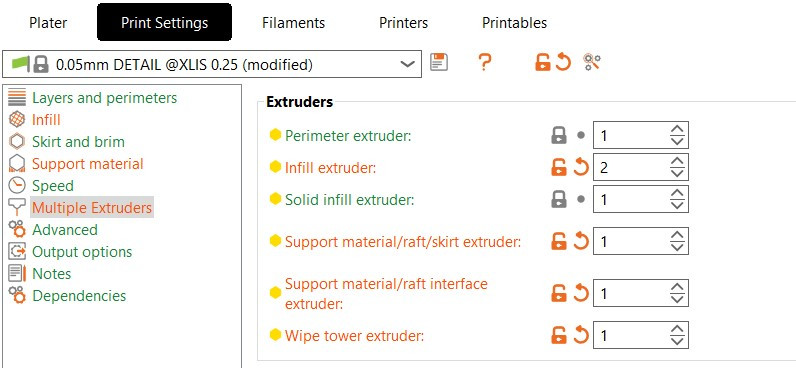
                  To assign extruders to specific features of the printed model across the project, go to Print Settings -> Multiple Extruders -> Extruders, and assign the extruder numbers based on your use case. For our example, we are using:

                  • The Perimeter extruder is set to Extruder 1 to achieve a detailed surface of the model.
                  • The Infill extruder is set to Extruder 2 because I want the infill to be rough.
                  • The Support material/raft/skirt extruder is set to Extruder 1.
                  • The Support material/raft/interface extruder is set to Extruder 1.
                  • The Wipe Tower extruder is set to Extruder 1.

                  This setup ensures that the supports are printed with a single extruder. Specifically for supports, a single extrusion width for the entire structure is selected and its width is based on minimal nozzle diameter. If you leave the extrusion width at zero all extruders could print on supports and you may experience under-extrusion with larger nozzles.
                  It is also possible to assign extruders using multi material printing or set up extruders per object feature by right-clicking on the object and going to Add Settings -> Extruders.

                  Extrusion Widths

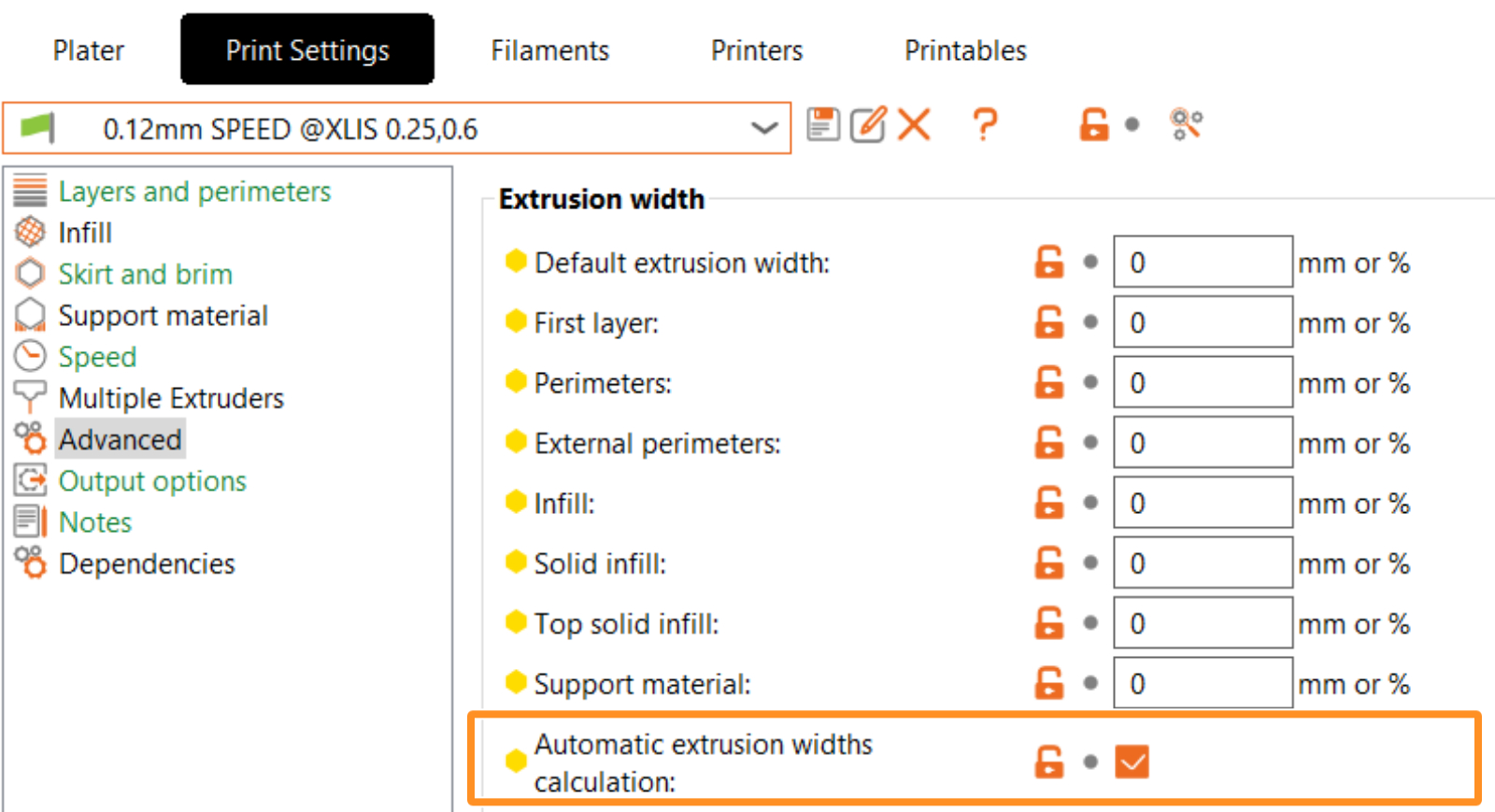
                  To achieve the correct extrusion width when using different nozzle diameters for specific features of the model, we provide automatic extrusion width calculations (Print Settings -> Advanced -> Automatic extrusion widths calculation). When this option is enabled, a window will pop up warning that the extrusion widths will automatically be set to zero, and the system will calculate them based on the currently used nozzle diameters.
                   

                  Managing Compatible Printers Condition

                  This step is optional, but it is possible to edit the print conditions of the default profile for a more flexible handling of the print profile. This lets you share settings with all XL printers (printer profiles). For that, go to Print Settings - Dependencies -> Compatible Printers condition. We have changed it from "printer_notes=~/.*XLIS.*/ and nozzle_diameter[0]==0.25" to "printer_notes=~/.*XLIS.*/"

                  Note that profiles for different nozzle diameters may have varying parameters. If you want to use this profile for another purpose, be sure to check for any differences in parameters between your custom-derived profile and the default one. For instance, parameters such as speed and acceleration may be critical, but other settings could also vary.

                  After that, you can save the Print Setting profile. It will show as a user preset.

                  Note to the Wipe Tower

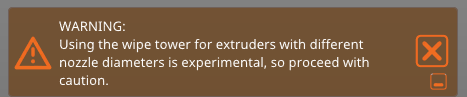
                  Based on basic tests, the wipe tower can handle printing with different nozzle diameters, but we cannot guarantee a successful print with all possible combinations of settings. That’s why the warning remains active.
                  Printer Settings Changes

                  To configure your custom nozzle diameter hardware setup go to Printers tab - Extruder #. In corresponding extruders set up nozzle diameter. We also highly recommend changing the minimum and maximum layer height limits for the corresponding extruders. This will limit the range of compatible print profiles based on the minimum and maximum layer height values. We have left the Extruder 1 with the selected 0.25 mm nozzle and changed the Extruder 2 to 0.6 mm.

                  Incompatible Filament Profiles

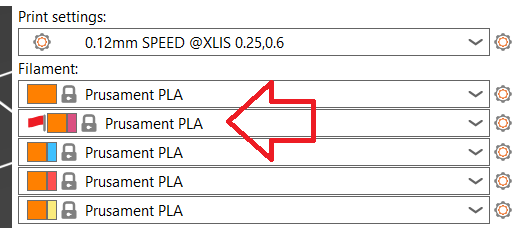
                  When changes are made to the printer profiles, especially due to a nozzle change, incompatible filament profiles will appear with a red flag. It is important to select profiles without red flags to ensure proper functionality.
                  Was this article helpful?
                  This action is available only to registered users. Please log-in.

                  10 comments

                  Log in  to post a comment
                  Guildenstern
                  •
                  I hope to see an update here. I am using 0.25mm nozzle and would like to print supports with a different material and 0.4mm nozzle
                  Reply
                  dougwinning99
                  •
                  Would appreciate having the ability to set custom extrusion widths and calculate widths at the same time. I have extrusion widths dialed in for separate 0.4 and 0.6 mm profiles, and would like to just use those both rather than the automatic calculated width.

                  Maybe this could be added as a new Filament Overrides section for Extrusion Widths?
                  Reply
                  Chase York
                  •
                  The automatic extrusion width setting is not working for me all the sudden. I've been printing with one .6mm nozzle and four .4mm nozzles for at least a couple months now with no problems. Went to slice a new file and noticed some problems with the print, had to stop it eventually. Now everything I slice for the .6mm nozzle is having adhesion issues and looking at the widths in the slicer preview, they're the same whether I slice it with a .4mm nozzle selected, or select a toolhead with a .6mm nozzle instead. The extrusion widths remain the same =/
                  Reply
                  Sam
                  •
                  this is great! i was looking for this! hopefully the user experience improves because currently i cant see some of my filament profiles but i dont know why. (they dont have the red flag they are just not available on the second extruder)
                  Reply
                  Avinash
                  •
                  The filament profiles with the red flags will not be seen at first; in order to see them, you can click on the link for comparing presets and have the "show all presets (including incompatible)" box checked. Usually, to make the presets compatible, the only thing that has to be done is change its compatibility in settings:

                  Managing Compatible Printers Condition
                  This step is optional, but it is possible to edit the print conditions of the default profile for a more flexible handling of the print profile. This lets you share settings with all XL printers (printer profiles). For that, go to Print Settings - Dependencies -> Compatible Printers condition. We have changed it from "printer_notes=~/.*XLIS.*/ and nozzle_diameter[0]==0.25" to "printer_notes=~/.*XLIS.*/"

                  Hope this helps :)
                  Reply
                  melted pellets
                  •
                  Whats the current behavior on nozzle ordering within a layer?
                  I can't find it documented, but IIR the slicer always layed down extruder #1 before #2 (assuming both were in use within that layer).  Ie if you has text, slightly better results could be achieved by ensuring text color was on extruder #1.
                  With small alongside large nozzles, this would become even more important.
                  Please confirm what the system intends (and ideally is it documented publicaly?)
                  Reply

                  Topics

                  • PrusaSlicer 2.9 (Legacy)
                    • Multi-material slicing
                      • Importing Multi Material model
                      • Patterns - set extruder sequence
                      • Assigning tools / colors / extruders
                      • ColorPrint with the MMU
                      • Wipe tower
                      • Purging volumes (MMU)
                      • Multi material painting
                      • Experimental Printing with Different Nozzle Diameters
                      • Mutliple extruders settings, Interlocking & Advanced bonding
                      • ColorMix
                    • About PrusaSlicer
                    • Configuration and profiles
                    • User interface
                    • Input/output
                    • Left toolbar
                    • Top toolbar
                    • Print settings
                    • Filament settings
                    • Printer settings
                    • Advanced features
                    • SLA slicing
                    • Other (PrusaSlicer)