Prusa
  • SHOP
    • Latest products
    BY CATEGORY
    • 3D printersnew
    • 3D printer upgradesnew
    • Materials
    • Accessories
    • Spare parts
    • Courses
    • Merch
    • Get a price quote
    QUICK LINKS
    • Shipping & delivery
    • Returns & refunds
    • Payment & financing
    • Warranty
    • VAT & Customs fees
    • FAQ

    0 item in your cartitems in your cart

    Your cart is empty

    Go to cartShop 3D printers

    My profile

    Log in to see orders, saved items

    My profile

    Signed in as

    • Orders
    • Logout
  • 3D PRINTING
    • Explore 3D printing
    FOR BEGINNERS
    • 3D printing 101
    • How FDM printing works
    • Buying your first printer
    • 3D model catalog
    BY APPLICATION
    • Rapid prototyping
    • Manufacturing
    • Engineering
    • Research
    • Arts & design
    GO DEEPER
    • Materials guide
    • Courses
    • Webinars
    • Case studies
    • Custom 3D printing
  • 3D PRINTERS
    • All 3D printers
    FOR
    • Home or garageHobbyists, tinkerers and home printing
    • BusinessIn-house production for small teams
    • EnterpriseFleets, security and scale
    • Which Prusa is right for me
    SHOP & BROWSE
    • CORE One+new
    • CORE One+ INDXnew
    • CORE One L+new
    • CORE One L+ INDXnew
    • XL+new
    • MK4S
    • Prusa Pro HT90
    • Prusa Pro AFS
    • Prusa Pro SLX
    MORE FROM PRINTERS
    • Parts & upgradesnew
    • Critical infrastructure
    • Case studies
    • Signature Oak
    • Kits
  • MATERIALS
    • All materials
    BY USE
    • Every-day & design
    • Functional engineering
    • Composites
    • Pro speciality
    • SLA resins
    PRUSAMENT
    • PLA
    • PETG
    • ASA
    • PC
    • PA11
    • Flex
    • TPU
    MORE FROM MATERIALS
    • Materials guide
    • We make material in house
    • Sustainability
    • Order on the store
  • SOFTWARE
    • All software
    PREPARE THE PRINT
    • PrusaSlicer 3.0New
    PRINT & MONITOR
    • Prusa Connect
    • EasyPrint
    • iOS & Android app
    • Prusa Farm
    GET STARTED
    • Download & install
    • Knowledge base
    MORE FROM SOFTWARE
    • 3D model catalog
  • SUPPORT
    • Explore support
    FIND ANSWERS
    • Knowledge base
    • Troubleshooting
    • Courses
    • Webinars
    GET HELP
    • Contact us
    • Livechat
    • Shipping & delivery
    • Warranty
    • Returns & refunds
    • Service & spare parts
    • Service & Repair
    COMMUNITY
    • Forum
    • Reddit
    • Printables
  • TRUST CENTER
    • Trust Center overview
    BY TOPIC
    • GDPR
    • Certificates
    • Security
    • Compliance
    COMMITMENTS
    • Sustainability report
    TALK TO US
    • Contact the security team
  • COMPANY
    • About Prusa
    GET TO KNOW US
    • Our story
    • How we make printers
    • Open source
    • Brand & media kit
    NEWS
    • Blog
    • Newsroom
    • Events
    TRUST & PARTNERS
    • Sustainability
    • Resellers & distributors
    • Affiliate program
    • Contact
    • English
    • Čeština
    • Deutsch
    • Español
    • Français
    • Italiano
    • Polski
    • 日本語
  • Signed in as

    • Orders
    • Address
    • In-stock Alerts
    • My Courses
    • Subscription
    • Edit Account
    • Logout

Log in to see orders, saved items

Signed in as
  • Orders
  • Address
  • In-stock Alerts
  • My Courses
  • Subscription
  • Edit Account
  • English
  • Čeština
  • Deutsch
  • Español
  • Français
  • Italiano
  • Polski
  • 日本語
Shop

0 item in your cartitems in your cart

Your cart is empty

Go to cartShop 3D printers

My profile

Log in to see orders, saved items

My profile

Signed in as

  • Orders
  • Logout
SHOP
  • Latest products
BY CATEGORY
  • 3D printersnew
  • 3D printer upgradesnew
  • Materials
  • Accessories
  • Spare parts
  • Courses
  • Merch
  • Get a price quote
QUICK LINKS
  • Shipping & delivery
  • Returns & refunds
  • Payment & financing
  • Warranty
  • VAT & Customs fees
  • FAQ

Featured products

    Popular categories

      Trending searches

        Articles

          Blog

            Products

              Categories

                Suggested searches

                  Searching…
                  No results
                  Something went wrong.
                  ↑↓ Select↵ OpenEsc Close search
                  1. Support
                  2. PrusaSlicer
                  3. Multi-material slicing
                  4. Multi material painting
                   

                  Contents

                  • Painting tools
                  • Color selection
                  • Segmenting colors
                  • Notes
                  • Examples of painted models

                  Blog

                  • Print colorful and glowing Halloween decorations with our spooky offer
                  • Factorio Has Arrived on Printables
                  • Prusament PLA Lightweight: 65% lighter than regular PLA. Perfect choice for aircraft, cosplay, and more.

                  Newsletter

                  Signup and get our monthly squeeze on updates, blog, printables and much more.

                  By clicking, you agree to receive our newsletter.

                  This site is protected by reCAPTCHA Enterprise and the Google Privacy Policy and Terms of Service apply.

                  Factorio Transport Belts
                  E-shop
                  • 3D Printers
                  • Printer Upgrades
                  • Filaments
                  • Accessories
                  • Prusa Merchandise

                  © Prusa Research a.s.

                  Printables
                  • 3D Models
                  • Store
                  • Clubs
                  • 3D Design Contests
                  • Brands
                  Community
                  • World Map
                  • Forum
                  • User Groups
                  • Events
                  Help
                  • Prusa Help
                  • Prusa Academy
                  • 3D Printing Calculators
                  Software
                  • PrusaSlicer
                  • Prusa.app
                  • Prusa Connect
                  • Drivers and Software
                  Company
                  • About Us
                  • Blog
                  • Official Prusa Resellers
                  • Contact Us
                  • Certified for ISO 9001, ISO 14001, ISO 45001
                  • General Terms and Conditions
                  • General Terms and Conditions of Use of the PRUSA Websites
                  • Privacy Policy
                  • Information about cookies
                  • Customer Complaints Policy
                  • Status Page
                  • Do Not Sell or Share My Personal Information
                  • Supplemental Statements
                  • General Terms and Conditions
                  • General Terms and Conditions of Use of the PRUSA Websites
                  • Privacy Policy
                  • Information about cookies
                  • Customer Complaints Policy
                  • Status Page
                  • Do Not Sell or Share My Personal Information
                  • Supplemental Statements

                  © Prusa Research a.s.

                  JOSEF PRUSA®, PRUSA RESEARCH®, PRUSA POLYMERS®, PRUSA ORANGE®, PRUSA 3D ® AND PRUSAMENT® are registered trademarks of Prusa Development a.s. used by Prusa Research a.s. under licence from Prusa Development a.s.

                  Multi material painting

                  Relevant for

                  MMU1
                  MMU2S
                  MMU3
                  PrusaSlicer
                  23 comments
                  Article is also available in following languages
                  English
                  Čeština
                  Polski
                  Deutsch
                  Français
                  Español
                  Italiano
                  日本語

                  Preparing models for multi-material FDM prints used to be a fairly complicated and time-consuming process. Starting with PrusaSlicer 2.4, coloring an object for multi-material printing requires just a handful of bucket fills and brushstroke operations.
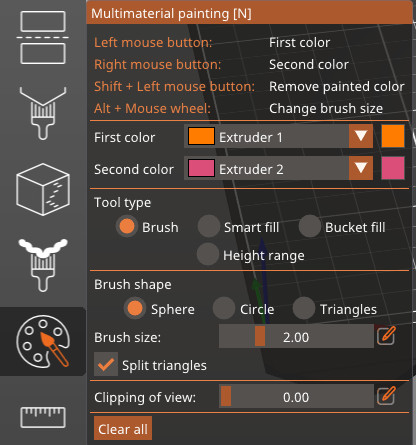
                  Painting tools

                  Brush

                  Like the support or seam painting tool, hold down your left mouse button to paint with the primary color and the right mouse button to paint with the secondary color.

                  There are three shapes of brushes: sphere, circle, and triangle. For the sphere and circle brushes, you can choose the brush size as well as if you want to split bigger facets into smaller ones while the object is painted. The triangle brush used the triangles of the object itself.

                  Smart fill

                  With the Smart Fill tool selected, hovering the mouse above the model gives you a real-time preview of the automatically detected region to paint. The paint fills a region below the mouse cursor up to a sharp edge, and the threshold angle is adjustable.  

                  Bucket fill

                  Replace a patch of one color with another. You can choose the angle the bucket fill will select.

                  Height range

                  Paint objects between two horizontal lines. You can choose the distance between the two lines.
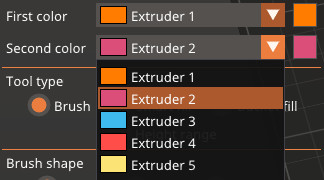
                  Color selection

                  The combo boxes First color and Second color in the panel allow mapping different extruders to the left and right mouse buttons. The number and color of the selected extruder are shown for clarity. The color that is used for visualization can be overridden by clicking the colored square next to the selected extruder. This visualization color is not saved anywhere and will be lost when the application closes.

                  Segmenting colors

                  During slicing, the painted regions are cleverly extended inwards, giving the different colors/polymers the best chance of binding together.

                  The object surface is segmented into patches of the same material and the patches are extended inwards. The regions painted at the top resp. bottom surfaces are extended by the number of top_solid_layers resp. bottom_solid_layers (configurable in Print Settings - Layers and Perimeters). The regions painted at the side walls are expanded inwards up to maximum mmu_segmented_region_max_width (which is a new configuration parameter accessible in Print Settings-> Multiple Extruders-> Advanced).

                  The painting only affects the slicing result, the model itself is not altered and the colored "parts" cannot be exported separately.

                  Notes

                  Please note that thin features are not printable with FDM technology, thus for example painting a thin wall with two distinct colors will not make the thin wall printable. Such thin non-printable regions created during segmentation are thus detected and merged with the neighboring region, changing its color. PrusaSlicer will print thinner features with "detect thin walls" enabled, thus it is advised to try to enable "detect thin walls" if painting over thin features.

                  There are two extra limitations arising from technical reasons:

                  The multi-material painting is limited to 16 extruders. If your printer uses more extruders, only the first 16 will be available in the painting tool.

                  Multi-material painting cannot be combined with XY size compensation. The XY size compensation will be ignored during slicing if the object is also multi-material painted. The user is informed by notification in both cases.
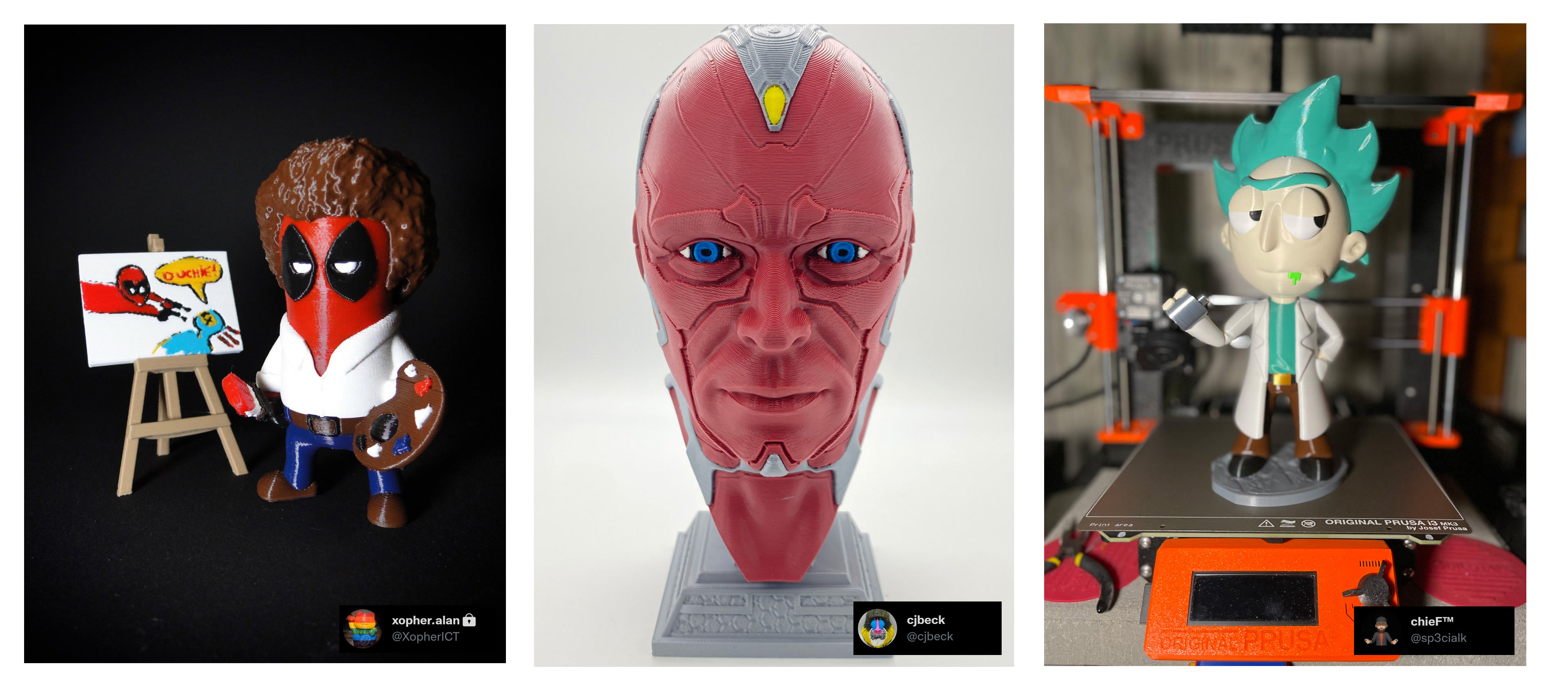
                  Examples of painted models

                  Was this article helpful?
                  This action is available only to registered users. Please log-in.

                  Topics

                  • PrusaSlicer 2.9 (Legacy)
                    • Multi-material slicing
                      • Importing Multi Material model
                      • Patterns - set extruder sequence
                      • Assigning tools / colors / extruders
                      • ColorPrint with the MMU
                      • Wipe tower
                      • Purging volumes (MMU)
                      • Multi material painting
                      • Experimental Printing with Different Nozzle Diameters
                      • Mutliple extruders settings, Interlocking & Advanced bonding
                      • ColorMix
                    • About PrusaSlicer
                    • Configuration and profiles
                    • User interface
                    • Input/output
                    • Left toolbar
                    • Top toolbar
                    • Print settings
                    • Filament settings
                    • Printer settings
                    • Advanced features
                    • SLA slicing
                    • Other (PrusaSlicer)

                  9 comments

                  Log in  to post a comment
                  jackTfrost
                  •
                  Please add the feature to paint by layers. It is really handy when doing layer painting to just click the cursor and drag it up to paint an entire layer a certain color. Also, please add the option to add more colors to the paint feature than just 1 and 2.
                  Reply
                  828Printing
                  •
                  YES!! This is such a gross oversight in the painting for Prusa... I'm having to use the Bambu slicer to create a 3MF and then import it into Prusa. It's a pain. We do a lot with layers, though! It's just not feasible in Prusa to do what I need efficiently with the current options!
                  Reply
                  Mikyner
                  •
                  Multi-material painting in prusa slicer is quite painful. Someone should immediately download Bambu studio in Prusa Research and also add Vertical Lock, Horizontal lock and Rotate horizontal.
                  Reply
                  jackTfrost
                  •
                  I completely agree with this. I currently paint in Bambu and then save at 3mf and open in Prusa for printing.
                  Reply
                  828Printing
                  •
                  Same. It's irritating. 
                  Reply
                  ex-nerd
                  •
                  Painting tip (until they add this feature; #5970): If you want to paint in straight lines, you can use the Clipping of view feature to adjust where you want the edge of your line to be. Smart fill and bucket will ignore the clipping line but the regular brush tool will not cross over. It's tedious, but you can move the clipping boundary around to create straight lines.
                  Reply
                  ex-nerd
                  •
                  Is there a way to reassign which "color" goes with which extruder? E.g. I have a model painted with extruders 1, 3, 5, but I later want to add it to a larger print job with a different model that was painted with those same color shades on 1, 2, 3. Re-painting these colors isn't really feasible.
                  Reply
                  David B.
                  •

                  MK3.5, MK3.9, MK4, XL printers have this option, after you start a print.

                  Reply
                  ex-nerd
                  •
                  Yes, I know how to reassign tools in the printer UI. That's different than changing the colors in the 3mf file itself so I can share a model I colored as 1-3-5 on Printables with a clean 1-2-3. The bucket tool sort of works but you end up with a towers of hanoi problem with a lot of colors.
                  Reply
                  Jan Kratochvíl
                  •

                  Hello. Currently, the only option for changing colors on the printer UI is how to do it easily. The only other way is to change colors on the PrusaSlicer, but changing spools on the printer is more convenient.

                  Reply
                  mediafp
                  •
                  I have Prusa Slicer 2.6.1 on the Mac and I'm cannot figure out how to get the option to paint to even show up in the left hand menu of icons. None of these helpful tutorials OR videos actually show how to get this to show up. Nor do they show how to add color changes, etc. I wish someone would write or make a video for beginners of the MMU2S. Could someone just please tell me how to get the paint feature turned on in Prusa Slicer for the Mac?
                  Reply
                  KC
                  •
                  Make sure you have the MMU printer selected in the right side column. At the bottom left, click on the 3D editor view, then the paint pallet icon should show up on the left side. good luck
                  Reply
                  Trent Robertson
                  •
                  WOW THANK YOU!! I cannot believe Prusa dropped the ball on this. They go from assembly, calibrating, to printing a presliced sheep, but no explanation on how to set colors or anything. 
                  Reply
                  David B.
                  •

                  Hi! It is explained briefly in the last chapter of the assembly guide. Apart from the knowledge base, read the printed Handbook. There is probably everything you need to know.

                  Reply