Relevant for


The Fuzzy skin feature lets you create a rough fiber-like texture on the sides of your models. If enabled, the perimeter will be resampled with a random step size, and each new sample point will be shifted inside or outside of the perimeter by a random length limited by the Fuzzy skin thickness. This simple algorithm produces nice results, suitable for tool handles or to give the print surface a new, interesting look, or to hide imprecision on prints. You can also use Modifiers to apply fuzzy skin only to a portion of your model.
Fuzzy skin can be applied to models in multiple ways, making it a powerful creative feature. There are multiple ways to apply it:
Global settings: Enable Fuzzy Skin for the entire print in Print Settings -> Layers and perimeters -> Fuzzy skin.
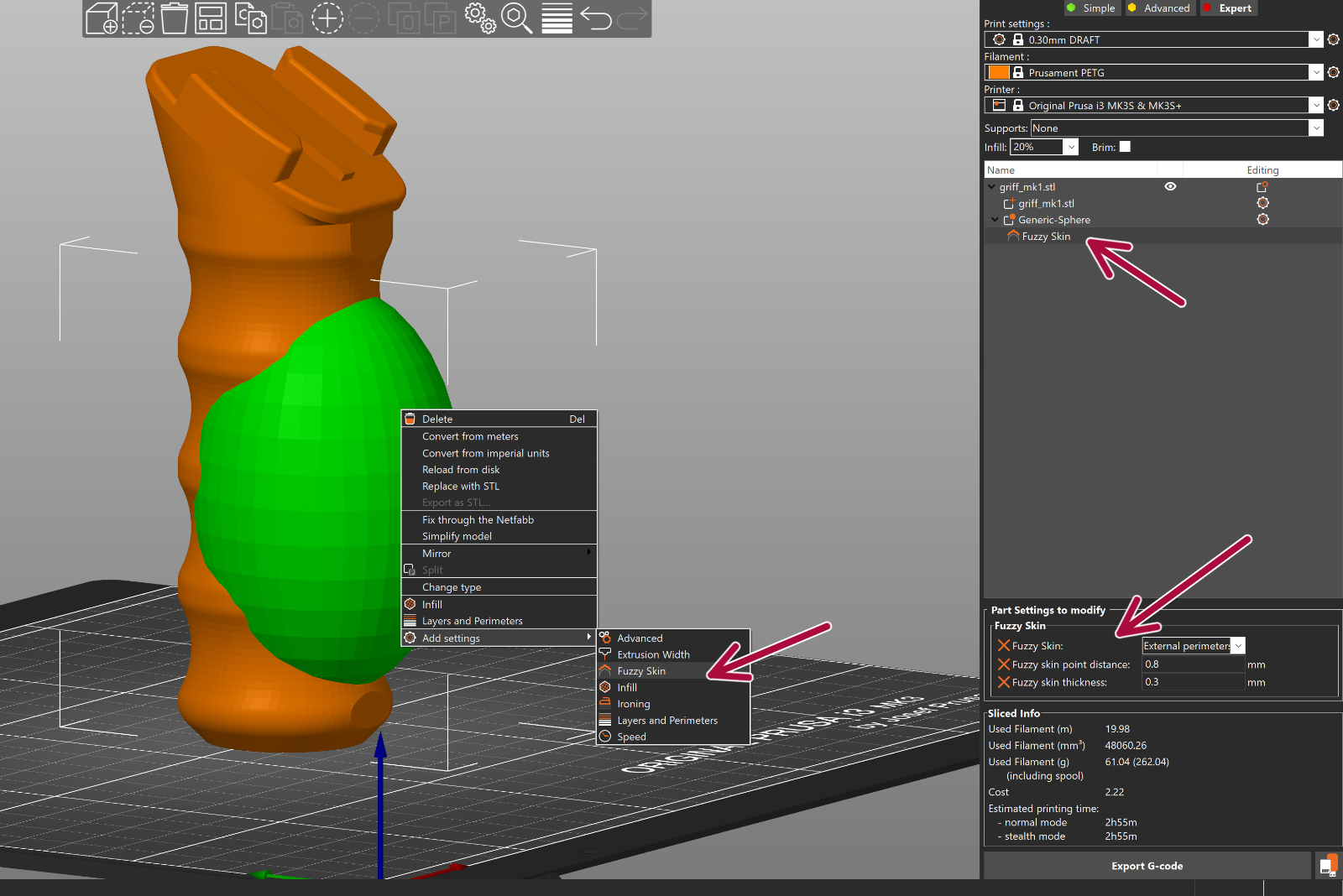
Per-object settings: Right-click an object, go to Add settings -> Fuzzy skin, and choose the needed options.
Modifiers (apply to a region): Instead of affecting the whole object, a TEXT (box/cylinder/sheet/mesh) will enable Fuzzy Skin only inside that modifier. Great for quick regional changes.
Paint-on Fuzzy skin: Paint exactly where you want the texture for a precise, detailed application.
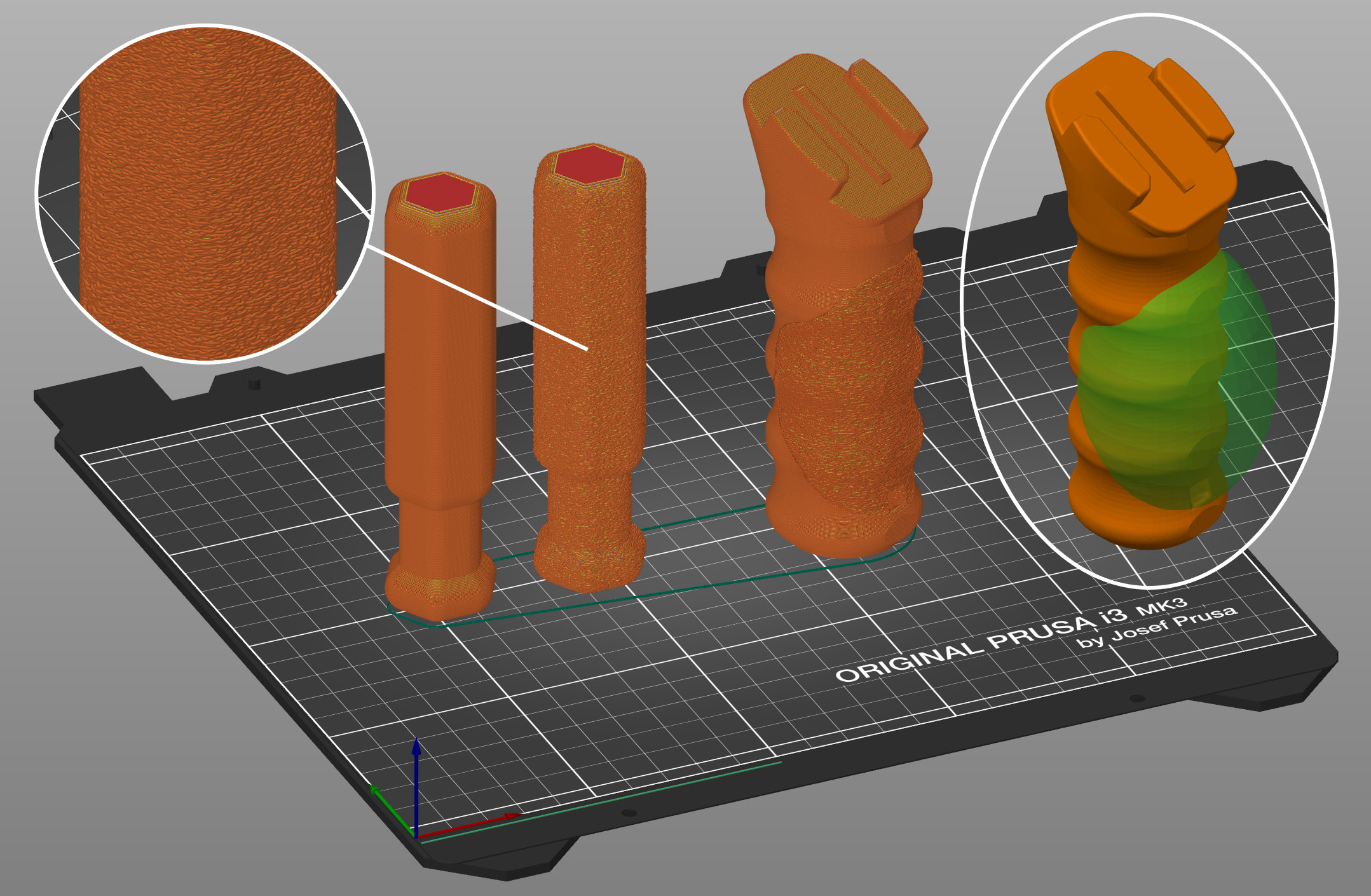
You can apply Fuzzy skin only to Outside walls or All walls.
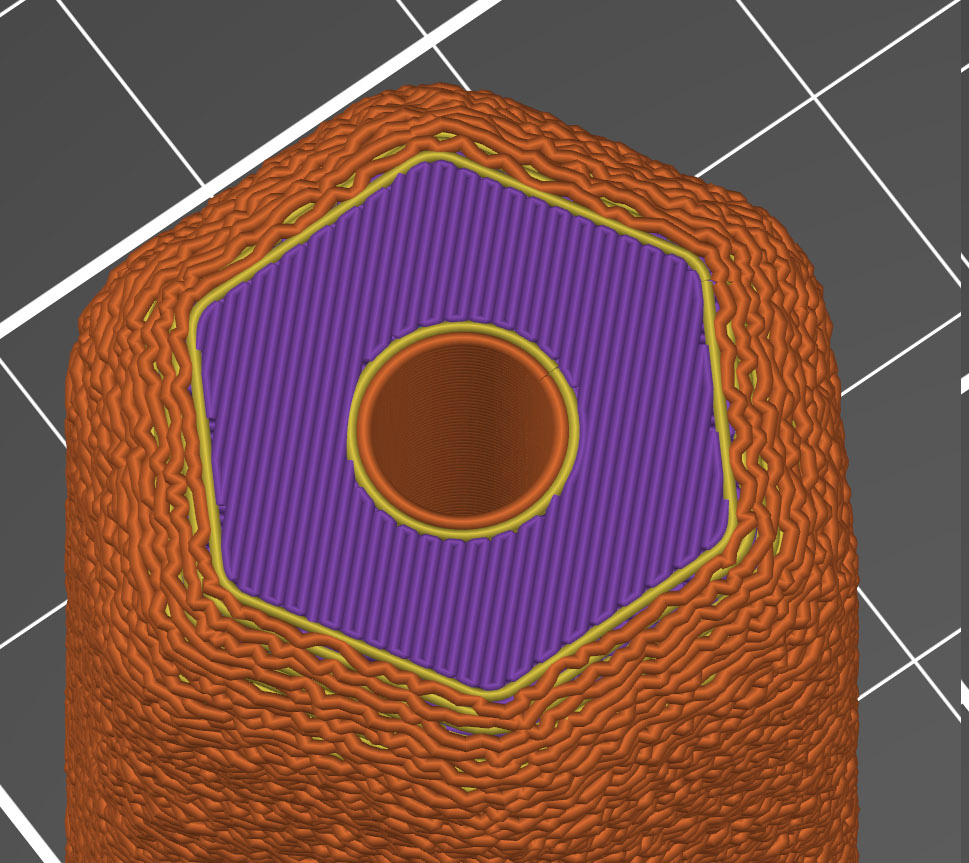 | 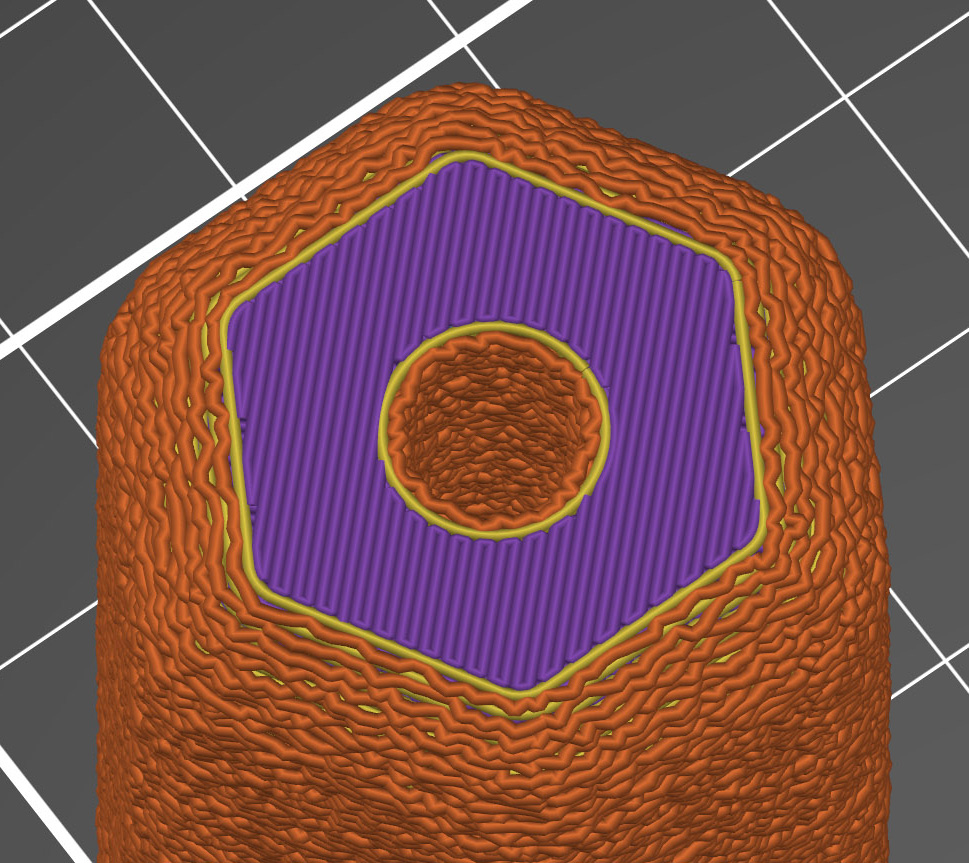 |
| Outside walls | All walls |
The maximum distance that each skin point can be offset (both ways) is measured perpendicular to the perimeter wall.
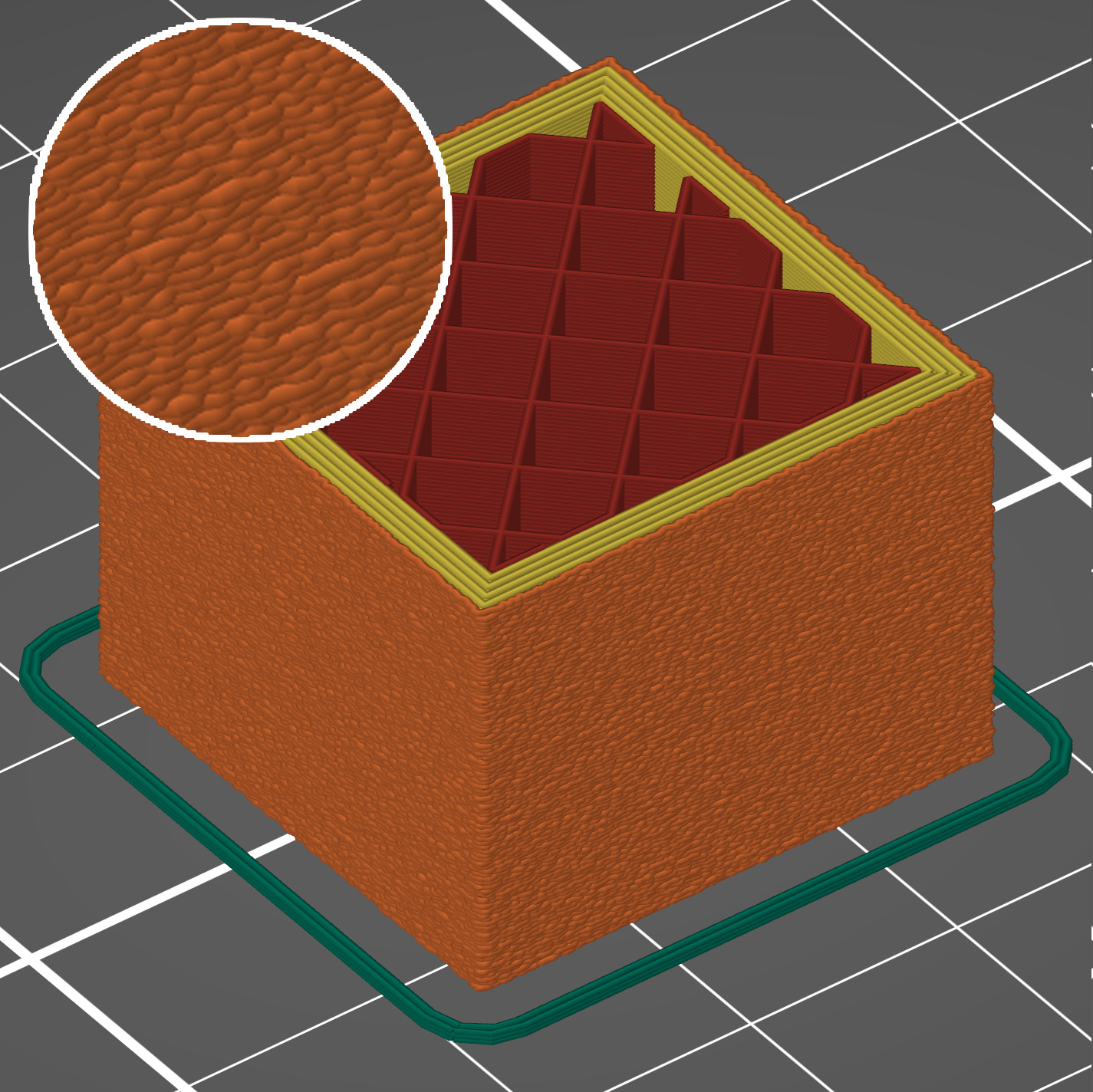 | 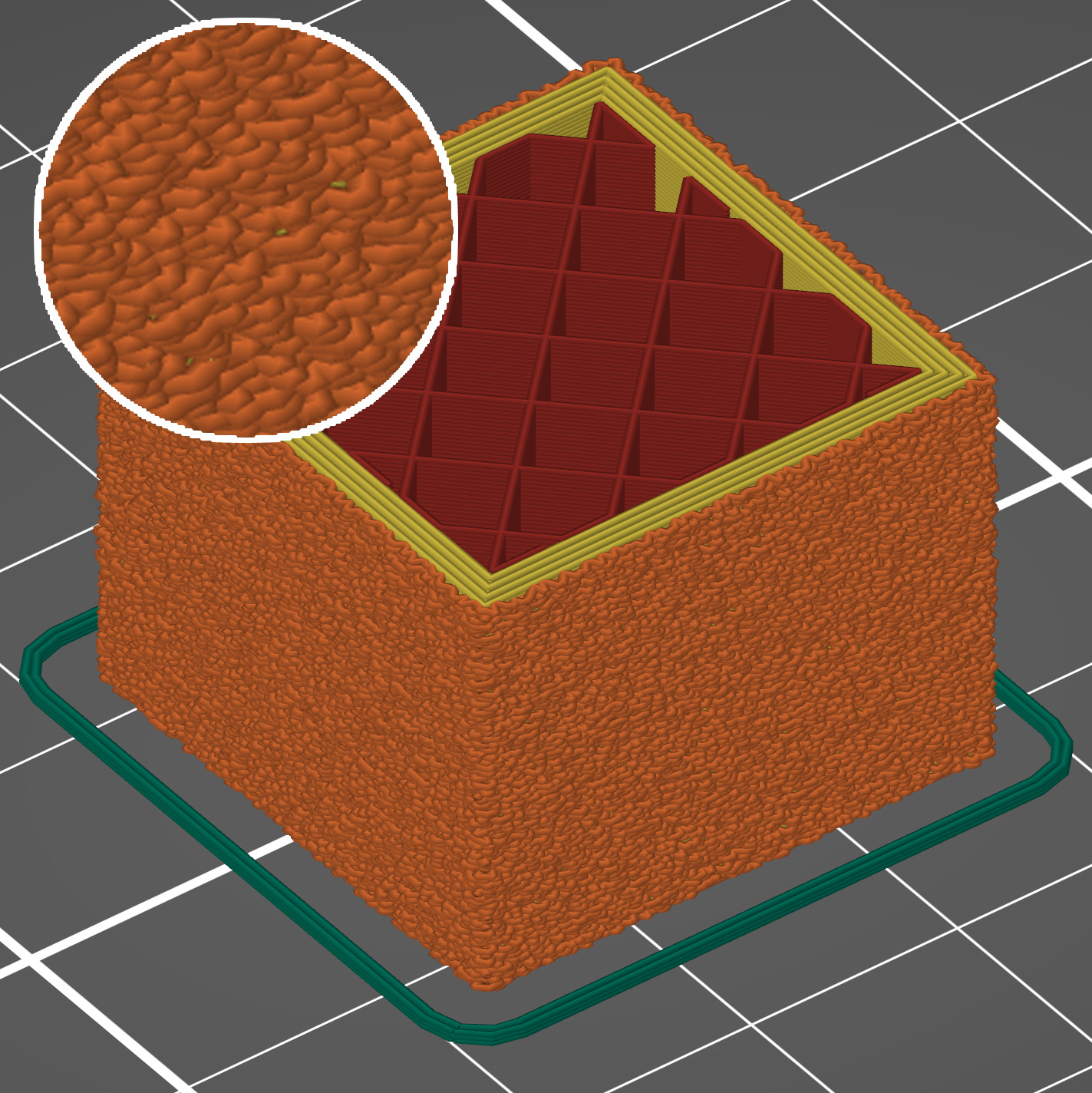 |
| 0.1 mm thickness | 0.3 mm thickness |
Perimeters will be split into multiple segments by inserting Fuzzy skin points. Lowering the Fuzzy skin point distance will increase the number of randomly offset points on the perimeter wall.
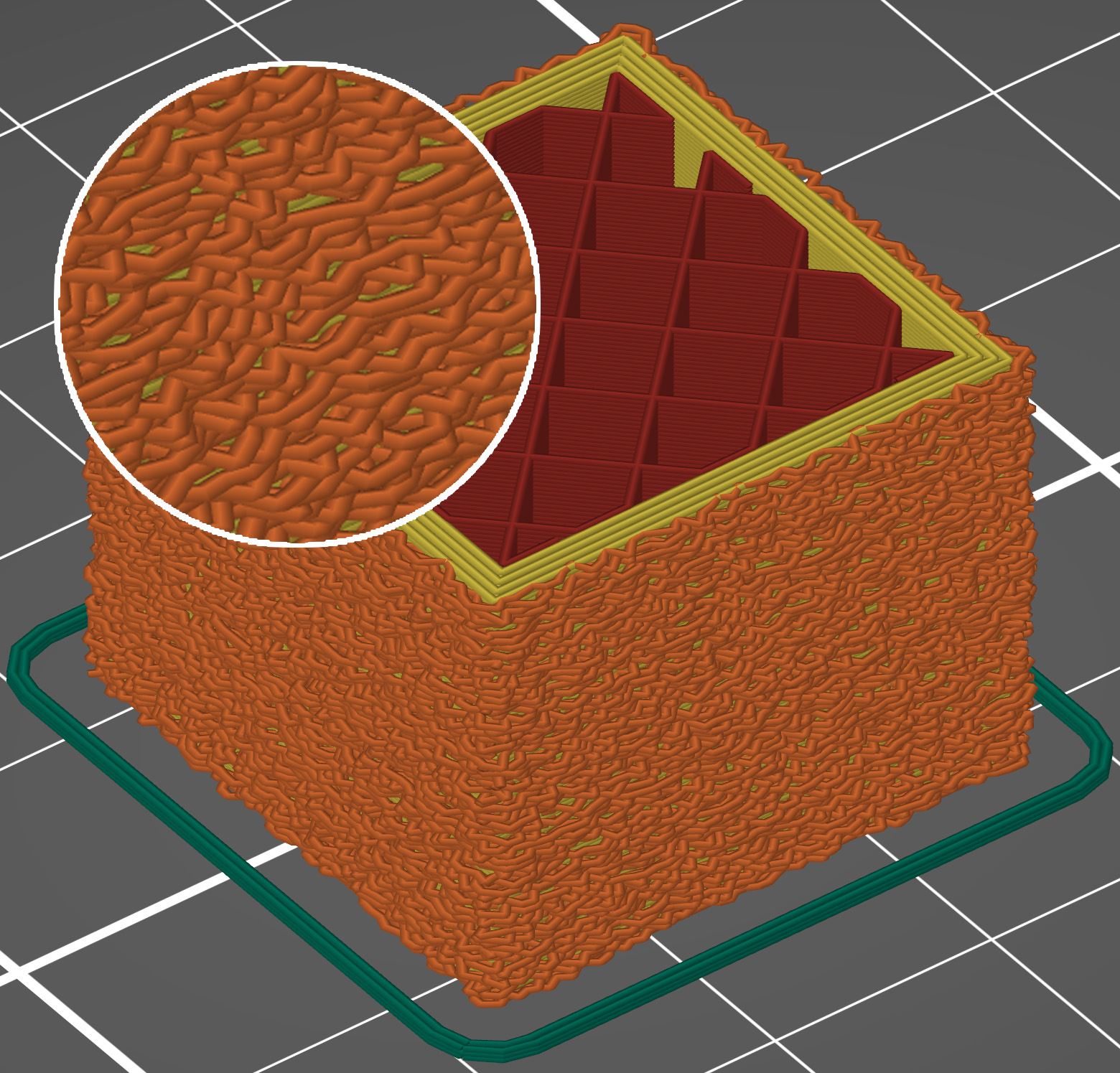 | 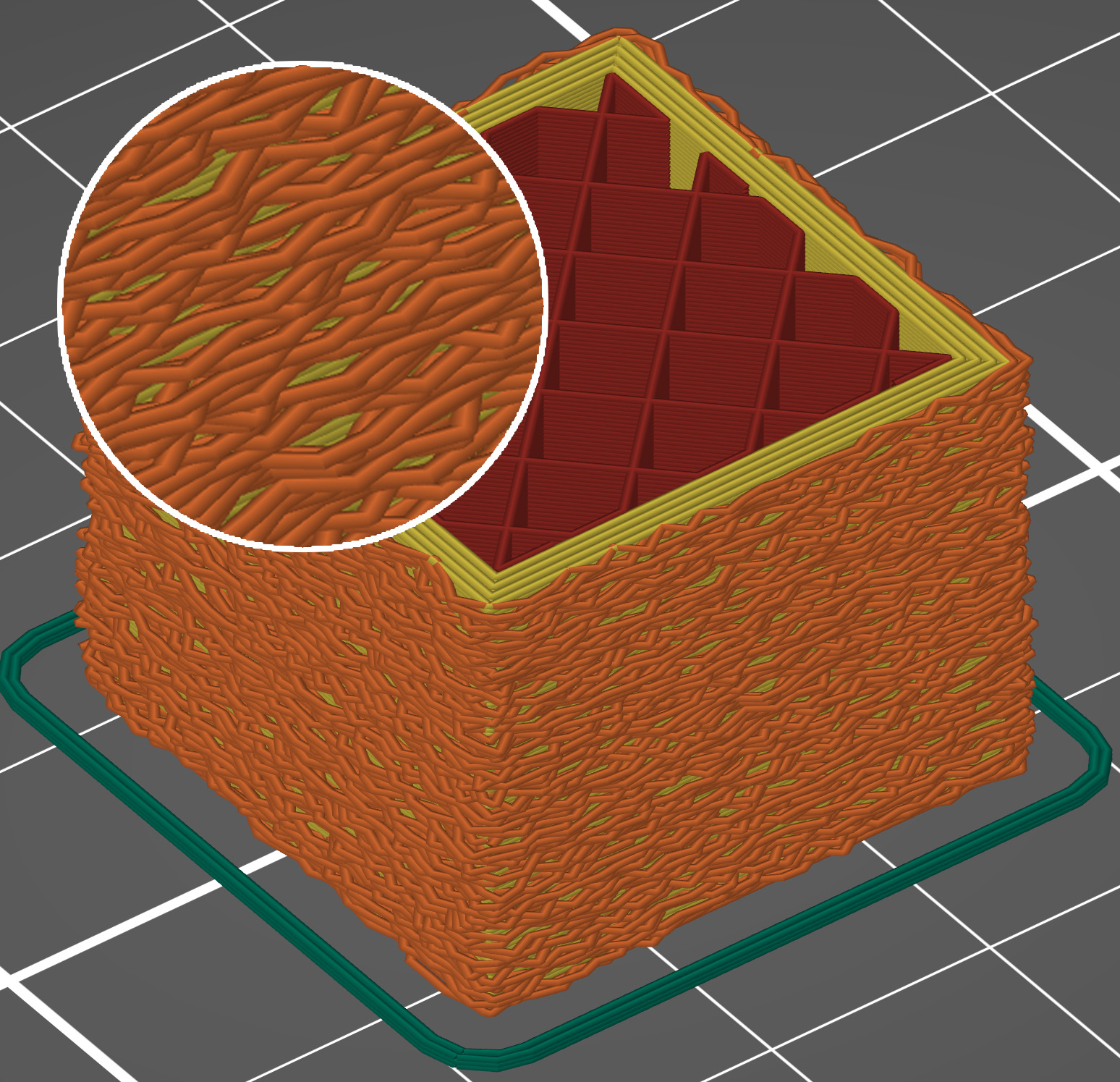 |
| Fuzzy skin point distance 0.5 mm | Fuzzy skin point distance 1.0 mm |
You can use modifiers to apply fuzzy skin only to a portion of your model.
Paint-on Fuzzy skin
To activate the paint on Fuzzy skin paint-on tool, select your model and click on Fuzzy Skin on the left toolbar.
The painting defines where texture appears. The texture settings (type, thickness, point distance) are taken from Print Settings -> Layers and perimeters -> Fuzzy skin, and is same for all painted areas.
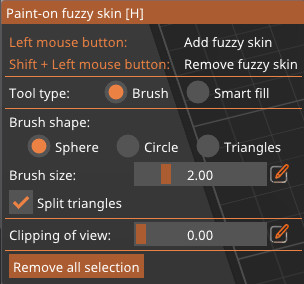
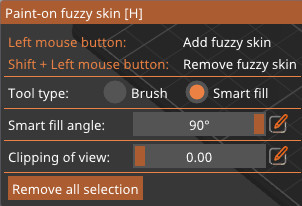
Press Alt + mouse wheel to adjust the Smart Fill angle and see the region expand or shrink in real time.
Erase fuzzy skin: Shift + Left-click or Right-click.
33 comments