Relevant für


Our PrusaApp supports reading and writing NFC tag data for OpenPrintTag spools.
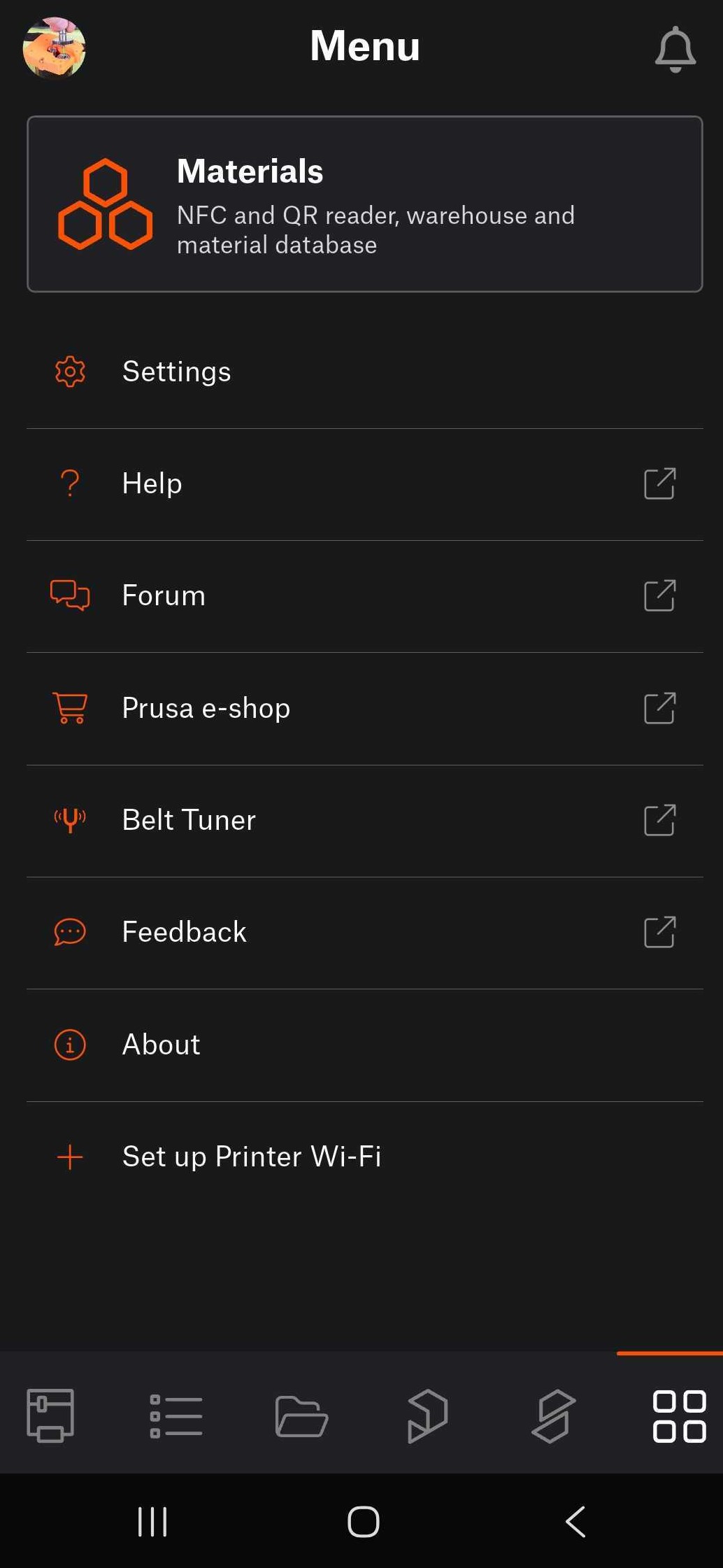
Navigate to the app's menu. Tap on Materials.
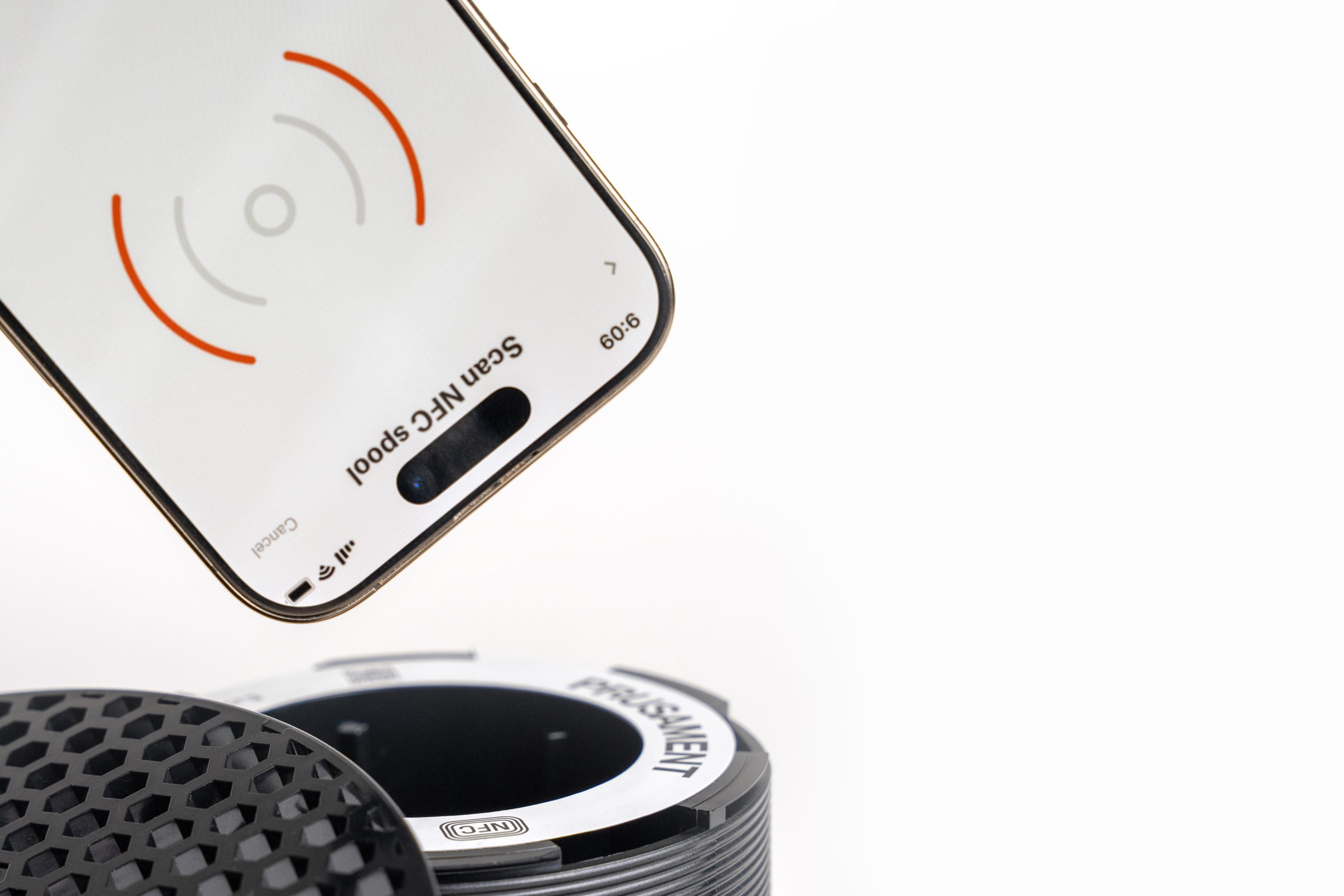
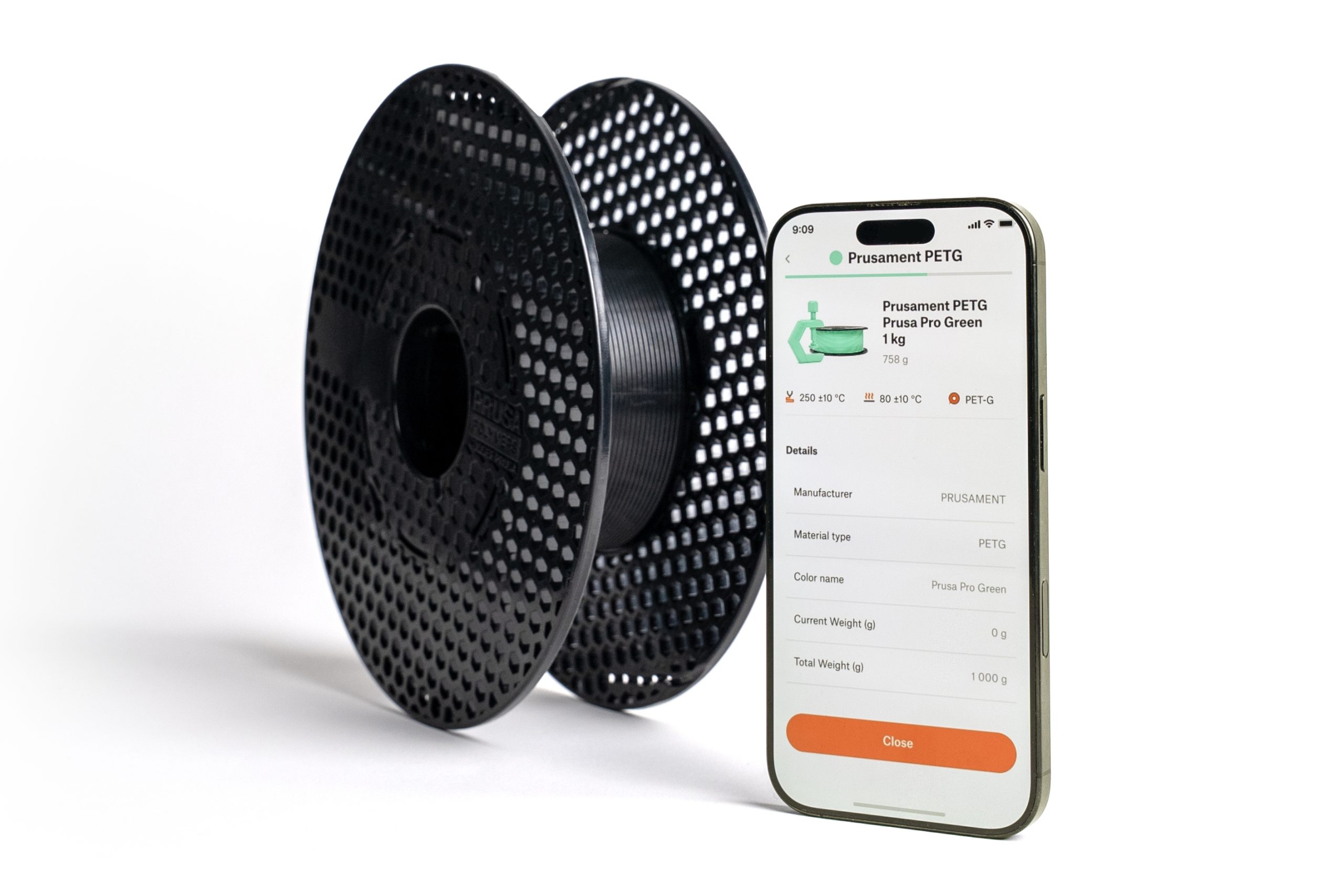
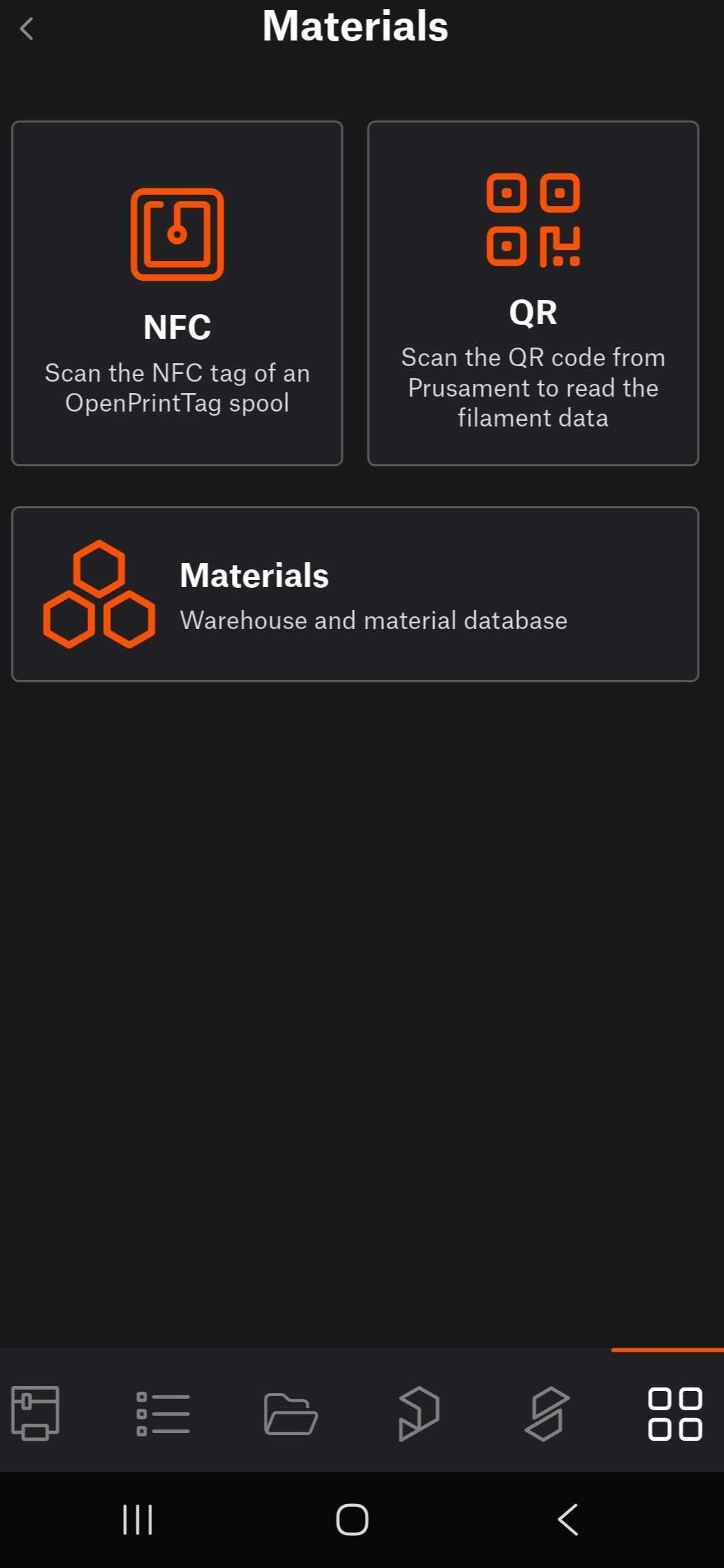
If the spool is equipped with NFC tag, tap on NFC, to scan the NFC tag of an OpenPrintTag spool. Hold the device close to the NFC tag on the spool.
 |  |
Alternatively, for Prusament spool equipped with QR code, tap on QR. This opens the device's camera to scan the QR code from the spool.
Any loaded to the printer is visible and tracked in both Prusa Connect and Prusa App.
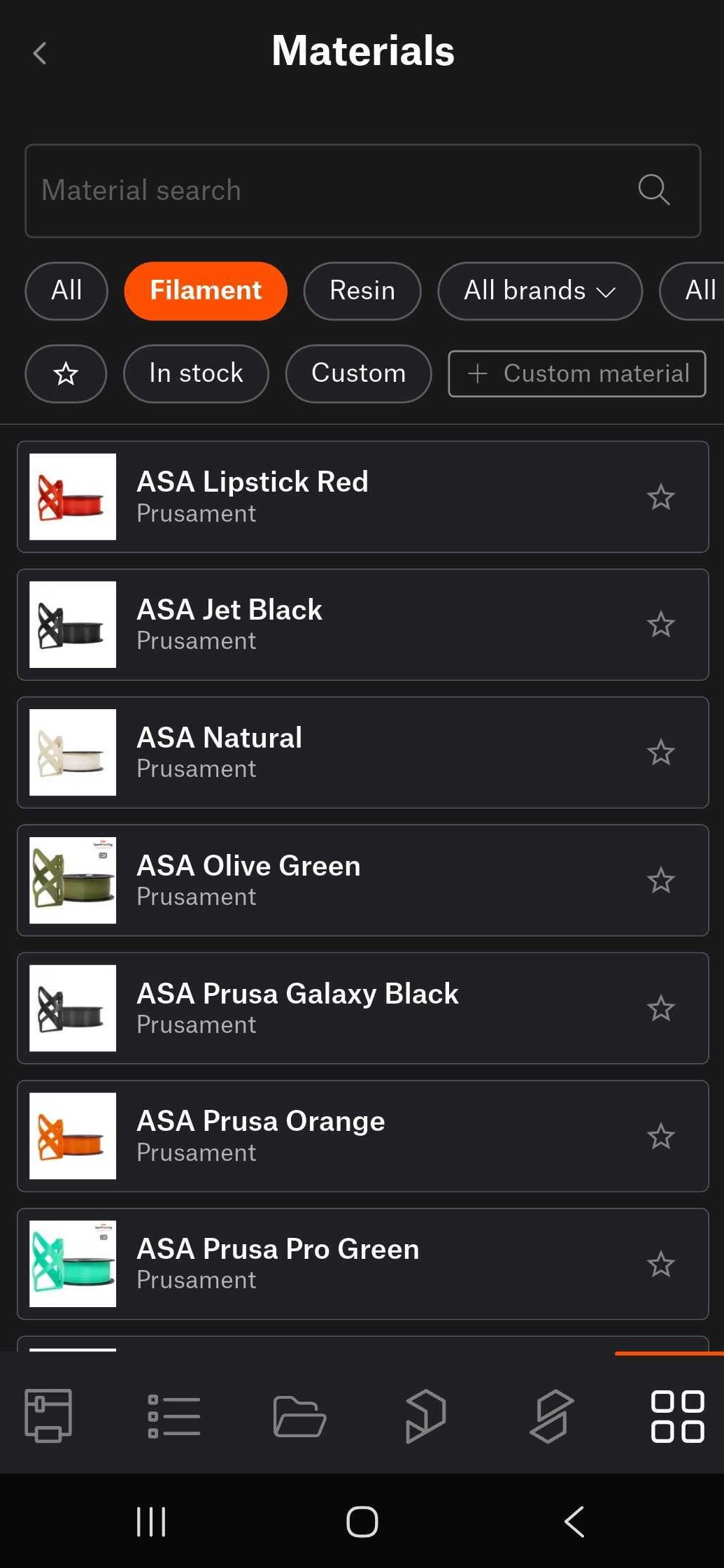
It is possible to save within the app materials that represent your spools. Navigate to Menu > Materials >Materials, to access our Material Database.
|  |
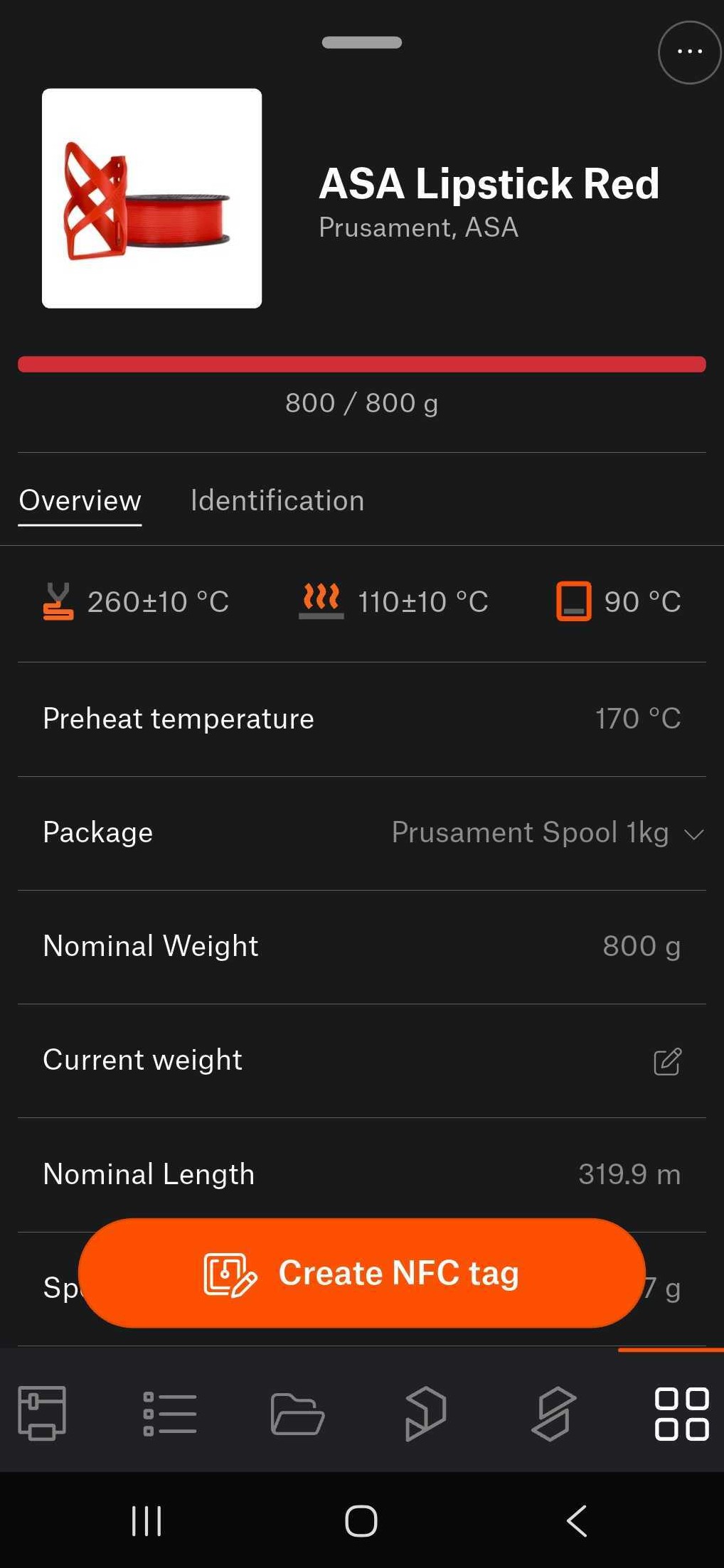
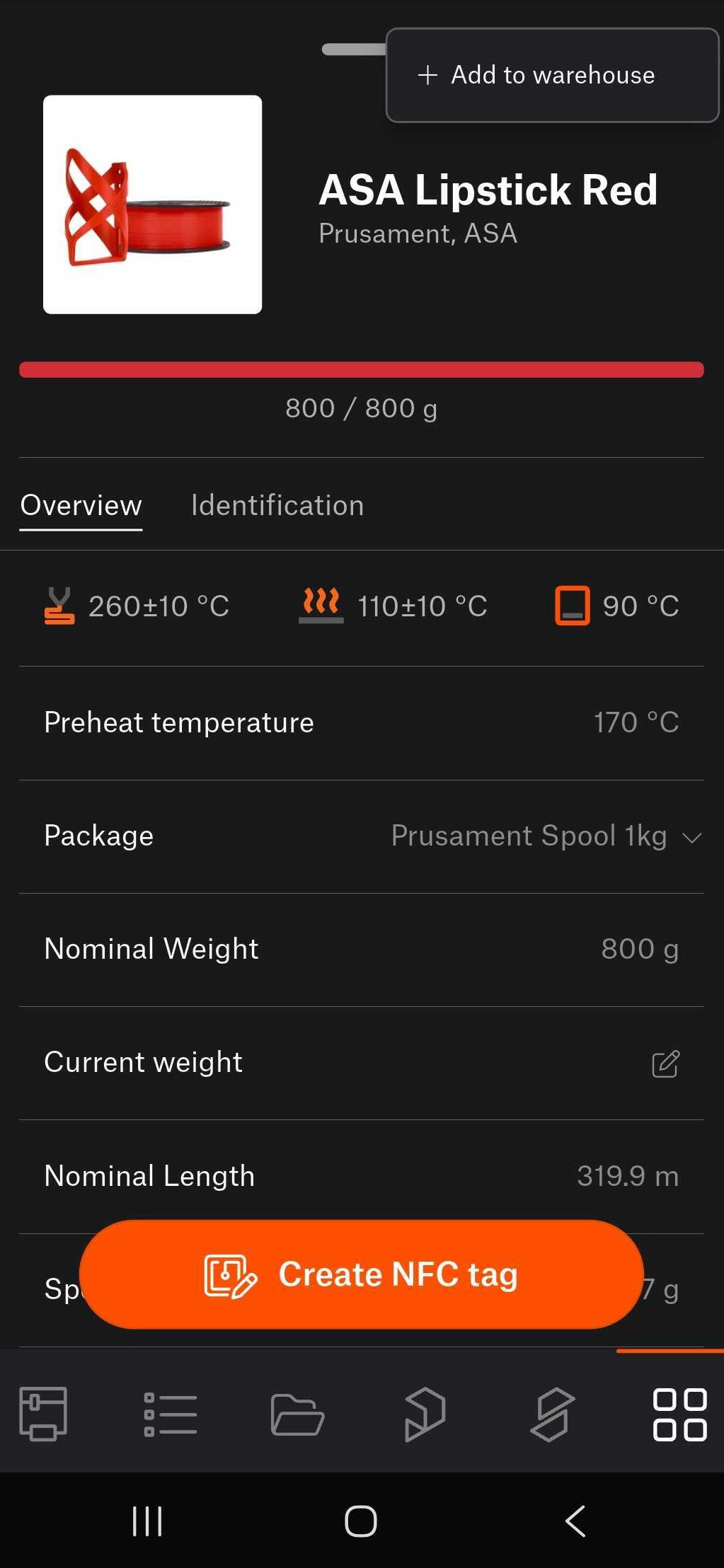
From there, select a spool by tapping it, then tap the top-right three button Add to warehouse.
 |  |  |
A printer equipped with NFC antenna and automatic NFC writing automatically reads the filament data as soon as it's loaded.
Manual adjustments are possible through the Material Database, accessible on Menu > Materials >Materials
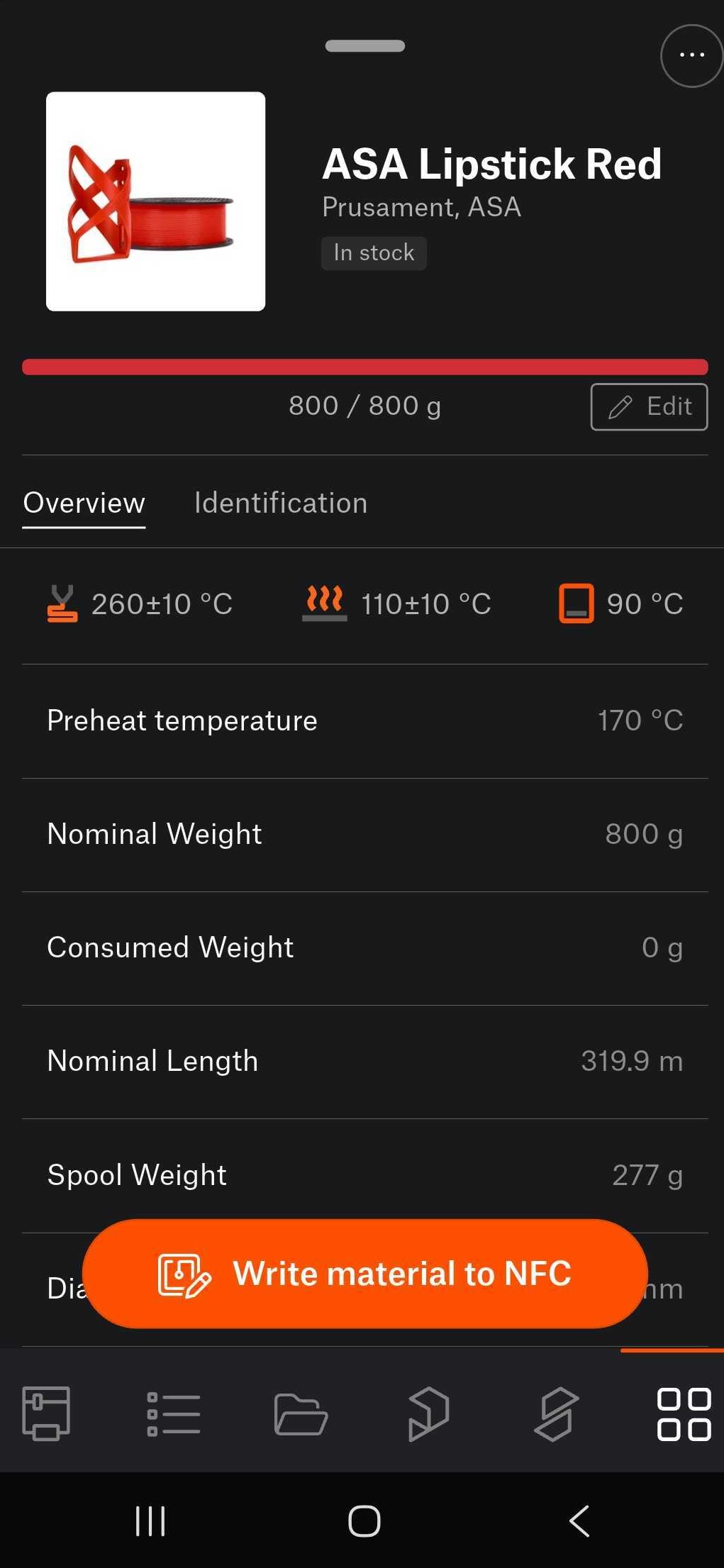
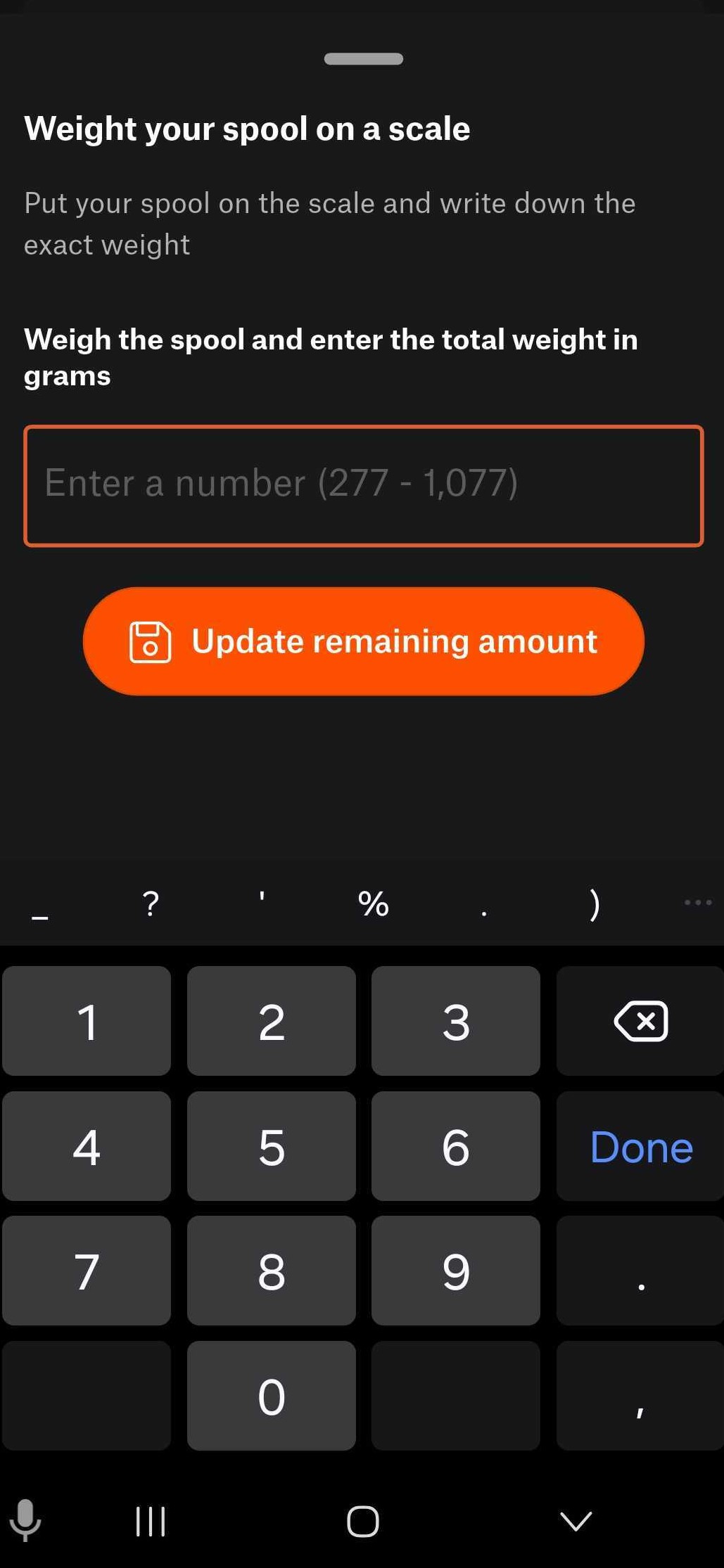
From there, navigate to a saved spool, select the spool, and tap the edit button. Weigh the material on a scale, and write the weight on the in-app field, to update it.
 |  |
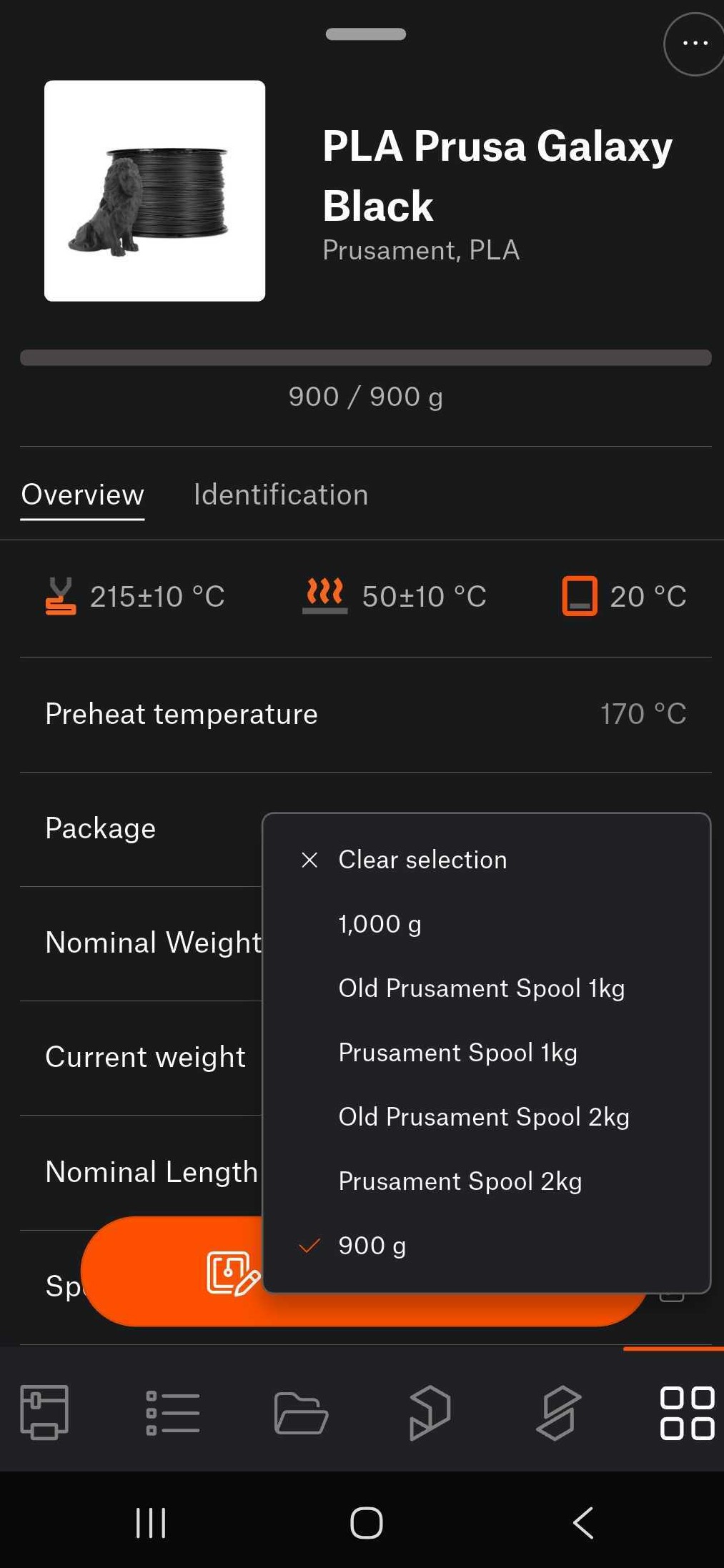
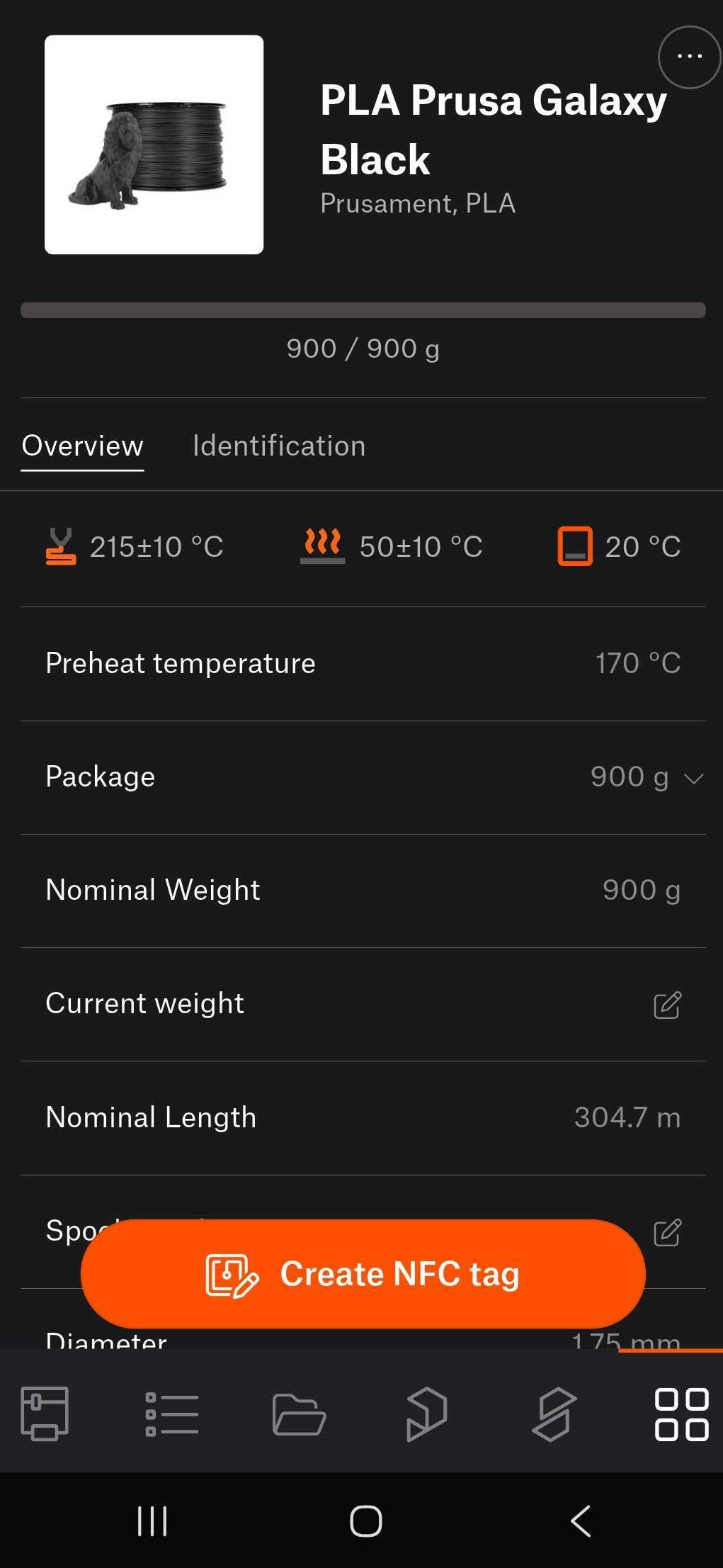
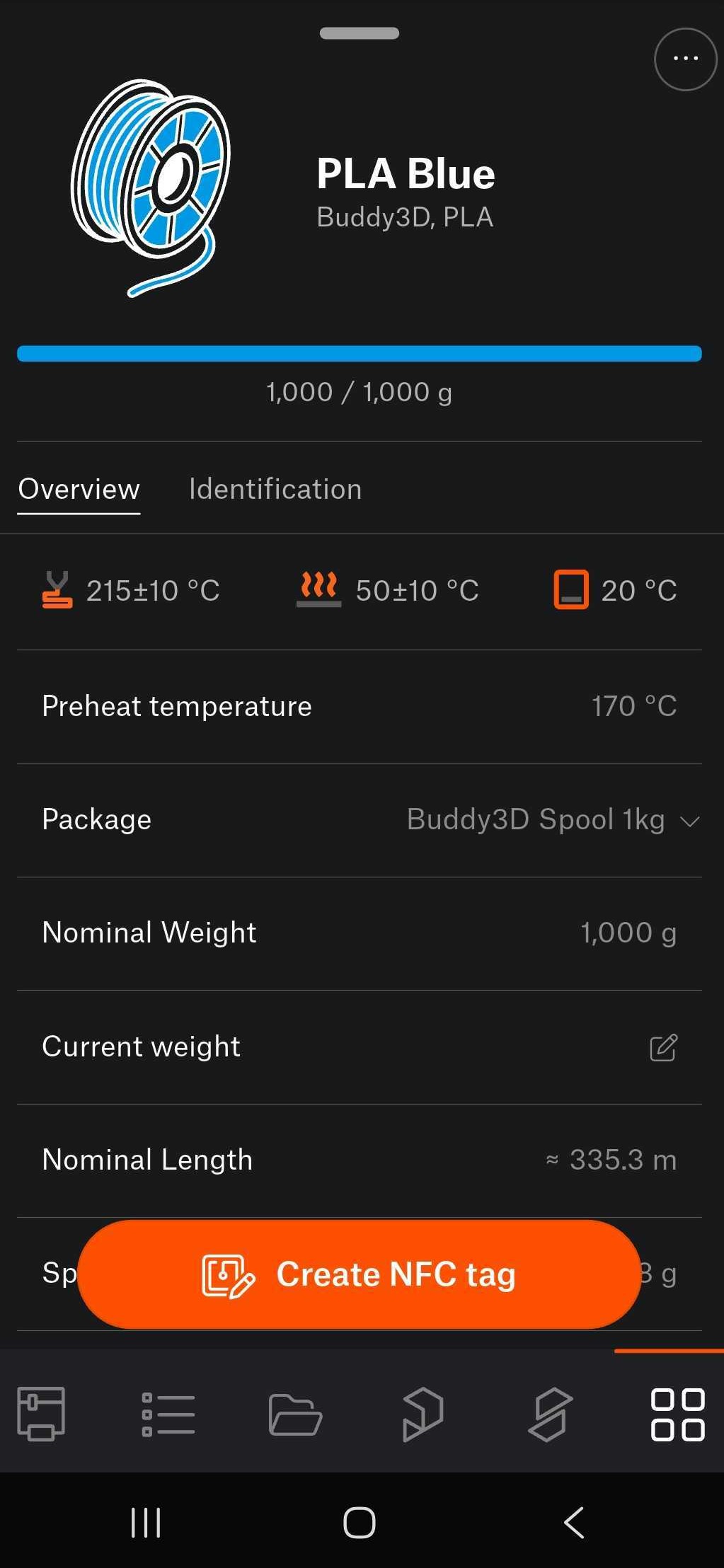
To load a refill spool on an empty NFC spool, navigate in the app in Menu >Materials >QR to scan the QR code of the refill material. Once the QR code is scanned, data from the refill is shown, choose as Package the weight of the refill filament, and tap on Create NFC tag to store the info on the spool's NFC tag.
 |  |
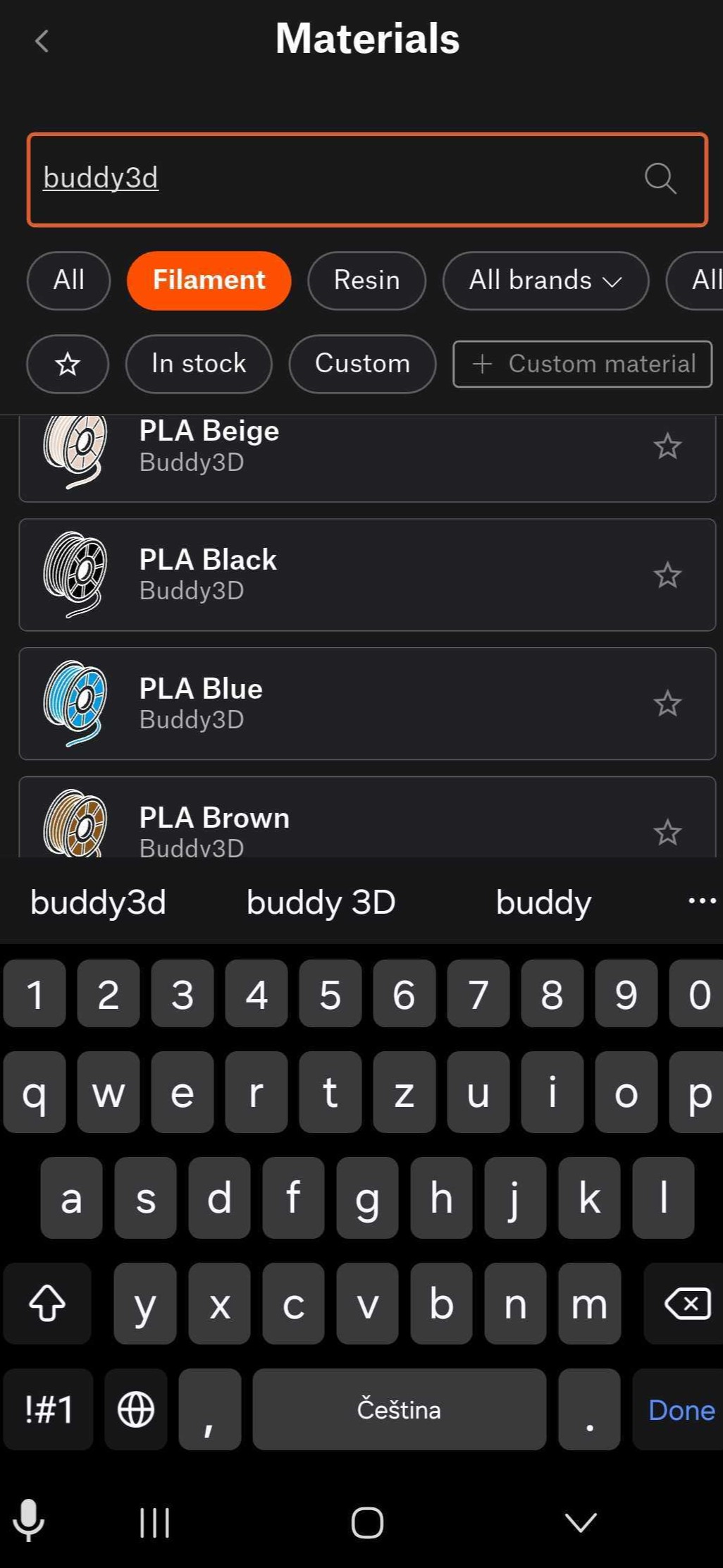
Access the material database, select the material, tap on Create NFC tag, bring the device close to the empty NFC tag. This writes the data from the selected material into the empty NFC tag.
 |  |