Prusa
  • SHOP
    • Latest products
    BY CATEGORY
    • 3D printersnew
    • 3D printer upgradesnew
    • Materials
    • Accessories
    • Spare parts
    • Courses
    • Merch
    • Get a price quote
    QUICK LINKS
    • Shipping & delivery
    • Returns & refunds
    • Payment & financing
    • Warranty
    • VAT & Customs fees
    • FAQ

    0 item in your cartitems in your cart

    Your cart is empty

    Go to cartShop 3D printers

    My profile

    Log in to see orders, saved items

    My profile

    Signed in as

    • Orders
    • Logout
  • 3D PRINTING
    • Explore 3D printing
    FOR BEGINNERS
    • 3D printing 101
    • How FDM printing works
    • Buying your first printer
    • 3D model catalog
    BY APPLICATION
    • Rapid prototyping
    • Manufacturing
    • Engineering
    • Research
    • Arts & design
    GO DEEPER
    • Materials guide
    • Courses
    • Webinars
    • Case studies
    • Custom 3D printing
  • 3D PRINTERS
    • All 3D printers
    FOR
    • Home or garageHobbyists, tinkerers and home printing
    • BusinessIn-house production for small teams
    • EnterpriseFleets, security and scale
    • Which Prusa is right for me
    SHOP & BROWSE
    • CORE One+new
    • CORE One+ INDXnew
    • CORE One L+new
    • CORE One L+ INDXnew
    • XL+new
    • MK4S
    • Prusa Pro HT90
    • Prusa Pro AFS
    • Prusa Pro SLX
    MORE FROM PRINTERS
    • Parts & upgradesnew
    • Critical infrastructure
    • Case studies
    • Signature Oak
    • Kits
  • MATERIALS
    • All materials
    BY USE
    • Every-day & design
    • Functional engineering
    • Composites
    • Pro speciality
    • SLA resins
    PRUSAMENT
    • PLA
    • PETG
    • ASA
    • PC
    • PA11
    • Flex
    • TPU
    MORE FROM MATERIALS
    • Materials guide
    • We make material in house
    • Sustainability
    • Order on the store
  • SOFTWARE
    • All software
    PREPARE THE PRINT
    • PrusaSlicer 3.0New
    PRINT & MONITOR
    • Prusa Connect
    • EasyPrint
    • iOS & Android app
    • Prusa Farm
    GET STARTED
    • Download & install
    • Knowledge base
    MORE FROM SOFTWARE
    • 3D model catalog
  • SUPPORT
    • Explore support
    FIND ANSWERS
    • Knowledge base
    • Troubleshooting
    • Courses
    • Webinars
    GET HELP
    • Contact us
    • Livechat
    • Shipping & delivery
    • Warranty
    • Returns & refunds
    • Service & spare parts
    • Service & Repair
    COMMUNITY
    • Forum
    • Reddit
    • Printables
  • TRUST CENTER
    • Trust Center overview
    BY TOPIC
    • GDPR
    • Certificates
    • Security
    • Compliance
    COMMITMENTS
    • Sustainability report
    TALK TO US
    • Contact the security team
  • COMPANY
    • About Prusa
    GET TO KNOW US
    • Our story
    • How we make printers
    • Open source
    • Brand & media kit
    NEWS
    • Blog
    • Newsroom
    • Events
    TRUST & PARTNERS
    • Sustainability
    • Resellers & distributors
    • Affiliate program
    • Contact
    • English
    • Čeština
    • Deutsch
    • Español
    • Français
    • Italiano
    • Polski
    • 日本語
  • Signed in as

    • Orders
    • Address
    • In-stock Alerts
    • My Courses
    • Subscription
    • Edit Account
    • Logout

Log in to see orders, saved items

Signed in as
  • Orders
  • Address
  • In-stock Alerts
  • My Courses
  • Subscription
  • Edit Account
  • English
  • Čeština
  • Deutsch
  • Español
  • Français
  • Italiano
  • Polski
  • 日本語
Shop

0 item in your cartitems in your cart

Your cart is empty

Go to cartShop 3D printers

My profile

Log in to see orders, saved items

My profile

Signed in as

  • Orders
  • Logout
SHOP
  • Latest products
BY CATEGORY
  • 3D printersnew
  • 3D printer upgradesnew
  • Materials
  • Accessories
  • Spare parts
  • Courses
  • Merch
  • Get a price quote
QUICK LINKS
  • Shipping & delivery
  • Returns & refunds
  • Payment & financing
  • Warranty
  • VAT & Customs fees
  • FAQ

Featured products

    Popular categories

      Trending searches

        Articles

          Blog

            Products

              Categories

                Suggested searches

                  Searching…
                  No results
                  Something went wrong.
                  ↑↓ Select↵ OpenEsc Close search
                  1. Support
                  2. Original Prusa i3 MK2S
                  3. Left toolbar
                  4. Paint-on supports
                   

                  Contents

                  • Support generation mode
                  • Automatic painting
                  • Highlight overhang by angle
                  • Tool type
                  • Brush shape
                  • Clipping plane
                  • Undo and Redo
                  • Saving Paint-on supports to 3MF

                  Blog

                  • Print colorful and glowing Halloween decorations with our spooky offer
                  • Factorio Has Arrived on Printables
                  • Prusament PLA Lightweight: 65% lighter than regular PLA. Perfect choice for aircraft, cosplay, and more.

                  Newsletter

                  Signup and get our monthly squeeze on updates, blog, printables and much more.

                  By clicking, you agree to receive our newsletter.

                  This site is protected by reCAPTCHA Enterprise and the Google Privacy Policy and Terms of Service apply.

                  Factorio Transport Belts
                  E-shop
                  • 3D Printers
                  • Printer Upgrades
                  • Filaments
                  • Accessories
                  • Prusa Merchandise

                  © Prusa Research a.s.

                  Printables
                  • 3D Models
                  • Store
                  • Clubs
                  • 3D Design Contests
                  • Brands
                  Community
                  • World Map
                  • Forum
                  • User Groups
                  • Events
                  Help
                  • Prusa Help
                  • Prusa Academy
                  • 3D Printing Calculators
                  Software
                  • PrusaSlicer
                  • Prusa.app
                  • Prusa Connect
                  • Drivers and Software
                  Company
                  • About Us
                  • Blog
                  • Official Prusa Resellers
                  • Contact Us
                  • Certified for ISO 9001, ISO 14001, ISO 45001
                  • General Terms and Conditions
                  • General Terms and Conditions of Use of the PRUSA Websites
                  • Privacy Policy
                  • Information about cookies
                  • Customer Complaints Policy
                  • Status Page
                  • Do Not Sell or Share My Personal Information
                  • Supplemental Statements
                  • General Terms and Conditions
                  • General Terms and Conditions of Use of the PRUSA Websites
                  • Privacy Policy
                  • Information about cookies
                  • Customer Complaints Policy
                  • Status Page
                  • Do Not Sell or Share My Personal Information
                  • Supplemental Statements

                  © Prusa Research a.s.

                  JOSEF PRUSA®, PRUSA RESEARCH®, PRUSA POLYMERS®, PRUSA ORANGE®, PRUSA 3D ® AND PRUSAMENT® are registered trademarks of Prusa Development a.s. used by Prusa Research a.s. under licence from Prusa Development a.s.

                  Paint-on supports

                  Relevant for

                  MMU family
                  MINI family
                  MK3 family
                  OLD PRODUCTS
                  SOFTWARE
                  6 comments
                  Article is also available in following languages
                  English
                  Čeština
                  Polski
                  Deutsch
                  Français
                  Español
                  Italiano
                  日本語

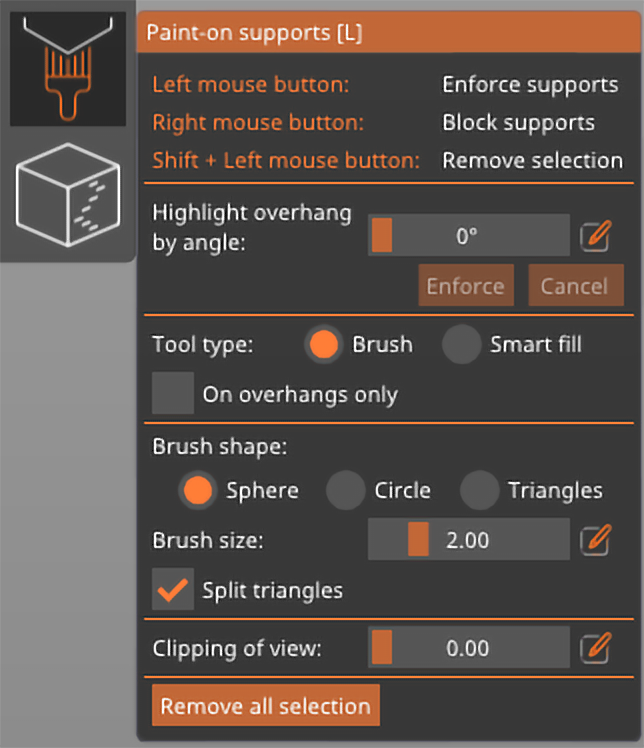
                  PrusaSlicer provides a tool, which lets you paint directly on the object and select areas, where supports should be enforced or blocked.

                  The tool is available from the left toolbar and is only shown in Advanced and Expert modes. After selecting an object and clicking the toolbar icon, all other objects are hidden so they do not obscure the view, the selected object is rendered in light gray to ensure contrast.

                  Left-mouse button - Enforce supports

                  Right-mouse button - Block supports

                  Shift + Left-mouse button - Erase selection

                  Alt + Mousewheel- Change brush size

                  Support generation mode

                  Do not forget to enable supports if you want to actually generate them. By default, support generation is set to None in the right panel.

                  Enforcing supports

                  If you're painting support enforcers, it makes the most sense to change supports to For support enforcers only. 

                  Of course, you can also set supports to Everywhere or From build plate only and use support enforcers to mark additional areas that need to be supported. This second use-case is useful if you set the Overhang threshold very low, so only very steep overhangs will get auto-generated supports.


                  Blocking supports

                  If you're using support blockers, you should change supports to Everywhere or From build plate only. These modes also turn on Auto-generated supports in Print settings - Support material. Supports will now be generated based on the set Overhang threshold except for the area blocked by the painted Support blockers.

                  Enforcing and blocking supports at the same time

                  With very complex models, it's possible you might want to use both enforcers and blockers at the same time. In this case, set supports to Everywhere or From build plate only. You can block some automatically generated supports with blockers while at the same time mark areas which did not get automatic supports with enforcers.

                  IMPORTANT NOTE: Your selection will not be completely obeyed when the painted region is very small. The support generator itself works on a grid internally, so the supported/unsupported areas are not infinitely detailed.

                  Automatic painting

                  The support painting tool contains an option for the automatic painting of support enforcers on the model.

                  The algorithm that powers this tool inspects the print extrusion by extrusion, considering a multitude of factors such as the center of mass, weight of the supported part, bed movement, potential extruder collision, bed adhesion, material, and bridging. The result is a more efficient placement of supports. For instance, bridges are supported only by regularly spaced pillars instead of their entire length.
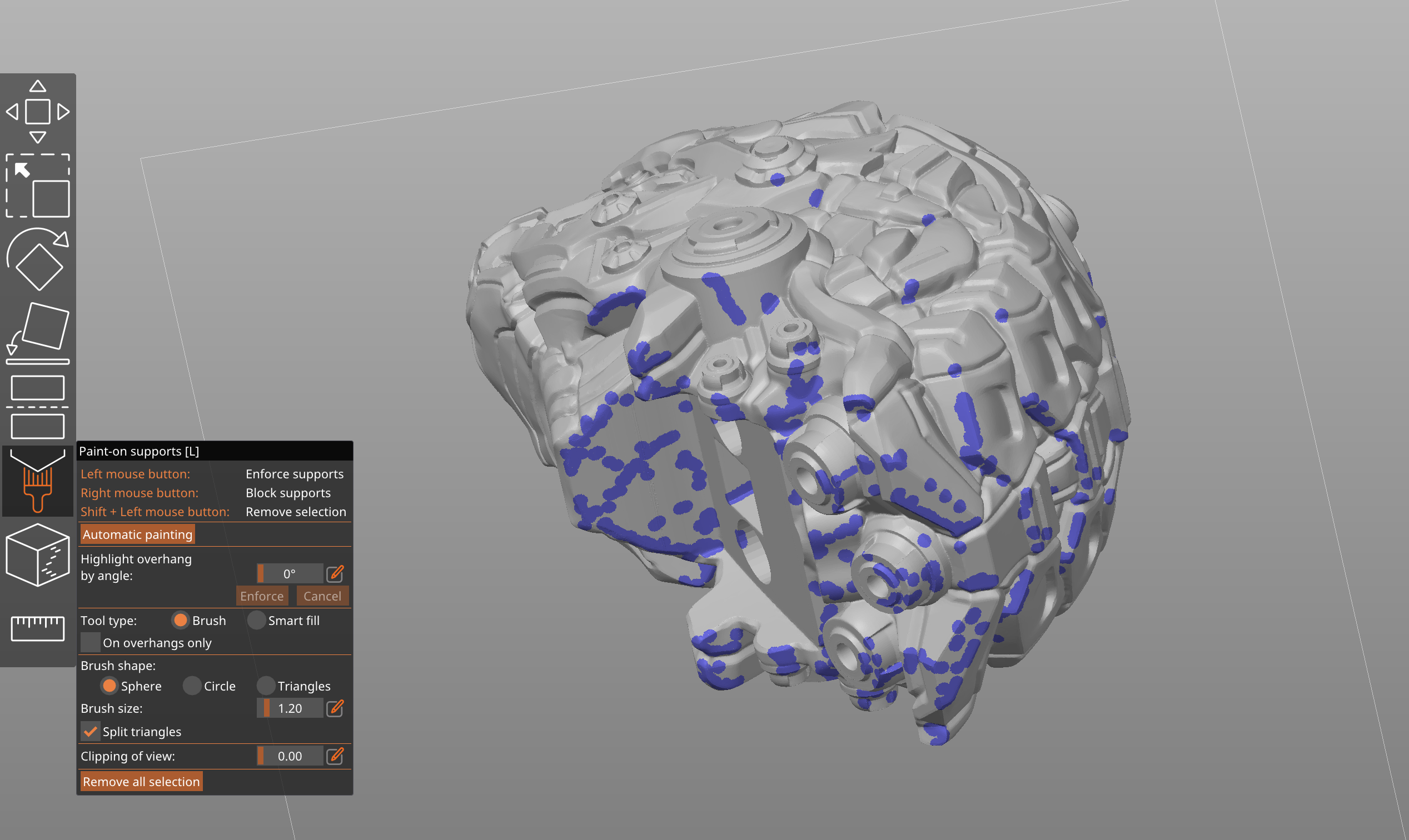
                  Automatically painted support points

                  The tool is also automatically activated during slicing, to give you a warning if a print needs supports. As expert users may find such a warning obtrusive, the warning can be disabled in the preferences.

                  Highlight overhang by angle

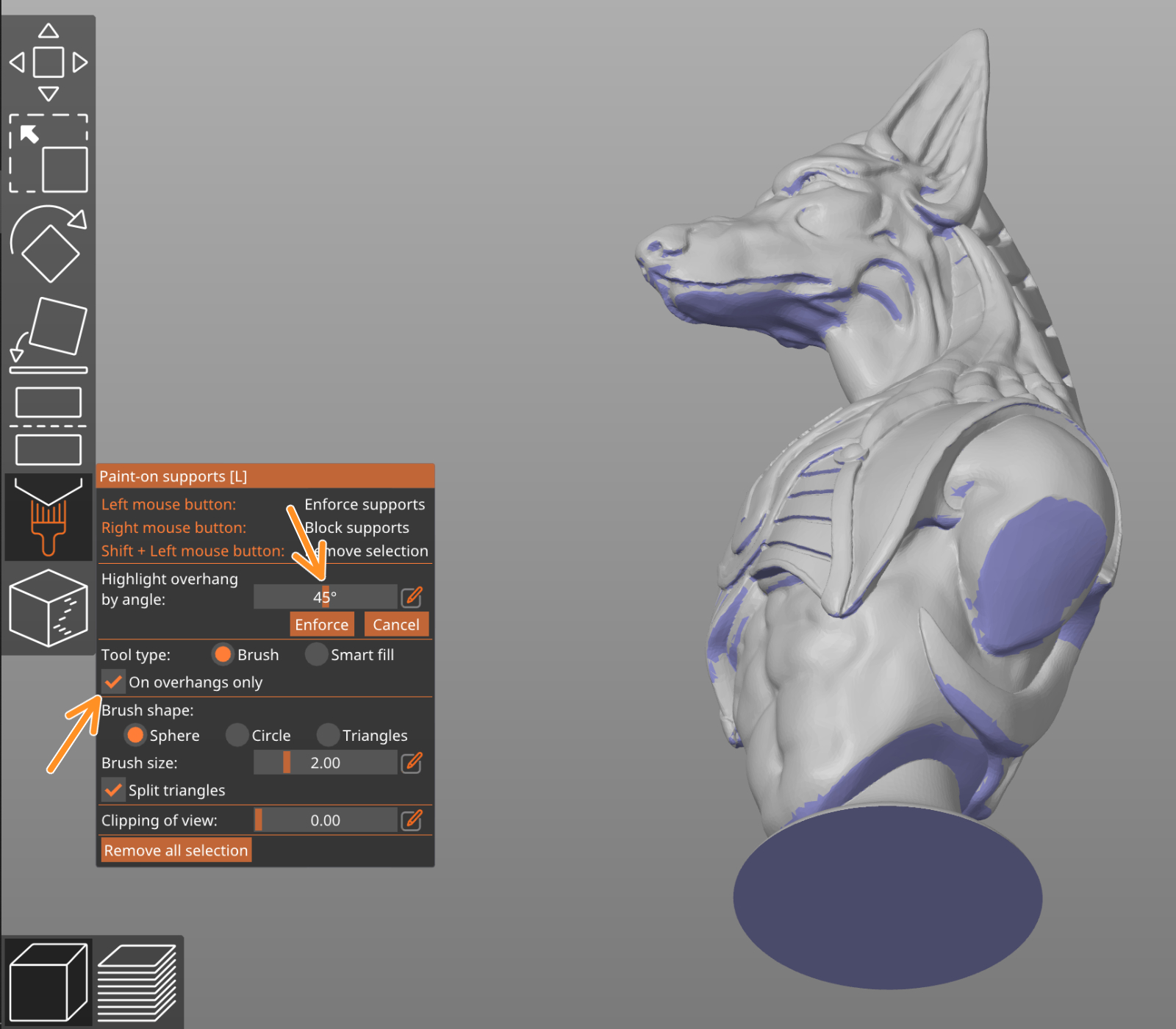
                  The highlight by overhang angle slider allows you to visualize all triangles that are "more horizontal" than a threshold. This can help you decide where you want to paint enforcers. The overhang triangles are visualized in real-time while the threshold is being adjusted.

                  You can also enable the On overhangs only checkbox, which will limit all brush strokes only to the highlighted triangles.
                  Tool type

                  Brush

                  Paints facets according to the currently selected brush.

                  Smart fill

                  Paints neighboring facets whose relative overhang angle is less or equal to the Smart fill angle. 

                  Brush shape

                  Spherical cursor (default)

                  Paints everything inside the sphere regardless of whether it is visible or not from the current view. The preferred method for most cases.

                  Circular cursor

                  Paints all visible places inside the circle from the current view, possibly leaving unpainted areas, but never painting behind corners.

                  Triangles

                  Paints the whole triangle under the mouse cursor.

                  Clipping plane

                  You can use the clipping plane tool to hide a part of the object, so that difficult to reach areas can be easily painted. Move the slider from left to right to move the clipping plane. 

                  The Reset direction button will align the clipping plane tool parallel to the current camera view. E.g. if you want to have the clipping plane moving up-down, look at the model from the top (Top view 1 ) and hit the Reset direction button. The button appears when you move the slider to any non-zero value.


                  Undo and Redo

                  While you have the Paint-on supports tool open, a new undo&redo history is created. You can undo each paint stroke you've made (painting enforcers, blockers, erasing).

                  Once you leave the Paint-on supports tool, all strokes from the last painting session are merged into one step in global undo and redo history.

                  Saving Paint-on supports to 3MF

                  When you use File - Save project the generated 3MF file will include all Paint-on supports information. That means you can customize the painted supports in the future once you re-open the file in PrusaSlicer.

                  This is really useful if you want to share your model. Other people will be able to use your painted supports and modify them freely.

                  Was this article helpful?
                  This action is available only to registered users. Please log-in.

                  Topics

                  • PrusaSlicer 2.9 (Legacy)
                    • Left toolbar
                      • Cut tool
                      • Place on Face tool
                      • Move, Rotate, Scale tools
                      • Paint-on supports
                      • Seam painting
                      • Measurement tool
                    • About PrusaSlicer
                    • Configuration and profiles
                    • User interface
                    • Input/output
                    • Top toolbar
                    • Print settings
                    • Filament settings
                    • Printer settings
                    • Advanced features
                    • Multi-material slicing
                    • SLA slicing
                    • Other (PrusaSlicer)

                  4 comments

                  Log in  to post a comment
                  PTBS
                  •
                  I have a dualextruder printer
                  It seams like paint-on support is always printed from the default extruder.  I can not find where to change extruder for paint-on support - does anyone know how to do that?
                  Reply
                  Shane
                  •

                  depending on your printer profile, generally, its under the Print settings / Multiple Extruders, and then under extruders you can select which you want to use for support

                  Reply
                  ChongBoy
                  •
                  Thanks! I have spent hours playing with supports and now it's so clear after ten minutes.
                  Reply
                  Hermes Endakis
                  •
                  You can draw straight lines with your mouse on a Mac using an Accessibility option called 'Mouse Keys' that lets you use your keyboard to move the mouse around the screen. https://support.apple.com/en-au/guide/mac-help/mh27469/mac
                  Reply
                  TrentDavey
                  •
                  In the video, at about 7:20 the narrator says "By the way, I am constantly using the ???-key to switch ...". Can someone parse thew ??? for me please. I hear it as "depp".
                  Reply
                  AdamCrawford
                  •
                  I'm pretty sure he says "tab key"
                  Reply