Prusa
  • SHOP
    • Latest products
    BY CATEGORY
    • 3D printersnew
    • 3D printer upgradesnew
    • Materials
    • Accessories
    • Spare parts
    • Courses
    • Merch
    • Get a price quote
    QUICK LINKS
    • Shipping & delivery
    • Returns & refunds
    • Payment & financing
    • Warranty
    • VAT & Customs fees
    • FAQ

    0 item in your cartitems in your cart

    Your cart is empty

    Go to cartShop 3D printers

    My profile

    Log in to see orders, saved items

    My profile

    Signed in as

    • Orders
    • Logout
  • 3D PRINTING
    • Explore 3D printing
    FOR BEGINNERS
    • 3D printing 101
    • How FDM printing works
    • Buying your first printer
    • 3D model catalog
    BY APPLICATION
    • Rapid prototyping
    • Manufacturing
    • Engineering
    • Research
    • Arts & design
    GO DEEPER
    • Materials guide
    • Courses
    • Webinars
    • Case studies
    • Custom 3D printing
  • 3D PRINTERS
    • All 3D printers
    FOR
    • Home or garageHobbyists, tinkerers and home printing
    • BusinessIn-house production for small teams
    • EnterpriseFleets, security and scale
    • Which Prusa is right for me
    SHOP & BROWSE
    • CORE One+new
    • CORE One+ INDXnew
    • CORE One L+new
    • CORE One L+ INDXnew
    • XL+new
    • MK4S
    • Prusa Pro HT90
    • Prusa Pro AFS
    • Prusa Pro SLX
    MORE FROM PRINTERS
    • Parts & upgradesnew
    • Critical infrastructure
    • Case studies
    • Signature Oak
    • Kits
  • MATERIALS
    • All materials
    BY USE
    • Every-day & design
    • Functional engineering
    • Composites
    • Pro speciality
    • SLA resins
    PRUSAMENT
    • PLA
    • PETG
    • ASA
    • PC
    • PA11
    • Flex
    • TPU
    MORE FROM MATERIALS
    • Materials guide
    • We make material in house
    • Sustainability
    • Order on the store
  • SOFTWARE
    • All software
    PREPARE THE PRINT
    • PrusaSlicer 3.0New
    PRINT & MONITOR
    • Prusa Connect
    • EasyPrint
    • iOS & Android app
    • Prusa Farm
    GET STARTED
    • Download & install
    • Knowledge base
    MORE FROM SOFTWARE
    • 3D model catalog
  • SUPPORT
    • Explore support
    FIND ANSWERS
    • Knowledge base
    • Troubleshooting
    • Courses
    • Webinars
    GET HELP
    • Contact us
    • Livechat
    • Shipping & delivery
    • Warranty
    • Returns & refunds
    • Service & spare parts
    • Service & Repair
    COMMUNITY
    • Forum
    • Reddit
    • Printables
  • TRUST CENTER
    • Trust Center overview
    BY TOPIC
    • GDPR
    • Certificates
    • Security
    • Compliance
    COMMITMENTS
    • Sustainability report
    TALK TO US
    • Contact the security team
  • COMPANY
    • About Prusa
    GET TO KNOW US
    • Our story
    • How we make printers
    • Open source
    • Brand & media kit
    NEWS
    • Blog
    • Newsroom
    • Events
    TRUST & PARTNERS
    • Sustainability
    • Resellers & distributors
    • Affiliate program
    • Contact
    • English
    • Čeština
    • Deutsch
    • Español
    • Français
    • Italiano
    • Polski
    • 日本語
  • Signed in as

    • Orders
    • Address
    • In-stock Alerts
    • My Courses
    • Subscription
    • Edit Account
    • Logout

Log in to see orders, saved items

Signed in as
  • Orders
  • Address
  • In-stock Alerts
  • My Courses
  • Subscription
  • Edit Account
  • English
  • Čeština
  • Deutsch
  • Español
  • Français
  • Italiano
  • Polski
  • 日本語
Shop

0 item in your cartitems in your cart

Your cart is empty

Go to cartShop 3D printers

My profile

Log in to see orders, saved items

My profile

Signed in as

  • Orders
  • Logout
SHOP
  • Latest products
BY CATEGORY
  • 3D printersnew
  • 3D printer upgradesnew
  • Materials
  • Accessories
  • Spare parts
  • Courses
  • Merch
  • Get a price quote
QUICK LINKS
  • Shipping & delivery
  • Returns & refunds
  • Payment & financing
  • Warranty
  • VAT & Customs fees
  • FAQ

Featured products

    Popular categories

      Trending searches

        Articles

          Blog

            Products

              Categories

                Suggested searches

                  Searching…
                  No results
                  Something went wrong.
                  ↑↓ Select↵ OpenEsc Close search
                  1. Support
                  2. Original Prusa MK3.5S
                  3. Printer troubleshooting
                  4. P.I.N.D.A./SuperPINDA Sensor testing
                   

                  Contents

                  • Testing the P.I.N.D.A./SuperPINDA sensor
                  • Testing the P.I.N.D.A. sensor-readings in Pronterface

                  Blog

                  • Prusament Pellets: Raw material batches for large-format 3D printing or small-scale polymer research & development
                  • Print colorful and glowing Halloween decorations with our spooky offer
                  • Factorio Has Arrived on Printables

                  Newsletter

                  Signup and get our monthly squeeze on updates, blog, printables and much more.

                  By clicking, you agree to receive our newsletter.

                  This site is protected by reCAPTCHA Enterprise and the Google Privacy Policy and Terms of Service apply.

                  Factorio Transport Belts
                  E-shop
                  • 3D Printers
                  • Printer Upgrades
                  • Filaments
                  • Accessories
                  • Prusa Merchandise
                  Prusa

                  © Prusa Research a.s.

                  Printables
                  • 3D Models
                  • Store
                  • Clubs
                  • 3D Design Contests
                  • Brands
                  Community
                  • World Map
                  • Forum
                  • User Groups
                  • Events
                  Help
                  • Prusa Help
                  • Prusa Academy
                  • 3D Printing Calculators
                  Software
                  • PrusaSlicer
                  • Prusa.app
                  • Prusa Connect
                  • Drivers and Software
                  Company
                  • About Us
                  • Blog
                  • Official Prusa Resellers
                  • Contact Us
                  • Certified for ISO 9001, ISO 14001, ISO 45001
                  • General Terms and Conditions
                  • General Terms and Conditions of Use of the PRUSA Websites
                  • Privacy Policy
                  • Information about cookies
                  • Customer Complaints Policy
                  • Status Page
                  • Do Not Sell or Share My Personal Information
                  • Supplemental Statements
                  Prusa
                  • General Terms and Conditions
                  • General Terms and Conditions of Use of the PRUSA Websites
                  • Privacy Policy
                  • Information about cookies
                  • Customer Complaints Policy
                  • Status Page
                  • Do Not Sell or Share My Personal Information
                  • Supplemental Statements

                  © Prusa Research a.s.

                  JOSEF PRUSA®, PRUSA RESEARCH®, PRUSA POLYMERS®, PRUSA ORANGE®, PRUSA 3D ® AND PRUSAMENT® are registered trademarks of Prusa Development a.s. used by Prusa Research a.s. under licence from Prusa Development a.s.

                  P.I.N.D.A./SuperPINDA Sensor testing

                  Relevant for

                  MK2.5
                  MK2.5S
                  MK3
                  MK3S
                  MK2S
                  +
                  41 comments
                  Article is also available in following languages
                  English
                  Čeština
                  Polski
                  Deutsch
                  Français
                  Español
                  Italiano
                  日本語

                  P.I.N.D.A. stands for Prusa INDuction Autoleveling sensor and is a vital component facilitating the calibration of our printers. There are 3 different versions:

                  • P.I.N.D.A. V1 - used on MK2/S and MINI.
                  • P.I.N.D.A. V2 - used on MK2.5, MK2.5S, MK3, and MK3S. 
                  • SuperPINDA - Compatible/used with MK2.5/S, MK3/S/+, and MINI+.

                  The difference between P.I.N.D.A V1 and V2 is that the P.I.N.D.A V2 has an inbuilt thermistor to compensate for the difference in cold and hot measurements. V1 and V2 are not interchangeable. However, SuperPINDA and PINDA V2 are interchangeable but may require a firmware update. The SuperPINDA does not have a thermistor, as its high-quality components and manufacturing remove the need for one.

                  For MK2.5/MK2.5S printers that have the SuperPINDA installed, you MUST use firmware version 3.9.3, or above! In addition to this, you must let the printer know you have the SuperPINDA installed, and not the P.I.N.D.A. V2, by navigating to LCD Menu -> Settings -> HW settings -> SuperPINDA -> ON. MK3S & MK3S+ owners using the SuperPINDA must use firmware version 3.9.2, or above!

                  Testing the P.I.N.D.A./SuperPINDA sensor

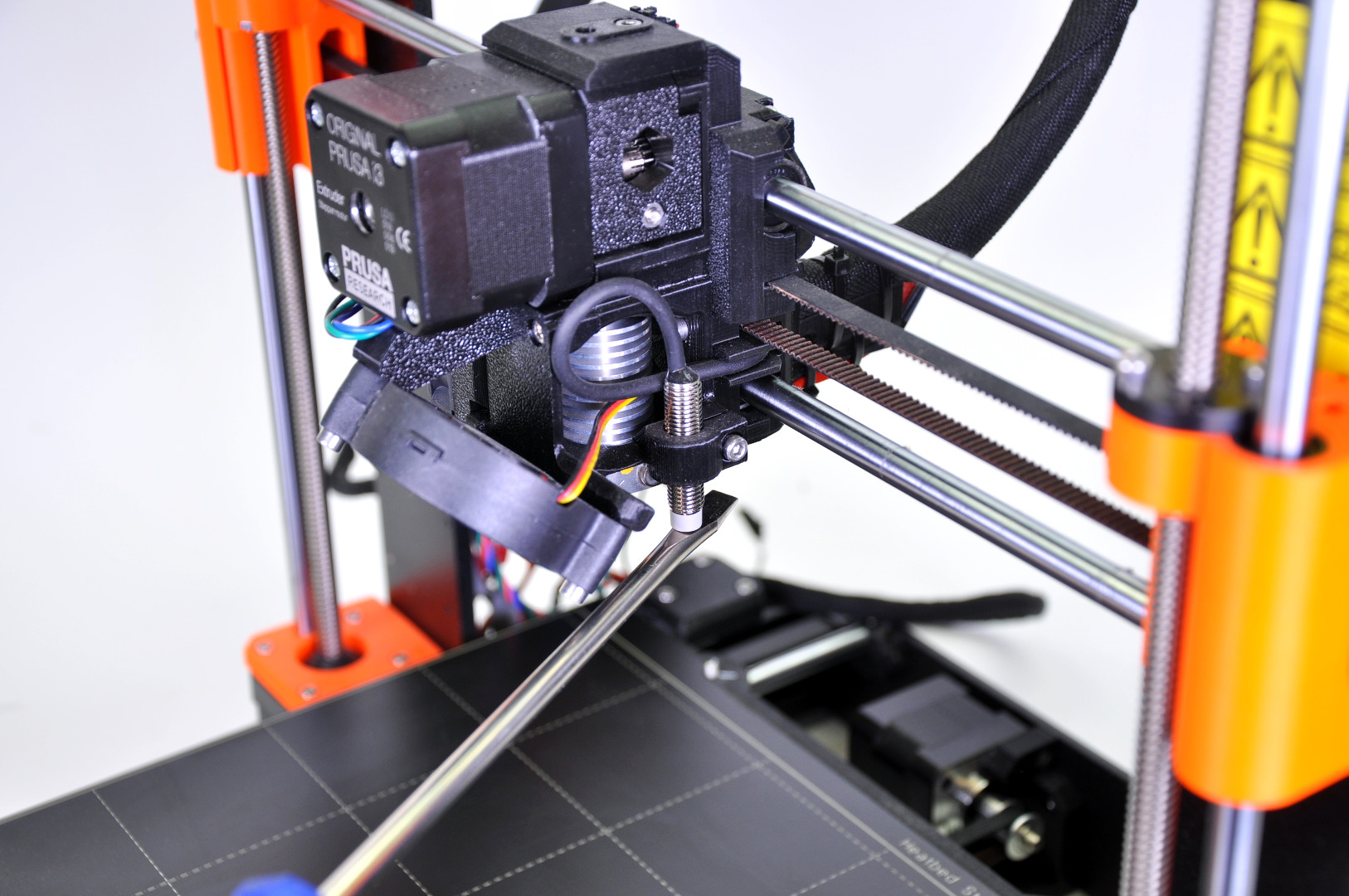
                  Firstly, we need to check if the sensor works at all. For this test, you need a small and thin metal object (spatula, scissors, pliers). Your printer should also be running on the latest firmware version for your printer model.

                  1. Press the knob next to the LCD for 3 sec and turn it to raise the extruder approximately 10 cm above the heatbed. This is to distance it from any metal.
                  2. If you have firmware version 3.5.3 and later (unless you have an MK2/S), go to the LCD Menu -> Support -> Sensor info and see the sensor value ('PINDA:' 1 or 0)
                  Before firmware version 3.5.3, the P.I.N.D.A. sensor value was found in LCD Menu -> Calibration -> Show end stops. If you have an MK2/S, you can find the Z-value there.
                   
                  1. Place the metal object (spatula, screwdriver, etc.) underneath the P.I.N.D.A./SuperPINDA sensor. The value should change from 0 to 1, and the red light on top of the sensor should turn off.
                  2. Move the extruder by hand all along the X-axis and wiggle with the extruder's cable-bundle. The value should still be 1, as long as there is something metallic under the sensor.
                    • If the value does not change, make sure the sensor is connected correctly. Please refer to the Einsy RAMBo electronics wiring (MK3/MK3S/MK3S+) or Mini RAMBo electronics wiring (MK2S, MK2.5, MK2.5S) articles.
                    • If the value is 1 but flicks to 0 at some point, the cable may be broken at some point. Please contact support via email or chat.
                  One of the most frequent issues is an overtightened zip-tie, which causes the P.I.N.D.A. sensor cable to fail when it reaches a specific position. Double-check all the zip-ties and make sure they are not too tight.

                  Testing the P.I.N.D.A. sensor-readings in Pronterface  

                  There is another way to check whether or not the P.I.N.D.A. sensor works correctly. Please perform the following procedure 3 times. For the sake of consistent measurements, please make sure the tests are done under identical conditions. 

                  Pronterface may not be supported on newer versions of iOS (Apple Laptops) after they dropped the support of 32-bit apps with Catalina. However, there are some workarounds. See this Github thread.

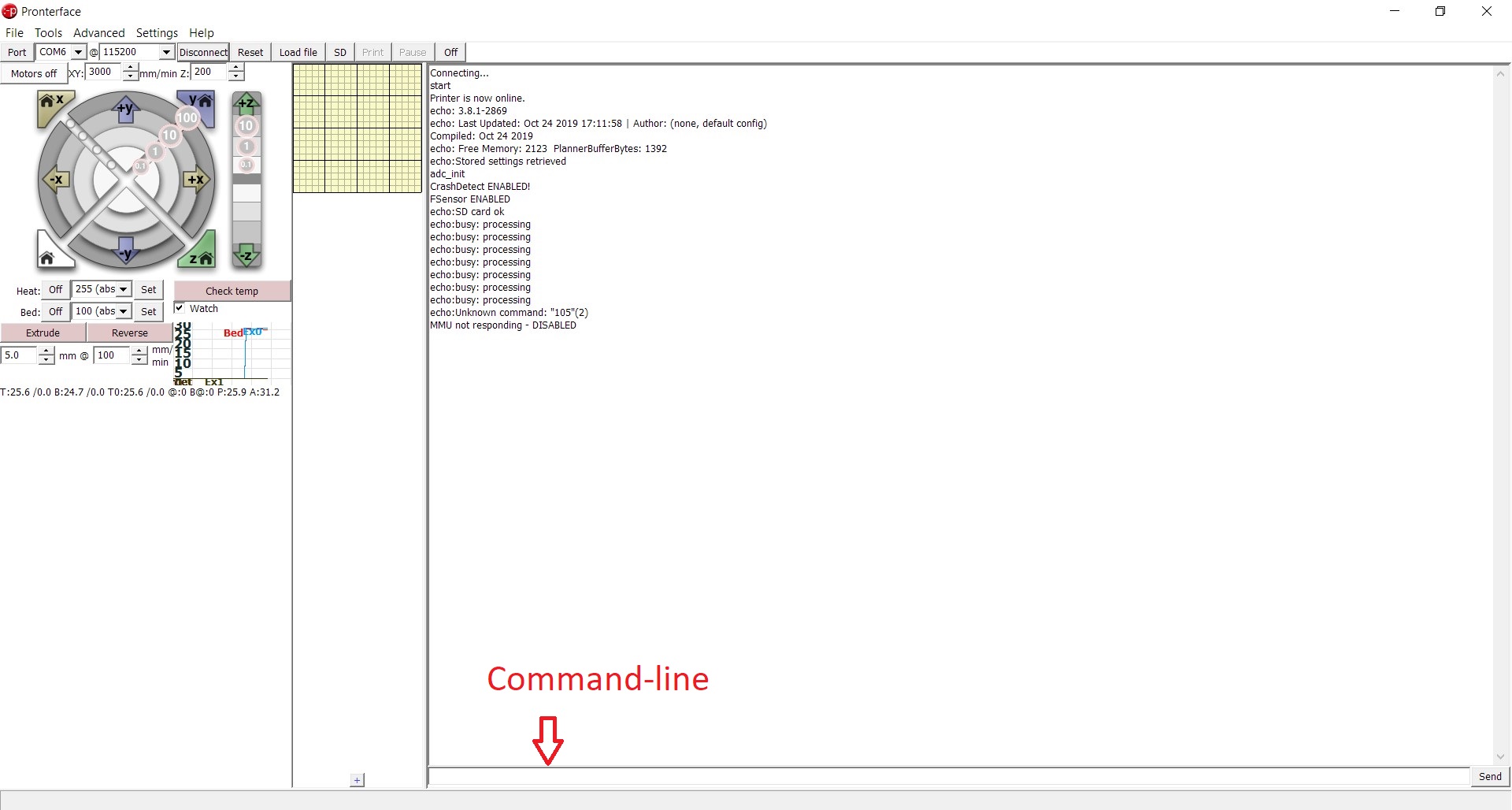
                  1. Connect the printer to your computer following the Pronterface and USB cable guide.
                  Make sure the nozzle is clean, and the print surface is clear of any obstructions.
                   
                   
                  1. Issue a G80-command into the command-line. It triggers the mesh bed leveling process.
                  2. Once the process is complete, issue a G81-command which gives you a report of the interpolated Z values for a 7 x 7 array of values.

                  Compare the data arrays. Keep in mind that every number in the matrix has their pre-defined positions, always compare the numbers in the same position. You want to make sure there are no significant deviations (>0.2) between the 3 measurements.

                  After adjusting the P.I.N.D.A. sensor or any other hardware, we recommend running the Calibration Wizard from the beginning.
                  Was this article helpful?
                  This action is available only to registered users. Please log-in.

                  Topics

                  • Troubleshooting
                    • Printer troubleshooting
                      • Blown Fuse (MK3/MK3S/MK3S+)
                      • Extrusion stopped mid-print (Heat creep)
                      • Spaghetti monster
                      • Extruder blob
                      • Clogged nozzle/hotend (MK3.5/S, MK3S+, MK2.5S)
                      • Extruder noises
                      • Filament Not Loading
                      • Misaligned PINDA Sensor (MK2/S)
                      • Print fan is not spinning
                      • Hotend fan is not spinning
                      • Heatbed not heating up properly
                      • P.I.N.D.A./SuperPINDA Sensor testing
                      • SD card not working
                      • LCD screen not working
                      • Printer does not turn on or keeps turning off
                      • Blown Fuse (MK2S/MK2.5/MK2.5S)
                      • MK3S keeps prompting filament change
                      • Vibration when printing (MK3S+/MK2.5S)
                      • Live Z adjust not saving
                      • Factory reset (MK2S/MK2.5S/MK3S)
                      • Firmware updating issues (MK2.5S/MK3S+/MMU2S/MMU3)
                      • Nozzle crashed into the heatbed
                      • External SPI flash W25X20CL/xFLASH not responding - error
                      • IR Filament Sensor Troubleshooting (MK2.5S, MK3S)
                      • Failing Z calibration (MK3S/MK2.5S)
                      • Ambient temperature check (MK3/MK3S)
                      • PrusaLink Troubleshooting
                      • Tangled filament
                      • SD cards and USB drives
                    • Diagnostics
                    • Print Quality Troubleshooting
                    • QR Error codes
                    • Print Error Messages

                  19 comments

                  Log in  to post a comment
                  hitjim
                  •
                  Is the ">0.2" meant to directly apply to the resulting standard deviation calculation's bare numerical result or the percentage calculation?  For example when I use Google Sheets' STDEV do I evaluate the resulting bare value from my 3 measurements (0.003470778011) or the % conversion (0.35%)?
                  Reply
                  plaTime
                  •
                  I have an MK2S and the PINDA probe seems to have failed.  It doesn't trigger when doing the endstop testing.  Can I replace the PINDA V1 with a V3?   
                  Reply
                  Giuliano - Official Prusa CS
                  •
                  Hello. The SuperPINDA is meant for the magnetig heatbed, so the printer model should be MK2.5 or newer.
                  Reply
                  CD_FER
                  •
                  Sorry to be that guy but this line:"newer versions of iOS (Apple Laptops"
                  should say:
                  "newer versions of macOS (Apple Laptops"
                  Reply
                  Cassius Duke
                  •
                  Hello,
                  I have had a major failure, where the hotend termister wires got so hot they melted and the printer screamed.  I couldnt see why and the fuses were not blown.
                  I have replaced the V6 with the new E3D Revo and the issue looks like its rsesolved.  the board powers up and the hotend will heat, extrude, cool, XYZ move and hte PID callibration worked.
                  BUT the PINDA sensor is no longer working.  when i try to do a 1st layer calibration the nozzel hits the bed.
                  If I follow the instructions above I can see the red light, and I can see if go off when i place a metal object under the PINDA, but the Printer shows a zero the whole time, even when the lights is off.
                  I have a Mk3 that had the MK3s upgrade.  I have flashed the latest 3S firmware and  down flashed the previose one incase and it dosnt work.  Ive tried the non-s firmware and it has the same behavior.
                  Question: given that the light is on so the PINDA has power is it more likly that there is a broken cable or that the board is damaged?
                  Reply
                  Giuliano - Official Prusa CS
                  •
                  Hello. If there is no visible damage around the port for the PINDA in the board, it would be hard to establish what is broken. Certainly replacin the PINDA is less expensive, so I would try to replace that first. Also, in case it was not about the PINDA, you would still have gotten the newest version, which is more reliable.
                  Reply
                  Anachronist
                  •
                  I came across a nozzle-cleaning brush that is mounted by sticking it to the underside of the right edge of the build plate with magnets, for which you add a bit of gcode to pass the nozzle over the brush. Are there any magnets along the right edge of the build plate that are ignored in a 7x7 bed-leveling calibration? That might be a good place to position an extra magnet for mounting that cleaning brush.
                  Reply
                  David
                  •

                  Hi! Would the left side work? The right one is being probed by PINDA all the way to the edge.

                  Reply