Relevant for


The printer displays the message: "Enclosure fan not spinning. Check it for possible debris, then inspect the wiring."
This warning indicates that the enclosure filtration fan, part of the Advanced Filtration System on the XL enclosure, fails to spin.
Error name: Enclosure fan error
Error code: #17830 (XL)
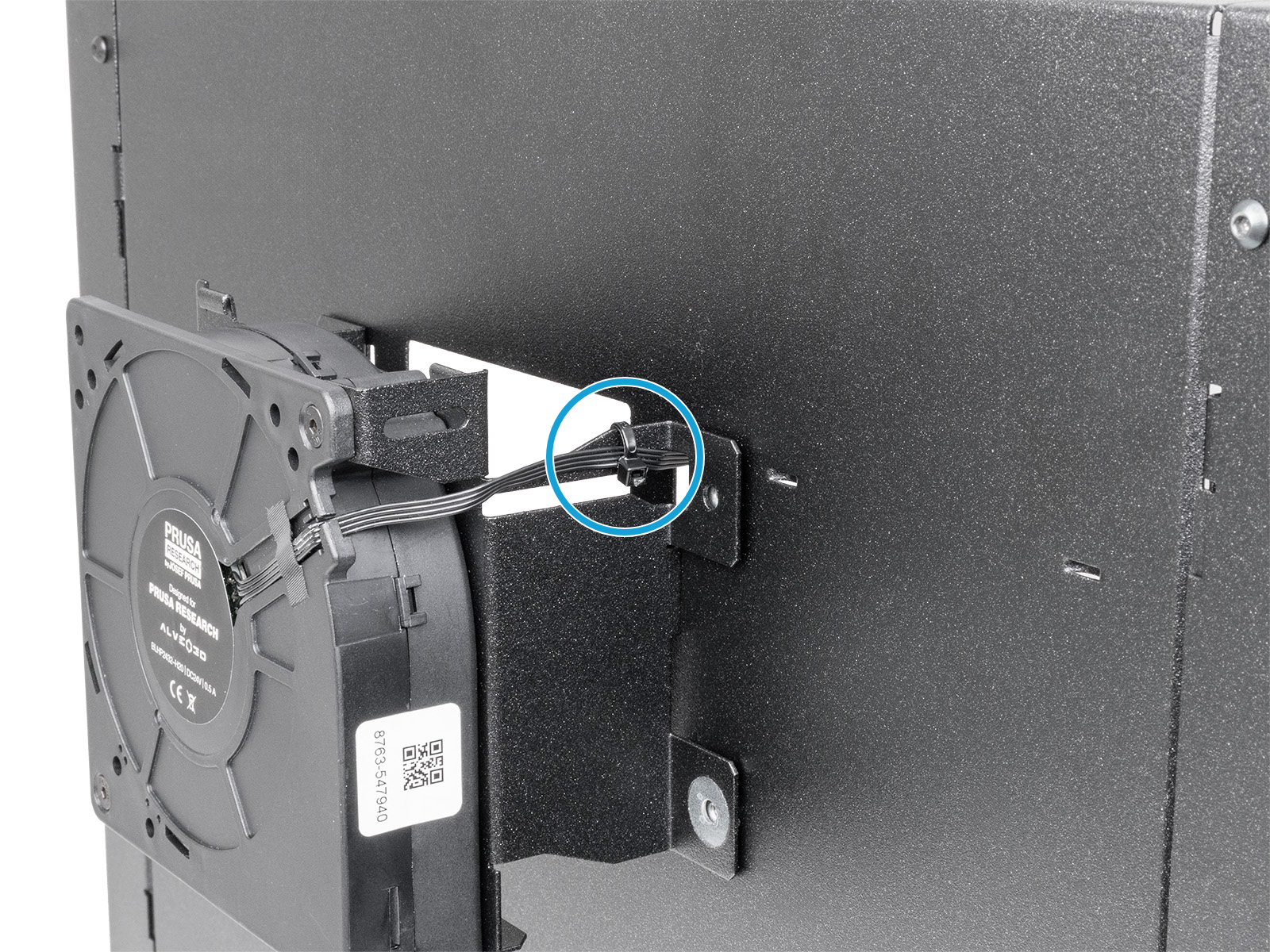
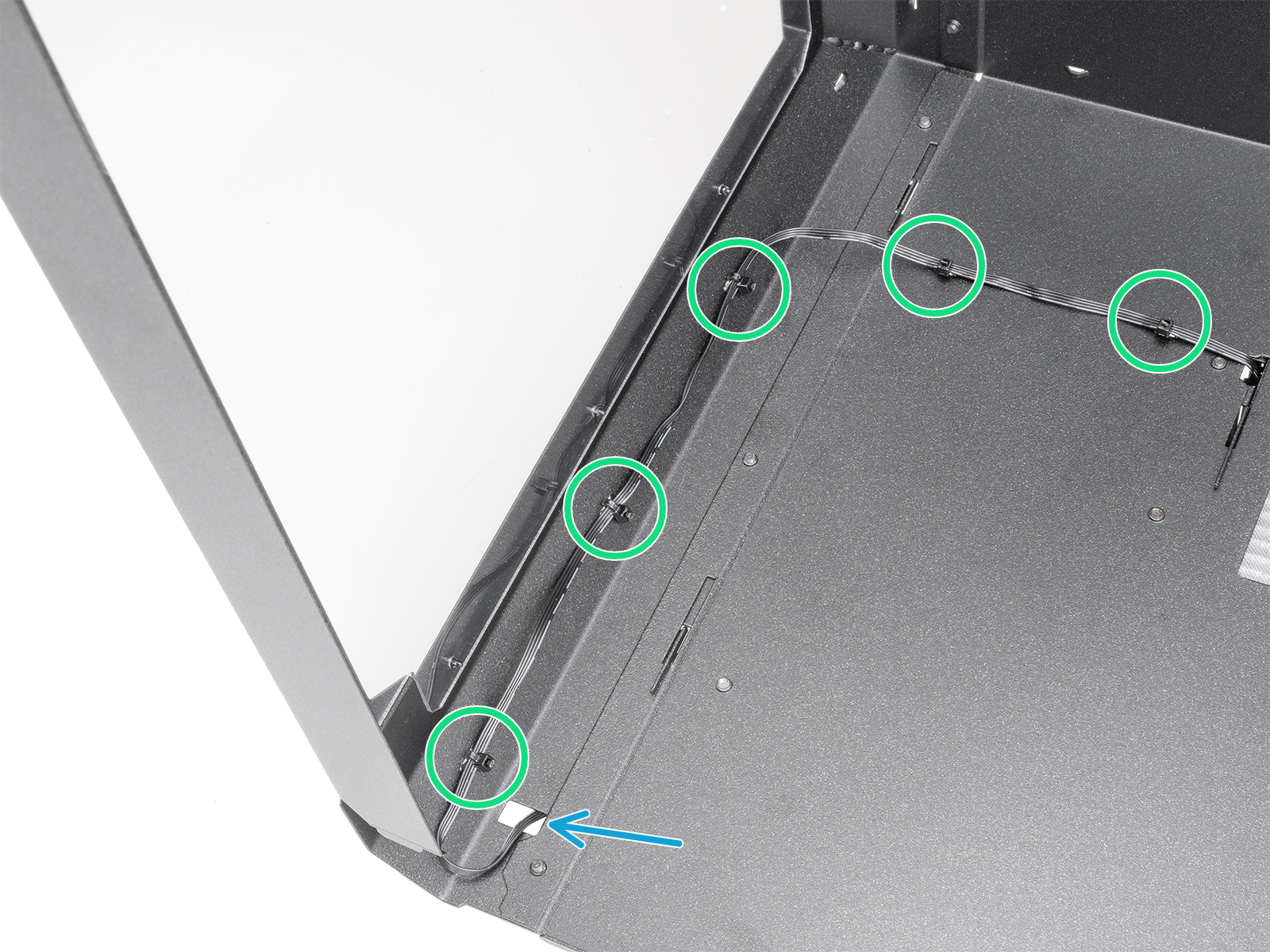
Start by inspecting the fan for mechanical blockage or electrical issues:
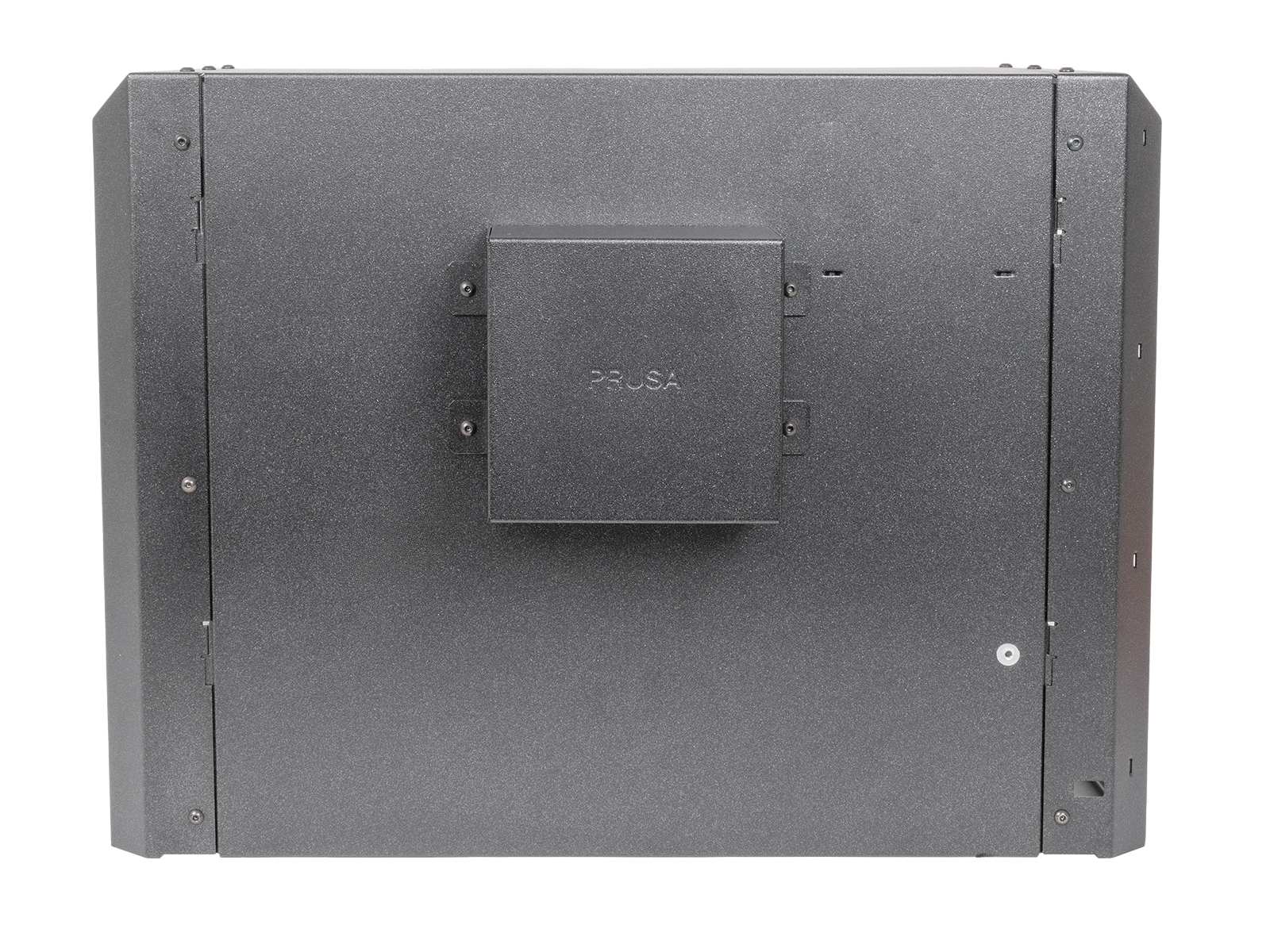
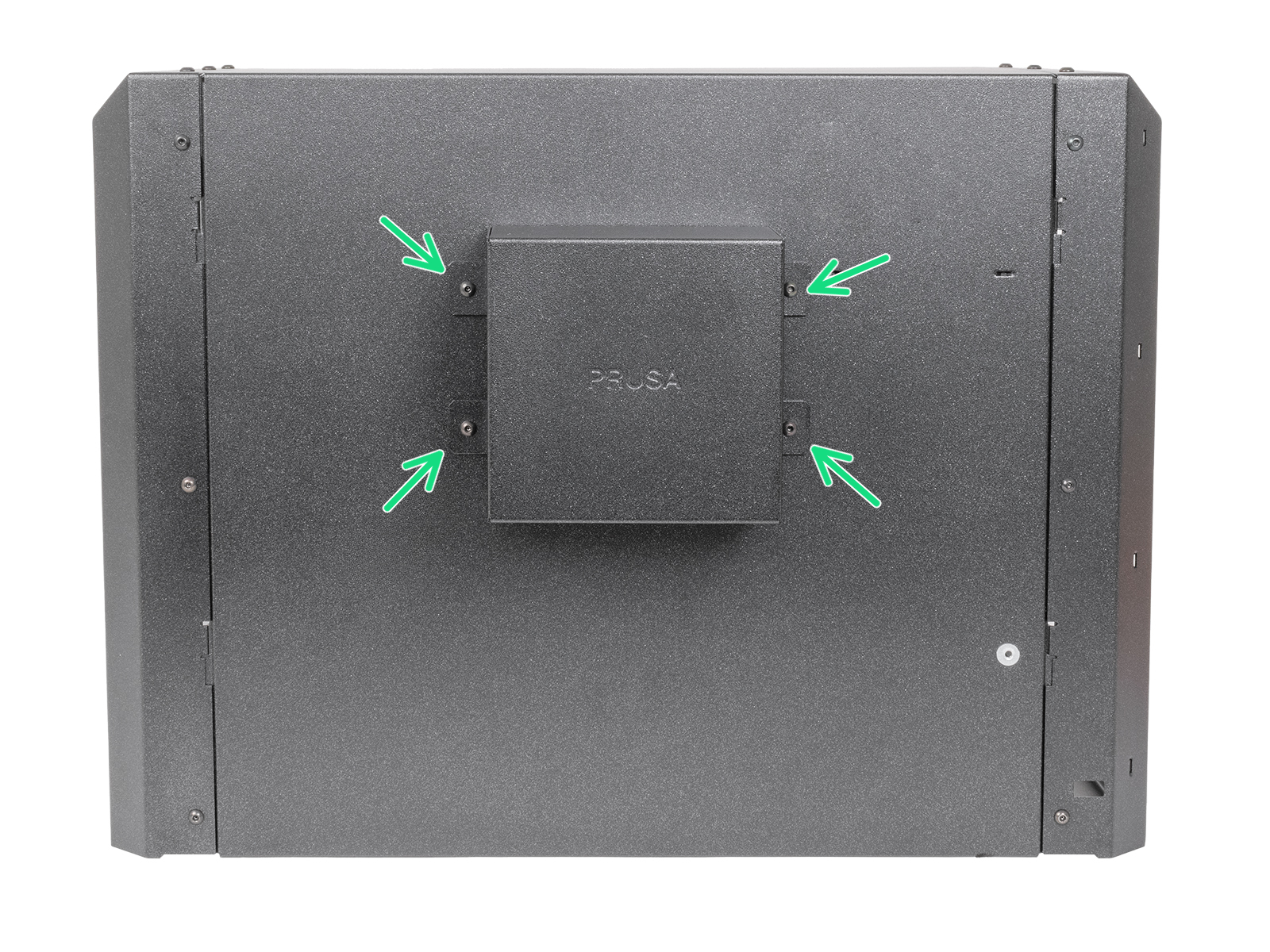 | 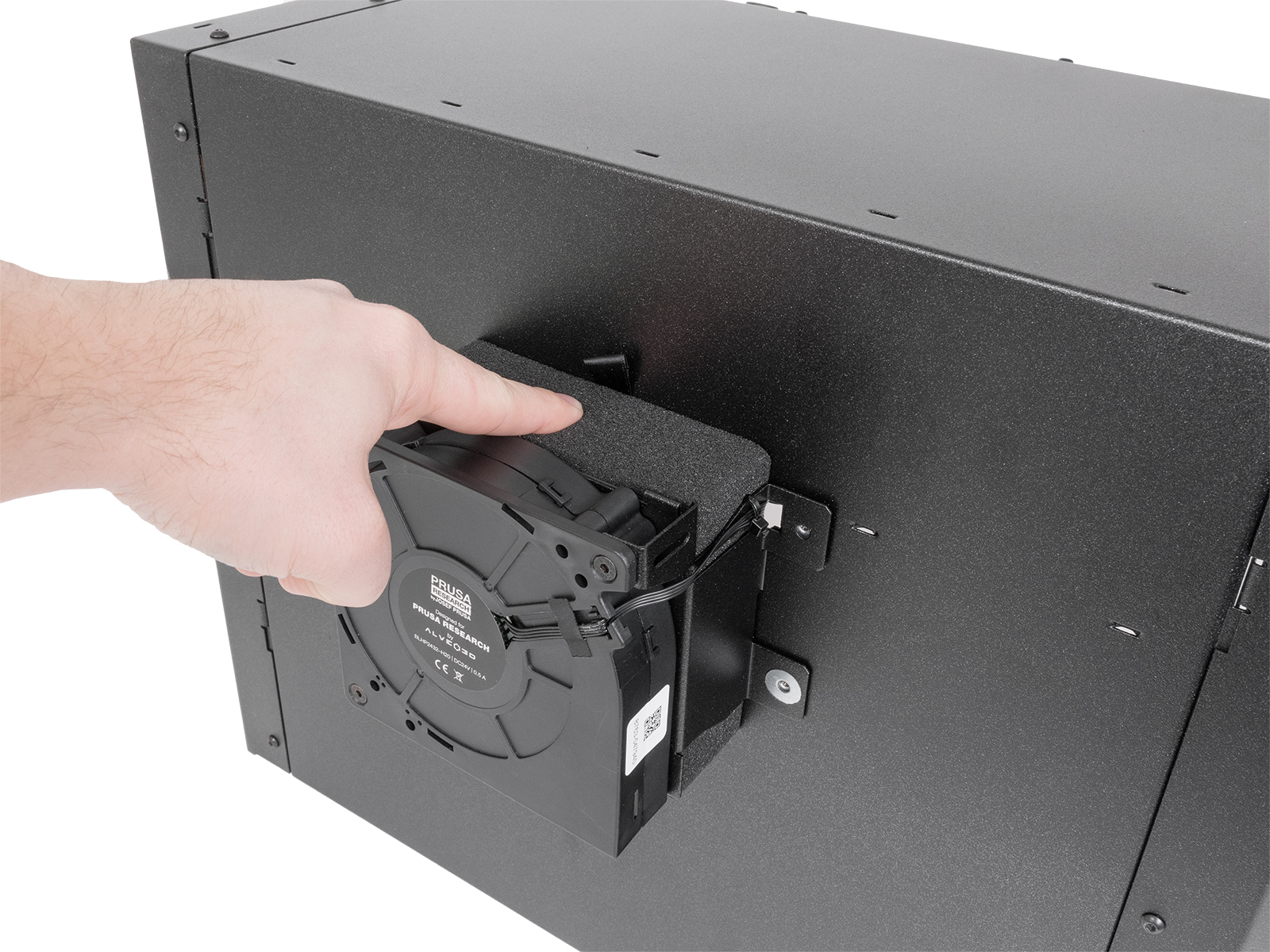 |
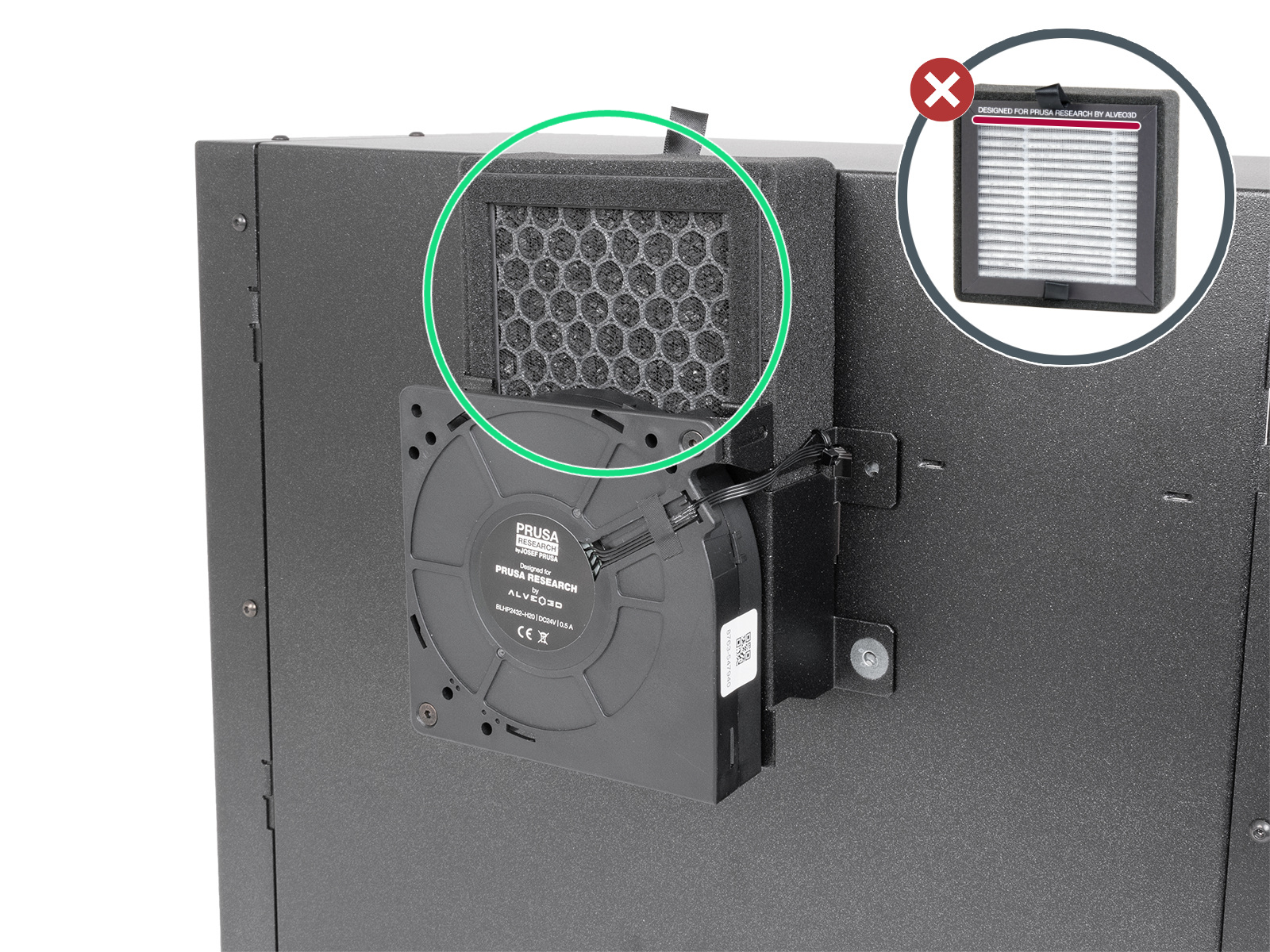
 |  |
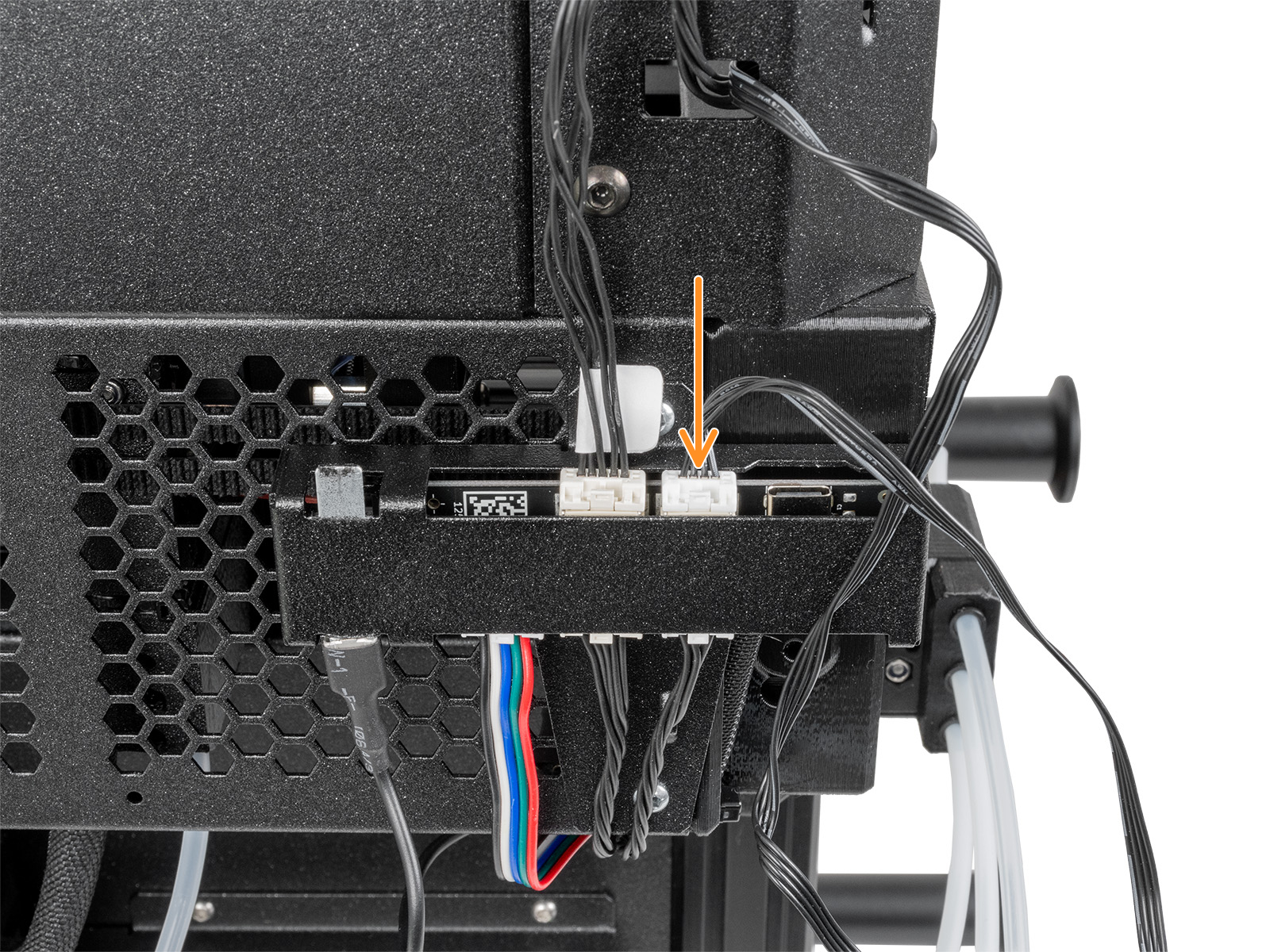
If the fan still does not spin or the warning returns:
2 comments
I'll do my best to remember the steps I took to resolve my issue with the Official enclosure fan.
(1)// Like instructed, I started by testing the fans by setting the Enclosure setting as "Off" and then with "Enclosure" to test if the fans would spin. I hear and see some mouvement, but it is faint.
(LCD Menu -> Control -> Enclosure settings -> Enclosure (OFF))
(LCD Menu -> Control -> Enclosure settings -> Enclosure (ON))
(2)// Afterwards I do the same through the Chamber Filtration settings, which tests the fans also. Same result as in (1).
(LCD Menu -> Control -> Enclosure settings -> Chamber Filtration - Enclosure (None))
(LCD Menu -> Control -> Enclosure settings -> Chamber Filtration - Enclosure (Enclosure))
(3)// I notice that the enclosure fan's minimum power was set to 5%, which I remember being what I set when I first got the enclosure. Perhaps this could be the reason for the fans being considered "stuck"? So I decided to go with full power at all times during and post print and I kept them that way.
(LCD Menu -> Control -> Enclosure settings -> Chamber Filtration - Minimum Power (100%))
(LCD Menu -> Control -> Enclosure settings -> Chamber Filtration - Post-Print Power (100%))
(4)// I repeat (1) and (2). In both cases, I hear the fans spinning strongly especially compared to how it was before at 5% power. By doing these enclosure fan tests in isolation, you can better distinguish its sound from the regular print fan, especially at 100% power. Hence, you may diagnose if the fans aren't starting as they should.
(5)// I prep for a test print and I make sure that Print Filtration is ON, Post-Print Filtration is ON and Filter All Materials is ON and, as in (3), everything is at full power (100%). Post Print Duration doesn't seem to matter, so I just left it at 1 minute.
(LCD Menu -> Control -> Enclosure settings -> Chamber Filtration - Print Filtration (ON))
(LCD Menu -> Control -> Enclosure settings -> Chamber Filtration - Post-Print Filtration (ON))
(LCD Menu -> Control -> Enclosure settings -> Chamber Filtration - Filter All Materials (ON))
(6)// I redo fan tests to be absolubtly sure (1) + (2). Still the same sound level and power.
(7)// I start a regular print job. After the first layer print bed probe and calibrations are done and the printing starts, the enclosure fans should initiate and keep going for the duration of the print and post-print filtration process.
Right here, it should be enough since it solved my issue of having a non-functionning enclosure fan but I needed to see if it was still possible to modify the filtration power by increments.
(8)// During another print, I tuned the filtration power down to 50% and it worked to the very end.
(Print -> Tune -> Enclosure settings -> Chamber Filtration - Minimum Power (50%))
(9)// To see if I could set it at 50% power from the very start of a print as a default, I changed it from the Control Menu.
(LCD Menu -> Control -> Enclosure settings -> Chamber Filtration - Minimum Power (50%))
(10)// Started another print and checked from the fan sound and menu that it matches at 50% power from (8). It matches.
With that recollection of the steps I managed to get it working and readjustable again. It's likely a weird quirk specific with my configuration when it changed from 6.2.X to 6.4.X and at the latest 6.4.2. So I hope that this may help someone else in the same situation as I was and it did please post a confirmation it will be very much appreciated and I will also add an update should I have any other problems later.
UPDATE:
I managed to find the issue! I tested all increments and it would appear that putting it at 5% to 20% power would cause the printer to think that the fans aren't spinning enough and put out this error. It would appear that the bare minimum power for the official enclosure fans to run without outputing this error is at 25%. Anyone else can confirm this on their Official Enclosure setup too?