AA

Featured products

    Popular categories

      Trending searches

        Articles

          Blog

            Products

              Categories

                Suggested searches

                  Searching…
                  No results
                  Something went wrong.
                  ↑↓ Select↵ OpenEsc Close search
                  • English
                  • Čeština
                  • Deutsch
                  • Español
                  • Français
                  • Italiano
                  • Polski
                  • 日本語
                  • Orders
                  • Address
                  • In-stock Alerts
                  • My Courses
                  • Subscription
                  • Edit Account
                  • 3D printers9+▾

                    3D printersnew

                    newPrusa CORE One L+Learn more
                    newPrusa CORE One+ (Gen 2)Learn more
                    newPrusa CORE One L+ INDX 8-ToolnewPrusa CORE One+ (Gen 2) INDX 8-ToolPrusa CORE One L+: Critical InfrastructureOriginal Prusa MK4SnewOriginal Prusa XL+Original Prusa XL+: Critical Infrastructure

                    Printer upgrades

                    newINDX Conversion KitsnewPrusa CORE One L to CORE One L+ upgradenewPrusa CORE One+ to Prusa CORE One+ (Gen 2)newPrusa XL to Prusa XL+ Upgrade
                    Prusa Reward ProgramLove your Prusa printer? Share your experience and earn $30 Prusa e-shop vouchers.
                    How to Choose a 3D Printer?We’ll walk you through the basics to find the exact machine for your space, budget, and ideas.
                    Free E-bookDownload a free e-book Basics of 3D Printing with Josef Prusa and make your first steps in 3D printing world
                    Original Prusa Printable PartsCollections of printable spare parts for Original Prusa 3D printers and upgrades.
                    Shipping informationRegularly updated info about the current manufacturing capacity and delivery times of our printers.
                    Custom 3D PrintingProfessional custom 3D printing from various materials according to your requirements.
                  • Materials▾

                    Filaments

                    PrusamentPLAPETGASA / ABSPC (Polycarbonate)PA (Nylon)FlexCompositesSpecialMaterials clearance sale

                    Resin

                    Prusament ResinResin Cleaner
                    Filament GuideCheck my Prusament Spool
                    Prusament.com
                  • Parts & Accessories▾

                    Accessories

                    EnclosuresNozzlesPrint SheetsEssential AccessoriesCameras & AddonsTools & CraftingAdhesives

                    Spare parts

                    Merchandise

                    Spare parts - All PrintersCORE OneMK4/S & MK3.9/SMK3/S/+XL
                    Merch
                  • For Business▾
                    Prusa Pro HT90Prusa Pro SLXPrusa Pro AFSPrusa Pro Medical OneOriginal Prusa XLOriginal Prusa XL: Critical Infrastructure
                    Prusa CORE One+Learn more
                    Prusa CORE One LLearn more
                    Prusa CORE One L: Critical Infrastructure Edition

                    3D Printing for

                    Manufacturing and R&DAutomotive IndustryHealthcareEducation and Academic ResearchArchitects and DesignersFilm IndustryCritical Infrastructure

                    3D Printing Stories

                    • How 3D printing started: About Rep-rap and open-source with Adrian Bowyer
                    • Teaching mathematics redefined with 3D printing at JKU Linz
                    • The story behind the LTT screwdriver
                    • Victoria Hand Project: Changing Prosthetic Care with 3D Printing
                    Official Prusa Resellers
                    Sustainability
                    Prusa Education
                    Contact and Inquiry
                    Custom 3D Printing
                    ISO Certified
                  • Software▾
                    PrusaSlicer

                    PrusaSlicerPrusaSlicer

                    PrusaSlicer is an open-source, feature-rich, frequently updated tool that contains everything you need to export the perfect print files for your 3D printer.

                    WindowsMacOSLinux
                    Prusa Connect

                    Prusa Connect

                    Prusa Connect is a cloud service enabling remote control and monitoring of your 3D printers, offering secure data handling, easy setup, and support for managing multiple printers from anywhere.

                    Log in to Connect
                    Prusa.app

                    Prusa.app

                    Control your printer/s remotely from anywhere using the Prusa Connect technology behind. Prusa.app brings a new level of Prusa printer experience to Android and iOS phones.

                    Try it now!
                    Drivers & FirmwareDownload the latest firmware and drivers for your 3D printer.
                    PrusaSlicer Support
                    Prusa Connect Support
                  • 3D Models▾
                    3D PrintersArt & DesignHobby & MakersHouseholdTabletop MiniaturesToys & GamesPrintables Store

                    Popular 3D models

                    • Strong garden hose holder
                    • Prusa Spool Bot
                    • Build Tray — Modular Organizer for Assembly, Disassembly and Maintenance
                    • Broom Holder
                    • Octagon Fabric
                    • Prusa CORE One ? (Mimic Skin)

                    Design Contests

                    • Framework Laptop 12 Mainboard Re-Use9/1/2026 – 9/30/2026
                    • 🏆 Designer Challenge: Magic tricks!9/1/2026 – 9/22/2026
                    • Makeup Organizers9/4/2026 – 9/20/2026
                  • Community▾

                    Upcoming Events

                    • 3D Printopia 20269/26/2026 – 9/27/2026 · Pennsylvania, United States · Prusa Team
                    • Maker Faire Bay Area9/25/2026 – 9/27/2026 · Kalifornie, United States · Prusa Team
                    • Hobby Messe10/2/2026 – 10/4/2026 · Sachsen, Germany · Prusa Team
                    • Mezinárodní strojírenský veletrh10/6/2026 – 10/9/2026 · Jihomoravský kraj, Czechia · Prusa Team

                    Prusa Forum

                    • Vote for prioritizing 3DConnexion space mouse functionality in github discussion if you're eager
                    • Waste of money?
                    • A brief retrospect on the forums since the WordPress changeover
                    Prusa World MapPrusa World MapFind local 3D printing users and explore the community around you.
                  • Help▾
                    Guides & TutorialsPrusaSlicerPrusa ConnectMaterials

                    Printer Model

                    CORE One INDXCORE One LCORE One+CORE One

                    Hardware Troubleshooting

                    • Selftest failed (CORE One/+)
                    • Clogged nozzle (CORE One, CORE One L, XL, MK4/S, MK3.9/S)
                    • Adjusting belt tension (CORE One/+, CORE One INDX, CORE One L/+)
                    • Prusa Connect and PrusaLink explained

                    Drivers & Firmware

                    INDX familyCORE One familyMK4 familyXL familyMMU familyPRO family
                  • Courses▾

                    Become an expert in 3D printing

                    Prusa Academy offers online courses on various 3D printing related topics. Each course features:

                    • easy-to-read text with many pictures and short videos
                    • links for inspiration and further study
                    • quizzes for testing your knowledge along the way
                    • certificate of completion
                    Browse all coursesMy courses library
                    • 3D Modeling in Autodesk Fusion
                    • PrusaSlicer Masterclass – Beginner to Advanced
                    • Complete Guide to 3D Print Postprocessing, Painting, and Detailing
                    • Beginner's Guide to Blender for 3D Printing: Edit and Remix STLs
                  • Blog▾
                    • Prusament PLA ColorMix: Print 45 color shades using just five filament spools (and more)
                    • Back-to-School 2026 Deals Are Here!
                    • PrusaSlicer 3.0 Preview – Built for the Future of 3D Printing
                    E-Book: Basics of 3D Printing
                  • Company▾

                    About Prusa Research

                    We are the largest maker of 3D printers in Europe and the United States.

                    Founded as a one-man startup in 2012 by Josef Prusa, a Czech hobbyist, maker, and inventor. In just 15 years, we've grown into a company of more than 1,200 people. Every month, we design, build, and ship over 10,000 innovative and secure 3D printers from our headquarters in Prague, Czech Republic, and Delaware, USA, to users in more than 160 countries.

                    Watch a video and find out how Prusa Research was born and what we achieved within only 10 years!

                    About UsTimelineSustainabilityOpen-source
                    About Us
                    Contact Us
                    Logo and Photos
                    ISO Certified
                  1. Support
                  2. Original Prusa MMU2S
                  3. Printer troubleshooting
                  4. MMU2S LEDs meaning
                   

                  Contents

                  • Green light
                  • Red light

                  Blog

                  • Prusament PLA ColorMix: Print 45 color shades using just five filament spools (and more)
                  • Back-to-School 2026 Deals Are Here!
                  • PrusaSlicer 3.0 Preview – Built for the Future of 3D Printing

                  Newsletter

                  Signup and get our monthly squeeze on updates, blog, printables and much more.

                  By clicking, you agree to receive our newsletter.

                  This site is protected by reCAPTCHA Enterprise and the Google Privacy Policy and Terms of Service apply.

                  Strong garden hose holder
                  E-shop
                  • 3D Printers
                  • Printer Upgrades
                  • Filaments
                  • Accessories
                  • Prusa Merchandise

                  © Prusa Research a.s.

                  Printables
                  • 3D Models
                  • Store
                  • Clubs
                  • 3D Design Contests
                  • Brands
                  Community
                  • World Map
                  • Forum
                  • User Groups
                  • Events
                  Help
                  • Prusa Help
                  • Prusa Academy
                  • 3D Printing Calculators
                  Software
                  • PrusaSlicer
                  • Prusa.app
                  • Prusa Connect
                  • Drivers and Software
                  Company
                  • About Us
                  • Blog
                  • Official Prusa Resellers
                  • Contact Us
                  • Certified for ISO 9001, ISO 14001, ISO 45001
                  • General Terms and Conditions
                  • General Terms and Conditions of Use of the PRUSA Websites
                  • Privacy Policy
                  • Information about cookies
                  • Customer Complaints Policy
                  • Status Page
                  • Do Not Sell or Share My Personal Information
                  • Supplemental Statements
                  • General Terms and Conditions
                  • General Terms and Conditions of Use of the PRUSA Websites
                  • Privacy Policy
                  • Information about cookies
                  • Customer Complaints Policy
                  • Status Page
                  • Do Not Sell or Share My Personal Information
                  • Supplemental Statements

                  © Prusa Research a.s.

                  JOSEF PRUSA®, PRUSA RESEARCH®, PRUSA POLYMERS®, PRUSA ORANGE®, PRUSA 3D ® AND PRUSAMENT® are registered trademarks of Prusa Development a.s. used by Prusa Research a.s. under licence from Prusa Development a.s.

                  MMU2S LEDs meaning

                  Relevant for

                  MMU2S
                  44 comments
                  Article is also available in following languages
                  English
                  Čeština
                  Polski
                  Deutsch
                  Français
                  Español
                  Italiano
                  日本語

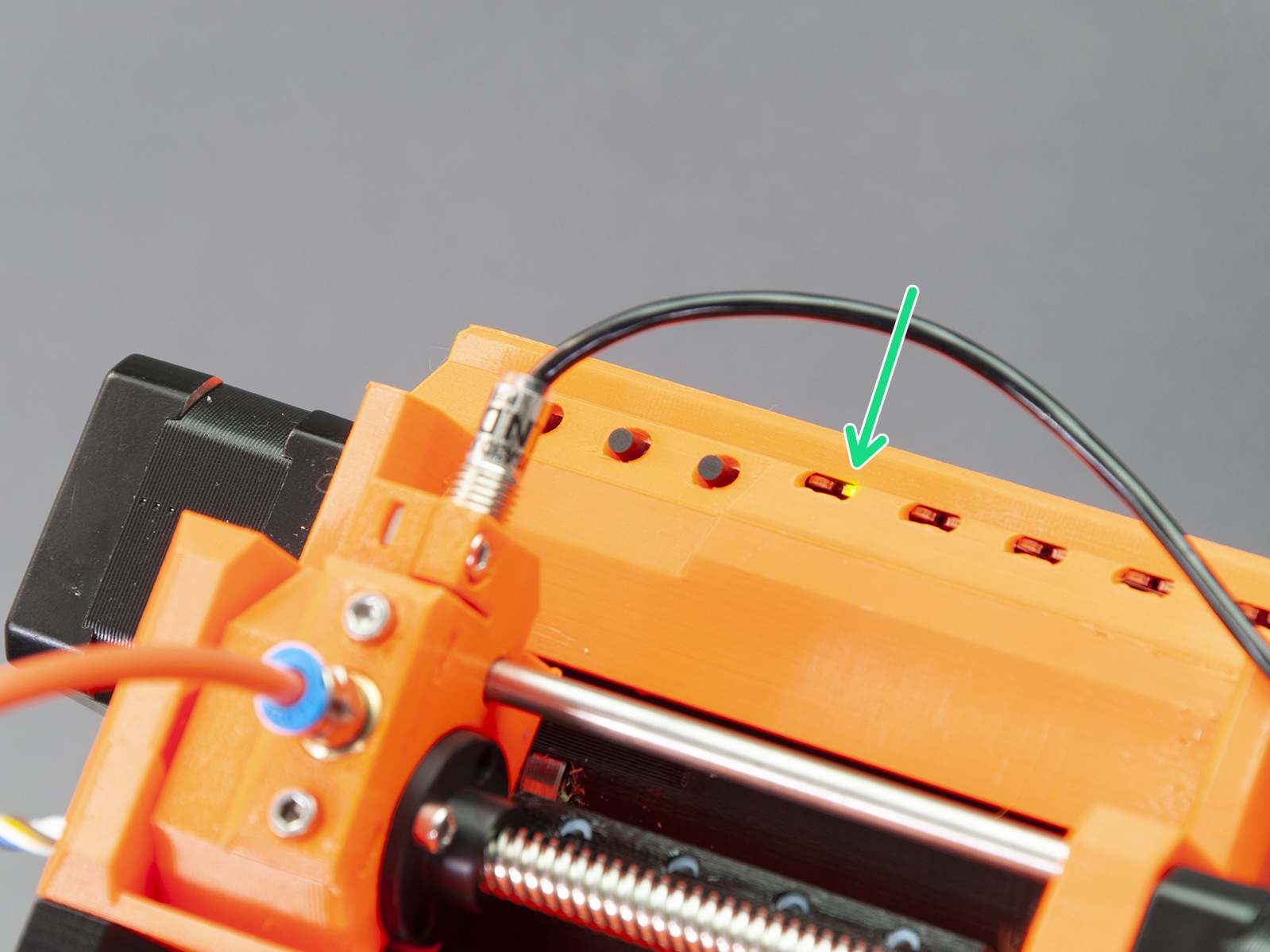
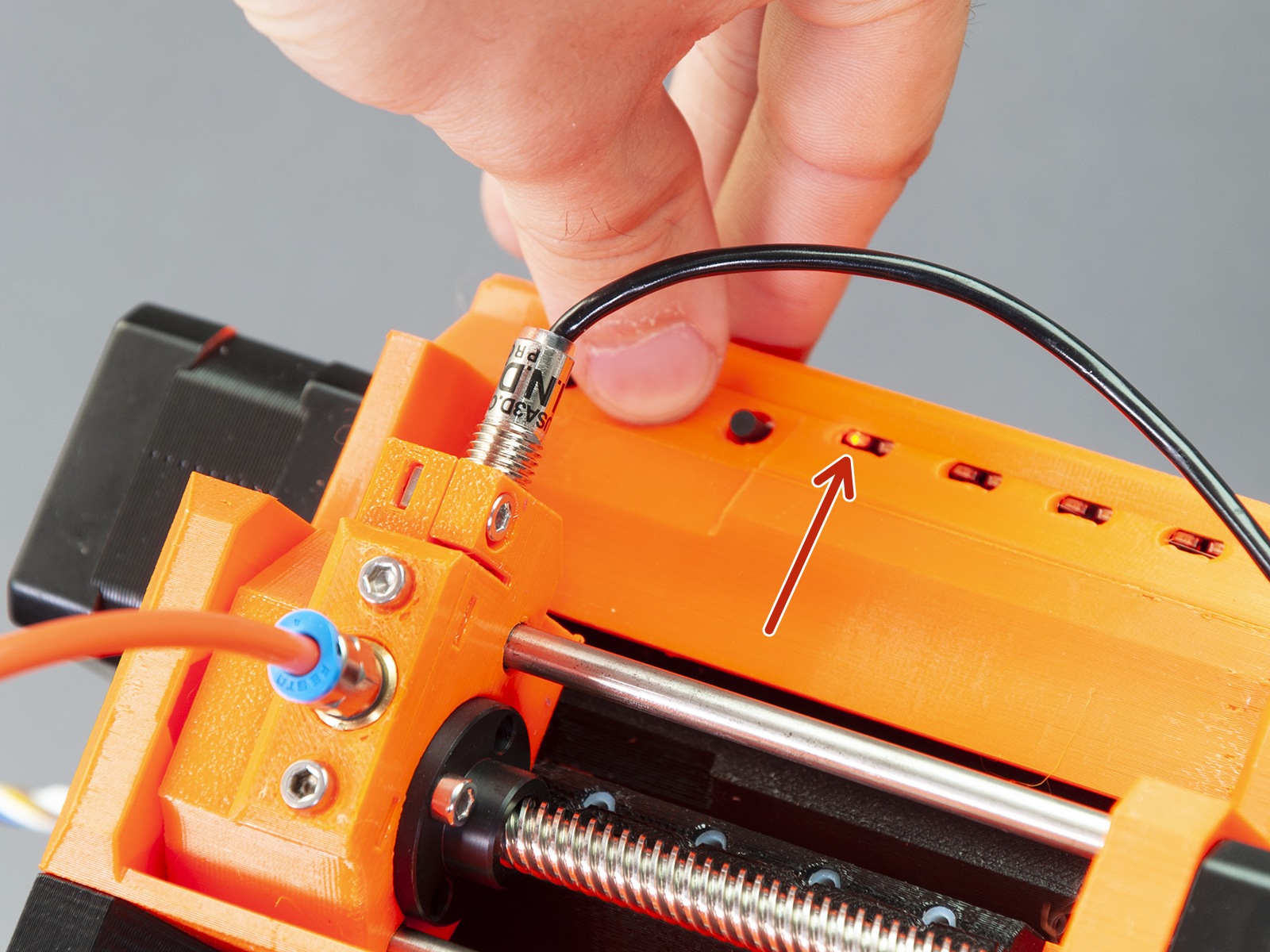
                  As you can see, there are five main LEDs on the MMU2 unit. Their arrangement corresponds to the arrangement of the 5 PTFE tubes and 5 filament channels. Each LED consists of two sub LEDs: Red status LED Green status LED.

                  Green light

                  As you would guess, the green light means that everything works as it should.

                  • Stable green light (not flashing) - selector moved to the current position and ready.
                  • Stable green light after loading - filament successfully loaded.
                  • Rapid green flashing light (after pressing the middle button) - The filament loading sequence.

                  This sequence won't stop until FINDA senses the filament flowing through or the user cancels the operation pressing the middle button.

                  Red light

                  As for the red light, its meaning also depends on the context:

                  Stable red light (not flashing) 

                  Wait until the printer finishes the current activity (there is not necessarily a problem).

                  Slow flashing during print 

                  An error occurred during the filament load.

                  1. Pull the problematic filament out from the PTFE tube and cut the end to create a sharp tip
                  2. Insert the filament back into the white PTFE tube
                  3. Press the middle button to start the loading sequence
                  4. Push the filament until it’s caught by the drive gear
                  5. If the LED turns red and green, press the right button for 1-2 seconds to continue the print
                  6. If the LED turns red, repeat the process.

                  Rapid flashing during print 

                  An error occurred during filament unload.

                  1. Remove the orange/white PTFE tube by unscrewing the silver fittings from MMU2 body
                  2. Check whether there’s a filament string stuck in the MMU2’s selector
                  3. Pull the filament out from the orange/white PTFE tube:
                    • If you’re unable to remove the filament from the tube, proceed to the other end of the tube
                    • Release the Festo fitting on the extruder and if needed open the extruder idler
                    • Then pull the filament out from the extruder body
                  4. Using your fingers move the filament back in the MMU unit and leave about 1 cm sticking out.
                  5. If the filament is stuck inside the selector and you’re unable to move it, press the left button - this will start load/unload:
                    • If the printer failed at the loading stage the button works in loading mode
                    • If the printer failed at the unloading stage, the button is in unloading mode
                    • The middle button will be used now. Press it once and wait for the printer to finish the auto-check procedure.
                  6. If the procedure finishes correctly, the LED above the affected filament will turn to red-green flashing, if the procedure fails it will remain red.
                  7. To continue after fixing the issue, press the right button.

                  All five LEDs blinking red after power on

                  If the filament is present in the selector during power-up, it’s detected by the FINDA and the standard booting move sequence is interrupted, as it would bend or break the filament. Remove the filament manually first so the boot can continue. No need to press any button. As soon as you take the filament out, the printer will continue by itself.

                  1. Try to pull the problematic filament out from the back.
                  2. If you’re unable to pull the filament out, try powering the printer off and try again.
                  3. You can unscrew the FESTO coupling from the MMU2 selector and instead pull the filament out from this side. If you’re able to pull the filament out in this direction, cut it near the spot where the filament enters the white PTFE tube.
                  4. As a last resort, remove the selector motor by unscrewing the 3 screws holding it and push the smooth rods out with an Allen key. You can then easily remove any debris stuck in the selector.

                  All five red and green LEDs blinking

                  Resetting the MMU2S using the reset button on the side of the unit is usually enough. However, if all the LEDs keep on flashing simultaneously, then it may be a power issue:

                  • Inspect the signal cable and MMU2S power cable for damages and check if they are properly connected to the MMU2S control board and to the printer's Einsy board.
                  • Verify the proper connection of the filament sensor to the Einsy board.
                  • Try flashing the firmware of the MMU2S unit again, even if you are on the most current version.


                  Was this article helpful?
                  This action is available only to registered users. Please log-in.

                  Topics

                  • Troubleshooting
                    • Printer troubleshooting
                      • Factory reset (MMU2S pre firmware 1.0.6)
                      • MMU2S idler unable to move freely
                      • MMU2S Selector not moving
                      • MMU2S LEDs meaning
                      • Firmware updating issues (MK2.5S/MK3S+/MMU2S/MMU3)
                      • IR filament sensor calibration (MMU3, MMU2S)
                      • FINDA setup and troubleshooting
                      • Filament jam (MMU2S)
                      • Logging data over serial line (MMU2S)
                      • FINDA: Filament Stuck #04102 (MMU)
                      • Tangled filament
                      • Status LED explained (MMU3)
                      • Factory Reset (MMU)
                      • TMC driver shorted #04304 (MMU)
                      • TMC driver shorted #04314 (MMU)
                      • TMC driver shorted #04324 (MMU)
                      • Service menu - Factory Reset
                      • Service menu - Individual Filament Calibration
                      • SD cards and USB drives
                    • Diagnostics
                    • Print Quality Troubleshooting
                    • QR Error codes
                    • Print Error Messages

                  15 comments

                  Log in  to post a comment
                  GCoats
                  •
                  Its worth looking at the solder joints on the einsy board, for all plug in connectors. Ive found several with dry joints, so resoldered all joints. resolved the intermittant faults, all lights flashing due to power, had no problems since
                  Reply
                  Medicalman70
                  •
                  I have had over 400 power fails on the MMU2, I have flashed the firmware, and I have checked all conections as per the manual. Some times the MMu will work and will need few interactions but now I can't get it to even go through its initial setup without multiple power failures. I have opened up the MMU and reset the power cables and it might work or it might not work. I am at a loss for what more I can do. I have tried using the Prusa support chat but it seems to kick me out and I can't reinitialize the chat..... HELP!!
                  Reply
                  David B.
                  •

                  Hi! 
                  This really might be happening due to faulty data / power cables or a faulty electronics control board. Please, try contacting Support again. 
                  This problem might be solved by the MMU2S to MMU3 upgrade kit once it is available.

                  Reply
                  Petkanna
                  •
                  Hello, 
                  This problem "MIGHT" be solved is not good enough for me, do you have assurance that this WILL solve the problem?
                  i want to buy MMU3 to solve this problem, but i don't want this to become another problem that i will not be able to refund if this failed. will there be another MMU3S to fix the issue?
                  no offense, but i thought MMU2 "S" should work as intended and should fix the previous problem before (MMU2), but no, happend again.
                  sorry i was just frustated by the lack of meaning behind "All five red and green LEDs blinking", seems like every other error, just put it in the "5 LED", then reset is the only option.
                  Reply
                  bryn51
                  •
                  No mights or maybes about it.  The problem really occurs, and the problem has two fixes.
                  Reply
                  bryn51
                  •
                  So far as I ma aware, there are two fixes for the issue whereby All the red and green leds flash on the MMU2. 1. apply deoxit D contact cleaner to the holes of all the 5 plugs that go into the electronics board.  The deoxit will deal with tin oxide that accumulates on the female pins that are tin plated. There is some evidence to suggest that the oxidation is aided by high humidity environment of the printer.  A voltage drop forms on the connection and that triggers toe flashing leds issue.2. Apply an electronics solution to the 5 Volts applied on the power connector that connects from Einsy Rambo board to the MMU. The voltage is too low on the board and its made worse by a series diode on the board.  Prusa themselves have adopted this solution in an elegant design of plugin board that comes as part of the MMU3 upgrade.
                  Certainly not every prusa MMU owner experiences the issue, but many do.It really does happen, and the above two fixes really do fix it. The first one is regarded as "interim" or temporary, the 2nd one as a more permanent solution.
                  Reply
                  David B.
                  •

                  The electronics error is not an only possible cause of ALL LEDs blinking by the way. Also, the 5V VCC supply goes through the data connector, not the power connector. Ground is used from the power connector.

                  Reply
                  MLK
                  •
                  If you are using the MMU2S with octopi and experience all 5 red and green LEDs flashing at the beginning of a print; remember to set the amount of tools to five and shared nozzle in octopi. It fixed my issues. All thanks to the person who wrote this on reddit: https://www.reddit.com/r/prusa3d/comments/e7v0gp/if_you_use_mmu2s_with_octoprint_please_set_your/
                  (Wrote this in another place, but thought it might be helpful here as well)
                  Reply
                  Medicalman70
                  •
                  Just started having this probelm where I will trun the printer on, tell it to load a filament line and then all of the lights on the MMU will start flashing Red, the filament feeder won't move to the new location (or at all) I have checked the power connections on the MMU board and in the Ensy (un pluged and pluged back in) with no luck.
                  Reply
                  Giuliano - Official Prusa CS
                  •
                  Hello. All red leds flashing means that there is something under the FINDA - most likely a string of filament. Once removed, the MMU should act normally again.
                  Reply
                  GrimGreyBeard
                  •
                  All five LEDs blinking red after power on also might mean the faulty FINDA sensor. I bought a used MMU2S. The guy who sold it decided that he does something wrong, this is why MMU failed at avery single tool change. The test print started more or less ok, but after 15 minutes it totally failed. Long story short - after numerous five red LEDs flashings I decided to check the FINDA status, and it appeared stuck at "1" constanly, even without any filament in and ball down. Then I found that status easily changes by just twisting the cable where it is attached to the sensor. Would be great if you could add to the troubleshooting the faulty FINDA.
                  Reply
                  David
                  •
                  Hi! I think FINDA must have gone wrong due to improper assembly, but you made a very good point! :)
                  Reply
                  Raf
                  •
                  Agree the FINDA was defective. It took several months for me to understand that. I have been very carefully while assembling it therefore I am confident it was not my mistake.Anyway, the diagnostics of MM2S is super difficult and too often the start of a print is a led blinking fair. After the filament is loaded everything works great but there is no way to reliably use the MM2S
                  Reply
                  Grummle
                  •
                  You sir are a scholar and a gentlemen. This was totally my problem. 
                  Reply
                  Cognaiscance
                  •
                  Thank you so much, your comment helped me figure it out. When I looked at the sensor status I discovered that the FINDA was always 1 (or engaged).  I was able to twist my pinda out so that it rested a little farther from the ball bearing and now it is working.
                  Reply
                  bryn51
                  •
                  I also had to replace my Finda probe, which gave intermittent 1/0 indication when it should have been steady.
                  Later, I found:  Its also possible to get the same symptoms with a fault not on the finda itself, but on the connector going onto the Marlin MCU board.  What happens is that the wiring vibrates when the printer is busy printing. This causes the MMU wiring to jiggle. The connectors leading to stepper motors and finda also vibrate. This can cause poor connection inside the connector. The "solution" is to apply Deoxit contact cleaner to the female pins inside the connector, which are made from Tin.  Deoxit Gold conact protector can help maintain the connection to be more reliable, but ultimately it might become necessary to replace pins in the connector.
                  Reply