Prusa
  • SHOP
    • Latest products
    BY CATEGORY
    • 3D printersnew
    • 3D printer upgradesnew
    • Materials
    • Accessories
    • Spare parts
    • Courses
    • Merch
    • Get a price quote
    QUICK LINKS
    • Shipping & delivery
    • Returns & refunds
    • Payment & financing
    • Warranty
    • VAT & Customs fees
    • FAQ

    0 item in your cartitems in your cart

    Your cart is empty

    Go to cartShop 3D printers

    My profile

    Log in to see orders, saved items

    My profile

    Signed in as

    • Orders
    • Logout
  • 3D PRINTING
    • Explore 3D printing
    FOR BEGINNERS
    • 3D printing 101
    • How FDM printing works
    • Buying your first printer
    • 3D model catalog
    BY APPLICATION
    • Rapid prototyping
    • Manufacturing
    • Engineering
    • Research
    • Arts & design
    GO DEEPER
    • Materials guide
    • Courses
    • Webinars
    • Case studies
    • Custom 3D printing
  • 3D PRINTERS
    • All 3D printers
    FOR
    • Home or garageHobbyists, tinkerers and home printing
    • BusinessIn-house production for small teams
    • EnterpriseFleets, security and scale
    • Which Prusa is right for me
    SHOP & BROWSE
    • CORE One+new
    • CORE One+ INDXnew
    • CORE One L+new
    • CORE One L+ INDXnew
    • XL+new
    • MK4S
    • Prusa Pro HT90
    • Prusa Pro AFS
    • Prusa Pro SLX
    MORE FROM PRINTERS
    • Parts & upgradesnew
    • Critical infrastructure
    • Case studies
    • Signature Oak
    • Kits
  • MATERIALS
    • All materials
    BY USE
    • Every-day & design
    • Functional engineering
    • Composites
    • Pro speciality
    • SLA resins
    PRUSAMENT
    • PLA
    • PETG
    • ASA
    • PC
    • PA11
    • Flex
    • TPU
    MORE FROM MATERIALS
    • Materials guide
    • We make material in house
    • Sustainability
    • Order on the store
  • SOFTWARE
    • All software
    PREPARE THE PRINT
    • PrusaSlicer 3.0New
    PRINT & MONITOR
    • Prusa Connect
    • EasyPrint
    • iOS & Android app
    • Prusa Farm
    GET STARTED
    • Download & install
    • Knowledge base
    MORE FROM SOFTWARE
    • 3D model catalog
  • SUPPORT
    • Explore support
    FIND ANSWERS
    • Knowledge base
    • Troubleshooting
    • Courses
    • Webinars
    GET HELP
    • Contact us
    • Livechat
    • Shipping & delivery
    • Warranty
    • Returns & refunds
    • Service & spare parts
    • Service & Repair
    COMMUNITY
    • Forum
    • Reddit
    • Printables
  • TRUST CENTER
    • Trust Center overview
    BY TOPIC
    • GDPR
    • Certificates
    • Security
    • Compliance
    COMMITMENTS
    • Sustainability report
    TALK TO US
    • Contact the security team
  • COMPANY
    • About Prusa
    GET TO KNOW US
    • Our story
    • How we make printers
    • Open source
    • Brand & media kit
    NEWS
    • Blog
    • Newsroom
    • Events
    TRUST & PARTNERS
    • Sustainability
    • Resellers & distributors
    • Affiliate program
    • Contact
    • English
    • Čeština
    • Deutsch
    • Español
    • Français
    • Italiano
    • Polski
    • 日本語
  • Signed in as

    • Orders
    • Address
    • In-stock Alerts
    • My Courses
    • Subscription
    • Edit Account
    • Logout

Log in to see orders, saved items

Signed in as
  • Orders
  • Address
  • In-stock Alerts
  • My Courses
  • Subscription
  • Edit Account
  • English
  • Čeština
  • Deutsch
  • Español
  • Français
  • Italiano
  • Polski
  • 日本語
Shop

0 item in your cartitems in your cart

Your cart is empty

Go to cartShop 3D printers

My profile

Log in to see orders, saved items

My profile

Signed in as

  • Orders
  • Logout
SHOP
  • Latest products
BY CATEGORY
  • 3D printersnew
  • 3D printer upgradesnew
  • Materials
  • Accessories
  • Spare parts
  • Courses
  • Merch
  • Get a price quote
QUICK LINKS
  • Shipping & delivery
  • Returns & refunds
  • Payment & financing
  • Warranty
  • VAT & Customs fees
  • FAQ

Featured products

    Popular categories

      Trending searches

        Articles

          Blog

            Products

              Categories

                Suggested searches

                  Searching…
                  No results
                  Something went wrong.
                  ↑↓ Select↵ OpenEsc Close search
                  1. Support
                  2. Printer description
                  3. USB not detected (MINI/MINI+)
                   

                  Contents

                  • How it can appear
                  • Flash the firmware
                  • Check the files and folder
                  • Corrupted USB drive

                  Blog

                  • Print colorful and glowing Halloween decorations with our spooky offer
                  • Factorio Has Arrived on Printables
                  • Prusament PLA Lightweight: 65% lighter than regular PLA. Perfect choice for aircraft, cosplay, and more.

                  Newsletter

                  Signup and get our monthly squeeze on updates, blog, printables and much more.

                  By clicking, you agree to receive our newsletter.

                  This site is protected by reCAPTCHA Enterprise and the Google Privacy Policy and Terms of Service apply.

                  Factorio Transport Belts
                  E-shop
                  • 3D Printers
                  • Printer Upgrades
                  • Filaments
                  • Accessories
                  • Prusa Merchandise

                  © Prusa Research a.s.

                  Printables
                  • 3D Models
                  • Store
                  • Clubs
                  • 3D Design Contests
                  • Brands
                  Community
                  • World Map
                  • Forum
                  • User Groups
                  • Events
                  Help
                  • Prusa Help
                  • Prusa Academy
                  • 3D Printing Calculators
                  Software
                  • PrusaSlicer
                  • Prusa.app
                  • Prusa Connect
                  • Drivers and Software
                  Company
                  • About Us
                  • Blog
                  • Official Prusa Resellers
                  • Contact Us
                  • Certified for ISO 9001, ISO 14001, ISO 45001
                  • General Terms and Conditions
                  • General Terms and Conditions of Use of the PRUSA Websites
                  • Privacy Policy
                  • Information about cookies
                  • Customer Complaints Policy
                  • Status Page
                  • Do Not Sell or Share My Personal Information
                  • Supplemental Statements
                  • General Terms and Conditions
                  • General Terms and Conditions of Use of the PRUSA Websites
                  • Privacy Policy
                  • Information about cookies
                  • Customer Complaints Policy
                  • Status Page
                  • Do Not Sell or Share My Personal Information
                  • Supplemental Statements

                  © Prusa Research a.s.

                  JOSEF PRUSA®, PRUSA RESEARCH®, PRUSA POLYMERS®, PRUSA ORANGE®, PRUSA 3D ® AND PRUSAMENT® are registered trademarks of Prusa Development a.s. used by Prusa Research a.s. under licence from Prusa Development a.s.

                  USB not detected

                  (MINI/MINI+)

                  Relevant for

                  MINI
                  MINI+
                  7 comments
                  Article is also available in following languages
                  English
                  Čeština
                  Polski
                  Deutsch
                  Français
                  Español
                  Italiano
                  日本語

                  The Original Prusa MINI uses USB flash storage to read G-codes during printing. It can happen that the USB drive is not recognized when inserted and the display will say "No USB", even when a USB is inserted. Since this issue can have several different causes and culprits, there is unfortunately not one universal way to fix it. Here we will go through some of the steps to do and things to check to resolve this.
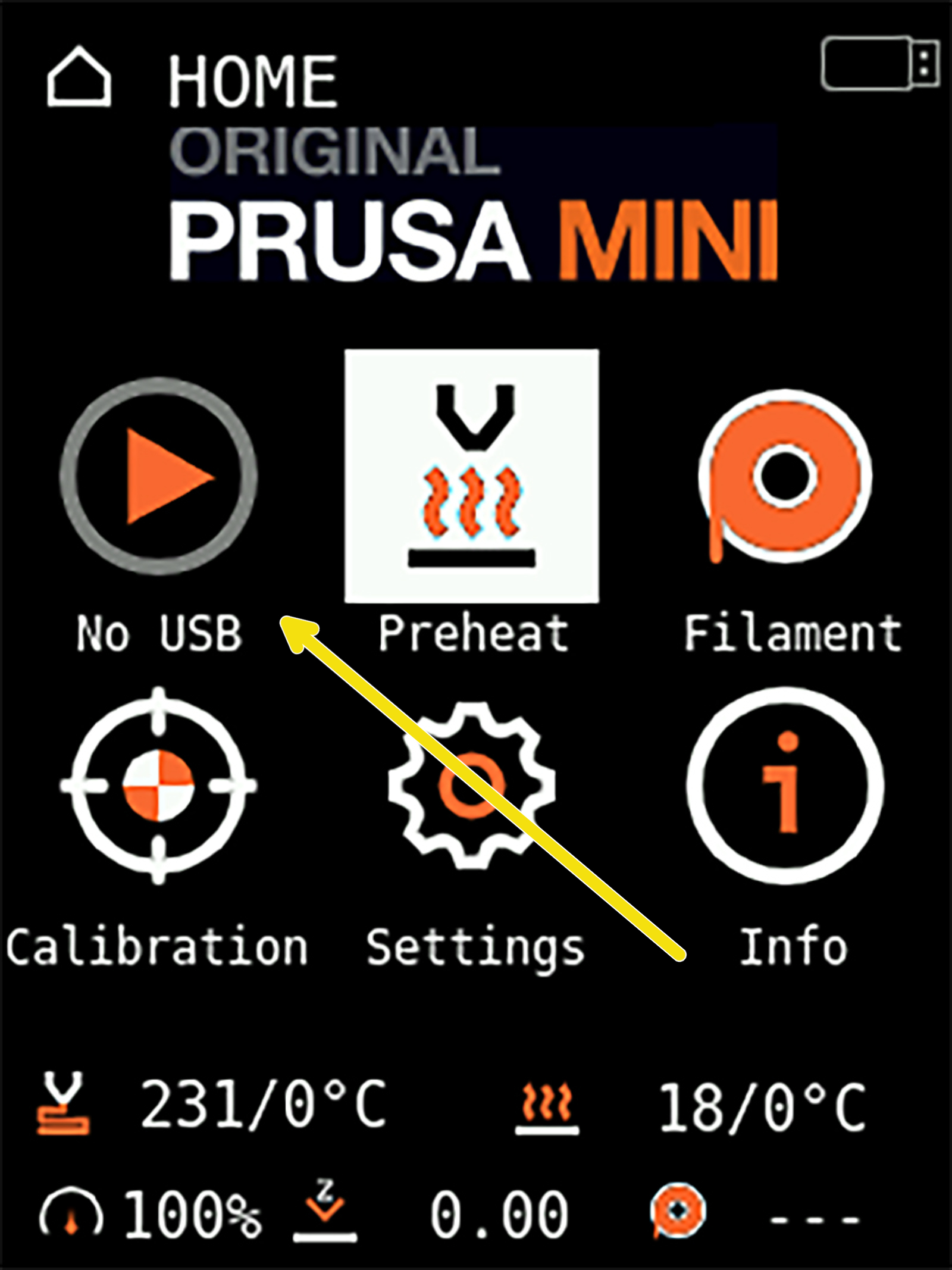
                  How it can appear

                  • USB drive is not recognized at all.
                  • USB drive is not recognized when inserted but becomes visible after restarting the printer.
                  • USB drive is functional for printing, but firmware updating does not work.
                  If the printer will detect the USB drive and can begin a print, but with eventual abnormal behavior it can indicate a faulty USB drive. However, it is more likely the G-code itself is corrupted. Try to export and copy the G-code to the USB drive again.

                  Flash the firmware

                  If the USB drive is not recognized when inserted but becomes visible after restarting the printer, it is most likely a firmware issue. Handling of USB storage media is improved with each update.

                  • Even if your firmware is up to date, update the firmware again.
                  If the USB stick only works for printing, but not for Flashing the firmware, please attempt the steps outlined below in this article, but you may need to use a different USB drive.

                  Check the files and folder

                  Filenames

                  Some languages have special characters or diacritics that cause issues when attempting to read the drive. This has also caused the Watchdog error when attempting to print. Therefore, make sure you only use standard Latin letters in upper and lower-case. This is also why you will find that PrusaSlicer will autogenerate filenames with an underscore (_) instead of spaces. It is not always necessary, but to ensure backward and future compatibility, we recommend following these guidelines.

                  Filenames do not have a set maximum length of characters. However, they may not display correctly if they are very long. Therefore, make sure you do not make filenames unnecessarily long.

                  Folder structure

                  The same restrictions apply to the type and length of characters in folder names. Moreover, it is also good to know that a folder tree can only be 10 folders deep, i.e USB/Folder1/Folder2/Folder3/Folder4/Folder4/Folder6/Folder7/Folder8/Folder9/Folder10/

                  File types

                  The printer will ignore files that it can not read. However, since the printer's firmware is updated using the USB drive, it can happen that you will have multiple firmware files on the drive at any given time. This can cause conflicts, so make sure you delete these and try to only have them present for the flashing process, then delete them.

                  Corrupted USB drive

                  The easiest way to test this theory is to try with another (preferably new) USB drive, formatted to FAT32. ExFAT is not compatible. However, there are some procedures you can try with your current USB drive.

                  Repair the filesystem (keeps files)

                  The filesystem can become corrupted when you pull out the stick without unmounting/ejecting it. Most OSs have built-in features for "Recovery" or "Repair". There is also a range of third-party software with this functionality. However, the procedure brings few benefits, besides keeping your files and formatting, compared to if you reformat the drive. It is also a slower process.

                  Reformat to FAT32 (removes all data)

                  This will clear all the files on the disk and build the filesystem anew. Only FAT32 is supported! For drives over 32 GB, you will need a 3rd party application. For more information on formatting USB drives and SD cards, please see SD cards and USB drives.

                  Was this article helpful?
                  This action is available only to registered users. Please log-in.

                  Topics

                  • About your printer
                    • Printer description
                      • Flashing custom firmware (MINI/MINI+)
                      • 360 viewer
                      • Spool placement
                      • Info Screens (MINI/MINI+)
                      • LCD menu (MINI/MINI+)
                      • USB not detected (MINI/MINI+)
                      • How to check your Buddy board version
                    • Printer features
                    • General Information

                  5 comments

                  Log in  to post a comment
                  ed209
                  •
                  I don't print much, and I dug out the mini+ that was on 4.3.1.

                  Went through several USB drives that all check out as fine with extended tests. It refuses to load but reinsert after the system is up shows it mounted.

                  My successful path was to use my normal print USB drive, which required me to upgrade incrementally to 4.3.2, 4.3.3, 4.3.4

                  At 4.4.0 it installed the bootloader but the firmware was corrupted somehow. Multiple reloads of the file and reformats did not work.

                  Dug out yet another USB drive and 4.4.0 firmware finally loaded.

                  Tried the latest from my print USB drive (6.2.4) and it failed to read.

                  Tried the the one that loaded 4.4.0, and it finally worked.

                  Did some prints with my original print USB drive, worked without issue. I saw there were more USB fixes in the 6.2.4 change log.

                  Anyhow, what a pain.
                  Reply
                  Ryan Merrell
                  •
                  For what it's worth, I was on 4.3.1 and was experiencing this issue. Switching to 2048 bytes for Allocation size did nothing for me. I tried multiple devices, ensured they were all FAT32 using Rufus. Nothing. Finally, it wasn't until I tried a SanDisk 64 GB stick, formated to Large FAT with 32k allocation size did it finally work. I've seen some others post about only getting it to work with SanDisk. So I don't know what actually fixed it, but man this was a frustrating experience!  But I'm now on the latest firmware, so all is well that ends well I guess.
                  Reply
                  Chris Barnes
                  •
                  I ran into this problem as well.  If anyone is still attempting to upgrade I used a few extra steps in order to get mine to work.  For each step I had to reformat the drive with "Allocated Unit Size" 2048 bytes. First I downgraded to 4.3.0 with freshly formatted 1GB USB drive.  "prusa3d_fw_4_3_0_MINI.bbf" Next I upgraded to 4.4.0 with the same now re-formatted drive.  This drive had the bootloader and the new firmware files on it.  "mini_release_boot_4.4.0+4180.bbf" and "mini_release_boot_update_pre_4.4_4.4.0+4180.bbf". This step took some time to upgrade the bootloader and then on self restart failed to load the new firmware.  I tried several time with no luck.  I realized I should try to reformat the drive again and place the same two files on it. It worked with the new bootloader and the new 4.4.0 firmware.
                  Reply
                  Paul
                  •
                  Chris, my mini is only 4.2.1, I've even removed the old female usb for a new one, stil "no usb", any tips?
                  Reply
                  BeckTuning
                  •
                  I had a similar issue the thumb drive would show as inserted but when you clicked on it the screen would show no files on the drive even when it was formated in FAT32. If you format the drive with a master boot record the drive will work again with the mini.
                  Reply
                  Gordon
                  •
                  Note that another option might be that the actual port itself might be broken.  In my case, the little bit of plastic inside had broken off.  Don't know about you, but I've never experienced that with any USB port, ever.
                  Prusa told me it wasn't covered by the warranty because of their 'normal usage' clause (!), i.e. it was expected wear and tear.  It certainly beggars my belief.
                  Going forwards, when I've replaced the mainboard to get a working USB port again, I'll make sure I just use a USB extension cable to minimise the 'wear and tear' on what is presumably a low quality part on that board.
                  Reply
                  Paul
                  •
                  Gordon, I've just bought a second hand mini, it has the no usb and also the female on the circuit board was in bits. So my question is, before I waste even more money on this, did the buddy board replacement cure the "no usb" fault 
                  Reply