AA

Featured products

    Popular categories

      Trending searches

        Articles

          Blog

            Products

              Categories

                Suggested searches

                  Searching…
                  No results
                  Something went wrong.
                  ↑↓ Select↵ OpenEsc Close search
                  • English
                  • Čeština
                  • Deutsch
                  • Español
                  • Français
                  • Italiano
                  • Polski
                  • 日本語
                  • Orders
                  • Address
                  • In-stock Alerts
                  • My Courses
                  • Subscription
                  • Edit Account
                  • 3D printers9+▾

                    3D printersnew

                    newPrusa CORE One L+Learn more
                    newPrusa CORE One+ (Gen 2)Learn more
                    newPrusa CORE One L+ INDX 8-ToolnewPrusa CORE One+ (Gen 2) INDX 8-ToolPrusa CORE One L+: Critical InfrastructureOriginal Prusa MK4SnewOriginal Prusa XL+Original Prusa XL+: Critical Infrastructure

                    Printer upgrades

                    newINDX Conversion KitsnewPrusa CORE One L to CORE One L+ upgradenewPrusa CORE One+ to Prusa CORE One+ (Gen 2)newPrusa XL to Prusa XL+ Upgrade
                    Prusa Reward ProgramLove your Prusa printer? Share your experience and earn $30 Prusa e-shop vouchers.
                    How to Choose a 3D Printer?We’ll walk you through the basics to find the exact machine for your space, budget, and ideas.
                    Free E-bookDownload a free e-book Basics of 3D Printing with Josef Prusa and make your first steps in 3D printing world
                    Original Prusa Printable PartsCollections of printable spare parts for Original Prusa 3D printers and upgrades.
                    Shipping informationRegularly updated info about the current manufacturing capacity and delivery times of our printers.
                    Custom 3D PrintingProfessional custom 3D printing from various materials according to your requirements.
                  • Materials▾

                    Filaments

                    PrusamentPLAPETGASA / ABSPC (Polycarbonate)PA (Nylon)FlexCompositesSpecialMaterials clearance sale

                    Resin

                    Prusament ResinResin Cleaner
                    Filament GuideCheck my Prusament Spool
                    Prusament.com
                  • Parts & Accessories▾

                    Accessories

                    EnclosuresNozzlesPrint SheetsEssential AccessoriesCameras & AddonsTools & CraftingAdhesives

                    Spare parts

                    Merchandise

                    Spare parts - All PrintersCORE OneMK4/S & MK3.9/SMK3/S/+XL
                    Merch
                  • For Business▾
                    Prusa Pro HT90Prusa Pro SLXPrusa Pro AFSPrusa Pro Medical OneOriginal Prusa XLOriginal Prusa XL: Critical Infrastructure
                    Prusa CORE One+Learn more
                    Prusa CORE One LLearn more
                    Prusa CORE One L: Critical Infrastructure Edition

                    3D Printing for

                    Manufacturing and R&DAutomotive IndustryHealthcareEducation and Academic ResearchArchitects and DesignersFilm IndustryCritical Infrastructure

                    3D Printing Stories

                    • How 3D printing started: About Rep-rap and open-source with Adrian Bowyer
                    • Teaching mathematics redefined with 3D printing at JKU Linz
                    • The story behind the LTT screwdriver
                    • Victoria Hand Project: Changing Prosthetic Care with 3D Printing
                    Official Prusa Resellers
                    Sustainability
                    Prusa Education
                    Contact and Inquiry
                    Custom 3D Printing
                    ISO Certified
                  • Software▾
                    PrusaSlicer

                    PrusaSlicerPrusaSlicer

                    PrusaSlicer is an open-source, feature-rich, frequently updated tool that contains everything you need to export the perfect print files for your 3D printer.

                    WindowsMacOSLinux
                    Prusa Connect

                    Prusa Connect

                    Prusa Connect is a cloud service enabling remote control and monitoring of your 3D printers, offering secure data handling, easy setup, and support for managing multiple printers from anywhere.

                    Log in to Connect
                    Prusa.app

                    Prusa.app

                    Control your printer/s remotely from anywhere using the Prusa Connect technology behind. Prusa.app brings a new level of Prusa printer experience to Android and iOS phones.

                    Try it now!
                    Drivers & FirmwareDownload the latest firmware and drivers for your 3D printer.
                    PrusaSlicer Support
                    Prusa Connect Support
                  • 3D Models▾
                    3D PrintersArt & DesignHobby & MakersHouseholdTabletop MiniaturesToys & GamesPrintables Store

                    Popular 3D models

                    • Strong garden hose holder
                    • Prusa Spool Bot
                    • Build Tray — Modular Organizer for Assembly, Disassembly and Maintenance
                    • Broom Holder
                    • Octagon Fabric
                    • Prusa CORE One ? (Mimic Skin)

                    Design Contests

                    • De Prototipo a Producto: Accesorios para Cámaras8/1/2026 – 9/14/2026
                    • Vuelta al Cole 20268/21/2026 – 9/6/2026
                  • Community▾

                    Upcoming Events

                    • Maker Faire Tokyo 20269/5/2026 – 9/6/2026 · Tokyo, Japan · Prusa Team
                    • IFA 20269/4/2026 – 9/8/2026 · Berlin, Germany · Prusa Team
                    • 3D Printopia 20269/26/2026 – 9/27/2026 · Pennsylvania, United States · Prusa Team
                    • Maker Faire Bay Area9/25/2026 – 9/27/2026 · Kalifornie, United States · Prusa Team

                    Prusa Forum

                    • Vent doesn't close for an ASA print
                    • Alignment tool?
                    • Is this spam?
                    Prusa World MapPrusa World MapFind local 3D printing users and explore the community around you.
                  • Help▾
                    Guides & TutorialsPrusaSlicerPrusa ConnectMaterials

                    Printer Model

                    CORE One INDXCORE One LCORE One+CORE One

                    Hardware Troubleshooting

                    • Selftest failed (CORE One/+)
                    • Clogged nozzle (CORE One, CORE One L, XL, MK4/S, MK3.9/S)
                    • Adjusting belt tension (CORE One/+, CORE One INDX, CORE One L/+)
                    • Prusa Connect and PrusaLink explained

                    Drivers & Firmware

                    INDX familyCORE One familyMK4 familyXL familyMMU familyPRO family
                  • Courses▾

                    Become an expert in 3D printing

                    Prusa Academy offers online courses on various 3D printing related topics. Each course features:

                    • easy-to-read text with many pictures and short videos
                    • links for inspiration and further study
                    • quizzes for testing your knowledge along the way
                    • certificate of completion
                    Browse all coursesMy courses library
                    • 3D Modeling in Autodesk Fusion
                    • PrusaSlicer Masterclass – Beginner to Advanced
                    • Complete Guide to 3D Print Postprocessing, Painting, and Detailing
                    • Airbrush Your 3D Prints: From Basics to Advanced Tricks
                  • Blog▾
                    • PrusaSlicer 3.0 Preview – Built for the Future of 3D Printing
                    • Prusa CORE One+ (Gen 2) INDX, Shipping Has Started, Complete Printers Open for Orders
                    • Better Prints, Easier Use: Prusa XL+, CORE One L+ and CORE One+ (Gen 2), Our Big Product Upgrade
                    E-Book: Basics of 3D Printing
                  • Company▾

                    About Prusa Research

                    We are the largest maker of 3D printers in Europe and the United States.

                    Founded as a one-man startup in 2012 by Josef Prusa, a Czech hobbyist, maker, and inventor. In just 15 years, we've grown into a company of more than 1,200 people. Every month, we design, build, and ship over 10,000 innovative and secure 3D printers from our headquarters in Prague, Czech Republic, and Delaware, USA, to users in more than 160 countries.

                    Watch a video and find out how Prusa Research was born and what we achieved within only 10 years!

                    About UsTimelineSustainabilityOpen-source
                    About Us
                    Contact Us
                    Logo and Photos
                    ISO Certified
                  1. Support
                  2. Original Prusa MINI+
                  3. Filament settings
                  4. Cooling
                   

                  Contents

                  • Fan settings
                  • Dynamic fan speeds
                  • Cooling thresholds

                  Blog

                  • PrusaSlicer 3.0 Preview – Built for the Future of 3D Printing
                  • Prusa CORE One+ (Gen 2) INDX, Shipping Has Started, Complete Printers Open for Orders
                  • Better Prints, Easier Use: Prusa XL+, CORE One L+ and CORE One+ (Gen 2), Our Big Product Upgrade

                  Newsletter

                  Signup and get our monthly squeeze on updates, blog, printables and much more.

                  By clicking, you agree to receive our newsletter.

                  This site is protected by reCAPTCHA Enterprise and the Google Privacy Policy and Terms of Service apply.

                  Strong garden hose holder
                  E-shop
                  • 3D Printers
                  • Printer Upgrades
                  • Filaments
                  • Accessories
                  • Prusa Merchandise

                  © Prusa Research a.s.

                  Printables
                  • 3D Models
                  • Store
                  • Clubs
                  • 3D Design Contests
                  • Brands
                  Community
                  • World Map
                  • Forum
                  • User Groups
                  • Events
                  Help
                  • Prusa Help
                  • Prusa Academy
                  • 3D Printing Calculators
                  Software
                  • PrusaSlicer
                  • Prusa.app
                  • Prusa Connect
                  • Drivers and Software
                  Company
                  • About Us
                  • Blog
                  • Official Prusa Resellers
                  • Contact Us
                  • Certified for ISO 9001, ISO 14001, ISO 45001
                  • General Terms and Conditions
                  • General Terms and Conditions of Use of the PRUSA Websites
                  • Privacy Policy
                  • Information about cookies
                  • Customer Complaints Policy
                  • Status Page
                  • Do Not Sell or Share My Personal Information
                  • Supplemental Statements
                  • General Terms and Conditions
                  • General Terms and Conditions of Use of the PRUSA Websites
                  • Privacy Policy
                  • Information about cookies
                  • Customer Complaints Policy
                  • Status Page
                  • Do Not Sell or Share My Personal Information
                  • Supplemental Statements

                  © Prusa Research a.s.

                  JOSEF PRUSA®, PRUSA RESEARCH®, PRUSA POLYMERS®, PRUSA ORANGE®, PRUSA 3D ® AND PRUSAMENT® are registered trademarks of Prusa Development a.s. used by Prusa Research a.s. under licence from Prusa Development a.s.

                  Cooling

                  Relevant for

                  MK4 family
                  XL family
                  MMU family
                  MINI family
                  MK3 family
                  +
                  30 comments
                  Article is also available in following languages
                  English
                  Čeština
                  Polski
                  Deutsch
                  Français
                  Español
                  Italiano
                  日本語

                  As soon as the melted plastic leaves the nozzle, it's no longer under the precise control of the extrusion system. There are two problems to consider:

                  1. Printing must always be done on an already solidified layer, otherwise, the previously extruded plastic will be moved around and distorted by the new layer
                  2. When printing overhangs or bridges, it's important to freeze and solidify the plastic in place as soon as possible. Otherwise, the filament will sag down.

                  Most 3D printers come with a dedicated print fan. By blasting ambient air at the extruded filament, the cooling can be dramatically improved. However, with some materials, this could make things actually worse and cause warping or layer separation. PrusaSlicer lets you adjust the cooling settings for each filament.

                  Keep fan always on

                  The print fan will always maintain at least a minimum speed. This setting is typically on for most materials with the exception of ABS, ASA, PC, and some flexibles.

                  Enable auto cooling

                  When enabled, the cooling fan and print speed will change during the print based on the settings below. A text description below will update with every change of any cooling setting and will explain in detail the resulting cooling behavior.
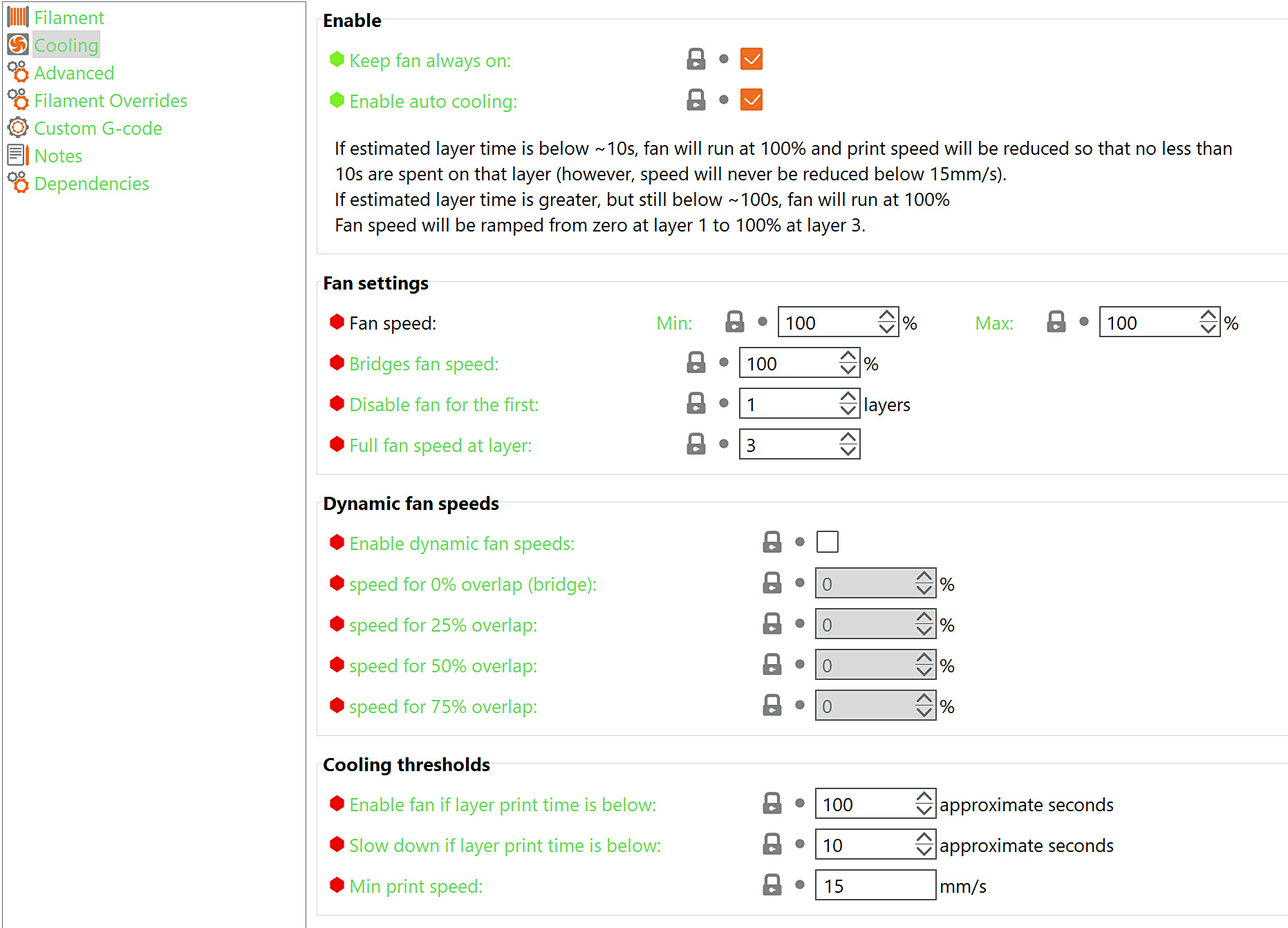
                  When disabled, the print fan will run at a fixed speed the whole time defined by Fan speed - Min with the exception of bridges, which can still be defined by Bridges fan speed.

                  Fan settings

                  Fan speed

                  You can set Min and Max fan speed as a percentage of the fan's max RPM. 

                  The Max value will be used when the layer print time is below the Slow down if layer print time is below value.

                  The Min value will be used when the layer print time is longer than Enable fan if layer print time is below value.

                  If the layer print time is between these two values, the fan speed will run proportionally at a speed between the Min and Max value.

                  This may seem a bit confusing, but you can use the live-updating text description above Fan settings, which will hopefully make everything clear. Try changing the values and see how the description changes.

                  Bridges fan speed

                  Overrides the fan speed with set value when printing bridges and overhangs. Typically you'll set this to a higher value compared to normal printing.

                  Disable fan for the first X layers

                  Cooling the very first layer is usually not necessary, as it's being laid on a flat surface. With many filaments, you may even want to skip cooling for a few more first layers (typically between 1-5) to prevent warping and detaching the print from the print bed, which would inevitably lead to a ruined print.

                  Dynamic fan speeds

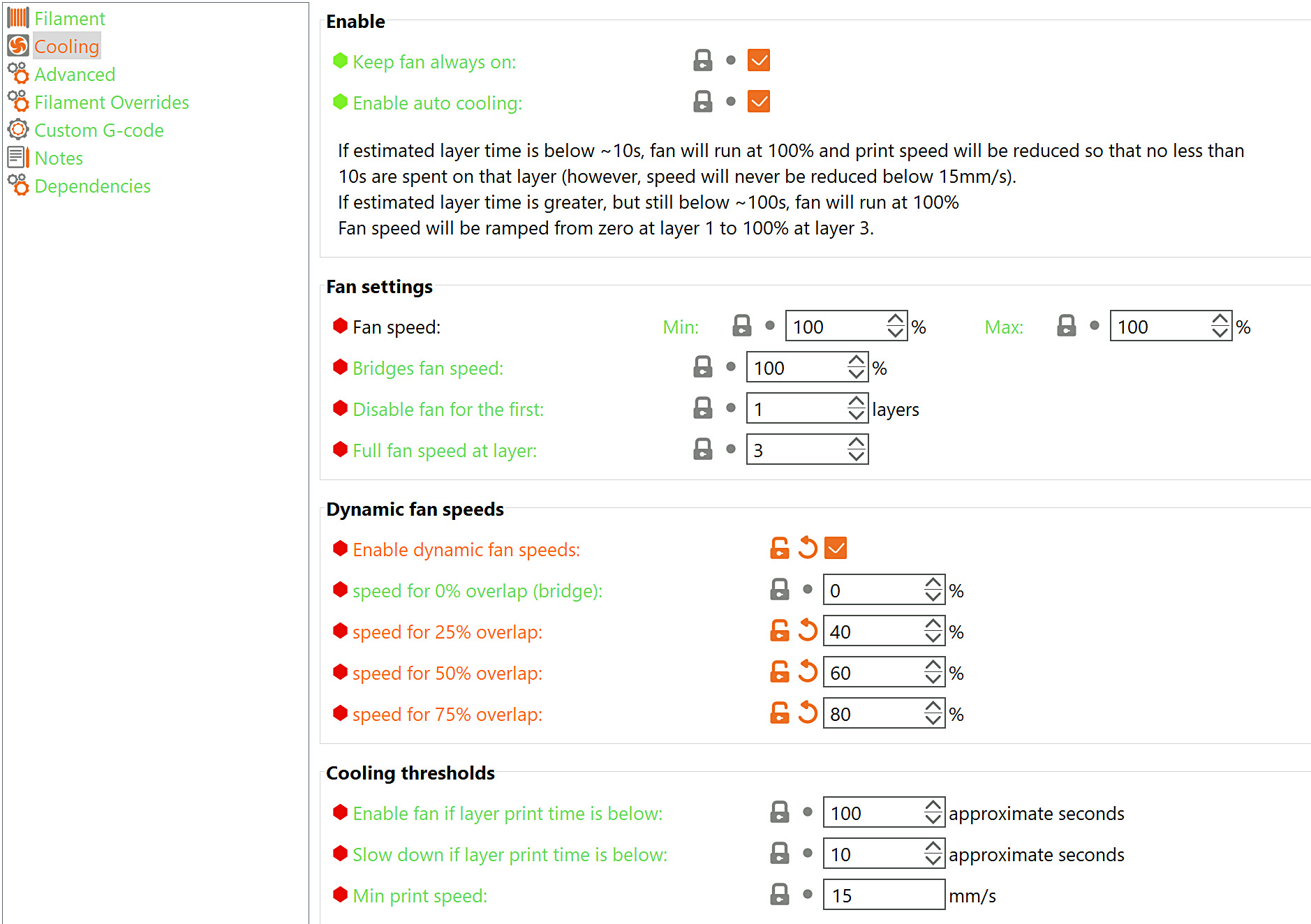
                  The setting enables and controls dynamic, variable fan speed in function of the overlap percentage. 

                  The overlap percentage represents the overlap of extrusion with the previous layer. A 100% overlap is a full overlap (no overhang), while a 0% overlap represents a full overhang (floating extrusion, bridge). 

                  The input fan speed values represent the percentage of the fan's max RPM. 

                  Fan speeds for overhang sizes in between are calculated via linear interpolation. 
                  Cooling thresholds

                  Enable fan if layer print time is below

                  If the layer print time is estimated below this number of seconds, the print fan will be enabled and its speed will be calculated by interpolating between the Min and Max speed.

                  Slow down if layer print time is below

                  If the layer print time is estimated below this number of seconds, the print move speed will be slowed down to extend the duration to this value. The slowing is done by scaling the print speeds, so some moves will still be faster than others.

                  Min print speed

                  The minimum speed that PrusaSlicer will scale the speeds down to. Printing at extremely low speeds for extended periods of time could lead to problems such as heat creep.

                  Keep in mind that by raising this value too high, you may partially invalidate the minimum layer time set by Slow down if layer print time is below. Because even when printing at this minimum speed, the layer time might be shorter than the set value.

                  Was this article helpful?
                  This action is available only to registered users. Please log-in.

                  Topics

                  • PrusaSlicer 2.9 (Legacy)
                    • Filament settings
                      • Cooling
                    • About PrusaSlicer
                    • Configuration and profiles
                    • User interface
                    • Input/output
                    • Left toolbar
                    • Top toolbar
                    • Print settings
                    • Printer settings
                    • Advanced features
                    • Multi-material slicing
                    • SLA slicing
                    • Other (PrusaSlicer)

                  12 comments

                  Log in  to post a comment
                  Michi
                  •
                  Can someone tell me what dynamic fanspeed settings i should use for ABS?
                  Reply
                  meowntains
                  •
                  In the section explaining Dynamic Fan Speeds, there is an example image of fan speed settings for 0/25/50/75% overlaps. The image shows increasing fan speeds for increasing overlap; but this seems to be the exact opposite of what you would want. 100% overlap is a vertical wall, so you would need minimal cooling/fan speed. 0% overlap is a bridge (no support underneath), so you would need maximal cooling/fan speed to try and prevent sagging of the filament. It would make more sense for the dynamic fan speed settings to be - going from top to bottom - something more like 100%80%60%40%
                  Reply
                  LH_Print_user
                  •
                  I'm enterpreting this exactly the same as user Meowntains. The documentation regarding "Dynamic Fan Speeds" is veague and contradicts the Application interface settings. Can the Prusa team please clarify this documentation **Or update the Slicers UX hints? 
                  Reply
                  Tim Trudeau
                  •
                  The text description is indeed correct. I created three thin retangles and tilted them to a 25, 50 and 75 degrees. This I assume resultes in about 75%, 50%, 25% overlap respectfully. I also made a true bridge i.e. 0% overlap. I enabled Dynamic fan speeds and set 0% overlap to 100%(fan), 25% overlap to 75%, 50% overlap to 50% and 75% overlap to 25%(fan). The min and max fan speed was set to 0% and 100% respectfully. I then sliced using Prusa slicer and placed the gcode into Zupfe Gcode Viewer. I searched on the M106 commands in the Gcode to see what the fan speed was set to for the three sloping retangles. The results: the fan speed was 94pwm for the 75% overlap; 127pwm for the 50% overlap; and 209pwm for 25% overlap (i.e. 75 degree slope) . The fan speed was 255pwm (100%) for the bridge.
                  The text is correct although certianly not clear. The example image is misleading. Lower overlap needs higher fan speed.
                  Reply
                  TavrosLab
                  •
                  Like the authors above I also think that the description of these settings is misleading.
                  Let's look up the dictionary definition of “overlap” and “overhang” and then it will be clear that for 25% overlap should be 75% overhang. Since these concepts are related and opposite to each other. This is straightforward logic. There is either a mistake in the slicer's description of the settings, or the developer who described these commands was not guided by logic, but by his abstract ideas. I give 5+ for the human-understandable change in the description of these settings.
                  Reply
                  Extruder
                  •
                  This comment is 1 year old and Prusa has still the wrong screenshot online. :-(
                  Reply
                  TavrosLab
                  •
                  They finally fixed it. Now the field description matches the function. But I stopped using this feature because the printer turns on the fan at the right speed too late. Most often, by the time the fan reaches the required speed, the printer has already printed this perimeter and it has sagged. Although I am not a fan of Bambu Lab, but on their printer the fan turns on at the required speed 1-2 seconds before the required perimeter. This provides excellent cooling.

                  On my MK4, I use the macro
                  ;BEFORE_LAYER_CHANGE
                  G92 E0.0
                  ;[layer_z]

                  {if layer_z>0.35 && layer_z<4.0}
                  M106 S180
                  {else}
                  M106 S80
                  {endif}

                  Set the speeds and layers as you need them. This is much more effective, so even with one-sided cooling, the perimeters turn out well even on complex overhangs.
                  Reply
                  dpow
                  •
                  Yeah it seems that the text is correct, but the screenshot doesn't make sense. I tested it at 100/75/50/25 and here's what you get, as one would expect (though not sure what's going on with that yellow bit on the overhang)

                  https://imgur.com/a/wKWOLM2
                  Reply
                  Derek
                  •
                  Can you clarify the following statement under Dynamic fan speeds?
                  "The input fan speed values represent the percentage of the fan's max RPM"
                  Is the "max RPM" the maximim that the fan is capable of OR the 'Fan speed Max' set under Fan Settings?
                  Reply
                  Derek
                  •
                  PRUSA provided the following clarification: Regardless of what you set the Max fan speed to under Fan settings/Fan speed, the Dynamic fan speed settings will overide this value. So if you set the Fan speed to 50% and any Dynamic fan speed to 100%, the fan will run at its full speed if the overhang (overlap) conditions are met.
                  Reply
                  dpow
                  •
                  This is correct, just tested it.
                  Reply
                  NotLordCalvert
                  •
                  I'm not seeing anything here related to dynamic fan speeds, but this is where all those settings link to. Am I missing something? If there isn't anything relevant to those settings, should the links just be removed? 
                  Reply
                  Chase Flynn
                  •
                  Very much wondering this, too. I want to use it, but we don't have a Prusa explanation beyond the tooltips in the slicer, which have left me unclear.
                  Reply
                  Chase Flynn
                  •
                  Perhaps they're working on an update to the online help that will include it
                  Reply
                  The_Bishop
                  •
                  I'm in the same boat, would like to know how the settings work and what the conditions are. Do I need auto fan enabled? 
                  Reply
                  LeeSheridanTech
                  •
                  "Full fan speed at layer" - description is missing? 
                   
                  It should be below the "Disable fan for the first" section?
                   
                  NB:  The Help-link in PrusaSlicer (v2.5.2) brought me to this page.
                   
                  NB: this option does not seem to function as expected!?! The fan speed only ramps up to the "fan speed: Min:" setting (eg 35%), not 100%
                  Reply
                  Shane
                  •

                  I apologize but I do not fully understand your comment, if you need assistance you can reach out to tech support by pressing the lower right button to chat with them or send an email to [email protected] 

                  Reply