Prusa
  • SHOP
    • Latest products
    BY CATEGORY
    • 3D printersnew
    • 3D printer upgradesnew
    • Materials
    • Accessories
    • Spare parts
    • Courses
    • Merch
    • Get a price quote
    QUICK LINKS
    • Shipping & delivery
    • Returns & refunds
    • Payment & financing
    • Warranty
    • VAT & Customs fees
    • FAQ

    0 item in your cartitems in your cart

    Your cart is empty

    Go to cartShop 3D printers

    My profile

    Log in to see orders, saved items

    My profile

    Signed in as

    • Orders
    • Logout
  • 3D PRINTING
    • Explore 3D printing
    FOR BEGINNERS
    • 3D printing 101
    • How FDM printing works
    • Buying your first printer
    • 3D model catalog
    BY APPLICATION
    • Rapid prototyping
    • Manufacturing
    • Engineering
    • Research
    • Arts & design
    GO DEEPER
    • Materials guide
    • Courses
    • Webinars
    • Case studies
    • Custom 3D printing
  • 3D PRINTERS
    • All 3D printers
    FOR
    • Home or garageHobbyists, tinkerers and home printing
    • BusinessIn-house production for small teams
    • EnterpriseFleets, security and scale
    • Which Prusa is right for me
    SHOP & BROWSE
    • CORE One+new
    • CORE One+ INDXnew
    • CORE One L+new
    • CORE One L+ INDXnew
    • XL+new
    • MK4S
    • Prusa Pro HT90
    • Prusa Pro AFS
    • Prusa Pro SLX
    MORE FROM PRINTERS
    • Parts & upgradesnew
    • Critical infrastructure
    • Case studies
    • Signature Oak
    • Kits
  • MATERIALS
    • All materials
    BY USE
    • Every-day & design
    • Functional engineering
    • Composites
    • Pro speciality
    • SLA resins
    PRUSAMENT
    • PLA
    • PETG
    • ASA
    • PC
    • PA11
    • Flex
    • TPU
    MORE FROM MATERIALS
    • Materials guide
    • We make material in house
    • Sustainability
    • Order on the store
  • SOFTWARE
    • All software
    PREPARE THE PRINT
    • PrusaSlicer 3.0New
    PRINT & MONITOR
    • Prusa Connect
    • EasyPrint
    • iOS & Android app
    • Prusa Farm
    GET STARTED
    • Download & install
    • Knowledge base
    MORE FROM SOFTWARE
    • 3D model catalog
  • SUPPORT
    • Explore support
    FIND ANSWERS
    • Knowledge base
    • Troubleshooting
    • Courses
    • Webinars
    GET HELP
    • Contact us
    • Livechat
    • Shipping & delivery
    • Warranty
    • Returns & refunds
    • Service & spare parts
    • Service & Repair
    COMMUNITY
    • Forum
    • Reddit
    • Printables
  • TRUST CENTER
    • Trust Center overview
    BY TOPIC
    • GDPR
    • Certificates
    • Security
    • Compliance
    COMMITMENTS
    • Sustainability report
    TALK TO US
    • Contact the security team
  • COMPANY
    • About Prusa
    GET TO KNOW US
    • Our story
    • How we make printers
    • Open source
    • Brand & media kit
    NEWS
    • Blog
    • Newsroom
    • Events
    TRUST & PARTNERS
    • Sustainability
    • Resellers & distributors
    • Affiliate program
    • Contact
    • English
    • Čeština
    • Deutsch
    • Español
    • Français
    • Italiano
    • Polski
    • 日本語
  • Signed in as

    • Orders
    • Address
    • In-stock Alerts
    • My Courses
    • Subscription
    • Edit Account
    • Logout

Log in to see orders, saved items

Signed in as
  • Orders
  • Address
  • In-stock Alerts
  • My Courses
  • Subscription
  • Edit Account
  • English
  • Čeština
  • Deutsch
  • Español
  • Français
  • Italiano
  • Polski
  • 日本語
Shop

0 item in your cartitems in your cart

Your cart is empty

Go to cartShop 3D printers

My profile

Log in to see orders, saved items

My profile

Signed in as

  • Orders
  • Logout
SHOP
  • Latest products
BY CATEGORY
  • 3D printersnew
  • 3D printer upgradesnew
  • Materials
  • Accessories
  • Spare parts
  • Courses
  • Merch
  • Get a price quote
QUICK LINKS
  • Shipping & delivery
  • Returns & refunds
  • Payment & financing
  • Warranty
  • VAT & Customs fees
  • FAQ

Featured products

    Popular categories

      Trending searches

        Articles

          Blog

            Products

              Categories

                Suggested searches

                  Searching…
                  No results
                  Something went wrong.
                  ↑↓ Select↵ OpenEsc Close search
                  1. Support
                  2. Basic calibration
                  3. XYZ Calibration (MK3/MK3S/MK3S+)
                   

                  Contents

                  • Calibration walkthrough
                  • Troubleshooting the XYZ calibration

                  Blog

                  • Prusament Pellets: Raw material batches for large-format 3D printing or small-scale polymer research & development
                  • Print colorful and glowing Halloween decorations with our spooky offer
                  • Factorio Has Arrived on Printables

                  Newsletter

                  Signup and get our monthly squeeze on updates, blog, printables and much more.

                  By clicking, you agree to receive our newsletter.

                  This site is protected by reCAPTCHA Enterprise and the Google Privacy Policy and Terms of Service apply.

                  Heavy Duty Keyboard Holder (No Supports)
                  E-shop
                  • 3D Printers
                  • Printer Upgrades
                  • Filaments
                  • Accessories
                  • Prusa Merchandise
                  Prusa

                  © Prusa Research a.s.

                  Printables
                  • 3D Models
                  • Store
                  • Clubs
                  • 3D Design Contests
                  • Brands
                  Community
                  • World Map
                  • Forum
                  • User Groups
                  • Events
                  Help
                  • Prusa Help
                  • Prusa Academy
                  • 3D Printing Calculators
                  Software
                  • PrusaSlicer
                  • Prusa.app
                  • Prusa Connect
                  • Drivers and Software
                  Company
                  • About Us
                  • Blog
                  • Official Prusa Resellers
                  • Contact Us
                  • Certified for ISO 9001, ISO 14001, ISO 45001
                  • General Terms and Conditions
                  • General Terms and Conditions of Use of the PRUSA Websites
                  • Privacy Policy
                  • Information about cookies
                  • Customer Complaints Policy
                  • Status Page
                  • Do Not Sell or Share My Personal Information
                  • Supplemental Statements
                  Prusa
                  • General Terms and Conditions
                  • General Terms and Conditions of Use of the PRUSA Websites
                  • Privacy Policy
                  • Information about cookies
                  • Customer Complaints Policy
                  • Status Page
                  • Do Not Sell or Share My Personal Information
                  • Supplemental Statements

                  © Prusa Research a.s.

                  JOSEF PRUSA®, PRUSA RESEARCH®, PRUSA POLYMERS®, PRUSA ORANGE®, PRUSA 3D ® AND PRUSAMENT® are registered trademarks of Prusa Development a.s. used by Prusa Research a.s. under licence from Prusa Development a.s.

                  XYZ Calibration

                  (MK3/MK3S/MK3S+)

                  Relevant for

                  MK3
                  MK3S
                  MK3S+
                  81 comments
                  Article is also available in following languages
                  English
                  Čeština
                  Polski
                  Deutsch
                  Français
                  Español
                  Italiano
                  日本語

                  The XYZ calibration is a process, which checks, whether the printer was assembled correctly and the axes are perpendicular to each other. It measures the skew of your X/Y axis and applies compensations for any imperfections. It may indicate two sets of error messages compromised/failed. See below for a detailed description.

                  XYZ calibration is needed for the kit version, the factory assembled printer is already calibrated.

                  XYZ calibration is a part of the Wizard, which will appear on the first boot or after a factory reset. In case you have skipped the Wizard, you can start it manually from the LCD Menu - Calibration - Wizard.

                  If you wish to redo the XYZ calibration and you have finished the Selftest successfully, you can start the XYZ calibration separately through the LCD Menu - Calibration - XYZ cal. 

                  For MK3S+ printers, which have the SuperPINDA installed, you MUST use firmware version 3.9.2, or above!

                  Calibration walkthrough

                  1. The printer will start the calibration by aligning the Z-axis. Make sure that both ends of the X-axis reached the top.
                  2. In the next step, the printer asks whether you have the steel sheet on the heated bed. Remove the steel sheet for the upcoming initial 4 point calibration now and select No.
                  3. Check that the nozzle is clean and confirm the on-screen prompt.
                  4. Place a sheet of paper (e.g. the included cheat sheet) between the nozzle and the heatbed. If the nozzle catches the paper, immediately press the Reset button. Your P.I.N.D.A. sensor is probably set too high. Lower it down by 2 - 3 threads and run the XYZ calibration again. More info below.
                  Do not leave the printer unattended during this calibration, otherwise, you may end up with a scratched heatbed. The paper is just an indicator, not protection!!!
                  1. Once the first routine finishes, place the steel sheet on the heated bed and confirm the on-screen prompt. The printer will perform a full 9 point mesh bed leveling. All of the measured compensations will be stored in non-volatile memory.

                  Troubleshooting the XYZ calibration

                  Click here for explanations of XYZ-calibration error-messages (MK3/MK3S/MK3S+).

                  If you encounter any error messages, there is most likely something wrong with the assembly of your printer.

                  Please perform the following tasks:

                  1. Make sure you followed the instructions on the LCD precisely. Especially make sure that the X-axis moved to the very top. Otherwise, the Z-axis might be misaligned. 
                  2. Make sure that the cable harness leading from the extruder, or zip ties securing it, does not hit the cover of the EINSY RAMBo board before it reaches the end of the X-axis. 
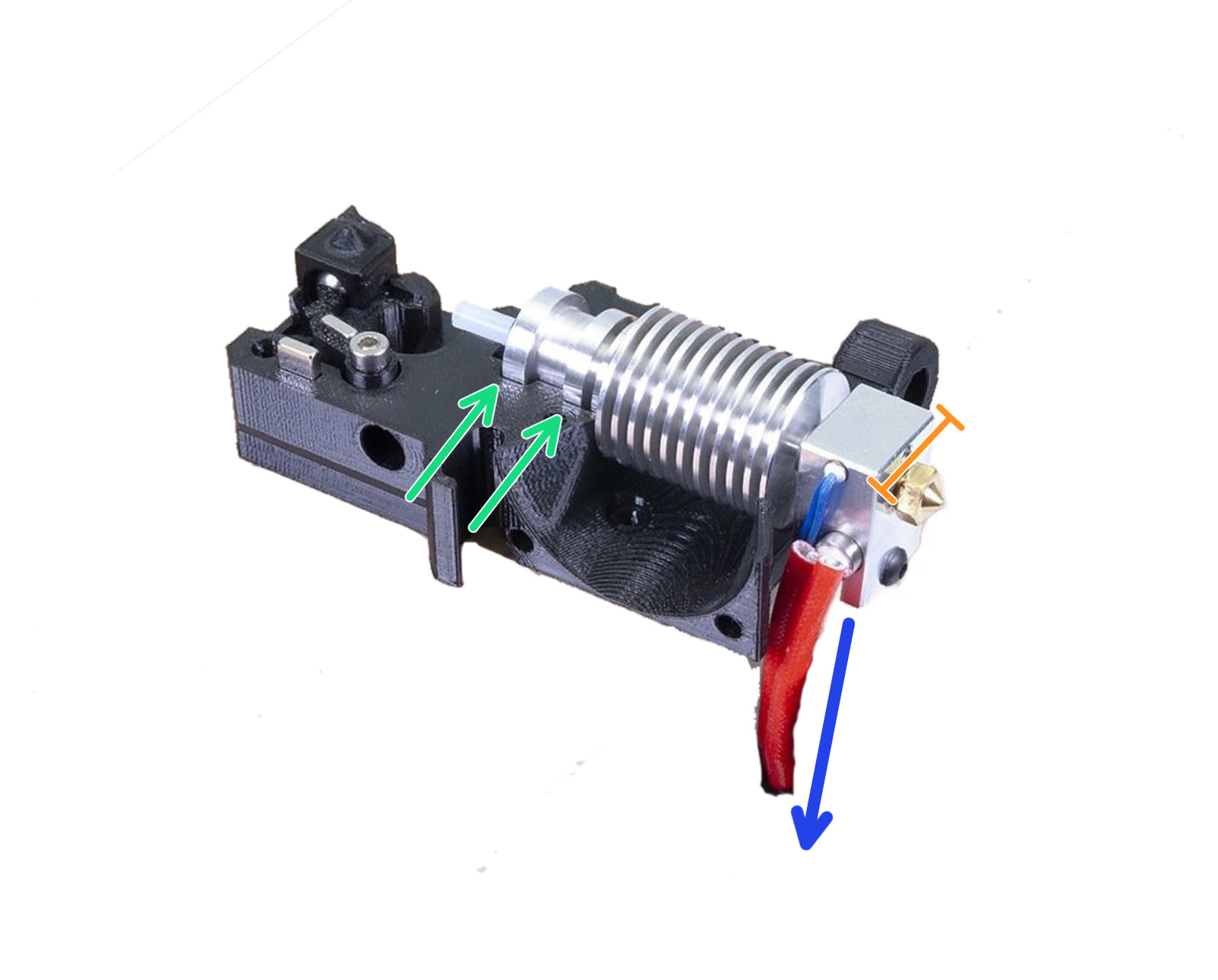
                  3. Check the E-axis assembly. Make sure that the hotend is perfectly inserted in the extruder. 

                    Make sure the heatsink is slotted into both slots (green arrows), the short side of the heaterblock is facing forward (orange ruler), with its wires running back alongside the left side of the heaterblock (blue arrow).

                  4. Make sure nothing blocks the movement of any of the axis. You can easily test that by moving the extruder or heatbed through LCD Menu - Settings - Move axis (X/Y). Simply move it from one end to the other and inspect the movement.
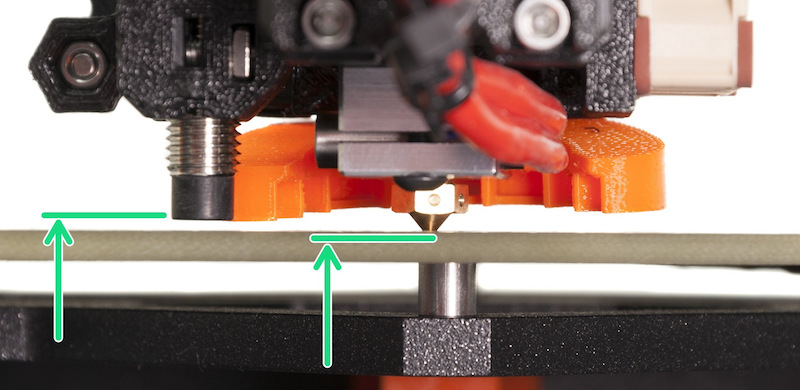
                  5. Make sure that your P.I.N.D.A. or SuperPINDA sensor is roughly 1 mm higher than the tip of the nozzle. Distancing the P.I.N.D.A. sensor is covered in the assembly manual Part 9. Preflight check.
                  6. There is also a small possibility that your P.I.N.D.A. sensor could be defective. The easiest way how to check that is to navigate to LCD Menu - Support - Sensor info.While placing anything metal (e.g. a spatula) under the P.I.N.D.A. sensor. The P.I.N.D.A. value should change from 0 to 1. More information can be found in P.I.N.D.A./SuperPINDA Sensor testing.
                  If you have just recently updated your Firmware version and XYZ calibration is repeatedly failing without any apparent reason, we recommend doing a full system refresh.
                  Was this article helpful?
                  This action is available only to registered users. Please log-in.

                  Topics

                  • Calibration
                    • Basic calibration
                      • Selftest failed (MK3/MK3S/MK3S+)
                      • XYZ Calibration details
                      • Mesh bed leveling
                      • XYZ Calibration (MK3/MK3S/MK3S+)
                      • Full system refresh Original Prusa i3
                      • Temperature Calibration
                      • Failing Z calibration (MK3S/MK2.5S)
                      • Idler screw tension
                      • First Layer Calibration (i3)
                    • Advanced calibration
                    • Calibration Error Messages

                  35 comments

                  Log in  to post a comment
                  Rob Latour
                  •
                  When the printer got to the part about the temperature check it asked me to put on the steel sheet.  I put on the smooth steel sheet.  But I notice as it is heating up and cooling down the screen says 'Texture' - I do not have the texture sheet on, rather the smooth steel sheet.  Is this going to be a problem?
                  Reply
                  Marina Curzi - Official Prusa CS
                  •

                  The printer can't actually tell which sheet you have on, it has to be selected. For more information about how to set up and select the correct profile, please check our Steel sheet profiles article.

                  Reply
                  Kenepo17
                  •
                  do i need to re calibrate xyz and offset after updating firmware on MK3s+?
                  Reply
                  Marina Curzi - Official Prusa CS
                  •

                  It should not be necessary. If it is, the printer will re-direct you automatically after the update.

                  Reply
                  Spriegel
                  •
                  Regarding:  Calibration failed! Check the axes and run again.
                  Z-calibration failing.
                  I reached out to Prusa customer support as my new build kit would not calibrate the Z - the right motor did not seem to be moving.
                  Rodolfo (Customer Support) was a great assistance.
                  It ended up being I had switched one of the z-axis motor cables (labeled Z) and the extruder motor cable (labeled E) inside the electronics assembly-- I was using the book and the photos were quite small.
                  I switched these and it worked!  Yeah!
                  Happy 3d Printing.
                   
                  Chris
                  Reply
                  Henry Adams
                  •
                  Hello, 
                  I have run into a problem regarding the testing of the XYZ axis. I have done all of the necessary tests and once I begin the test it goes through all of the calibrations for the X until the last one. A message comes up saying that the sensor was not identified and I should refer to the manual. Even when I read through the manual I could not find the answer to fixing this problem. If someone does know the solution to this problem then it would be greatly appreciated if you replied to this message. 
                  Reply
                  Giuliano - Official Prusa CS
                  •
                  Hello. The channel for troubleshooting is the live chat or an email at [email protected].
                  Reply
                  GabriG
                  •
                  Hello,   I recently came back to my printer after months of not using it. Since I moved it to another place in the house, I decided to re-run the XYZ calibration, but for some reason the nozzle is now catching the paper during it. I've moved the PINDA sensor but it seems to have no effect: my last try was moving it as low as it can get without being lower than the nozzle, and still the nozzle caught onto the paper. Is there any solution to this? I'm a bit lost at the moment.EDIT: Nevermind, doing the ziptie method and making sure to press down on the ziptie seems to have fixed it.
                  Reply
                  mb
                  •
                  I'm having the same problem. I don't now the "ziptie method". Please enlighten me.
                  Reply
                  Giuliano - Official Prusa CS
                  •
                  Hello. It's the one illustrated in the last chapter of the assembly manual: https://help.prusa3d.com/guide/9-preflight-check_176167
                  Reply