English
Login

Door sensor calibration

(CORE One, CORE One L)

Relevant for

CORE One family
CORE One+
Article is also available in following languages
English
Čeština
Polski
Deutsch
Français
Español
Italiano
日本語

The Prusa CORE One/+ and Prusa CORE One L are enclosed printers with a door. It is necessary for the door to be closed for printing. 

The closed door improves the print quality, but also ensures your safety, concerning possible injuries from the moving components. 

Procedure

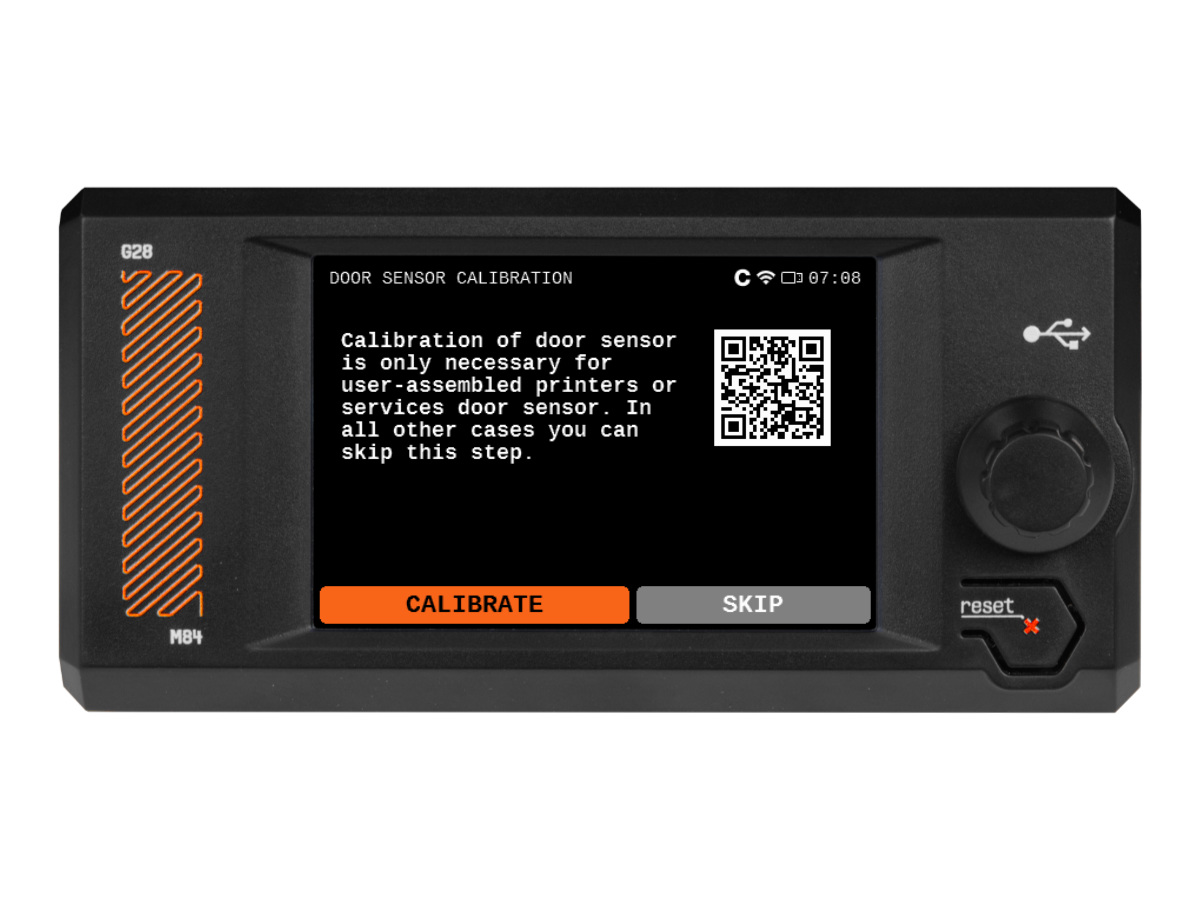
To calibrate the door sensor position, navigate to LCD Menu -> Control -> Calibrations & Tests -> Door sensor calibration. An introductory message is shown on the screen, select Calibrate

The printer prompts to first close the door. Once the door is closed, press Continue

Then, the printer prompts to open the door, and gradually tighten the sensor tension screw. Tighten the tension bolt by half-turn for each iteration. After each adjustment, observe the door sensor switch emerging from the front profile hole. 
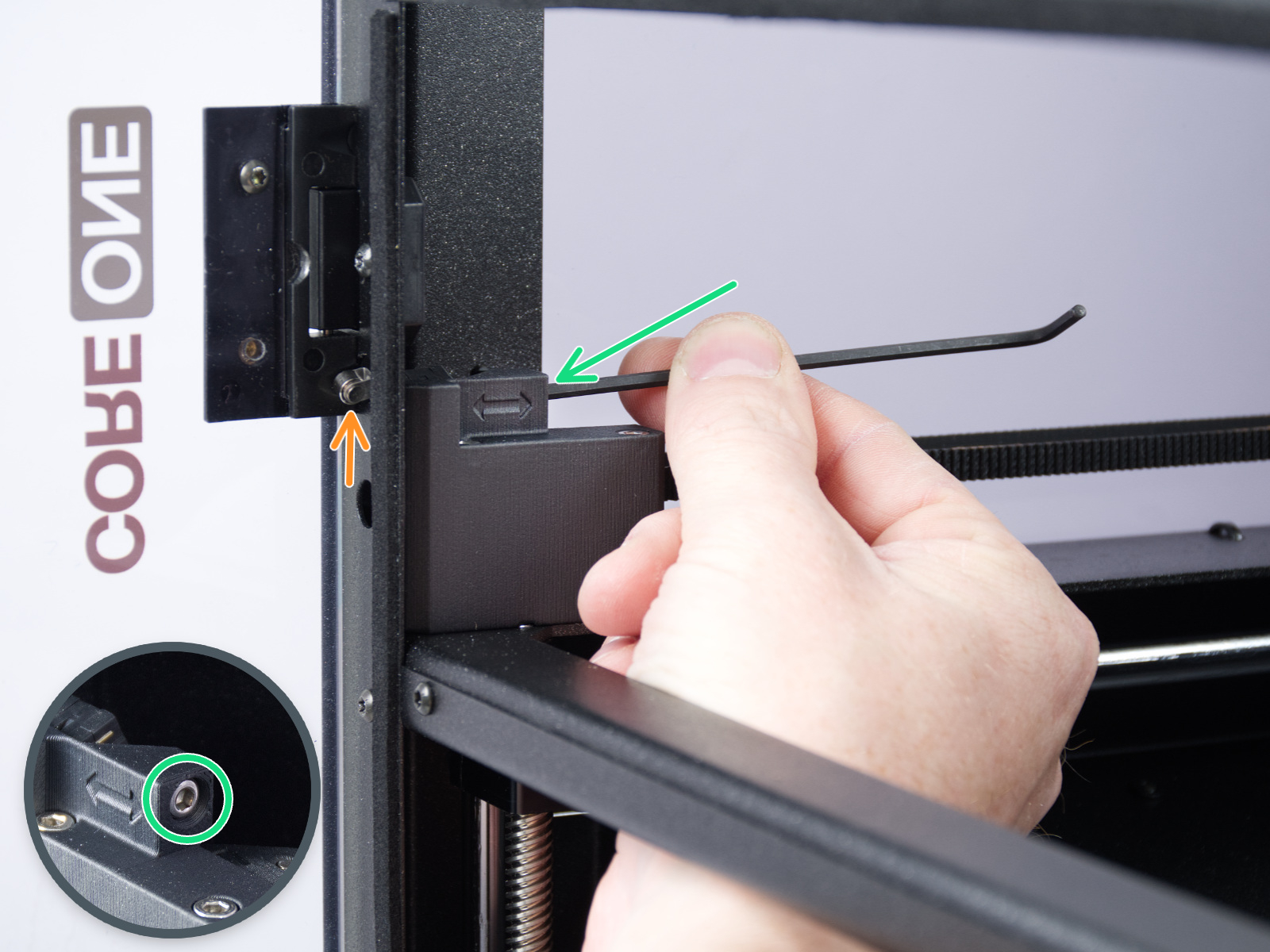
Once tightened, press Continue. Follow the in-screen instructions, the printer can instruct to further tighten the tension screw, to loosen it, or to continue to a successive step. 

When the printer prompts you, place your hand as shown in the screen picture below. 
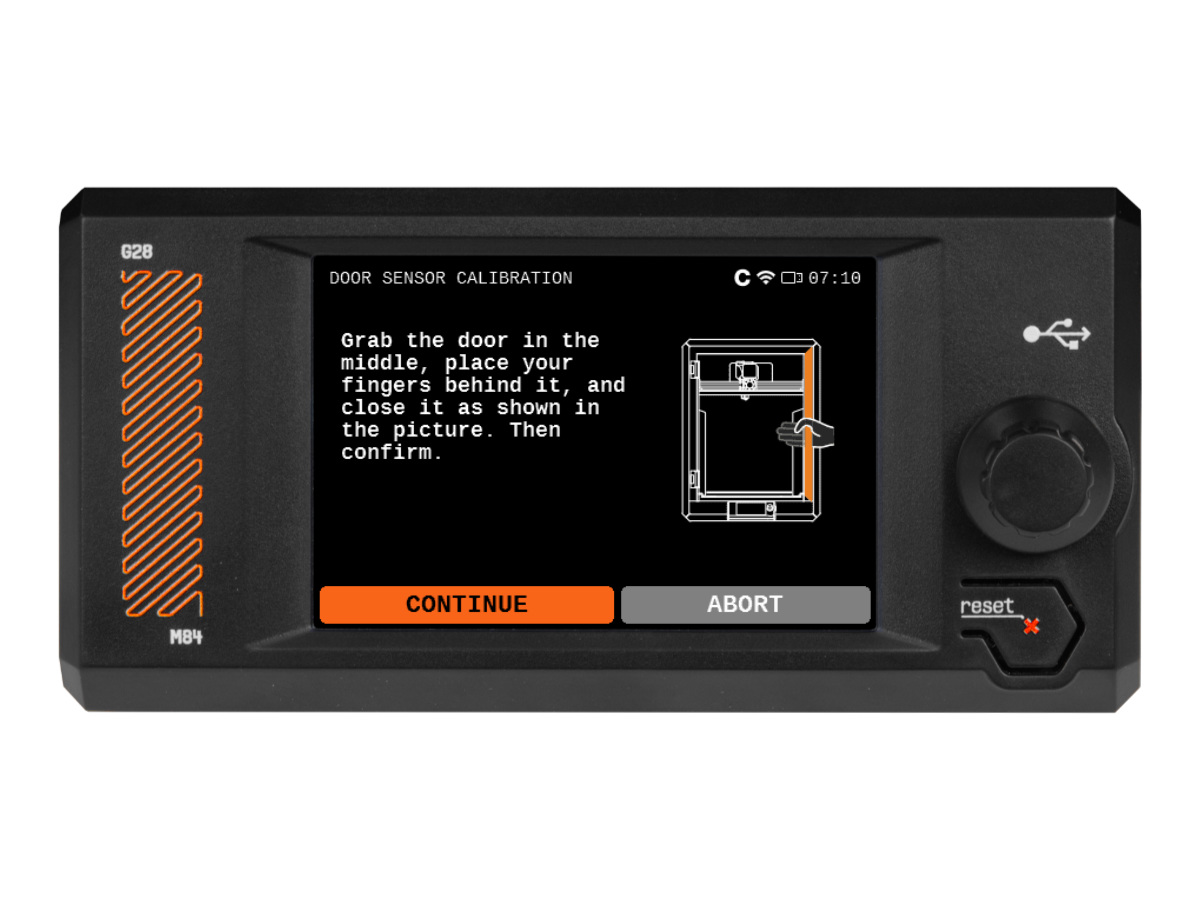
Only place the hand inside the door when the printer prompts you to do so! 

Once the sensor is calibrated, you should hear an audible click from the door sensor area when regularly opening and closing the door. 

After the calibration, the status can be checked in LCD Menu -> Info -> Sensor Info -> Door Sensor

Safety feature

By default, the printer has a safety feature that pauses printing if the door is open during a print. 

In-screen message shown when a door is open during a print.

This feature can be accessed and toggled on or off by navigating in LCD Menu -> Settings -> Door sensor

The safety feature is there to prevent user injury. If deactivated, please be aware that you might risk injury from the moving printer's parts. 
If you are experiencing issues with the door sensor, such as an unsuccessful calibration, and the steps in this article are not working, please do not hesitate to reach out to our technical support
Was this article helpful?
This action is available only to registered users. Please log-in.
 

3 comments

Log in  to post a comment
Maximus
Per instructions, tightened 1/2 turns until door would not shut. Backed all the way out and can hear audible click but still not calibrated.
hakkaisha
Seemd to be something wrong with the test for me still got error to continue tightening after tightening the screw to the maximum, so skipped it since i could he the switch when closing the door. Seems to work as intended any way since it warns me about the dor being open.
Malkolmi
You need a 2,5 mm hex key to tighten it. Dont know why that is not in the info here. Mine came assembled but does not seem to work very good. It keeps telling me to tighten it. Does the door need to open a full 180? Because i tried that, but I have to move my printer around for that. Still only tells me to screw it tighter
OmikronTauri
Same issue for mine as well… any guidance on this Prusa?
Jan Kratochvíl
Hello. For help, please contact our support team as this is our primary way to help you.
Marina Curzi - Official Prusa CS
You can follow the troubleshooting steps in the selftest guide: https://help.prusa3d.com/article/selftest-failed-core-one_837189#door-sensor-calibration

If the issue persists, contact our technical support.
jrbloom
Very poor that Prusa aren't monitoring these comments.

I had the same issue. It turned out that the sensor had been stuck too far forward, so that loosening the screw was not backing it into the printer.

I loosened the screw right back, and pushed/rotated the sensor backwards through the hole until it sat against the adjuster body (it is mounted by a screw that is left slightly loose, so it should be possible to move it).

Then I tightened the screw again until the sensor emerged through the hole. At that point the calibration went smoothly.
naima5590
Thank you so much for this reply! I did exactly what you described and it passed the calibration!
JA
New printer pre assembled. Same problem here and this fixed it. Thanks.

JA