0 点の商品がカートに入っています点の商品がカートに入っています
カートは空です
マイプロフィール
ログイン すると注文や保存した商品を確認できます
ログイン中:
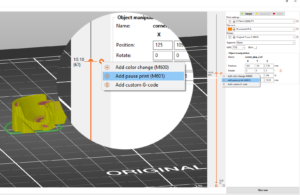
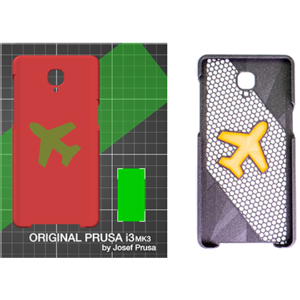
PrusaSlicerでは、特定のレイヤーにおいてフィラメントの変更をスケジュールすることができます。これはシンプルな多色モデルをプリントするのに応用できます。プリンターは、G-code(M600コマンド)で色変更を読み取るとすぐにプリントを自動的に一時停止し、ユーザーにフィラメント交換を促します。 通常通りモデルをスライスします。プレビューでパーツがどのようにプリントされるかが表示されます。 右側にレイヤースライダーが表示されます。レイヤースライダーを下にドラッグして目標のレイヤーを選択します。 オレンジ色のプラスアイコンを右クリックします。 プリントの一時停止を挿入(M601)を選択します。 一時停止は選択したレイヤーがプリントされる前に挿入されます。 プリントが一時停止したときにプリンターのLCDに表示される短いメッセージを挿入します。 例:「ベアリングをスロットに配置し、プリントを再開してください」 OKをクリックして一時停止を確定します。 スライダーを一時停止レイヤーに移動し、グレーの×アイコンを左クリックすることで、一時停止を削除できます。 グレーの×アイコンを右クリックすることで、一時停止メッセージを編集できます。 磁石を挿入する場合、しっかりとスロットに固定する必要があります。そうしないと、プリントヘッドが通過する際にプリントヘッドに張り付いてしまう可能性があります。スロットを狭い公差で設計するか、少量の瞬間接着剤を使用して固定してください。 一時停止の挿入とカスタムG-codeの挿入機能にアクセスするには、PrusaSlicer…
場合によっては、モデルの特定のセクションに対してのみ一部の設定を変更したいことがあります。例えば、剛性を高めるためにモデルの一部により密度の高いインフィルやより多くの外周を設定したいかもしれません。しかし、これらの設定をグローバルに調整したくありません。なぜなら、それは多くの材料を無駄にし、プリント時間を増加させてしまうからです。 カスタム設定の影響を受けるモデルのセクションを指定する方法は複数あります。高さ範囲モディファイア、シンプルなモディファイアメッシュプリミティブ(例:立方体)、またはカスタムモデルモディファイアメッシュを使用できます。 …
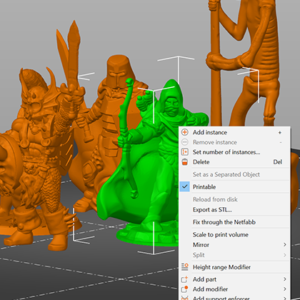
PrusaSlicerでは、一度に複数のモデルを印刷することができ、それぞれ微妙に異なる設定で印刷することができます。例えば、インフィルやレイヤーの高さが異なる場合などです。 モデル上で右クリック(Advancedモード)し、次のいずれかを選択します。: Infill(インフィル) Layers and perimeters(レイヤーおよび外周) Support…