Prusa
  • SHOP
    • Latest products
    BY CATEGORY
    • 3D printersnew
    • 3D printer upgradesnew
    • Materials
    • Accessories
    • Spare parts
    • Courses
    • Merch
    • Get a price quote
    QUICK LINKS
    • Shipping & delivery
    • Returns & refunds
    • Payment & financing
    • Warranty
    • VAT & Customs fees
    • FAQ

    0 item in your cartitems in your cart

    Your cart is empty

    Go to cartShop 3D printers

    My profile

    Log in to see orders, saved items

    My profile

    Signed in as

    • Orders
    • Logout
  • 3D PRINTING
    • Explore 3D printing
    FOR BEGINNERS
    • 3D printing 101
    • How FDM printing works
    • Buying your first printer
    • 3D model catalog
    BY APPLICATION
    • Rapid prototyping
    • Manufacturing
    • Engineering
    • Research
    • Arts & design
    GO DEEPER
    • Materials guide
    • Courses
    • Webinars
    • Case studies
    • Custom 3D printing
  • 3D PRINTERS
    • All 3D printers
    FOR
    • Home or garageHobbyists, tinkerers and home printing
    • BusinessIn-house production for small teams
    • EnterpriseFleets, security and scale
    • Which Prusa is right for me
    SHOP & BROWSE
    • CORE One+new
    • CORE One+ INDXnew
    • CORE One L+new
    • CORE One L+ INDXnew
    • XL+new
    • MK4S
    • Prusa Pro HT90
    • Prusa Pro AFS
    • Prusa Pro SLX
    MORE FROM PRINTERS
    • Parts & upgradesnew
    • Critical infrastructure
    • Case studies
    • Signature Oak
    • Kits
  • MATERIALS
    • All materials
    BY USE
    • Every-day & design
    • Functional engineering
    • Composites
    • Pro speciality
    • SLA resins
    PRUSAMENT
    • PLA
    • PETG
    • ASA
    • PC
    • PA11
    • Flex
    • TPU
    MORE FROM MATERIALS
    • Materials guide
    • We make material in house
    • Sustainability
    • Order on the store
  • SOFTWARE
    • All software
    PREPARE THE PRINT
    • PrusaSlicer 3.0New
    PRINT & MONITOR
    • Prusa Connect
    • EasyPrint
    • iOS & Android app
    • Prusa Farm
    GET STARTED
    • Download & install
    • Knowledge base
    MORE FROM SOFTWARE
    • 3D model catalog
  • SUPPORT
    • Explore support
    FIND ANSWERS
    • Knowledge base
    • Troubleshooting
    • Courses
    • Webinars
    GET HELP
    • Contact us
    • Livechat
    • Shipping & delivery
    • Warranty
    • Returns & refunds
    • Service & spare parts
    • Service & Repair
    COMMUNITY
    • Forum
    • Reddit
    • Printables
  • TRUST CENTER
    • Trust Center overview
    BY TOPIC
    • GDPR
    • Certificates
    • Security
    • Compliance
    COMMITMENTS
    • Sustainability report
    TALK TO US
    • Contact the security team
  • COMPANY
    • About Prusa
    GET TO KNOW US
    • Our story
    • How we make printers
    • Open source
    • Brand & media kit
    NEWS
    • Blog
    • Newsroom
    • Events
    TRUST & PARTNERS
    • Sustainability
    • Resellers & distributors
    • Affiliate program
    • Contact
    • English
    • Čeština
    • Deutsch
    • Español
    • Français
    • Italiano
    • Polski
    • 日本語
  • Signed in as

    • Orders
    • Address
    • In-stock Alerts
    • My Courses
    • Subscription
    • Edit Account
    • Logout

Log in to see orders, saved items

Signed in as
  • Orders
  • Address
  • In-stock Alerts
  • My Courses
  • Subscription
  • Edit Account
  • English
  • Čeština
  • Deutsch
  • Español
  • Français
  • Italiano
  • Polski
  • 日本語
Shop

0 item in your cartitems in your cart

Your cart is empty

Go to cartShop 3D printers

My profile

Log in to see orders, saved items

My profile

Signed in as

  • Orders
  • Logout
SHOP
  • Latest products
BY CATEGORY
  • 3D printersnew
  • 3D printer upgradesnew
  • Materials
  • Accessories
  • Spare parts
  • Courses
  • Merch
  • Get a price quote
QUICK LINKS
  • Shipping & delivery
  • Returns & refunds
  • Payment & financing
  • Warranty
  • VAT & Customs fees
  • FAQ

Featured products

    Popular categories

      Trending searches

        Articles

          Blog

            Products

              Categories

                Suggested searches

                  Searching…
                  No results
                  Something went wrong.
                  ↑↓ Select↵ OpenEsc Close search
                  1. Support
                  2. Octoprint
                  3. PrusaPrint (Rpi Zero and Octoprint)
                   

                  Contents

                  • Parts and preparations
                  • Soldering the GPIO pins
                  • Installation of SD card
                  • Connecting the RPi Zero to your printer
                  • Checking if the RPi works
                  • Troubleshooting

                  Blog

                  • Print colorful and glowing Halloween decorations with our spooky offer
                  • Factorio Has Arrived on Printables
                  • Prusament PLA Lightweight: 65% lighter than regular PLA. Perfect choice for aircraft, cosplay, and more.

                  Newsletter

                  Signup and get our monthly squeeze on updates, blog, printables and much more.

                  By clicking, you agree to receive our newsletter.

                  This site is protected by reCAPTCHA Enterprise and the Google Privacy Policy and Terms of Service apply.

                  Factorio Transport Belts
                  E-shop
                  • 3D Printers
                  • Printer Upgrades
                  • Filaments
                  • Accessories
                  • Prusa Merchandise

                  © Prusa Research a.s.

                  Printables
                  • 3D Models
                  • Store
                  • Clubs
                  • 3D Design Contests
                  • Brands
                  Community
                  • World Map
                  • Forum
                  • User Groups
                  • Events
                  Help
                  • Prusa Help
                  • Prusa Academy
                  • 3D Printing Calculators
                  Software
                  • PrusaSlicer
                  • Prusa.app
                  • Prusa Connect
                  • Drivers and Software
                  Company
                  • About Us
                  • Blog
                  • Official Prusa Resellers
                  • Contact Us
                  • Certified for ISO 9001, ISO 14001, ISO 45001
                  • General Terms and Conditions
                  • General Terms and Conditions of Use of the PRUSA Websites
                  • Privacy Policy
                  • Information about cookies
                  • Customer Complaints Policy
                  • Status Page
                  • Do Not Sell or Share My Personal Information
                  • Supplemental Statements
                  • General Terms and Conditions
                  • General Terms and Conditions of Use of the PRUSA Websites
                  • Privacy Policy
                  • Information about cookies
                  • Customer Complaints Policy
                  • Status Page
                  • Do Not Sell or Share My Personal Information
                  • Supplemental Statements

                  © Prusa Research a.s.

                  JOSEF PRUSA®, PRUSA RESEARCH®, PRUSA POLYMERS®, PRUSA ORANGE®, PRUSA 3D ® AND PRUSAMENT® are registered trademarks of Prusa Development a.s. used by Prusa Research a.s. under licence from Prusa Development a.s.

                  PrusaPrint

                  (Rpi Zero and Octoprint)

                  Relevant for

                  MK3
                  MK3S
                  MK3S+
                  181 comments
                  Article is also available in following languages
                  English
                  Čeština
                  Polski
                  Deutsch
                  Français
                  Español
                  Italiano
                  日本語
                  Raspberry Pi Zero W has no 5GHz Wi-Fi (only 2.4GHz), and a somewhat weak processor. It does not support using a large amount of Octoprint-plugins or streaming of video and is not officially recommended by the OctoPrint project. Use more powerful models like the 3B+ or the latest RPI 4 to take full advantage of Octoprint. However, they do need to be connected by USB, plus they need a separate PSU, which results in a less clean setup.

                  In this article, we will outline the preparations and configurations necessary to outfit your MK3S with Octoprint using a Raspberry Pi Zero. Here we will go through how to solder the correct GPIO pins and connecting the Raspberry Pi to the printer.

                  PRUSAPRINT (PRUSA'S CUSTOM OCTOPRINT IMAGE) IS NOW OUTDATED AND NO LONGER BEING MAINTAINED! This solution has been superseded by PrusaLink and Prusa Connect.
                  If you wish to use Octoprint, we recommend following the guide to creating your own Octoprint image.

                  You can run Octoprint from most versions of the Raspberry Pi (Zero, 2, 3, 3B, etc.), but this is covered in a different article. We have chosen the Raspberry Pi Zero W for this tutorial, as it integrates neatly with the MK3s Einsy RAMBo with no need for an external power supply.

                  This guide is not covering any other fruit alternatives, like Banana Pi, Orange Pi, etc.

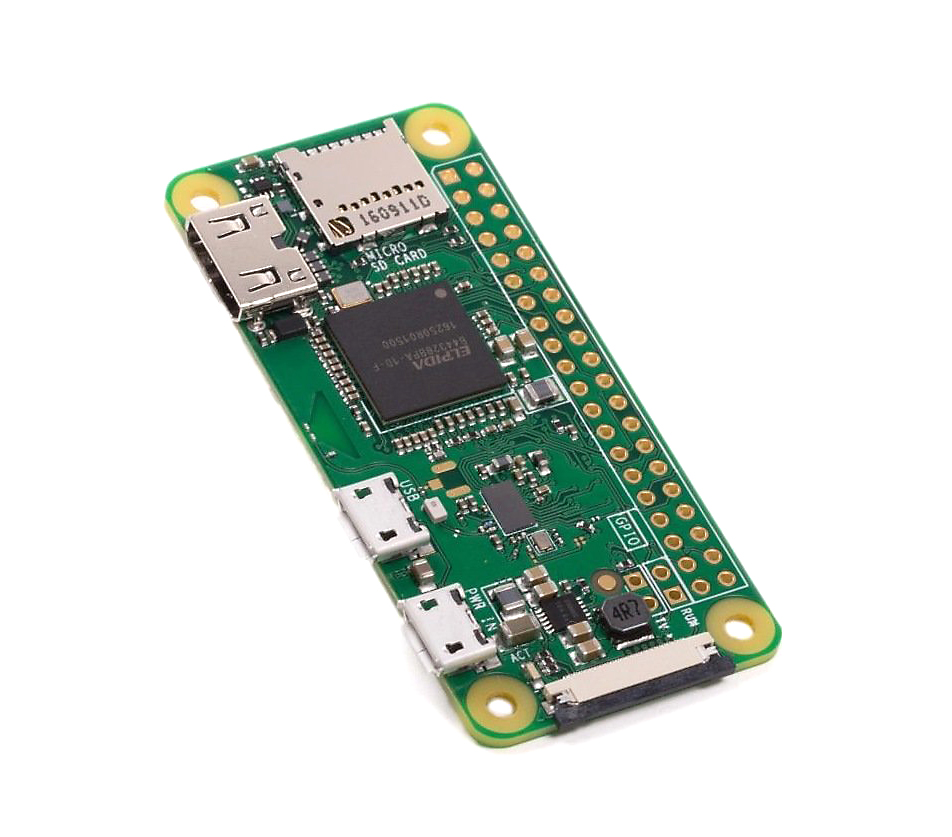
                  Distinguish between models Pi Zero W and Pi Zero. The letter "W" stands for Wireless. Buying a cheaper Pi Zero without WiFi will not work with this guide!

                  Parts and preparations

                  To complete this guide you need the following components:

                  • Raspberry Pi Zero W
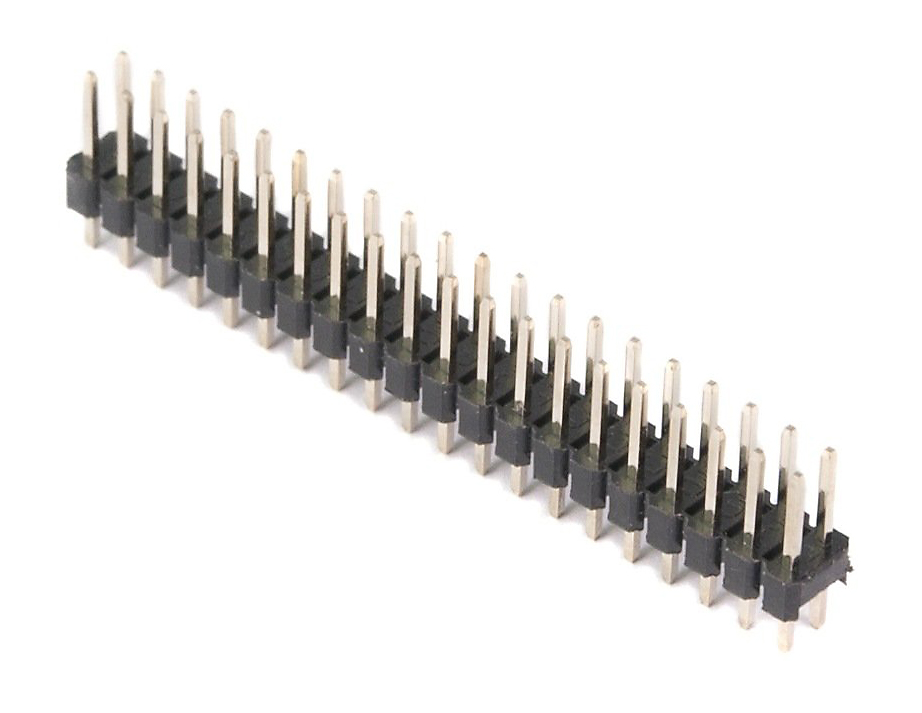
                  • 2x20-pin Strip Dual Male Header, with 18 mm pins.
                  • Micro SD card of at least 8GB (16 GB is recommended).
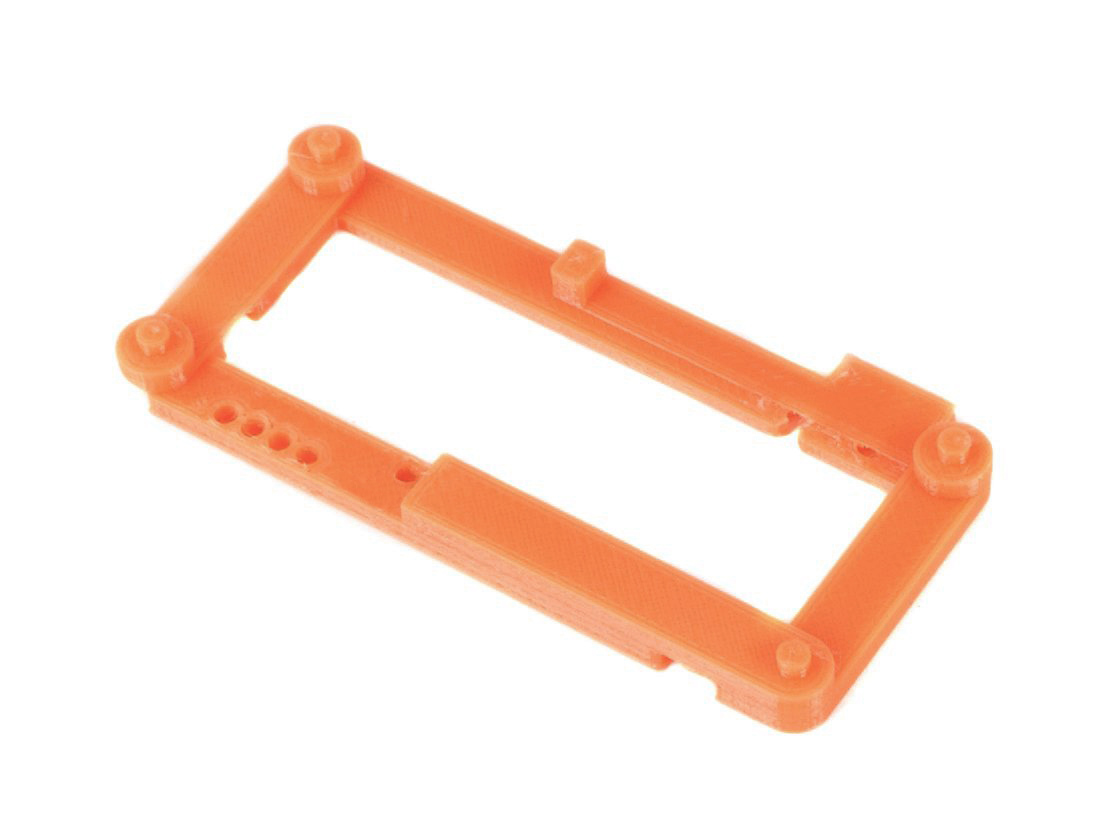
                  • Printed RPi Zero Frame.
                  To create a connection between RPi Zero W and EINSY board you need a GPIO header which you solder to the RPi board. You need a break-away 2x20-pin Strip Dual Male Header, the version with 18 mm pins. These types of headers come in different versions, but the crucial part is that they are 18 mm long.
                  2x20-pin Strip Dual Male Header
                   
                  Now that you have your Pi and the pins, they need to be installed to the Einsy Rambo. To ensure the correct position of pins and optimal distance, our developers created a printed part, the RPi Zero Frame, which is placed between RPi Zero and EINSY board. This is also used as a template when soldering the pins, ensuring they go where they should.
                  RPi Zero Frame
                   
                  RPi Zero Frame can be downloaded here. Recommended settings for print are profile 0.2 SPEED and material PETG or ABS.
                  The RPi Zero Frame is not fully compatible with the RPi Zero 2 layout. Be careful if using it or seek out a remix.

                  Soldering the GPIO pins

                  Certain parts of this guide require the usage of soldering and cutting tools. Please read carefully the instructions for such devices/tools and use personal protective equipment. Prusa Research does not assume responsibility, and expressly disclaim liability for loss, injuries, or damage.

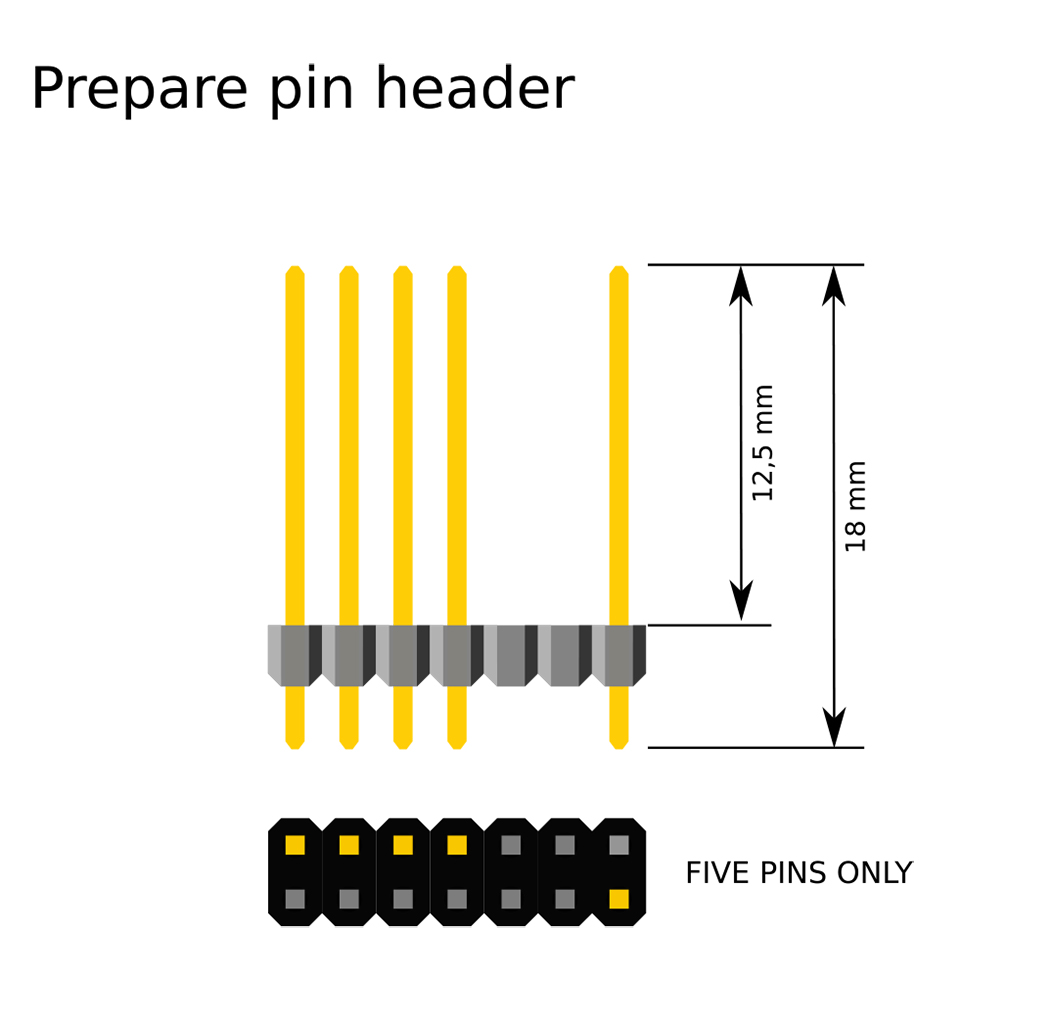
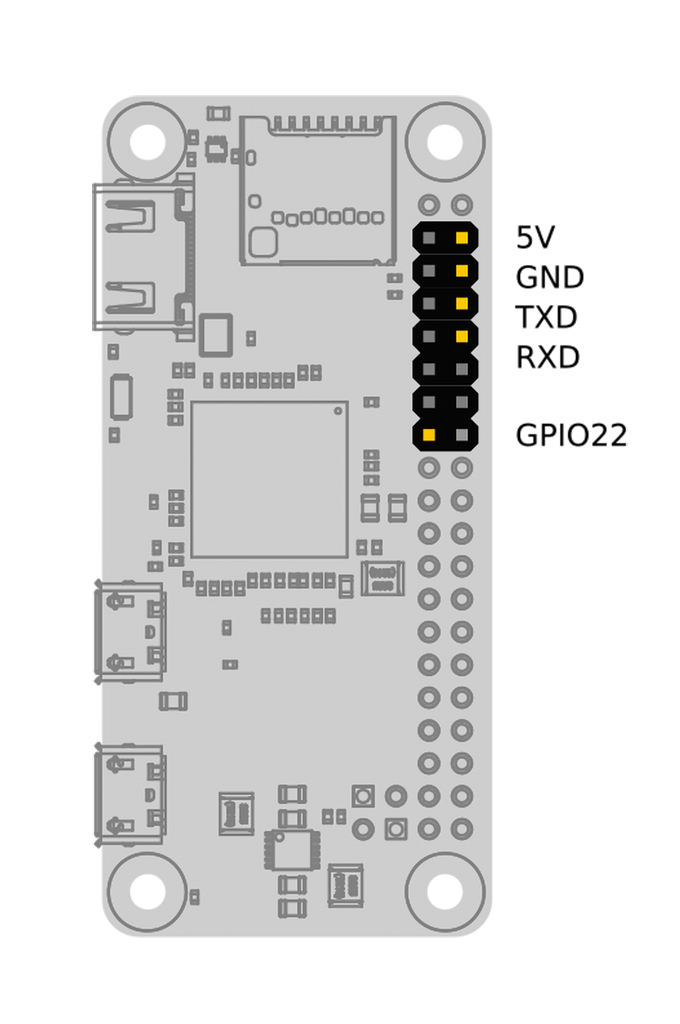
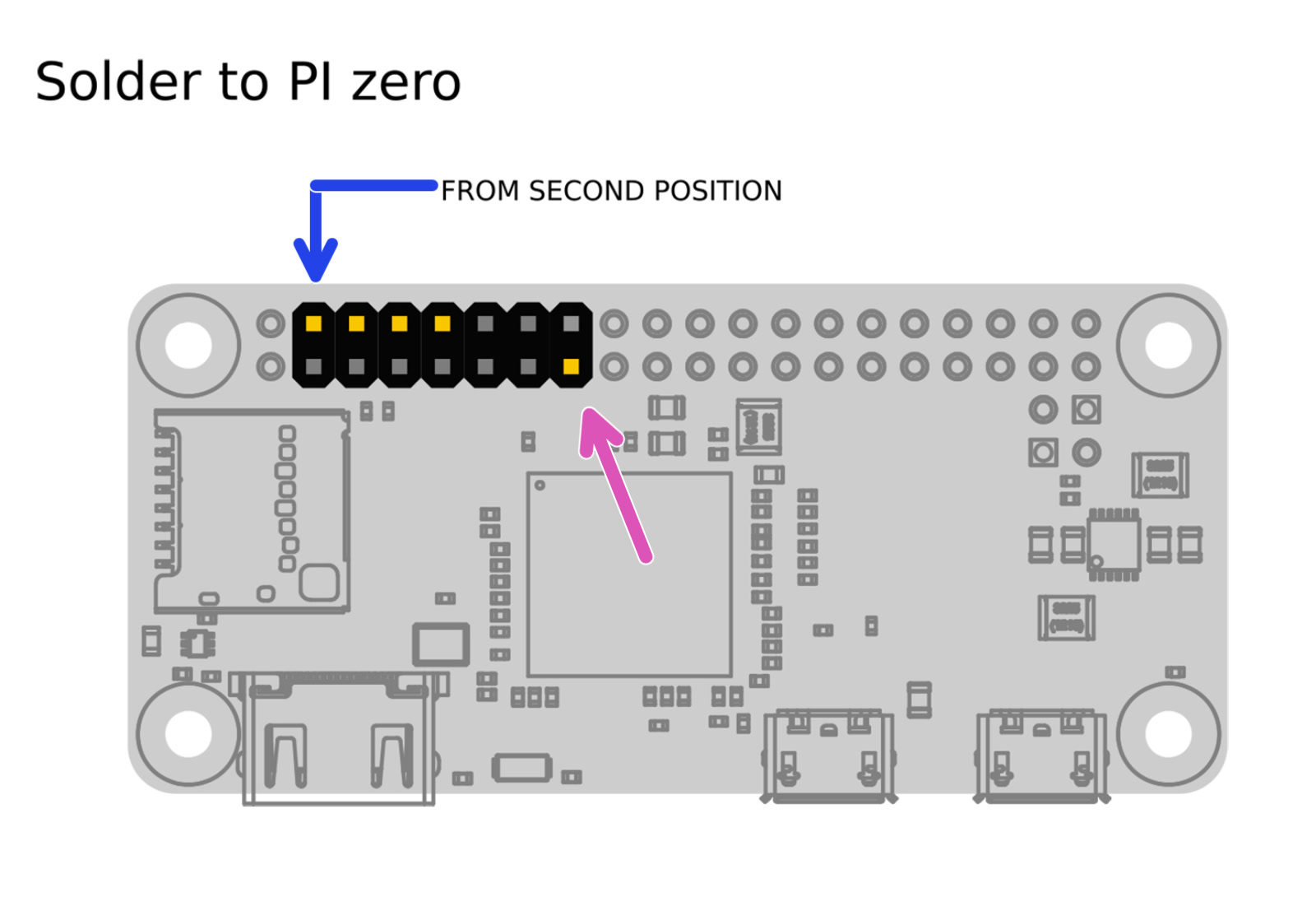
                  Prepare a piece of the GPIO-header, as in the illustration above, by simply breaking off the length you need and pulling out the pins you do not need with some pliers (right picture).

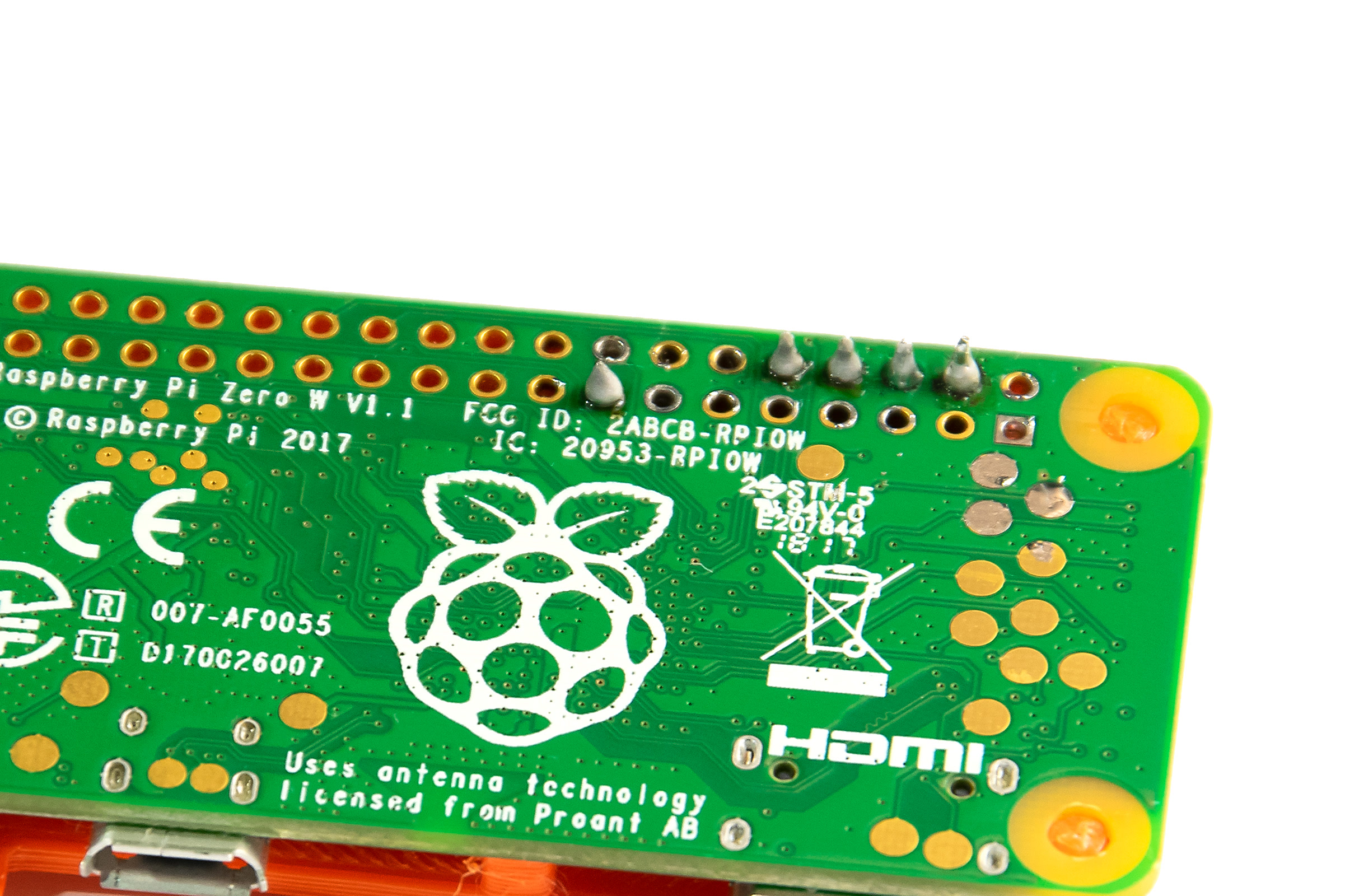
                  We are connecting this header to the UART pins (5V, GND, TXD, RXD) for serial communication, and to GPIO22 as mechanical support.
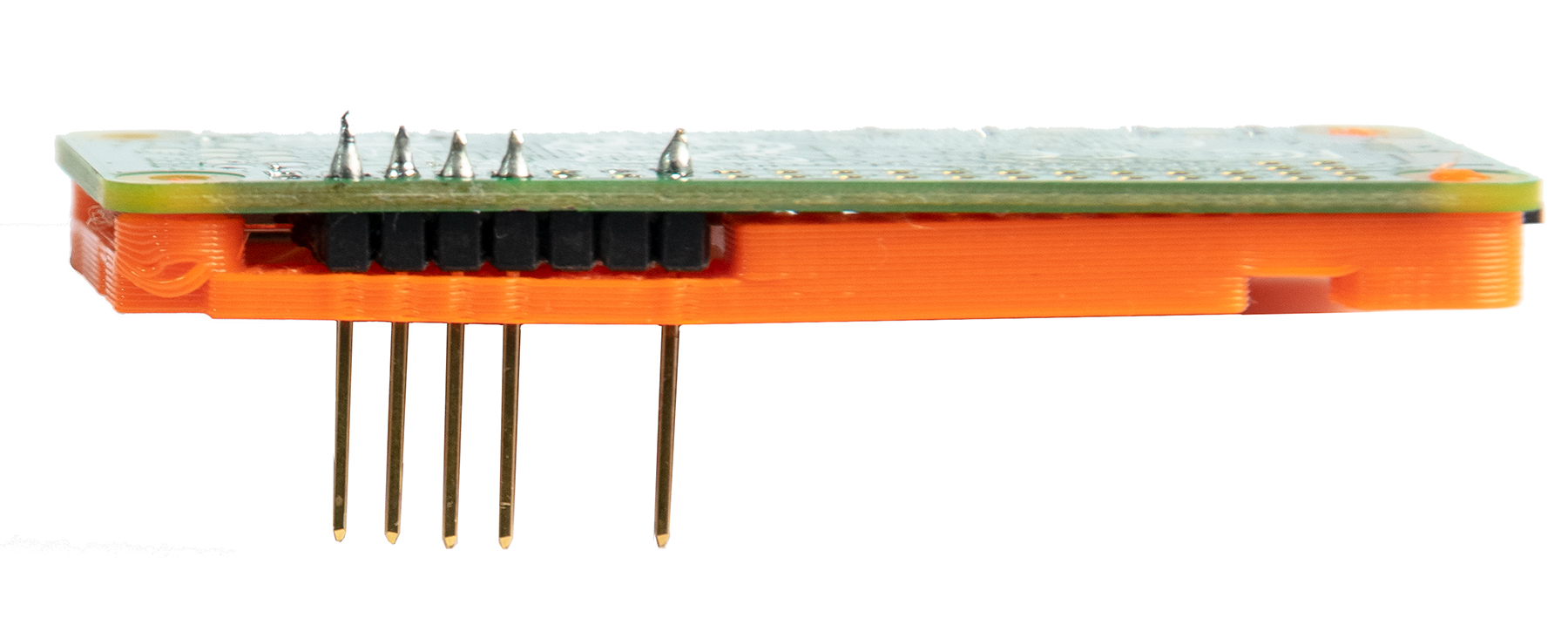
                  Sandwich the printed frame, the RPi Zero, and the GPIO pins together like is shown in the right picture below, Make sure the tips of the GPIO pins stick out about 1 mm, from the correct holes. You are now ready to solder the pins.

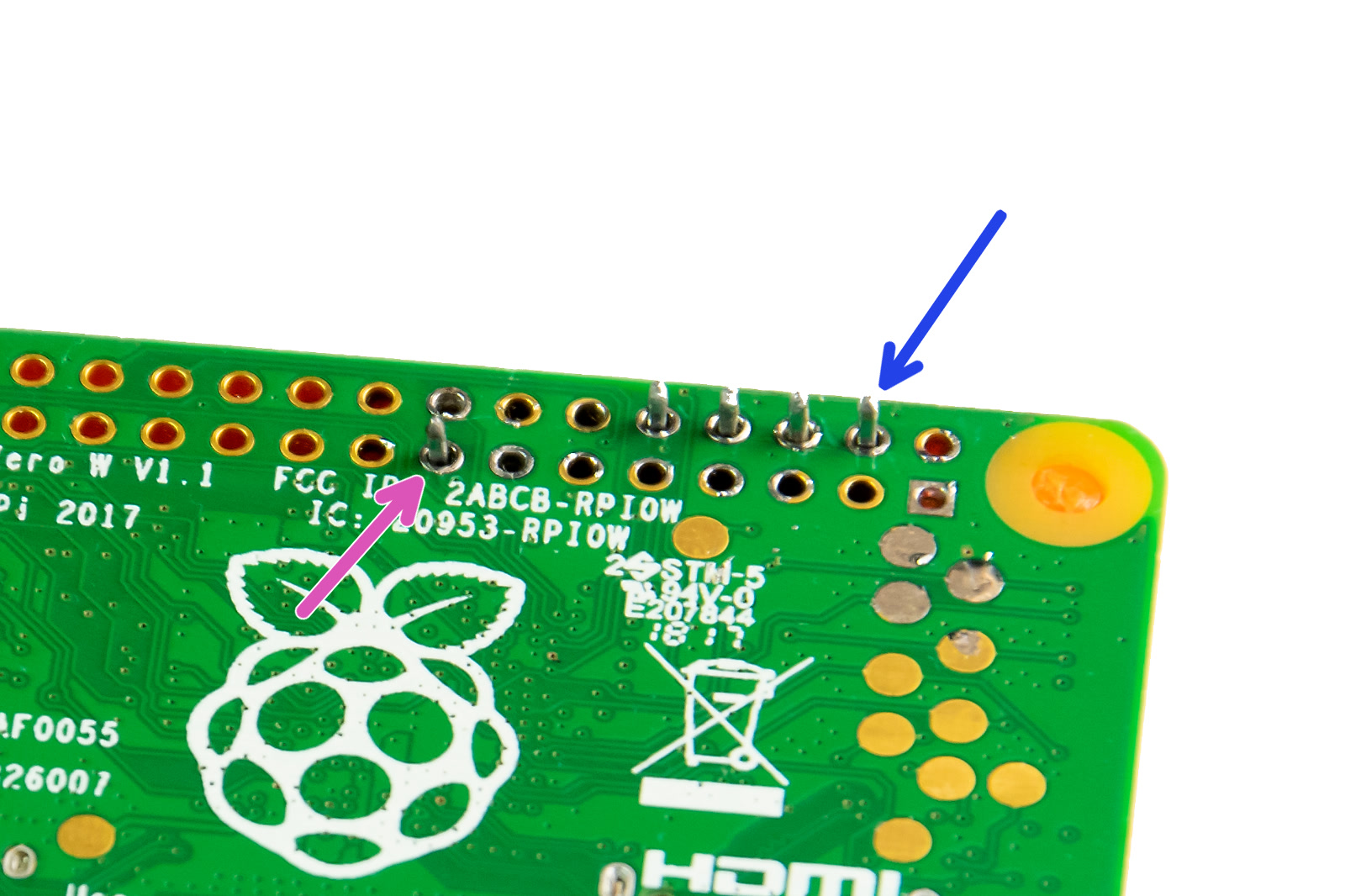
                  When soldering, you need the solder to "flow", creating a proper bond between the pins and the pads on the RPi Zero. If you end up with balls and blobs you need to reflow it for a proper bond. The solder needs to be clinging to the pins and the pads. You want "cones" as in the pictures above and below. Most solder will also turn shiny if done correctly. If you have no experience soldering we recommend looking up some videos on the basics.

                  Installation of SD card

                  The RPi Zero W hardware is now ready to be installed to the Rambo case, but for the lack of access once installed, you first need to prepare the SD-card which runs its operating system.
                  • Build and configure your own image from scratch
                  PRUSAPRINT (PRUSA'S CUSTOM OCTOPRINT IMAGE) IS NOW OUTDATED AND NO LONGER BEING MAINTAINED! This solution has been superseded by PrusaLink and Prusa Connect. If you wish to use Octoprint, we recommend following the guide to creating your own Octoprint image.

                  Connecting the RPi Zero to your printer

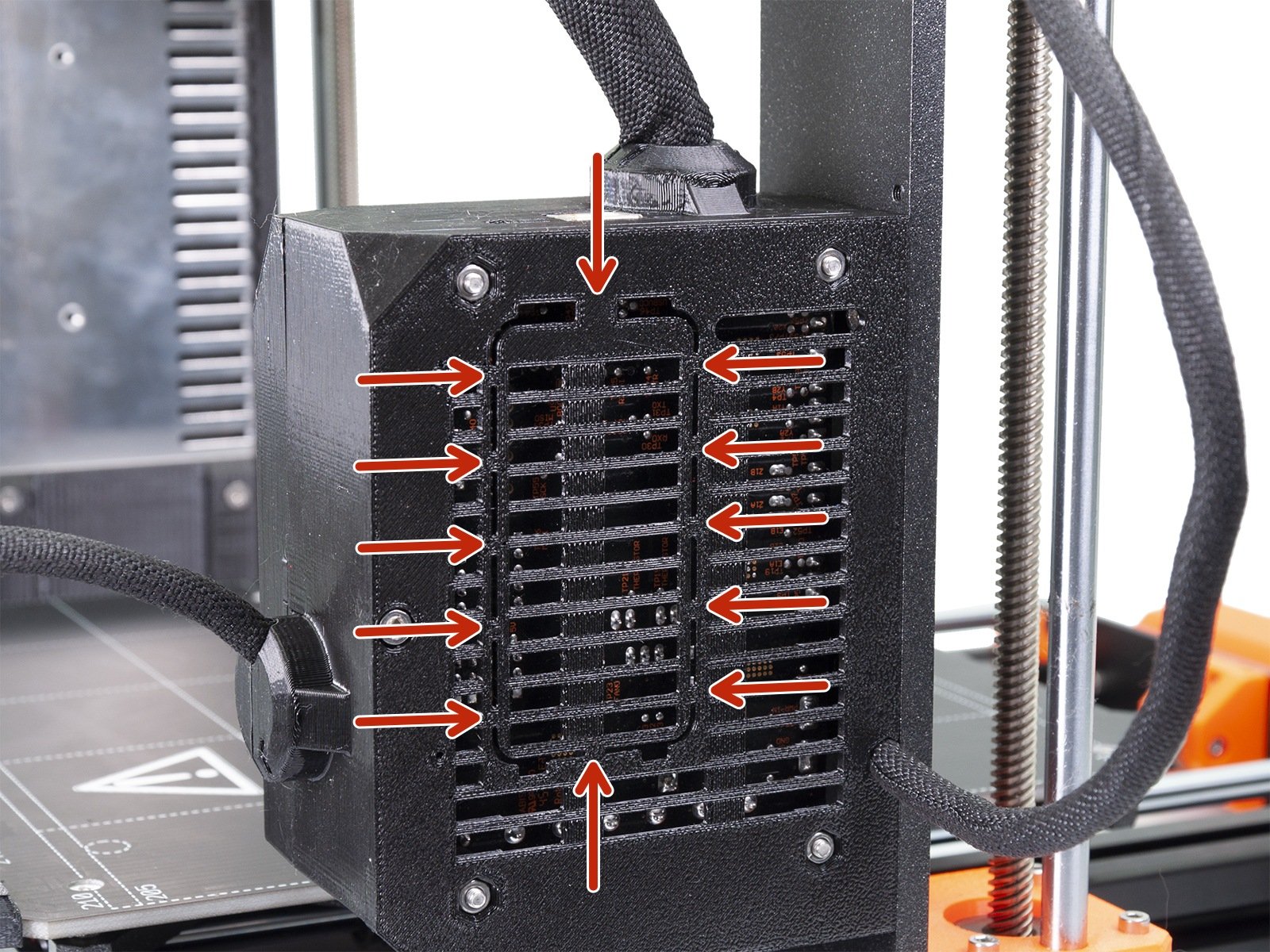
                  1. Make sure the printer is turned off and carefully cut all the indicated plastic parts and remove the cut-out part. During the cutting process, MAKE SURE YOU DON'T CUT the Einsy board!!!
                  On the MK3 (non S) there might not be this prepared area to cut. You can still cut it out, but this is a bit scary and you won't have the protective cover. We recommend printing the latest version of the Rambo-case.
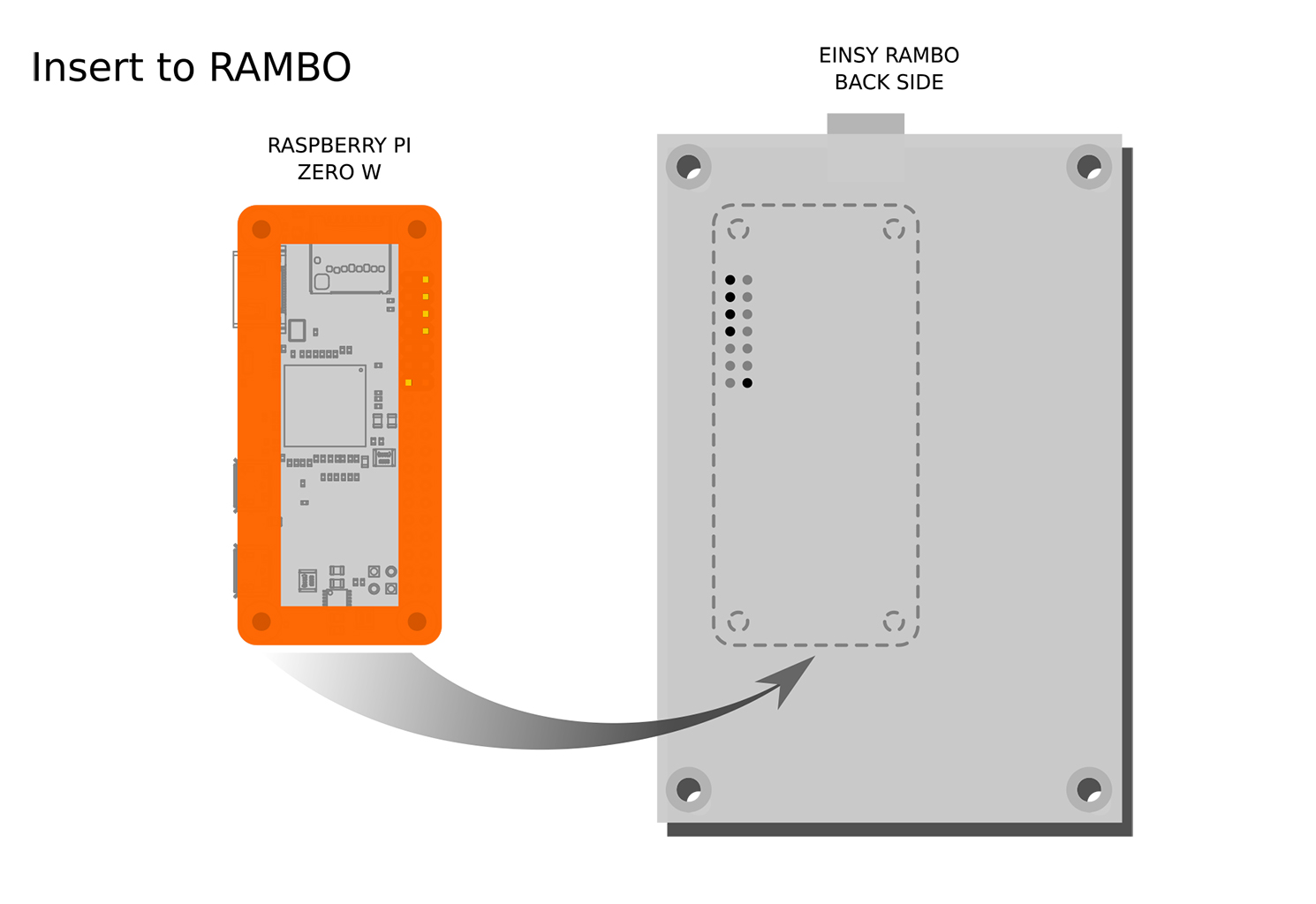
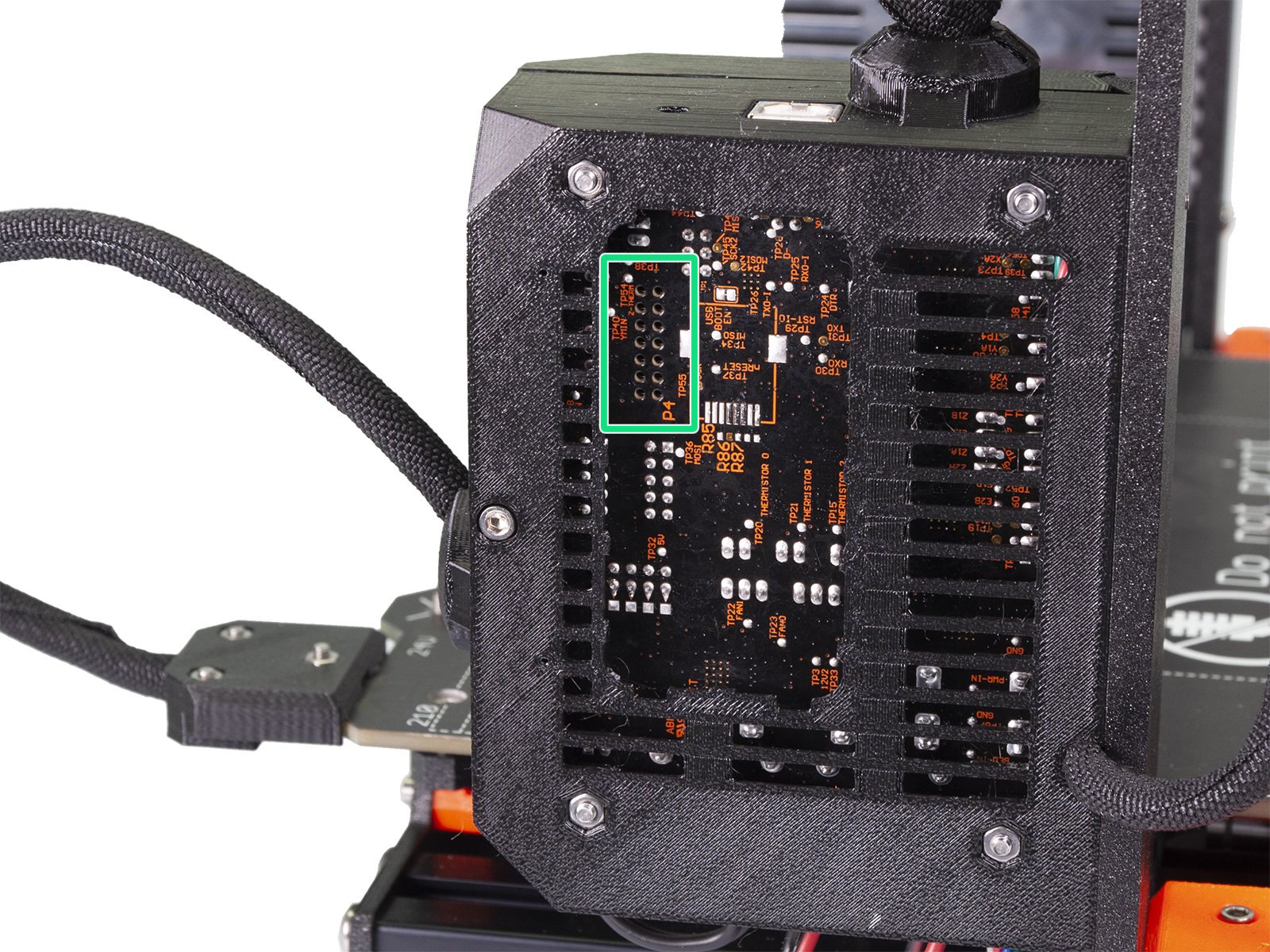
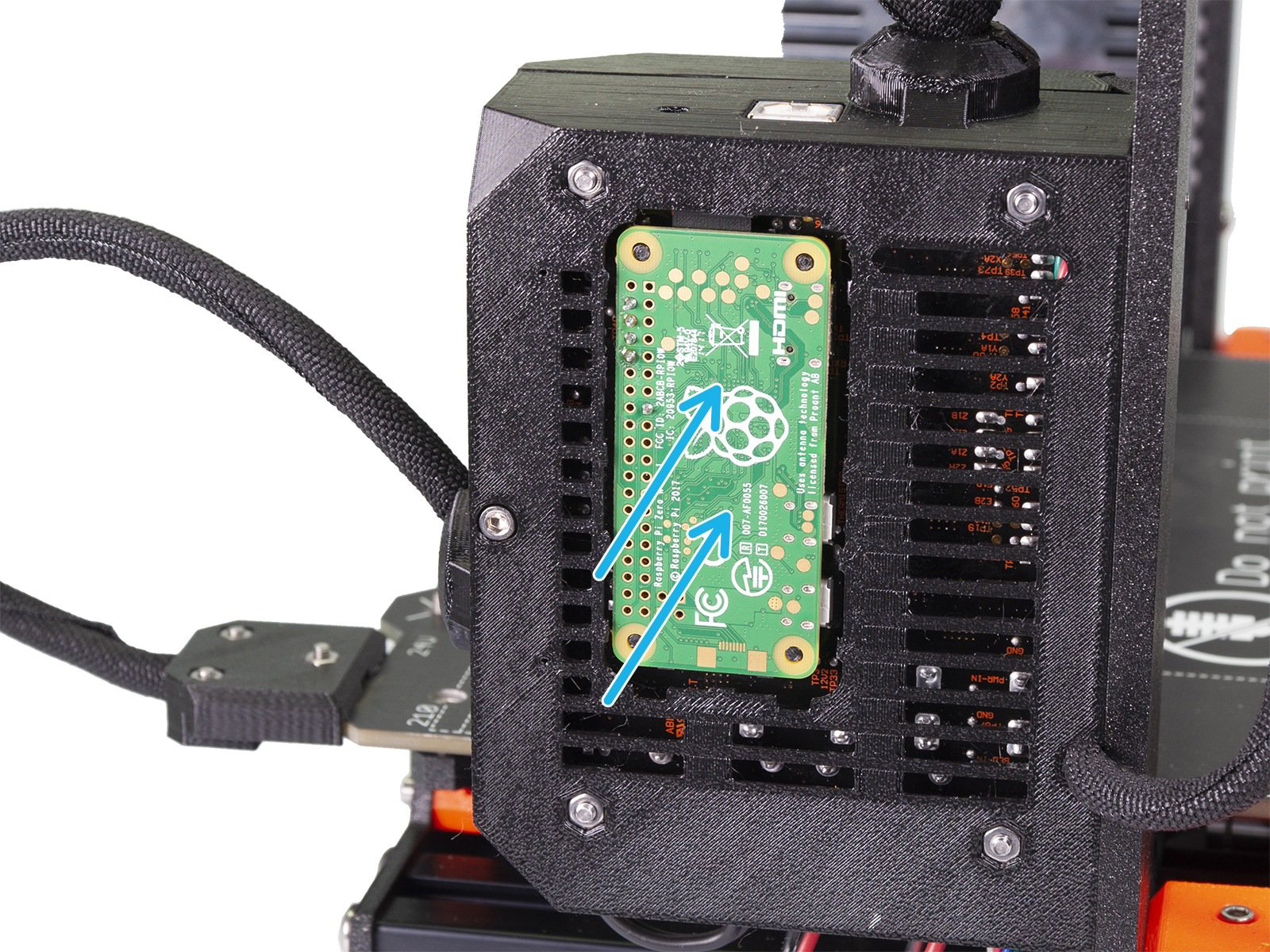
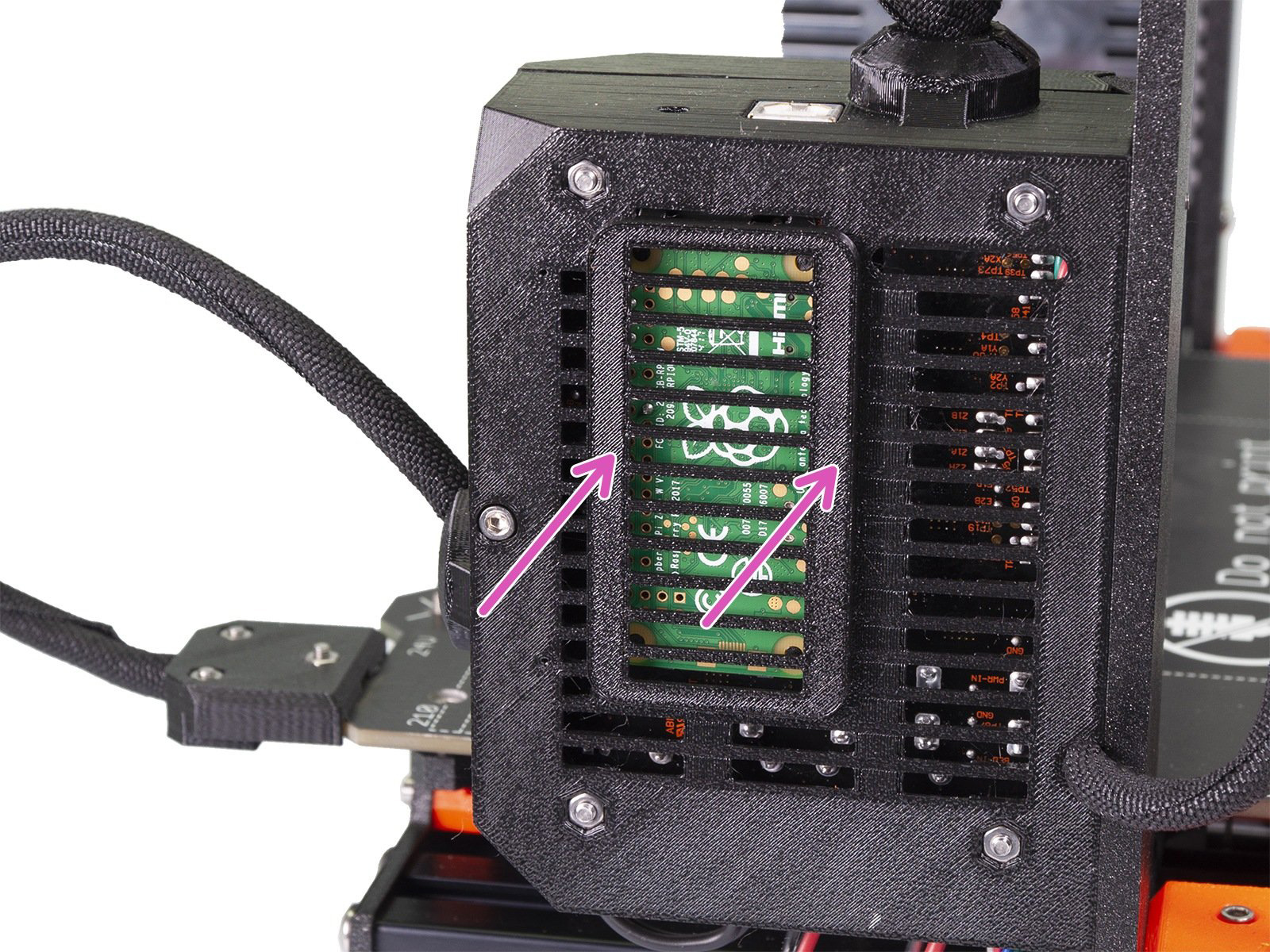
                  1. Slot the RPi Zero, with its frame, into the connector holes indicated below (green square). Then fit the cover to protect the RPi Zero W (purple arrows).
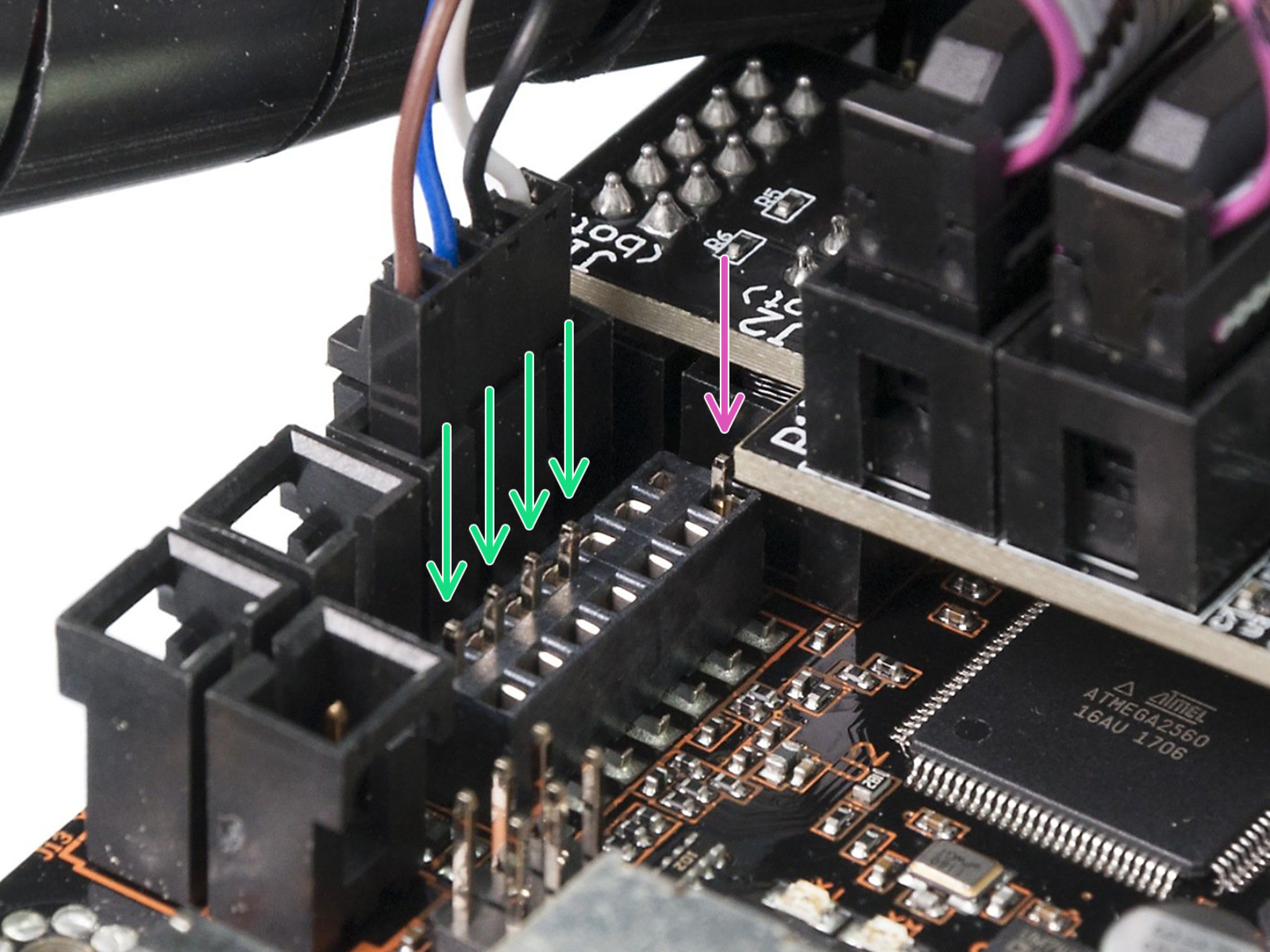
                  1. Make sure the RPi Zero is properly installed by inspecting the connector on the other side of the Einsy Rambo (green arrows). Notice that the position of the support pin is in the corner (purple arrow).

                  Checking if the RPi works

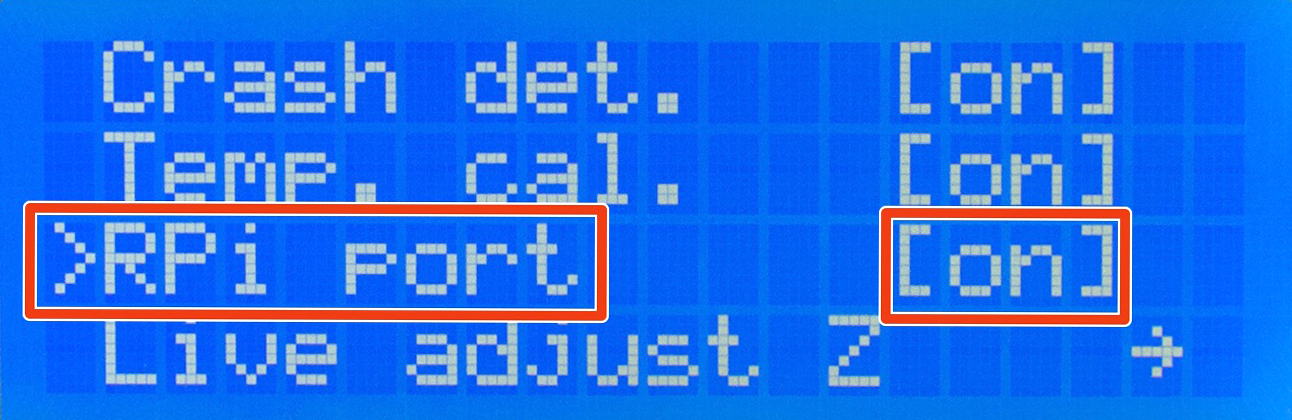
                  Go to the printer's LCD menu -> Settings -> RPi port, and make sure it is set to ON. Return to the printer's home screen. Now, wait for a few minutes. The RPi Zero is not a superfast computer and it needs time to boot.

                  Then open the browser and try opening a website: octopi.local. If octopi.local doesn't work, please use the following steps: Check your router for a new IP address, using an app like Fing, or wait until the address is displayed on the printer's display.

                  As soon as you have the IP, open a web browser on your PC, type it in, and hit Enter. If the Octoprint webpage loads, you can continue.

                  Troubleshooting

                  OctoPrint provided by Prusa Research is tested and is confirmed to be booting correctly. If you can't access the web interface, check the following:

                  • Is the RPi port enabled on your printer?
                  • Did you enter the correct Wi-Fi name (SSID) and password?
                  • Is the RPi Zero W correctly plugged in the EINSY RAMBo board?
                  • Are you connected to the same Wi-Fi network?
                  Was this article helpful?
                  This action is available only to registered users. Please log-in.

                  Topics

                  • 3rd party accessories & Other projects
                    • Octoprint
                      • About Octoprint
                      • PrusaPrint (Rpi Zero and Octoprint)
                      • Octoprint - Configuration and install
                    • Nozzles
                    • Protective Shields

                  69 comments

                  Log in  to post a comment
                  Viridian
                  •
                  Perfect, all of my MK3S+ systems are now online.
                  Reply
                  macropin
                  •
                  Streaming video works find with pi zero and camera module. It's a shame support for PrusaPrint was discontinued. This was one of the best features of the MK3S.
                  Reply
                  Jeff Raquet
                  •
                  Is there a way to just run a wire to an external rPi 3 or 4 and have it do the same connection to Prusaprint? I have a few of these boards but do not have any Pi Zeros and would like to try it with what I have.
                  Reply
                  Same Old Shane
                  •
                  there is a link in the article on how to set it up on a regular pi 3 / 4. and you can use the USB cable that came with the printer to connect the pi to the printerhttps://help.prusa3d.com/article/octoprint-configuration-and-install_2182
                  Reply
                  AustinS
                  •
                  Hi, 
                  Can I get a raspi setup that will connect to my mk3s+ through the usb port on the printer? And maybe connect a screen to the raspi and a camera to stream video. I am new in the 3D print world, and also have never done anything with raspberrypi. Advice appreciated.
                  Reply
                  AustinS
                  •
                  Hi, 
                  Can I get a raspi setup that will connect to my mk3s+ through the usb port on the printer? And maybe connect a screen to the raspi and a camera to stream video. I am new in the 3D print world, and also have never done anything with raspberrypi. Advice appreciated.
                  Reply