Prusa
  • SHOP
    • Learn more
    • All deals
    3D printers
    • CORE One+ (Gen2)
    • CORE One L+
    • XL+
    • MK4S
    • Mini+
    • HT90
    Consumables and Merch
    • Prusament
    • Resin
    • Buddy filament
    • Merch
    • Accessories
  • TIENDA
    • Últimos productos
    POR CATEGORÍA
    • Impresoras 3D
    • Upgrades
    • Materiales
    • Accesorios
    • Piezas de repuesto
    • Cursos
    • Merchandising
    • Sales inquiry & Price quote
    ENLACES RÁPIDOS
    • Shipping information
    • Refunds & returns
    • Payment options
    • Garantía
    • IVA y Tasas de aduana
    • Preguntas Frecuentes

    0 artículo en tu carritoartículos en tu carrito

    Tu carrito está vacío

    Ir al carritoComprar impresoras 3D

    Mi perfil

    Iniciar sesión para ver pedidos y artículos guardados

    Mi perfil

    Sesión iniciada como

    • Pedidos
    • Cerrar Sesión
  • Impresión 3D
    • Explorar la impresión 3D
    PARA PRINCIPIANTES
    • Impresión 3D 101
    • Types of printers (FDM/SLA)
    • How to choose a 3D Printer
    • Printables (3D models)
    POR USO
    • Prototipado rápido
    • Fabricación
    • Ingeniería
    • Investigación
    • Arte y diseño
    PROFUNDIZAR
    • Guía de materiales
    • Cursos
    • Webinars
    • Casos de estudio
    • Impresión 3D personalizada
  • IMPRESORAS 3D
    • Todas las impresoras 3D
    PARA
    • Casa o garajeAficionados, manitas e impresión doméstica
    • Shop or studioProducción interna para pequeños equipos
    • EmpresaFlotas, seguridad y escala
    • How to choose a 3D Printer
    COMPRAR Y NAVEGAR
    • CORE One+
    • CORE One+ INDX
    • CORE One L+
    • CORE One L+ INDX
    • XL+
    • MK4S
    • Prusa Pro HT90
    • Prusa Pro AFS
    • Prusa Pro SLX
    MÁS DE IMPRESORAS
    • Upgrades
    • Spare parts
    • Critical infrastructure
    • Casos de estudio
    • Signature Oak
    • Kits
  • MATERIALES
    • Todos los materiales
    POR USO
    • Uso diario y diseño
    • Ingeniería funcional
    • Compuestos
    • Especialidad profesional
    • Resinas SLA
    PRUSAMENT
    • PLA
    • PETG
    • ASA
    • PC
    • PA11
    • Flexible
    • TPU
    MÁS MATERIALES
    • Guía de materiales
    • Fabricamos material nosotros mismos
    • Sostenibilidad
    • Pedir en la tienda
  • SOFTWARE
    • Todo el software
    PREPARAR LA IMPRESIÓN
    • PrusaSlicer 3.0
    IMPRIMIR Y MONITORIZAR
    • PRUSA CONNECT
    • EasyPrint
    • Aplicación iOS y Android
    • Prusa Farm
    EMPEZAR
    • Descargar e instalar
    • Base de conocimientos
    MÁS SOFTWARE
    • Printables (3D models)
  • SOPORTE
    • Explorar soporte
    ENCONTRAR RESPUESTAS
    • Base de conocimientos
    • Resolución de problemas
    • Cursos
    • Webinars
    OBTENER AYUDA
    • Contacta con nosotros
    • Chat en vivo
    • Shipping information
    • Garantía
    • Refunds & returns
    • Spare parts
    • Factory repair
    COMUNIDAD
    • Foro
    • Reddit
    • Printables
  • CENTRO DE CONFIANZA
    • Resumen del Centro de confianza
    POR TEMA
    • RGPD
    • Certificados
    • Seguridad
    • Cumplimiento
    COMPROMISOS
    • Informe de sostenibilidad
    HABLA CON NOSOTROS
    • Contacta con el equipo de seguridad
  • EMPRESA
    • Acerca de Prusa
    CONÓCENOS
    • Nuestra historia
    • Cómo fabricamos impresoras
    • Código abierto
    • Kit de marca y medios
    NOTICIAS
    • Blog
    • Sala de prensa
    • Eventos
    CONFIANZA Y SOCIOS
    • Sostenibilidad
    • Distribuidores y revendedores
    • Programa de afiliados
    • Contacto
    • English
    • Čeština
    • Deutsch
    • Español
    • Français
    • Italiano
    • Polski
    • 日本語
  • Sesión iniciada como

    • Pedidos
    • Dirección
    • Alertas de Stock
    • Mis Cursos
    • Suscripción
    • Editar Cuenta
    • Cerrar Sesión

Iniciar sesión para ver pedidos y artículos guardados

Sesión iniciada como
  • Pedidos
  • Dirección
  • Alertas de Stock
  • Mis Cursos
  • Suscripción
  • Editar Cuenta
  • English
  • Čeština
  • Deutsch
  • Español
  • Français
  • Italiano
  • Polski
  • 日本語
Tienda

0 artículo en tu carritoartículos en tu carrito

Tu carrito está vacío

Ir al carritoComprar impresoras 3D

Mi perfil

Iniciar sesión para ver pedidos y artículos guardados

Mi perfil

Sesión iniciada como

  • Pedidos
  • Cerrar Sesión
TIENDA
  • Últimos productos
POR CATEGORÍA
  • Impresoras 3D
  • Upgrades
  • Materiales
  • Accesorios
  • Piezas de repuesto
  • Cursos
  • Merchandising
  • Sales inquiry & Price quote
ENLACES RÁPIDOS
  • Shipping information
  • Refunds & returns
  • Payment options
  • Garantía
  • IVA y Tasas de aduana
  • Preguntas Frecuentes

Productos destacados

    Categorías populares

      Búsquedas populares

        Artículos

          Blog

            Productos

              Categorías

                Búsquedas sugeridas

                  Buscando…
                  Sin resultados
                  Algo salió mal.
                  ↑↓ Seleccionar↵ AbrirEsc Cerrar búsqueda
                  1. Soporte
                  2. Resolución de problemas
                  3. Fallo Selftest (CORE One INDX)
                   

                  Contenidos

                  • Calibrations & Tests
                  • Door sensor
                  • X and Y axes test
                  • Z alignment calibration
                  • Belt tuning
                  • Homing calibration
                  • Dock calibration
                  • Loadcell test
                  • Z axis test
                  • Fan test
                  • Heater test
                  • Tool offset calibration
                  • Nozzle cleaner calibration
                  • Filament sensor calibration
                  • Phase stepping calibration
                  • Input shaper calibration

                  Blog

                  • ¡El Black Friday de Prusa 2026 Está Aquí! Aprovecha las Mejores Ofertas del Año
                  • El HT Hotend 400°C HT está disponible! Además: Nuevos Materiales y Láminas HighTemp para la CORE One+/L+.
                  • Blender para la Impresión 3D: Guía Rápida de 5 minutos para la Edición de Archivos STL

                  Newsletter

                  Regístrate y obtén nuestro dosier mensual de información útil sobre nuevos firmwares, nuevas versiones de PrusaSlicer y consejos generales para proyectos de impresión 3D.

                  Al hacer clic, aceptas recibir nuestra newsletter.

                  Este sitio está protegido por reCAPTCHA Enterprise y se aplican la Política de Privacidad y los Condiciones del servicio de Google.

                  Heavy Duty Keyboard Holder (No Supports)
                  Tienda
                  • Impresoras 3D
                  • Mejoras de Impresoras
                  • Filamentos
                  • Accesorios
                  • Merchandising Prusa
                  Prusa

                  © Prusa Research a.s.

                  Printables
                  • Modelos 3D
                  • Store
                  • Clubs
                  • Concursos de Diseño 3D
                  • Brands
                  Comunidad
                  • Mapa Mundial
                  • Foro
                  • Grupos de Usuarios
                  • Eventos
                  Ayuda
                  • Ayuda Prusa
                  • Prusa Academy
                  • Calculadoras de Impresión 3D
                  Software
                  • PrusaSlicer
                  • Prusa.app
                  • Prusa Connect
                  • Drivers y Software
                  Empresa
                  • Sobre nosotros
                  • Blog
                  • Distribuidores Oficiales de Prusa
                  • Contacto
                  • Certificado conforme a las normas ISO 9001, ISO 14001 e ISO 45001
                  • Términos y Condiciones generales
                  • Términos Generales y Condiciones de Uso de los sitios Web PRUSA
                  • Política de privacidad
                  • Información sobre las cookies
                  • Política de Reclamaciones de los Clientes
                  • Página de Estado de los Sitios Web
                  • Configuración de las cookies
                  Prusa
                  • Términos y Condiciones generales
                  • Términos Generales y Condiciones de Uso de los sitios Web PRUSA
                  • Política de privacidad
                  • Información sobre las cookies
                  • Política de Reclamaciones de los Clientes
                  • Página de Estado de los Sitios Web
                  • Configuración de las cookies

                  © Prusa Research a.s.

                  JOSEF PRUSA®, PRUSA RESEARCH®, PRUSA POLYMERS®, PRUSA ORANGE®, PRUSA 3D ® Y PRUSAMENT® son marcas registradas de Prusa Development a.s. utilizadas por Prusa Research a.s. bajo licencia de Prusa Development a.s.

                  Fallo Selftest

                  (CORE One INDX)

                  Relevante para

                  INDX family
                  Artículo está también disponible en los siguientes idiomas
                  English
                  Čeština
                  Polski
                  Deutsch
                  Français
                  Español
                  Italiano
                  日本語

                  After installing the INDX on your Prusa CORE One/+, the selftest will check the printer's assembly, wiring, and electronic components. It is the first part of the Calibration Wizard, which is prompted automatically when you turn on the printer for the first time or after a factory reset. After the initial calibration is completed, each step of the selftest can be initiated under LCD Menu -> Control -> Calibrations & tests.

                  Note that if the printer is placed on an unstable surface or if another 3D printer is running next to it, it may negatively affect the calibration. The printer should be placed on a stable surface.

                  Remove the top cover for easier access.

                  Calibrations & Tests

                  1. Door sensor
                  2. X axis test
                  3. Y axis test
                  4. Z alignment calibration
                  5. Belt tuning
                  6. Homing calibration
                  7. Dock calibration
                  8. Loadcell test
                  9. Z axis test
                  10. Fan test
                  11. Heater test
                  12. Tool offset calibration
                  13. Nozzle cleaner calibration
                  14. Filament sensor calibration
                  15. Phase stepping calibration
                  16. Input shaper calibration

                  Door sensor

                  If the sensor behaves differently from what is expected in the door sensor calibration, check whether the sensor is working. Go to the LCD menu to Info -> Sensor Info -> Door Sensor. Then, try opening and closing the door and see if the sensor is triggered. If the door does not trigger the sensor, try it by pressing the latch with your finger.

                  If the sensor shows the correct status, go back to the calibration by going to Control -> Calibrations & tests -> Door sensor, and follow the instructions to tighten or loosen the screws.
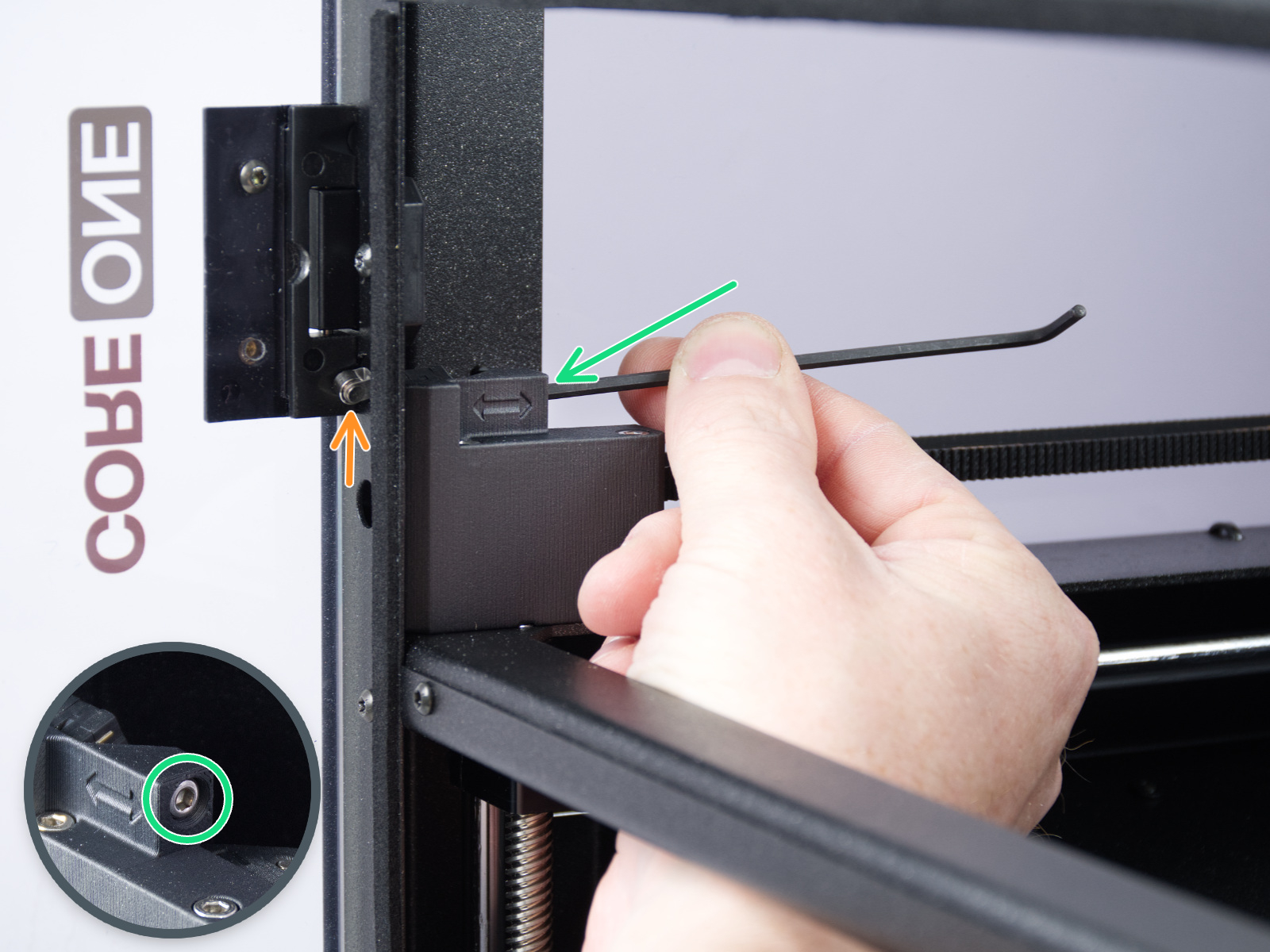
                  On the last part of the calibration, the printer prompts you to place your fingers between the door and the frame. This is meant to prevent injury. If there is an issue with this test, you can keep the door completely open to pass.

                  If the door sensor does not work, check the cable for damage and the connection.

                  X and Y axes test

                  This part of the selftest measures the axis length and motor load.

                  In case of an issue on the X-axis or the Y-axis, make sure that there is no obstacle to the movement, and readjust the belt tension.

                  Also, test the printer movement with the stepper motors temporarily disabled (LCD Menu -> Control -> Disable Motors), moving along both XY diagonals.

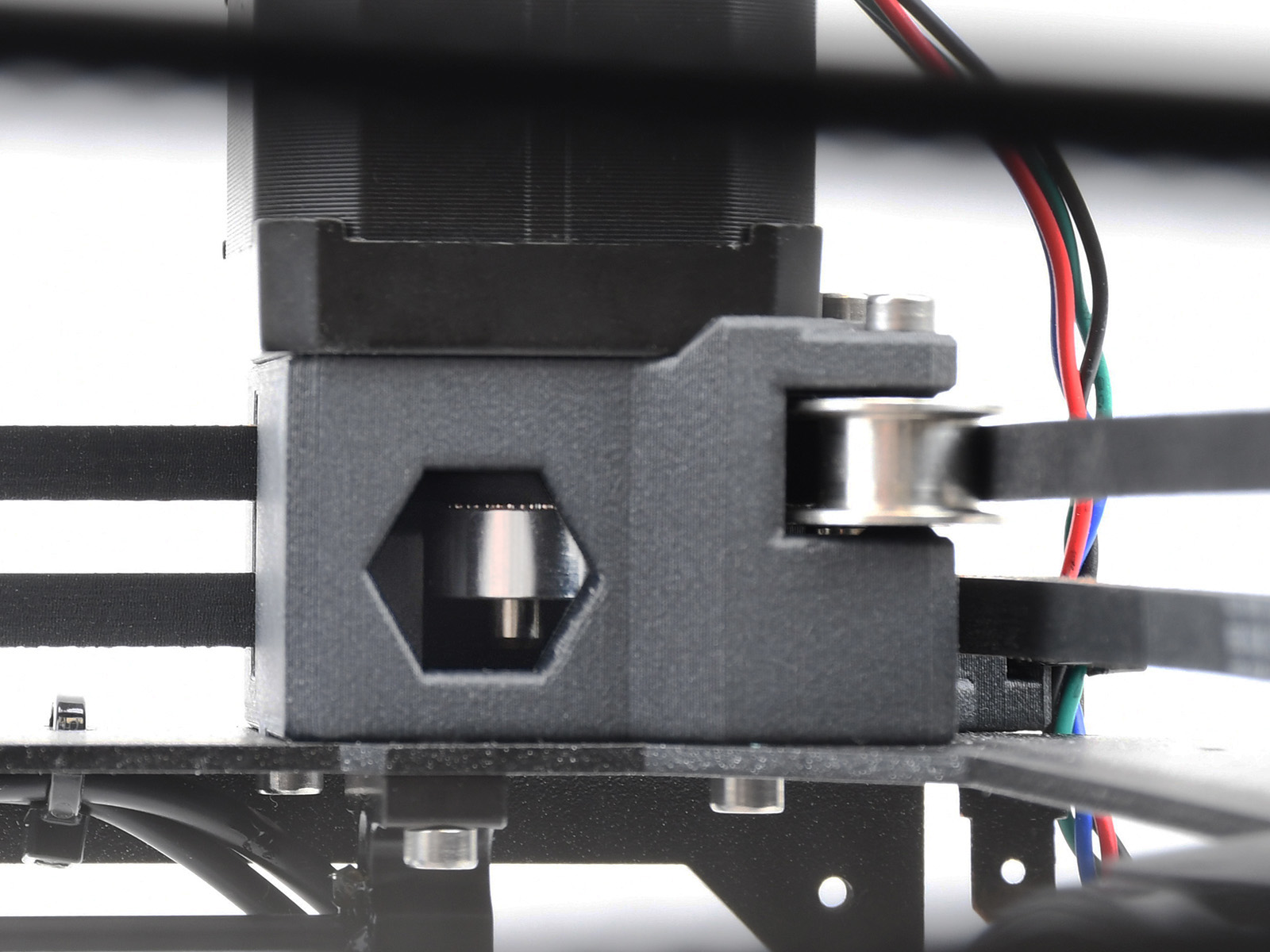
                  If the issue persists, look through the openings on the plastic parts under the CoreXY motors. You will be able to see the motor pulleys. Make sure that they are in the correct orientation, that both set screws are firmly tightened, and that one of them is tightened over the flat part of the motor shaft.
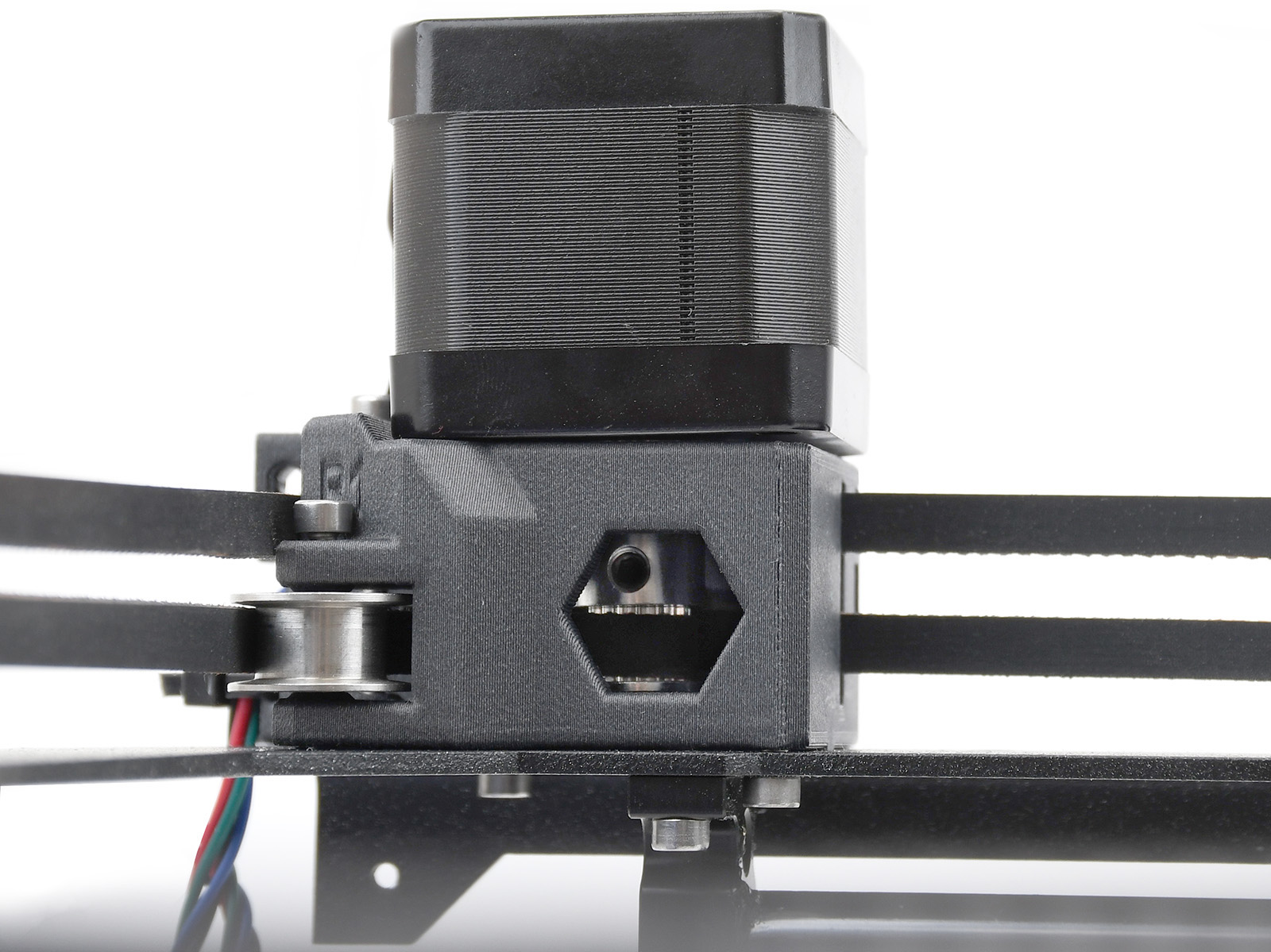
                  Y-motor pulleyX-motor pulley

                  Z alignment calibration

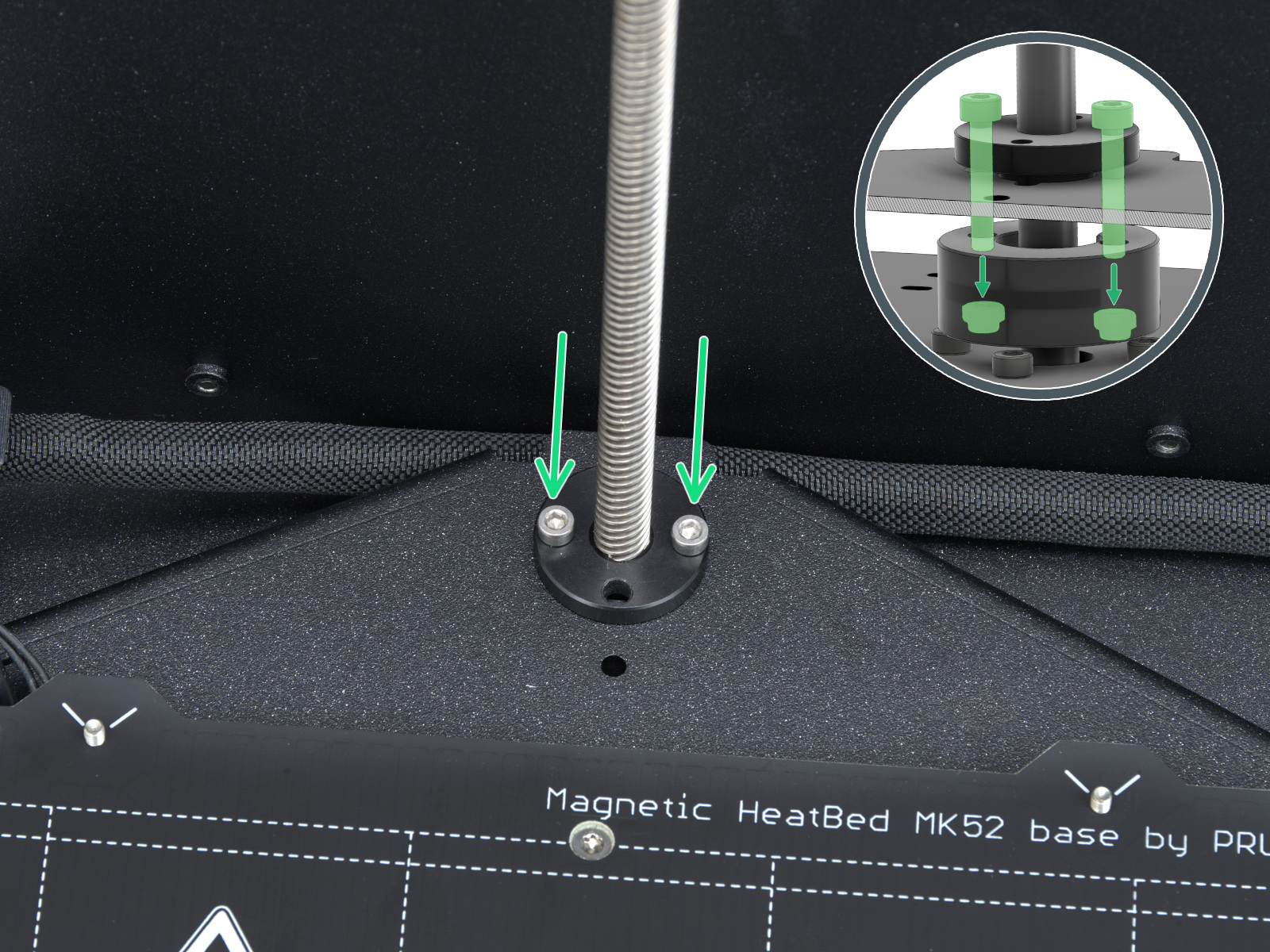
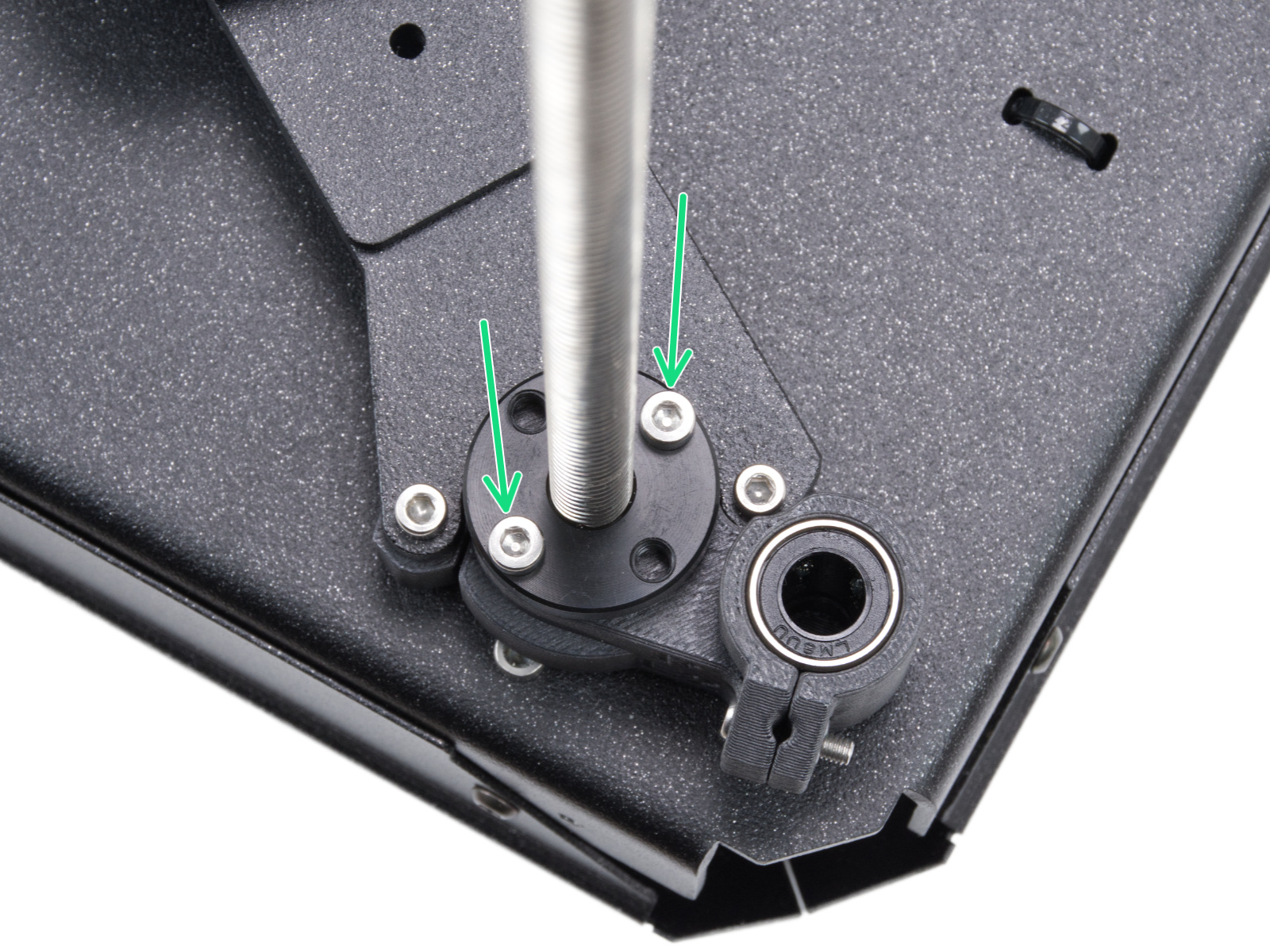
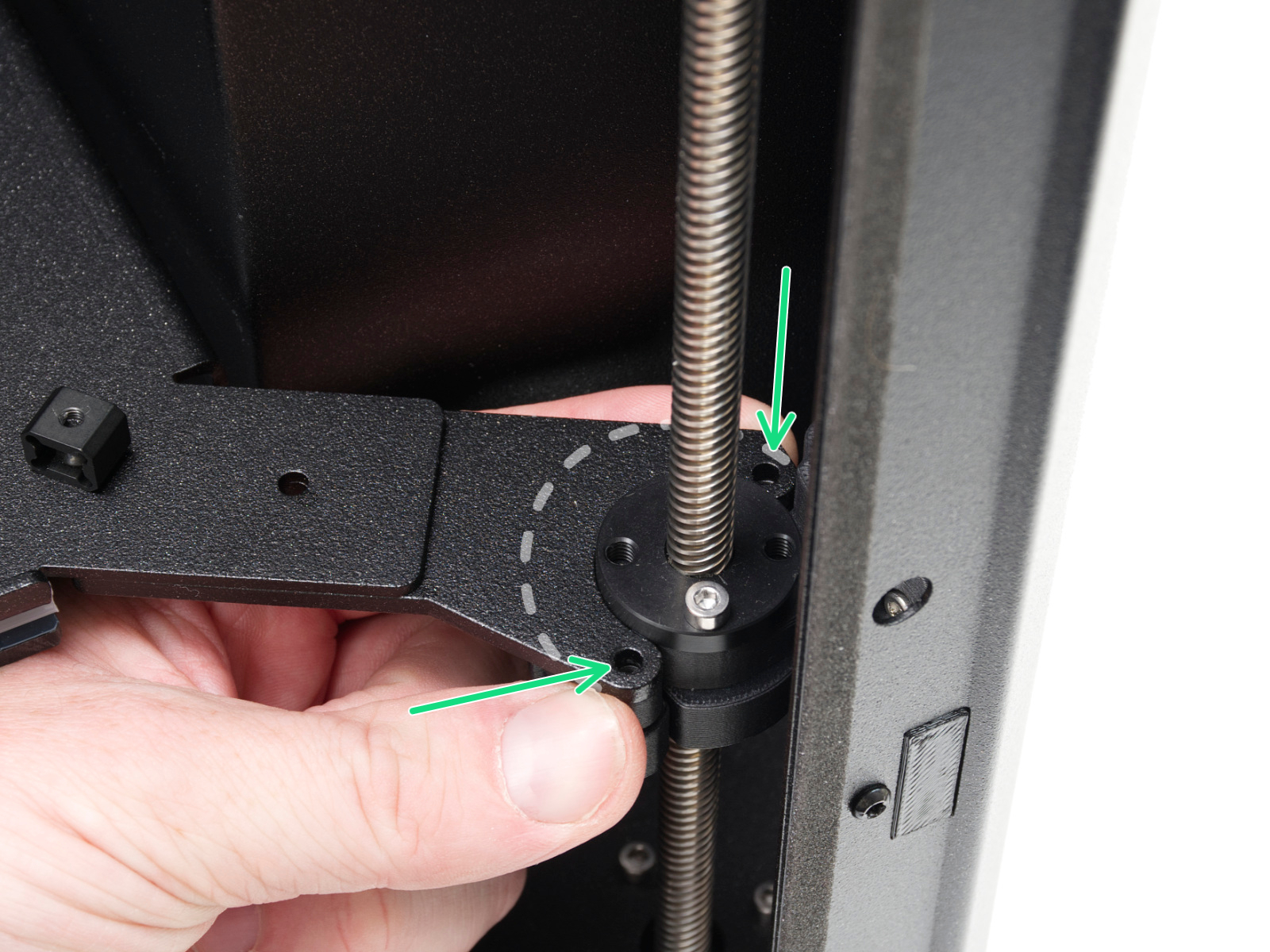
                  This part of the calibration will move to align the three motors on the Z axis so that the heatbed is level. In case of any errors on this test, check the trapezoidal nuts on the motor threaded rods. For that, move the bed all the way down either by the LCD menu in Control -> Move axis -> Move Z, or by turning the threaded rods on the Z motors. Unscrew and remove the screws indicated in the image below. Move the nut along the threaded rod and see if the movement is smooth or not. When the trapezoid nut is still loose, try moving the motor threaded rod by hand (the printer needs to be powered off for that), and see if it turns easily.
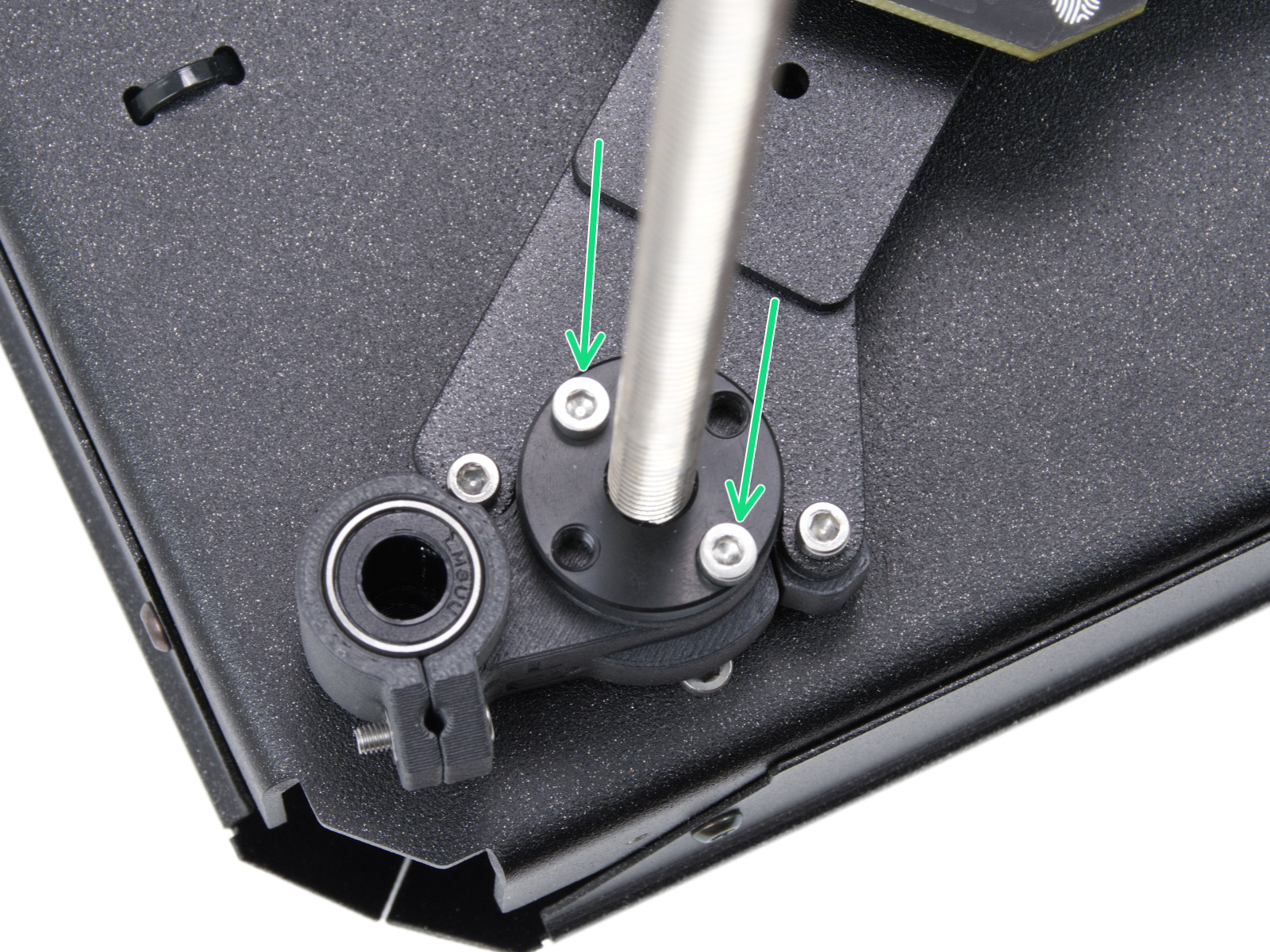
                  Left side trapezoidal nutRear motor trapezoidal nutRight side trapezoidal nut

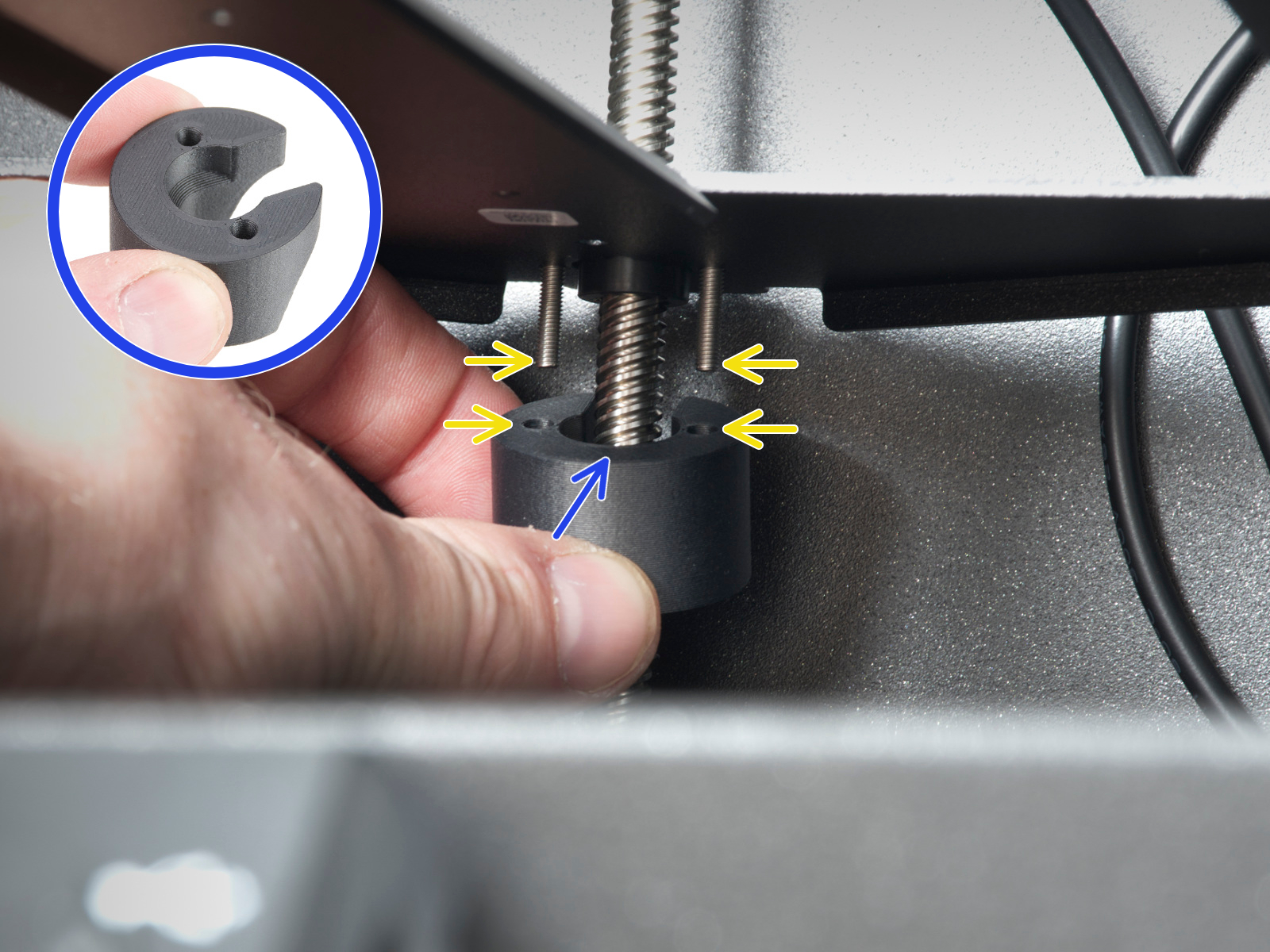
                  Check also that the spacers are correctly installed.
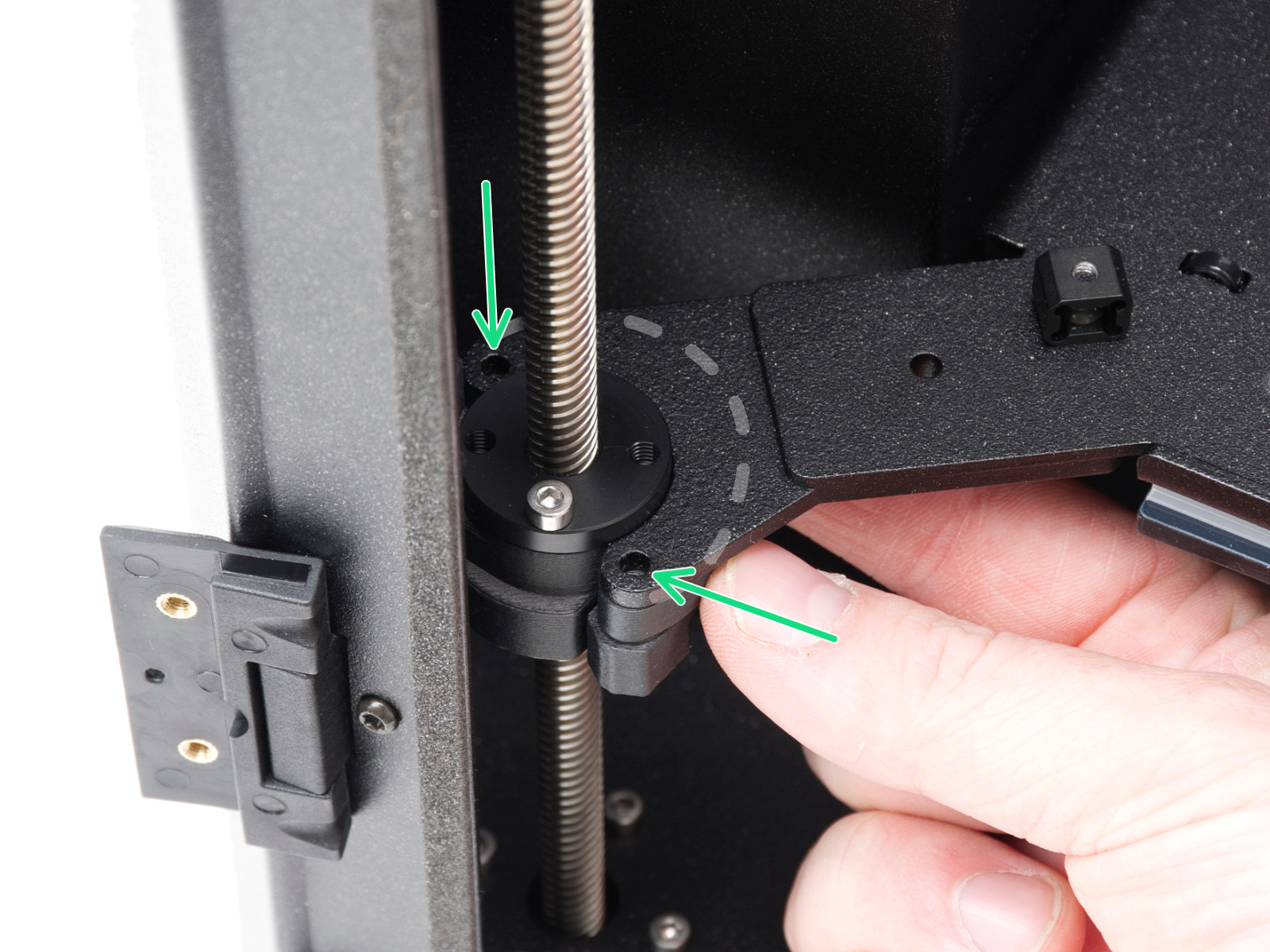
                  Left spacerRear spacerRight spacer

                  Belt tuning

                  The LCD menu will guide you through the belt wizard. If one of the sides shows a gap, do the following procedure:
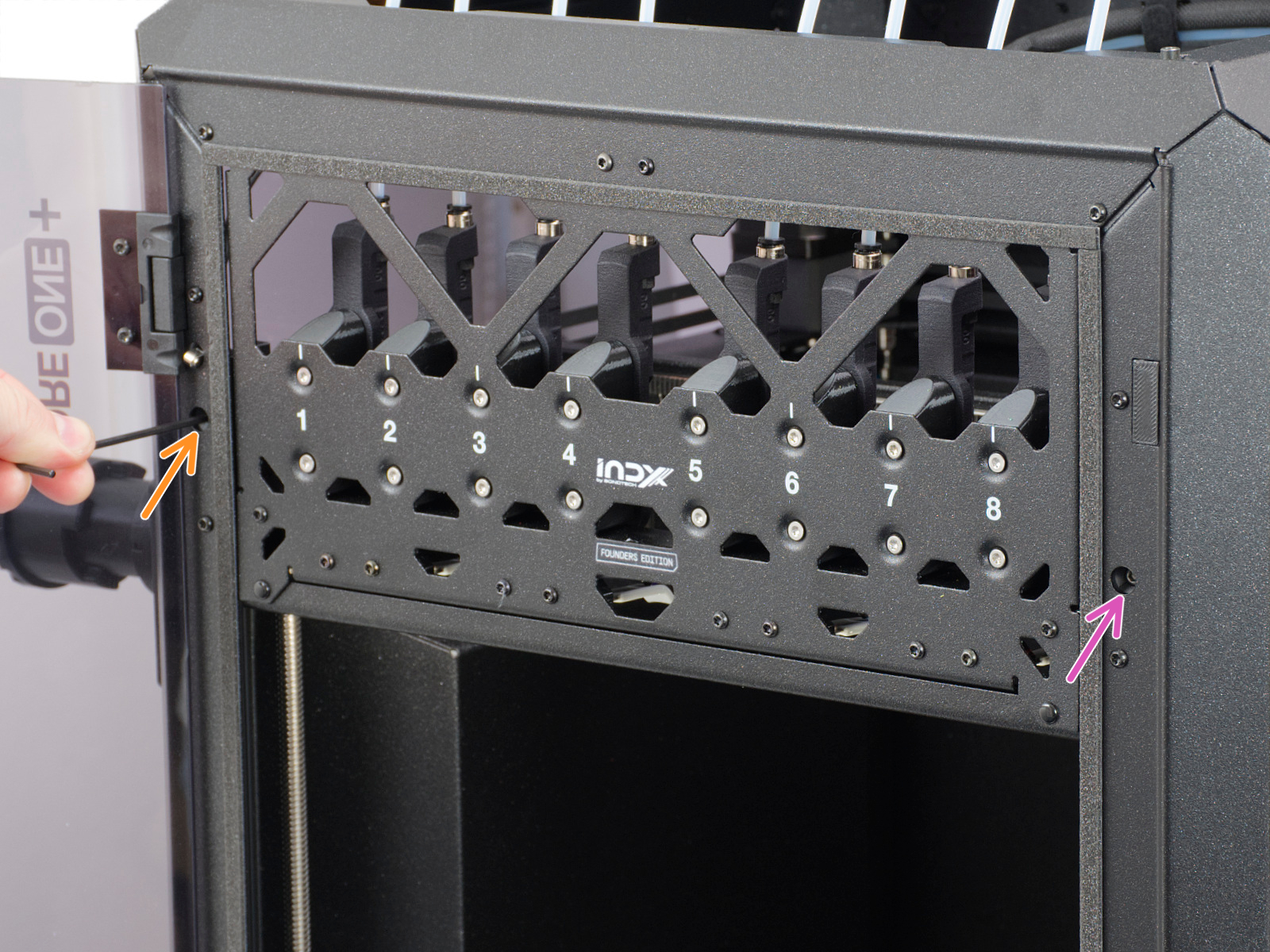
                  1. Loosen the belts completely. Be careful so that the square nuts do not fall off the plastic parts when removed.

                  1. Check which side sits against the back end (tight side) and which one has to be pushed towards it to touch it (loose side).
                  2. Put a universal wrench or anything with a similar thickness between the tight side and the back end. Slightly pull the loose side to correct the skew.
                  3. Check the alignment again and repeat if needed. In case the tight and loose sides switched, repeat the process from the other side, but apply a smaller amount of pressure.
                  4. Tighten the belts again.
                  5. Move the toolchanger around the Y and X axes by hand to even the belt tightness.

                  Homing calibration

                  If there are issues with the homing calibration, check the X and Y axes and the homing calibration again.

                  Dock calibration

                  This calibration will test each dock. If a specific dock fails, try:

                  • Tightening the dock screws further.
                  • Make sure that the toolchanger is fully pushed into the dock when requested.
                  • Redo the belt tuning and the homing calibration.

                  Loadcell test

                  A functioning loadcell is fundamental to detect that the nozzle is close enough to the steel sheet for printing, and to avoid damage that would be caused by the nozzle digging into the steel sheet.

                  Make sure that the surface the printer is on is as stable as possible: any form of vibration propagated to the surface under the printer, or a not fully stable surface under the printer, might cause a false reading on the loadcell, causing it to fail the selftest.

                  Check also if the main cable is properly connected to the toolchanger.

                  Z axis test

                  Check if there is anything blocking the path of the Z axis. It may be something stuck in the threaded rods or anything on the floor of the chamber.

                  Fan test

                  This part will test all fans in the printer. The RPM values for the fans need to be within these values for the test to pass:

                  • Print fan:  4800 - 6799 RPM
                  • Dock fan: 4800 - 6799 RPM
                  • Hotend fan: 12000 - 18000 RPM
                  • Chamber fan: 7225 - 9775 RPM
                  • Filtration fan: 2890 - 3910 RPM (for printers with the Advanced Filtration System)

                  If there is an error shown, first define which one of the fans has the issue.

                  Do not try to open the tool changer to access the hotend fan. You might damage the electronics inside.

                  The hotend fan is not accessible. To test it, go into the LCD menu to Control -> Temperature -> Nozzle, and set the nozzle to any temperature above 50 ºC. Check if you can hear the fan spinning. Then, go to the LCD menu in Info - Sensor Info - Fan Info, and check the hotend fan RPM.

                  If any of the other fans do not pass the test, check:

                  • Check for any obstruction that could prevent the fan from spinning. Particularly on the print fan, check if the cable is not going into the blades.
                  • Make sure that they are connected correctly to the electronics board.
                  • Go to the LCD menu in Control -> Temperature, and set the fan to be tested to 100%. See if the fan spins or if it shows any errors.

                  Heater test

                  The selftest can determine a fault during the heating of a component, and the affected component.

                  Heat the affected component under LCD Menu -> Control -> Temperature, heat up the part that failed the selftest, and see if any error appears. If it does, the error should have a QR code that redirects to the article that describes how to troubleshoot that particular error.

                  Tool offset calibration

                  If the tool offset calibration fails, check if all the nozzles are positioned correctly and the nozzle tips are clean.

                  Then, check the offset sensor for the following:

                  • The Prusa logo is facing up
                  • The cable is properly connected
                  • The board is secured

                  Also, try to redo the homing calibration.

                  Nozzle cleaner calibration

                  This calibration is a measurement and should not give any errors. In case the printer can't complete these tests, check the axes again.

                  Filament sensor calibration

                  The INDX has a side filament sensor. If the calibration fails, check the following:

                  • The 5x2 magnets are inserted and tightened
                  • The 7x8 magnets are in the correct orientation
                  • There is no filament debris in the filament sensor in the sensor case

                  Phase stepping calibration

                  For this test, make sure that you are not touching the printer and that no other printers are running on the same surface as the CORE One INDX. You can read more about it here: Phase Stepping (CORE One).

                  Input shaper calibration

                  After this calibration, the printer will show you the Input shaper frequency values. The lower limit is 35 Hz, and the upper limit is 70 Hz. If the value is too low or too high, check the belt tightness and the assembly.

                  ¿Te resultó útil este artículo?
                  Esta acción está disponible solo para usuarios registrados. Por favor inicia sesión.
                  Inicia sesión  para publicar un comentario
                  Sin comentarios

                  Temas

                  • Resolución de problemas
                    • Resolución de problemas
                      • Sobrecorriente Puerto Base calefactable #13309 (MK4) #21309 (MK3.9) #23309 (MK3.5)
                      • Fallo Medición Célula de carga #13526 (MK4) #21526 (MK3.9)
                      • Nozzle Timeout #31819 (CORE One) #35819 (CORE One L) #36819 (CORE One INDX) #26819 (MK4S) #13819 (MK4) #27819 (MK3.9S) #21819 (MK3.9) #28819 (MK3.5S) #23819 (MK3.5) #17819 (XL) #12819 (MINI)
                      • Chamber overheating #36260 (INDX) #31260 (CORE One) #35260 (CORE One L) #17260 (XL)
                      • Chamber temperature is critical #36261 (INDX) #31261 (CORE One L) #35261 (CORE One) #17261 (XL)
                      • Fallo Selftest (CORE One INDX)
                    • Diagnostics [Traducción en desarrollo]
                    • Resolución de problemas de la calidad de impresión
                    • Códigos QR de error
                    • Mensajes de Error de Impresión