Prusa
  • KOUPIT
    • Nejnovější produkty
    PODLE KATEGORIE
    • 3D tiskárnynovinky
    • Upgrady 3D tiskárennovinky
    • Materiály
    • Příslušenství
    • Náhradní díly
    • Kurzy
    • Merch
    • Získat cenovou nabídku
    RYCHLÉ ODKAZY
    • Doprava a doručení
    • Reklamace a vrácení peněz
    • Platby a financování
    • Záruka
    • DPH a celní poplatky
    • Často kladené dotazy

    0 ks v košíkuks v košíku

    Váš košík je prázdný

    Přejít do košíkuKoupit 3D tiskárnu

    Můj profil

    Přihlásit se pro zobrazení objednávek a uložených položek

    Můj profil

    Jste přihlášeni jako

    • Objednávky
    • Odhlásit se
  • 3D TISK
    • Poznejte svět 3D tisku
    PRO ZAČÁTEČNÍKY
    • Základy 3D tisku
    • Jak funguje FDM tisk
    • Koupě vaší první tiskárny
    • Katalog 3D modelů
    PODLE POUŽITÍ
    • Rychlé prototypování
    • Výroba
    • Strojírenství
    • Výzkum
    • Umění a design
    PRO POKROČILÉ
    • Průvodce materiály
    • Kurzy
    • Webináře
    • Případové studie
    • Zakázkový 3D tisk
  • 3D tiskárny
    • Všechny 3D tiskárny
    pro
    • Domácnost a dílnuNadšenci, kutilové a domácí uživatelé
    • Kanceláře a studiaVlastní výroba v malých týmech
    • Velké podnikyTiskové farmy, zabezpečení a škálování
    • Jaká tiskárna je pro mě ta pravá
    NAKUPUJTE A PROHLÍŽEJTE
    • CORE One+novinka
    • CORE One+ INDXnovinka
    • CORE One L+novinka
    • CORE One L+ INDXnovinka
    • XL+novinka
    • MK4S
    • Prusa Pro HT90
    • Prusa Pro AFS
    • Prusa Pro SLX
    VÍCE K TISKÁRNÁM
    • Náhradní díly a upgradynovinka
    • Náhradní díly
    • Kritická infrastruktura
    • Případové studie
    • Signature Oak
    • Stavebnice
  • Materiály
    • Všechny materiály
    PODLE POUŽITÍ
    • Každodenní použití a design
    • Funkční díly
    • Kompozity
    • Pro speciality
    • SLA resiny
    Prusament
    • PLA
    • PETG
    • ASA
    • PC
    • PA11
    • Flex
    • TPU
    VÍCE O MATERIÁLECH
    • Průvodce materiály
    • Vlastní výroba materiálů
    • Udržitelnost
    • Objednat v obchodě
  • Software
    • Veškerý software
    TISKOVÁ PŘÍPRAVA
    • PrusaSlicer 3.0novinka
    TISK A MONITORING
    • Prusa Connect
    • EasyPrint
    • Aplikace pro iOS a Android
    • Prusa Farm
    JAK ZAČÍT
    • Ovladače a software
    • Centrum podpory
    VÍCE O SOFTWARU
    • Katalog 3D modelů
  • PODPORA
    • Zákaznická podpora
    NAJDĚTE ODPOVĚDI
    • Návody a články
    • Odstraňování problémů
    • Kurzy
    • Webináře
    POTŘEBUJETE PORADIT?
    • Napište nám
    • Živý chat
    • Doprava a doručení
    • Záruka
    • Reklamace a vrácení peněz
    • Náhradní díly
    • Servis a oprava
    Komunita
    • Fórum
    • Reddit
    • Printables
  • Bezpečnost
    • Proč nám můžete věřit
    PODLE TÉMATU
    • GDPR
    • Certifikáty
    • Zabezpečení
    • Předpisy
    ZÁVAZKY
    • Zpráva o udržitelnosti
    KONTAKTUJTE NÁS
    • Bezpečnostní tým
  • Společnost
    • O společnosti Prusa
    O NÁS
    • Náš příběh
    • Jak vyrábíme tiskárny
    • Open source
    • Kariéra
    • Materiály pro média
    NOVINKY
    • Blog
    • Newsroom
    • Události
    Důvěra a partneři
    • Udržitelnost
    • Prodejci a distributoři
    • Partnerský program
    • Kontakt
    • English
    • Čeština
    • Deutsch
    • Español
    • Français
    • Italiano
    • Polski
    • 日本語
  • Jste přihlášeni jako

    • Objednávky
    • Adresa
    • Upozornění na dostupnost zboží
    • Moje kurzy
    • Předplatné
    • Upravit účet
    • Odhlásit se

Přihlásit se pro zobrazení objednávek a uložených položek

Jste přihlášeni jako
  • Objednávky
  • Adresa
  • Upozornění na dostupnost zboží
  • Moje kurzy
  • Předplatné
  • Upravit účet
  • English
  • Čeština
  • Deutsch
  • Español
  • Français
  • Italiano
  • Polski
  • 日本語
Obchod

0 ks v košíkuks v košíku

Váš košík je prázdný

Přejít do košíkuKoupit 3D tiskárnu

Můj profil

Přihlásit se pro zobrazení objednávek a uložených položek

Můj profil

Jste přihlášeni jako

  • Objednávky
  • Odhlásit se
KOUPIT
  • Nejnovější produkty
PODLE KATEGORIE
  • 3D tiskárnynovinky
  • Upgrady 3D tiskárennovinky
  • Materiály
  • Příslušenství
  • Náhradní díly
  • Kurzy
  • Merch
  • Získat cenovou nabídku
RYCHLÉ ODKAZY
  • Doprava a doručení
  • Reklamace a vrácení peněz
  • Platby a financování
  • Záruka
  • DPH a celní poplatky
  • Často kladené dotazy

Doporučené produkty

    Oblíbené kategorie

      Populární vyhledávání

        Články

          Blog

            Produkty

              Kategorie

                Navrhovaná hledání

                  Vyhledávám…
                  Žádné výsledky
                  Něco se pokazilo.
                  ↑↓ Vybrat↵ OtevřítEsc Zavřít hledání
                  1. Podpora
                  2. O PrusaSliceru 3.0
                  3. První tisk s PrusaSlicerem (3.0.0)
                   

                  Obsah

                  • PrusaSlicer modes
                  • Choose and set up your printer
                  • Choose your filament
                  • Choose a print profile
                  • Import your model
                  • Orient your model
                  • Support material
                  • Perimeters and infill
                  • Slice
                  • Check the result in Preview
                  • Export and print
                  • Handy shortcuts

                  Blog

                  • Prusament Pellets: Polymerové pelety v praktických baleních pro velkoformátový 3D tisk i výzkum a vývoj
                  • Vytiskněte si barevné a svíticí hallowenské dekorace díky naší strašidelné akci
                  • České Factorio dorazilo na Printables

                  Novinky e-mailem

                  Přihlaste se k odběru našeho měsíčního přehledu užitečných informací o novém firmware, nových verzích PrusaSliceru a zajímavých tipů na 3D tiskařské projekty.

                  Kliknutím udělujete souhlas se zasíláním newsletteru.

                  Tato stránka je chráněna pomocí reCAPTCHA Enterprise a uplatňuje tedy Ochranu osobních údajů a Podmínky použití společnosti Google.

                  Heavy Duty Keyboard Holder (No Supports)
                  E-shop
                  • 3D tiskárny
                  • Upgrady tiskáren
                  • Filamenty
                  • Příslušenství
                  • Prusa Merch
                  Prusa

                  © Prusa Research a.s.

                  Printables
                  • 3D modely
                  • Store
                  • Clubs
                  • Designerské soutěže
                  • Brands
                  Komunita
                  • Mapa světa
                  • Fórum
                  • Uživatelské skupiny
                  • Výstavy a akce
                  Podpora
                  • Prusa Help
                  • Prusa Academy
                  • Kalkulačky
                  Software
                  • PrusaSlicer
                  • Prusa.app
                  • Prusa Connect
                  • Ovladače a software
                  Firma
                  • O nás
                  • Blog
                  • Oficiální prodejci Prusa
                  • Kontakty
                  • Certifikováno podle norem ISO 9001, ISO 14001 a ISO 45001
                  • Volná místa
                  • Všeobecné obchodní podmínky
                  • Obecné podmínky používání internetových stránek PRUSA
                  • Zásady ochrany soukromí
                  • Informace o cookies
                  • Proces řešení stížností zákazníků
                  • Stavová stránka webu
                  • Nastavení cookies
                  • Recyklace 3D tiskárny
                  Prusa
                  • Všeobecné obchodní podmínky
                  • Obecné podmínky používání internetových stránek PRUSA
                  • Zásady ochrany soukromí
                  • Informace o cookies
                  • Proces řešení stížností zákazníků
                  • Stavová stránka webu
                  • Nastavení cookies
                  • Recyklace 3D tiskárny

                  © Prusa Research a.s.

                  JOSEF PRUSA®, PRUSA RESEARCH®, PRUSA POLYMERS®, PRUSA ORANGE®, PRUSA 3D ® A PRUSAMENT® jsou registrované ochranné známky společnosti Prusa Development a.s., které používá společnost Prusa Research a.s. na základě licence od společnosti Prusa Development a.s.

                  První tisk s PrusaSlicerem (3.0.0)

                  Relevantní pro

                  PrusaSlicer
                  Článek Tento článek je také dostupný v následujících jazycích:
                  English
                  Čeština
                  Polski
                  Deutsch
                  Français
                  Español
                  Italiano
                  日本語

                  Before printing your 3D file, it needs to be converted into a file type called .gcode or .bgcode. That is done by a program called a slicer. The best one for your Prusa or even non-Prusa printers is PrusaSlicer. This guide will lead you through using PrusaSlicer for the first time.

                  Before starting to use PrusaSlicer, make sure you know your Printer model (including the name and nozzle size) and the filament material you will print with.

                  PrusaSlicer modes

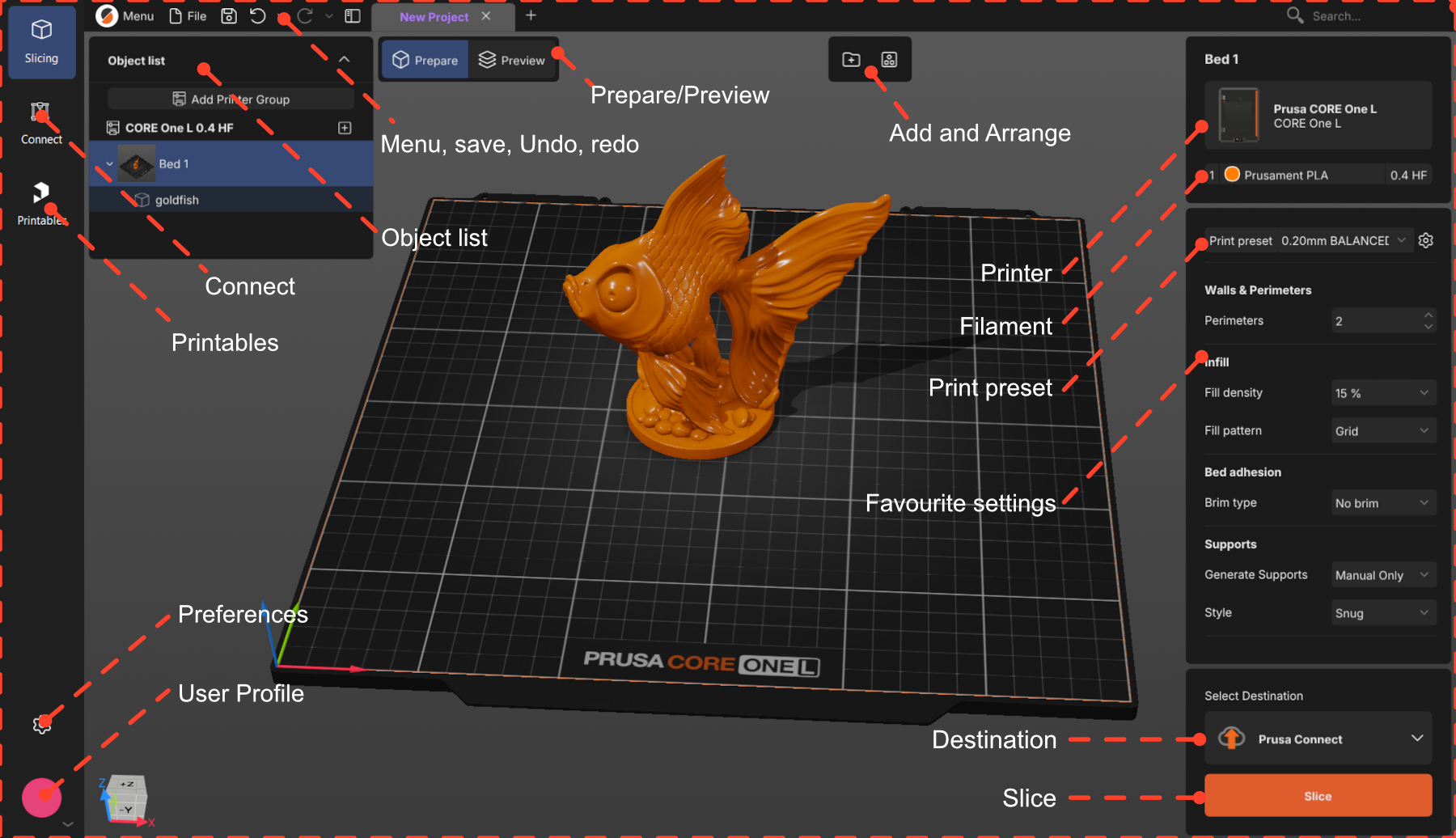
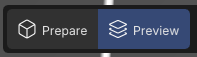
                  PrusaSlicer has two work modes: Prepare and Preview. Most of the model preparation will be done in the Prepare mode.

                  In both modes, you can see the Object list at the top right of the workspace. That will contain all the items of your project, organized as Printer -> Bed -> Object.

                  The Prepare mode is where you will arrange your model and choose your settings. There, you have the 3D scene, where you will add your model.

                  If no objects are selected, you will see the options Add and Arrange on the top menu, and the selected printer, filament, and print profile on the right-side menu.
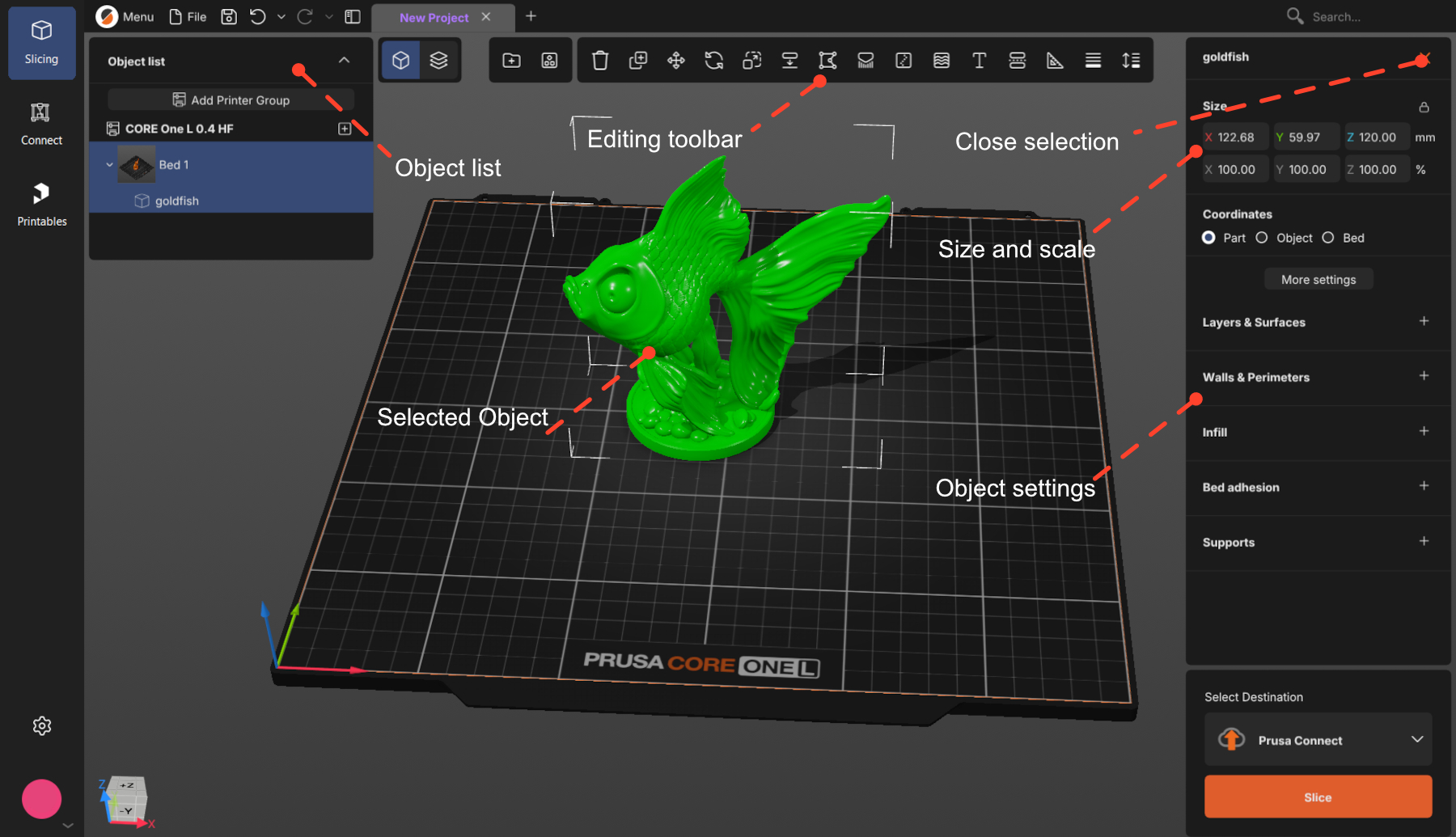
                  After an object is selected, you will see the full set of editing tools at the top menu, and the object's size and settings on the right-side menu.

                  To cancel selection, press Esc or click the close button.
                  Choose and set up your printer

                  Click to select the printer you will use. If your printer is not on the list, click Add printer at the bottom of that dialog and find your model in the catalog - there is a search box.
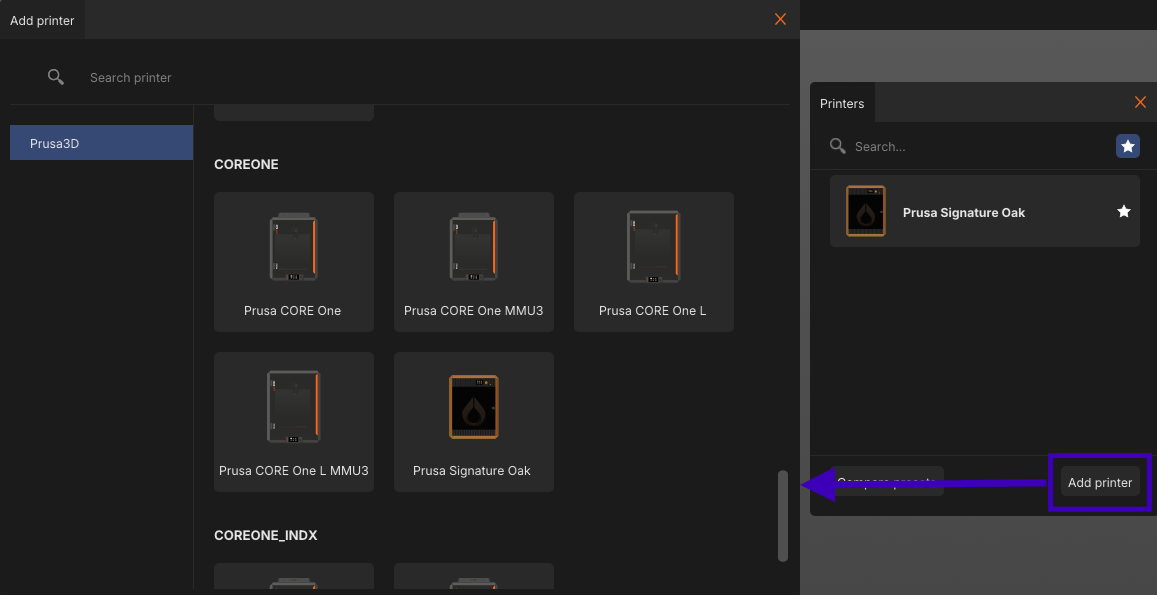
                  Set up the hardware. Always check the nozzle diameter and type, and the print sheet. The gear next to the printer name opens a menu with hardware setup

                  Choose your filament

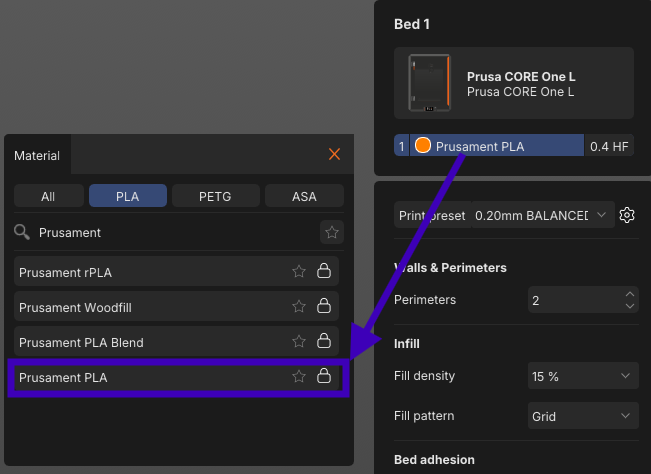
                  Click the material name to see the list of available materials and brands. You can filter by
                  material type — (the All / PLA / PETG / ASA) tabs — or search for the filament.
                  Choose a print profile

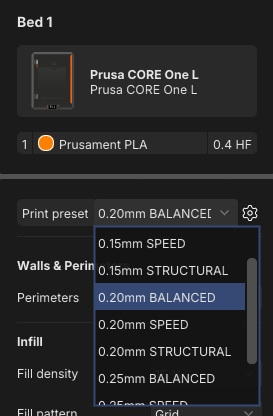
                  Each print profile comes with a predefined layer height — the main trade-off between quality and
                  time. Thinner layers mean more detail and a longer print.

                  To start, use 0.15 or 0.20 mm. Both give very good quality at a reasonable print time.

                  Most layer heights also come in versions tuned for a purpose, like SPEED or STRUCTURAL.
                  BALANCED is the neutral one you can start with.
                  Import your model

                  Any of these options work:

                  • Drag and drop the file onto the PrusaSlicer window
                  • Click Add above the plate or Ctrl+i
                  • File → Import STL /3mf 

                  Supported 3D formats are:  .3mf, .stl, .obj, .step / .stp, and SVG.

                  .3mf files can hold the whole project, not just models. Opening one may bring its own printer, filament, and print settings and replace yours. That is usually what you want when someone shares a ready-to-print project — just be aware it happened.

                  Orient your model

                  Your model may be oriented incorrectly after import. Four tools are very useful:

                  • Place On Face F: click one of the model's flat surfaces, and it snaps face-down onto the bed. The quickest fix for a model that imported at an angle.
                  • Move M: drag the model with the left mouse button at any time. The Move tool constrains the movement to a single axis.
                  • Rotate R: turn the model around the X, Y, or Z axis. Dragging the outer ring snaps in   45° steps, the inner ring in 5° steps.
                  • Arrange A: with several models on the plate, arrange them out on the bed without overlaps and with a safe gap between the parts.

                  Support material

                  Printers build prints upward layer by layer, so anything that overhangs with nothing beneath it has nothing to print onto. It sags or falls, ruining the print. Supports are scaffolding that holds it up, and you break them off afterwards.
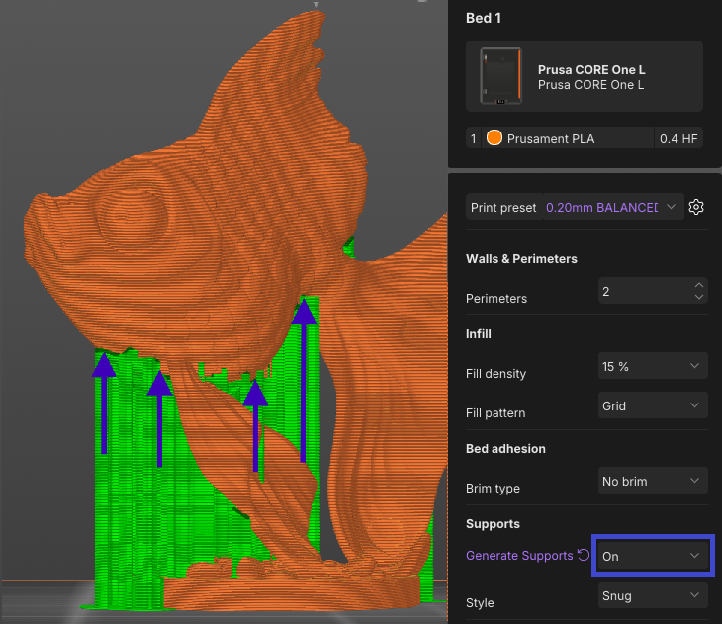
                  • Manual Only (default): only where you paint them on yourself, with the Paint-on supports tool L.
                  • On: added automatically wherever an overhang needs them. For most models, On is enough.
                  • Off: none at all.

                  Perimeters and infill

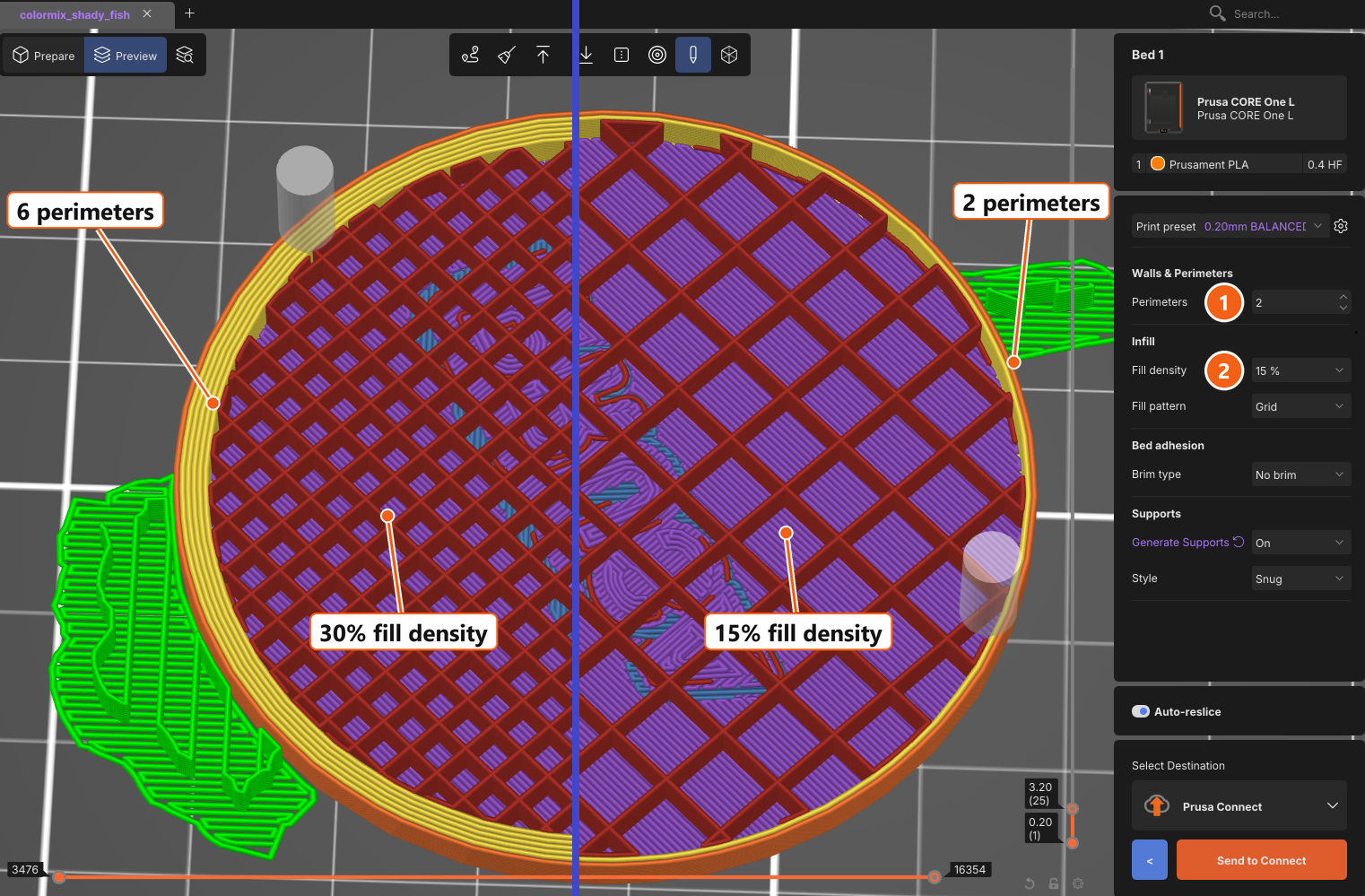
                  Perimeters and infill are the two basic settings that control the structure of the finished print.
                  Both can be easily found in the right panel: (1) Perimeters, (2) Infill density.

                  • Perimeters: the number of outer walls, which sets how thick the shell is.
                  • Infill: the internal structure. It makes the object rigid and supports the top surfaces.

                  Increasing either adds strength and rigidity and increases the print time. For a first print, the
                  profile's defaults are fine.
                  Slice

                  The Slice button is the most important in PrusaSlicer. Slicing takes the model geometry and all
                  your settings, and generates the instructions your printer follows.

                   

                  Clicking to Slice will bring you into Preview mode. To go back, use the < (back) button beside
                  Export.
                  or the Prepare / Preview switch above the plate.
                  Check the result in Preview

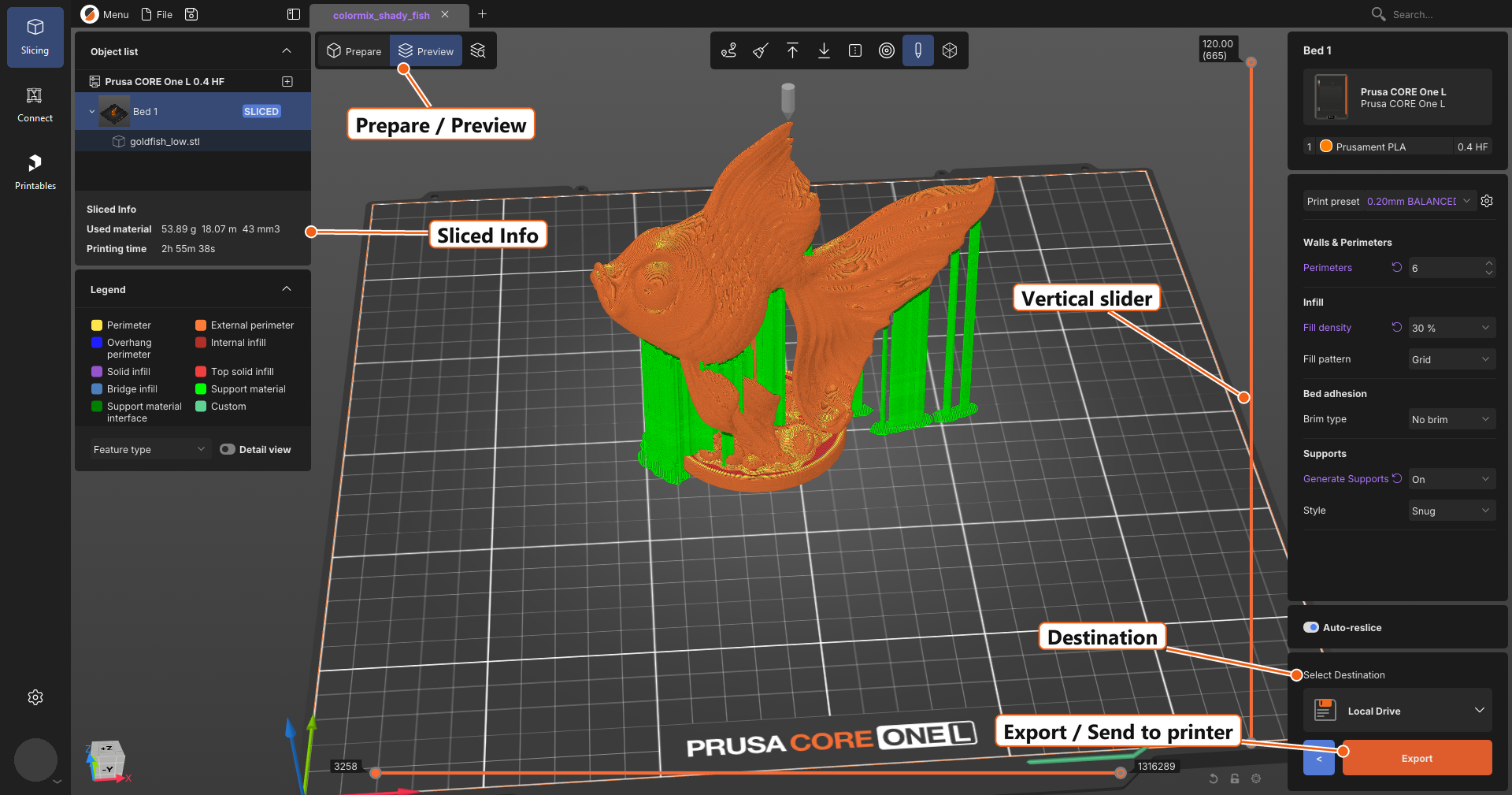
                  You can see the Used material and the Printing time on the left panel.

                  Look at the print. The vertical slicer on the side allows you to check the print layer by layer by sliding it down. The three things to check are:

                  • The shape: At the top of the slider, it should look like your model.
                  • Floating parts: Every new piece of material should sit on something below it — the bed, the
                      model, or a support.
                  • First layer: It should cover the bed. Drag the slider all the way down. This layer decides whether
                      the print sticks.

                  If something looks wrong, switch back to Prepare, fix it, and slice again.
                  Export and print

                  The select destination block above the orange button controls where the file goes. Click it to choose.

                  • A drive on your computer, or a USB stick/SD card: The button reads Export and saves the file. Take the media to the printer.
                  • Prusa Connect: The button reads Send to Connect and uploads it to your Connect account.
                  • A printer on your network: The button reads Send to Printer and sends it straight to the machine.

                  Most first prints go out on removable media. If a USB stick or SD card is plugged in, PrusaSlicer offers it as the destination, and once the file is written, a notification appears with an Eject button — use it rather than pulling the card out.

                  A note on file types: you will get either a .gcode or a .bgcode file. .bgcode is the same instructions in a compact binary form, smaller and faster for the printer to read.

                  Then start the print from the printer's own menu. Watch the first layer go down. If it sticks, the rest usually follows.

                  Handy shortcuts

                  • Ctrl + I import
                  • Ctrl + S save project · Ctrl + F search settings · 
                  • Ctrl + Z UNDO
                  • Tab switch Prepare / Preview
                  • M move
                  • R rotate
                  • S scale
                  • F place on face
                  • A arrange

                  Can't find a setting? Press Ctrl + F and type its name. It works across every settings page.

                  Byl tento článek užitečný?
                  Tato akce je dostupná pouze registrovaným uživatelům. Prosím přihlaste se.
                  Pro přidání kometáře se prosím přihlaste 
                  Zatím žádné komentáře

                  Témata

                  • PrusaSlicer 3.0 (Veřejné previe)
                    • O PrusaSliceru 3.0
                      • První tisk s PrusaSlicerem (3.0.0)
                    • Konfigurace a profily
                    • Vstup/výstup