English
Login

Color change

Relevant for

PrusaSlicer
84 comments
Article is also available in following languages
English
Čeština
Polski
Deutsch
Français
Español
Italiano
日本語

PrusaSlicer lets you schedule a filament change at a certain layer. This can be used to print basic multicolored models. The printer automatically pauses the print as soon as it reads the color change in the G-code (M600 command) and prompts the user to proceed with the filament change.

  1. Slice your model normally. A preview will show how the part will be printed.
  2. On the right side, you will see a layer slider. Drag the layer slider on the down to select the target layer
  3. You can either
    1. Left-click on the orange plus icon to add a color change (random preview color)
    2. Right-click on the orange plus icon and select Add color change. A color picker window will appear allowing you to pick the desired color to get a more accurate preview
  4. Repeat, you add as many color changes as you like

You can remove a color change by moving the slider to the target layer and left-clicking on the grey cross icon.
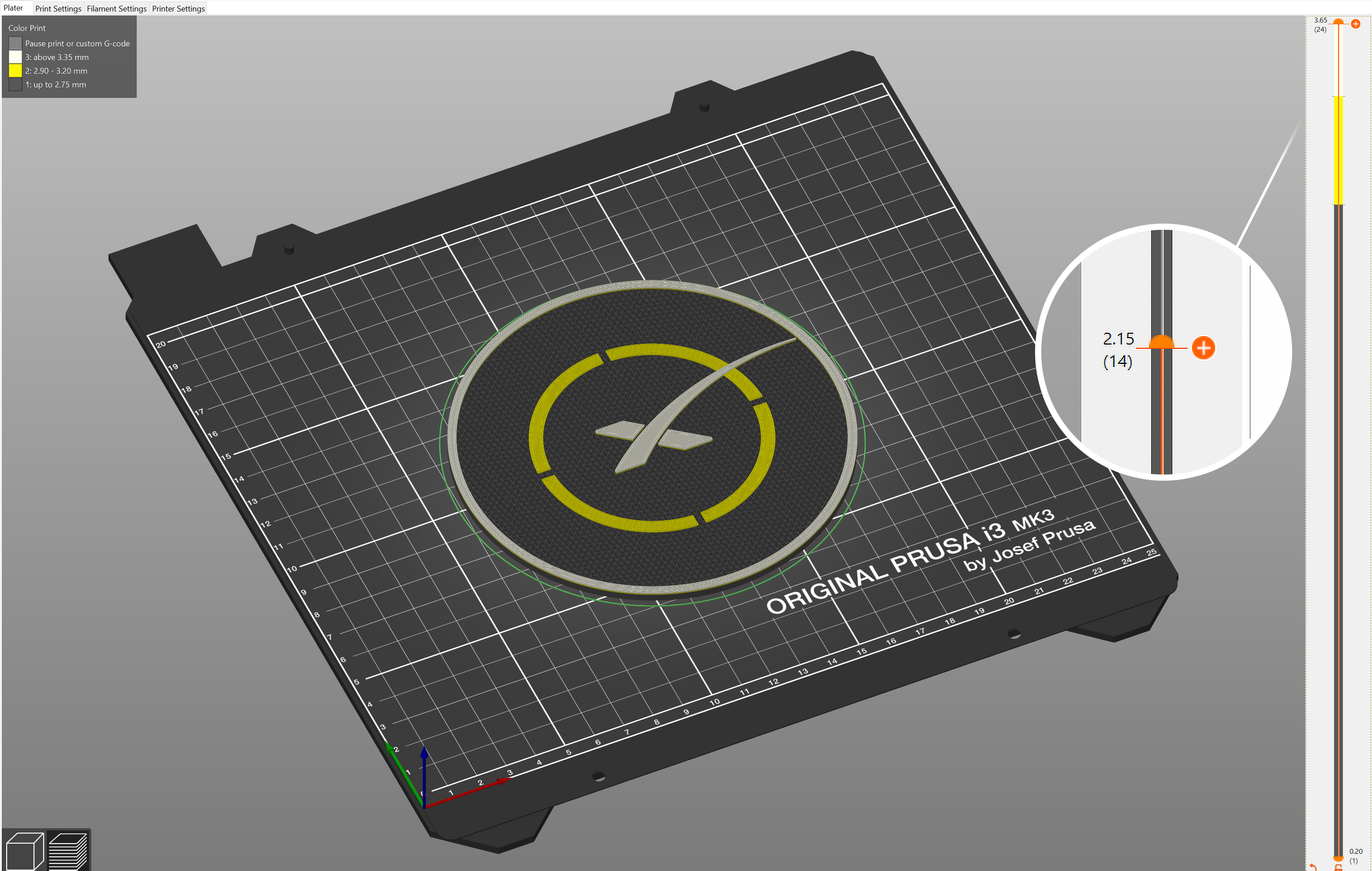
The first color can be edited by clicking on the colored rectangle next to the filament profile name in the top right corner. The colors after the change can be edited by right-clicking anywhere on the colored bar. The preview colors are there just to visualize the final print, they do not affect the generated G-code.

About the color change feature, note that:

  • A preview is displayed instantly so you’ll see exactly how your model will look with color-change. 
  • Use filaments of the same type. Always mix PLA with PLA, PETG with PETG and so on. Mixing materials of different kinds will most likely lead to a failed print as they don't adhere well to each other.
  • The color change doesn't work in combination with Sequential printing.
  • It is also possible to Insert pause or custom G-code at layer.

Color change time estimates

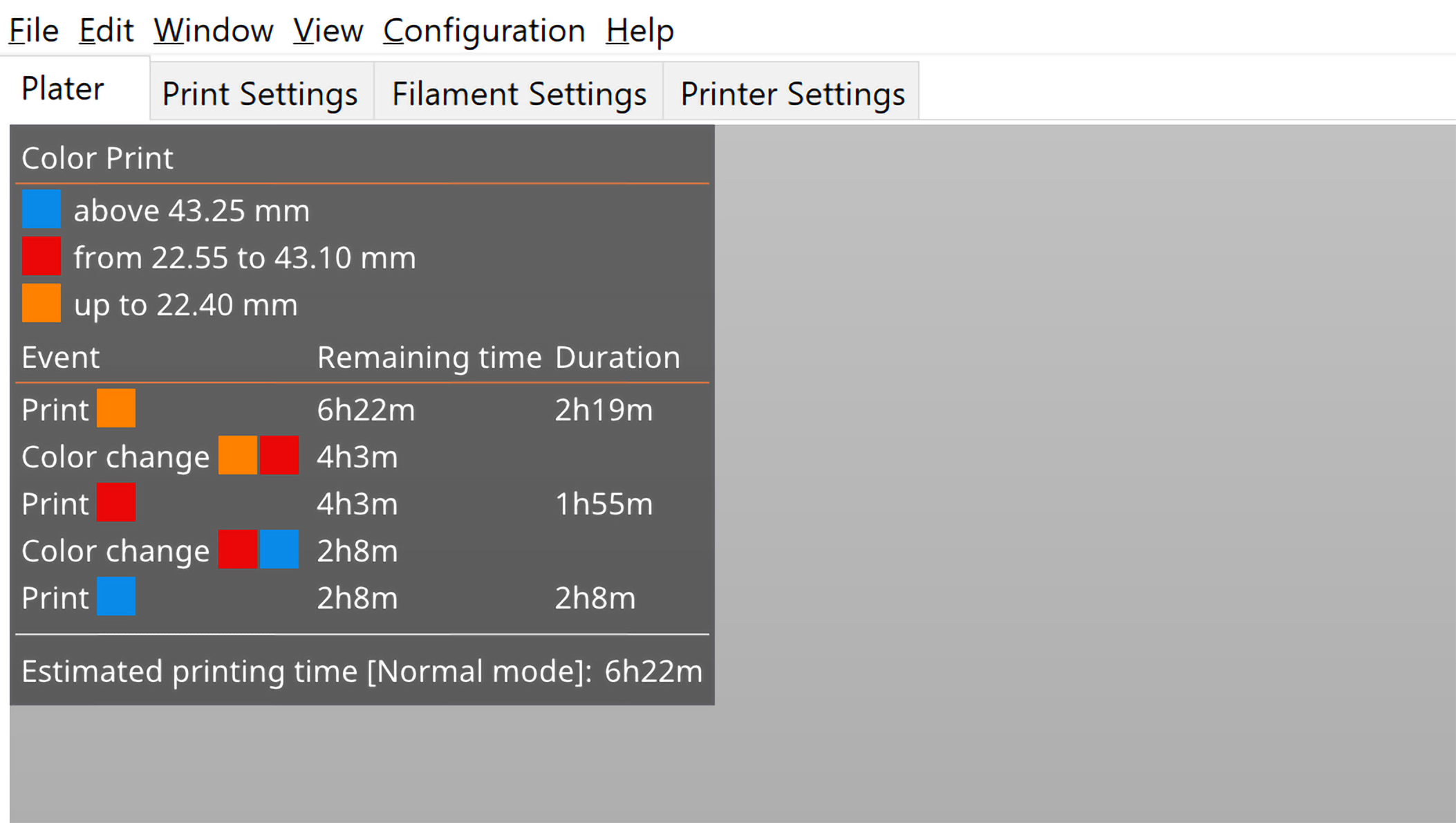
When you add one or more color changes, the Platter legend will switch to "Color Print" mode and show time estimates till each change. Alternatively, you can switch to it manually using the select box "View" in the bottom left.

This lets you plan when to check on the printer to proceed with the color change.
Automatic color change

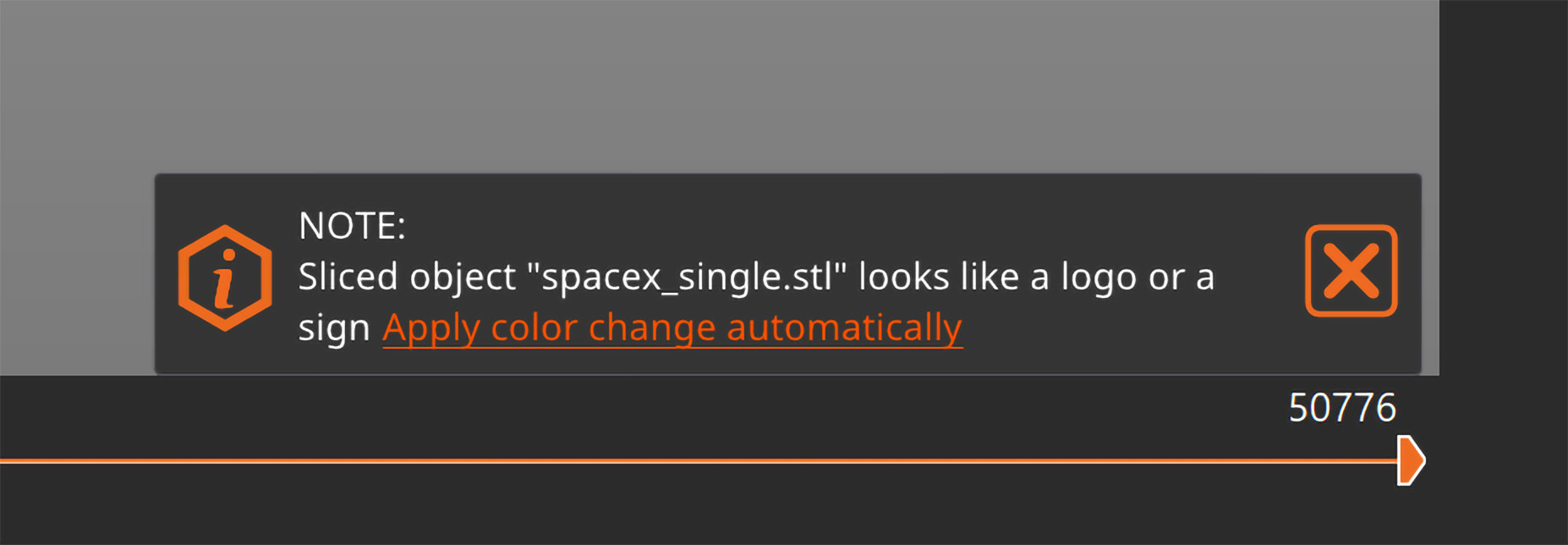
When PrusaSlicer detects the model looks like a logo or a sign, a notification will offer you to automatically add color changes to the correct heights. This feature was proposed by Richard Horne, thank you for the suggestion! It saves you time and removes the guesswork from inserting the color changes at the right height.
Mute beeper when prompting color change

If the estimated color change time happens to be during the night or another inconvenient moment, you can switch your printer’s beeper sound to [Silent], [Mute], or [Once]. The option to change the sound mode can be found directly in the Settings menu or the Settings -> User interface, depending on which printer you have.

Use color change to print pictures

Was this article helpful?
This action is available only to registered users. Please log-in.
 

39 comments

Log in  to post a comment
DisplayName
It would be nice if I could use filaments to choose the color. If I've tuned my filaments in PrusaSlicer to have representative color then it's annoying to have to try to find that same color in the color picker.
Koos
When I change colors on my CoreOne+, it first asks if it's the correct color. After "Yes," the extruder moves to the next starting point, but it still produces 4 to 5 cm of filament. How do I prevent this, as it ruins my print?
Aaron Lott
Where is the ability to change colors on specific areas like text? I have text that shares layers with other things, but at this point I can only change color for the whole layer which means I will have a funky band of color on my print.
Petr Kubiš
Multimaterial painting is available only for MMU and Toolchanger printer types.
MassFam
How can I select different filament profiles for the color changes? For example, I have 2 different PETG with different profiles and I want the gcode to change bed temp after the color change. How can this be done without manually editing the gcode and just using the filament profiles?
Petr Kubiš
Hello,
If you are using a single-extruder printer, the slicer shares the filament profile across the entire print, so you cannot select a different profile for a later part of the print.
However, you can achieve your goal by using Custom G-code at the layer where you want the color change.
Here is how to do it:
In the slicer preview, move the layer slider to the exact layer where you want the filament change to occur.
Right-click the + icon on the slider and choose "Add custom G-code" (instead of "Add color change").
In the text box that appears, insert the following commands:
> M600 ; Initiate filament change process
> M140 S75 ; Set new bed temperature to 75°C (change this value)
this should work
Shortfamily
Is there a way to assign entire parts of a print to each extruder ?