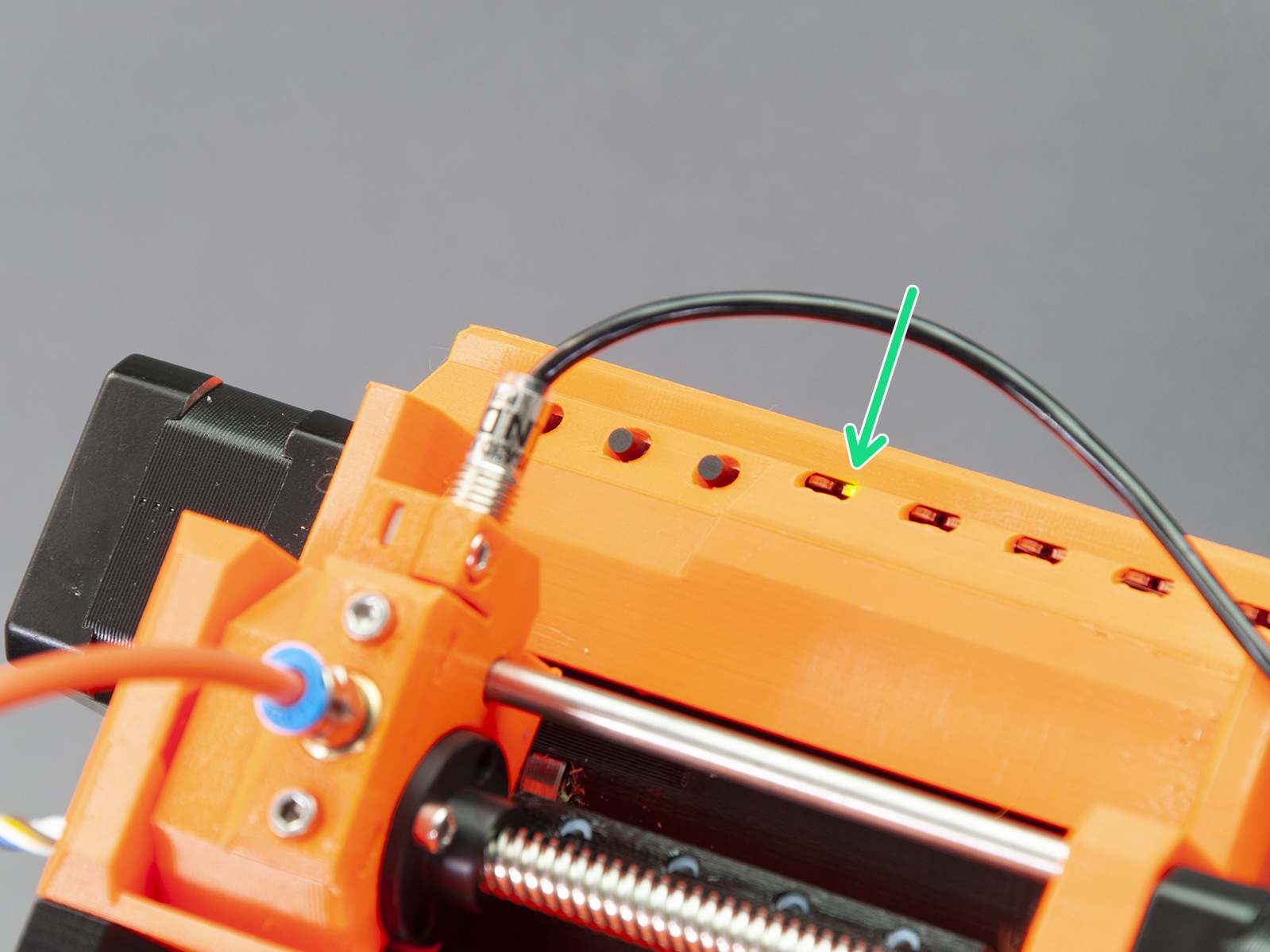
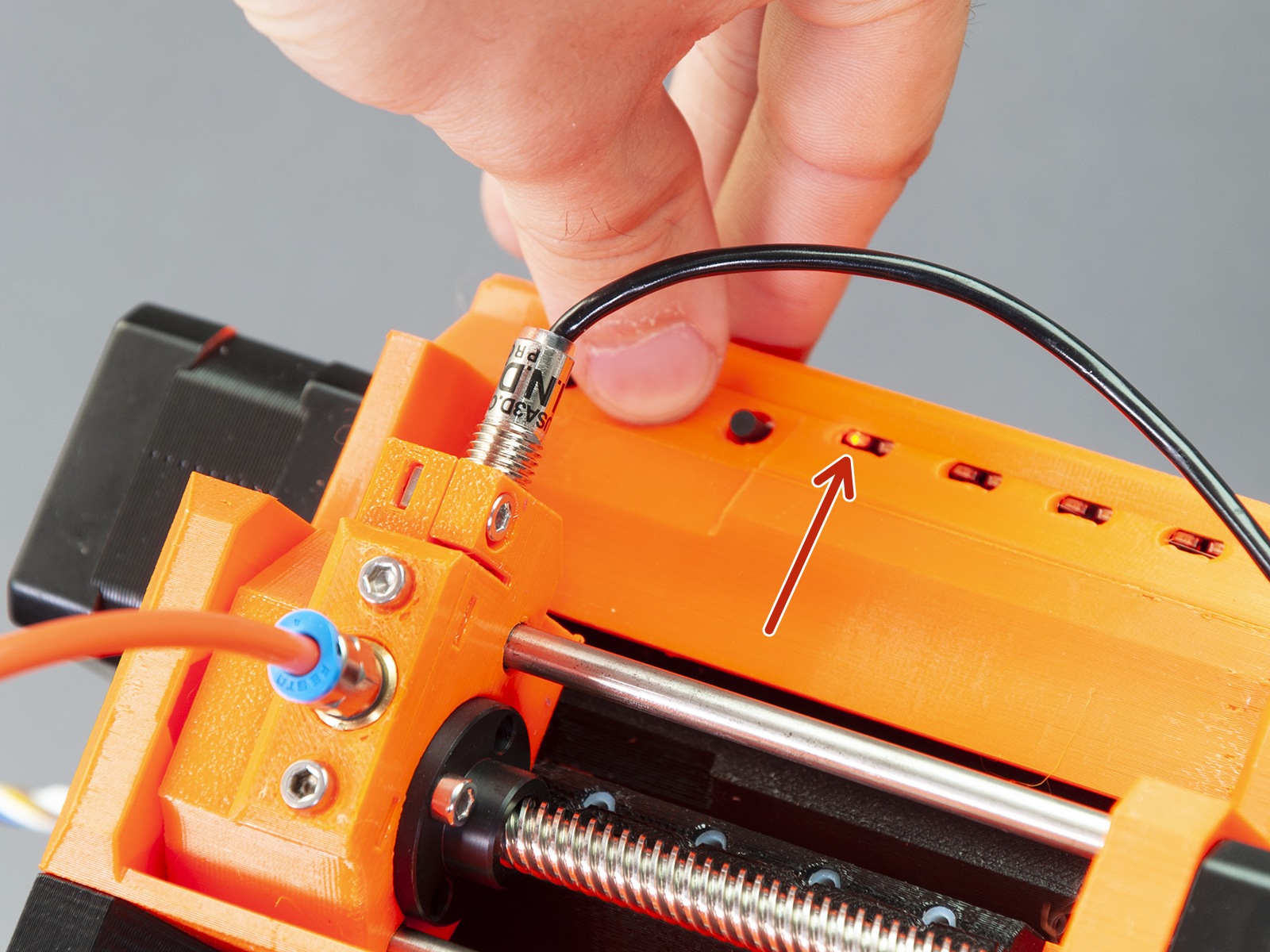
As you can see, there are five main LEDs on the MMU2 unit. Their arrangement corresponds to the arrangement of the 5 PTFE tubes and 5 filament channels. Each LED consists of two sub LEDs: Red status LED Green status LED.
Green light
As you would guess, the green light means that everything works as it should.
Stable green light (not flashing) - selector moved to the current position and ready.
Stable green light after loading - filament successfully loaded.
Rapid green flashing light (after pressing the middle button) - The filament loading sequence.
This sequence won't stop until FINDA senses the filament flowing through or the user cancels the operation pressing the middle button.
Red light
As for the red light, its meaning also depends on the context:
Stable red light (not flashing)
Wait until the printer finishes the current activity (there is not necessarily a problem).
Slow flashing during print
An error occurred during the filament load.
Pull the problematic filament out from the PTFE tube and cut the end to create a sharp tip
Insert the filament back into the white PTFE tube
Press the middle button to start the loading sequence
Push the filament until it’s caught by the drive gear
If the LED turns red and green, press the right button for 1-2 seconds to continue the print
If the LED turns red, repeat the process.
Rapid flashing during print
An error occurred during filament unload.
Remove the orange/white PTFE tube by unscrewing the silver fittings from MMU2 body
Check whether there’s a filament string stuck in the MMU2’s selector
Pull the filament out from the orange/white PTFE tube:
If you’re unable to remove the filament from the tube, proceed to the other end of the tube
Release the Festo fitting on the extruder and if needed open the extruder idler
Then pull the filament out from the extruder body
Using your fingers move the filament back in the MMU unit and leave about 1 cm sticking out.
If the filament is stuck inside the selector and you’re unable to move it, press the left button - this will start load/unload:
If the printer failed at the loading stage the button works in loading mode
If the printer failed at the unloading stage, the button is in unloading mode
The middle button will be used now. Press it once and wait for the printer to finish the auto-check procedure.
If the procedure finishes correctly, the LED above the affected filament will turn to red-green flashing, if the procedure fails it will remain red.
To continue after fixing the issue, press the right button.
All five LEDs blinking red after power on
If the filament is present in the selector during power-up, it’s detected by the FINDA and the standard booting move sequence is interrupted, as it would bend or break the filament. Remove the filament manually first so the boot can continue. No need to press any button. As soon as you take the filament out, the printer will continue by itself.
Try to pull the problematic filament out from the back.
If you’re unable to pull the filament out, try powering the printer off and try again.
You can unscrew the FESTO coupling from the MMU2 selector and instead pull the filament out from this side. If you’re able to pull the filament out in this direction, cut it near the spot where the filament enters the white PTFE tube.
As a last resort, remove the selector motor by unscrewing the 3 screws holding it and push the smooth rods out with an Allen key. You can then easily remove any debris stuck in the selector.
All five red and green LEDs blinking
Resetting the MMU2S using the reset button on the side of the unit is usually enough. However, if all the LEDs keep on flashing simultaneously, then it may be a power issue:
Inspect the signal cable and MMU2S power cable for damages and check if they are properly connected to the MMU2S control board and to the printer's Einsy board.
Its worth looking at the solder joints on the einsy board, for all plug in connectors. Ive found several with dry joints, so resoldered all joints. resolved the intermittant faults, all lights flashing due to power, had no problems since
I have had over 400 power fails on the MMU2, I have flashed the firmware, and I have checked all conections as per the manual. Some times the MMu will work and will need few interactions but now I can't get it to even go through its initial setup without multiple power failures. I have opened up the MMU and reset the power cables and it might work or it might not work. I am at a loss for what more I can do. I have tried using the Prusa support chat but it seems to kick me out and I can't reinitialize the chat..... HELP!!
Hi! This really might be happening due to faulty data / power cables or a faulty electronics control board. Please, try contacting Support again. This problem might be solved by the MMU2S to MMU3 upgrade kit once it is available.
Hello, This problem "MIGHT" be solved is not good enough for me, do you have assurance that this WILL solve the problem? i want to buy MMU3 to solve this problem, but i don't want this to become another problem that i will not be able to refund if this failed. will there be another MMU3S to fix the issue? no offense, but i thought MMU2 "S" should work as intended and should fix the previous problem before (MMU2), but no, happend again. sorry i was just frustated by the lack of meaning behind "All five red and green LEDs blinking", seems like every other error, just put it in the "5 LED", then reset is the only option.
So far as I ma aware, there are two fixes for the issue whereby All the red and green leds flash on the MMU2. 1. apply deoxit D contact cleaner to the holes of all the 5 plugs that go into the electronics board. The deoxit will deal with tin oxide that accumulates on the female pins that are tin plated. There is some evidence to suggest that the oxidation is aided by high humidity environment of the printer. A voltage drop forms on the connection and that triggers toe flashing leds issue.2. Apply an electronics solution to the 5 Volts applied on the power connector that connects from Einsy Rambo board to the MMU. The voltage is too low on the board and its made worse by a series diode on the board. Prusa themselves have adopted this solution in an elegant design of plugin board that comes as part of the MMU3 upgrade. Certainly not every prusa MMU owner experiences the issue, but many do.It really does happen, and the above two fixes really do fix it. The first one is regarded as "interim" or temporary, the 2nd one as a more permanent solution.
The electronics error is not an only possible cause of ALL LEDs blinking by the way. Also, the 5V VCC supply goes through the data connector, not the power connector. Ground is used from the power connector.
If you are using the MMU2S with octopi and experience all 5 red and green LEDs flashing at the beginning of a print; remember to set the amount of tools to five and shared nozzle in octopi. It fixed my issues. All thanks to the person who wrote this on reddit: https://www.reddit.com/r/prusa3d/comments/e7v0gp/if_you_use_mmu2s_with_octoprint_please_set_your/ (Wrote this in another place, but thought it might be helpful here as well)
Just started having this probelm where I will trun the printer on, tell it to load a filament line and then all of the lights on the MMU will start flashing Red, the filament feeder won't move to the new location (or at all) I have checked the power connections on the MMU board and in the Ensy (un pluged and pluged back in) with no luck.
Hello. All red leds flashing means that there is something under the FINDA - most likely a string of filament. Once removed, the MMU should act normally again.
All five LEDs blinking red after power on alsomight mean the faulty FINDA sensor. I bought a used MMU2S. The guy who sold it decided that he does something wrong, this is why MMU failed at avery single tool change. The test print started more or less ok, but after 15 minutes it totally failed. Long story short - after numerous five red LEDs flashings I decided to check the FINDA status, and it appeared stuck at "1" constanly, even without any filament in and ball down. Then I found that status easily changes by just twisting the cable where it is attached to the sensor. Would be great if you could add to the troubleshooting the faulty FINDA.
Agree the FINDA was defective. It took several months for me to understand that. I have been very carefully while assembling it therefore I am confident it was not my mistake.Anyway, the diagnostics of MM2S is super difficult and too often the start of a print is a led blinking fair. After the filament is loaded everything works great but there is no way to reliably use the MM2S
Thank you so much, your comment helped me figure it out. When I looked at the sensor status I discovered that the FINDA was always 1 (or engaged). I was able to twist my pinda out so that it rested a little farther from the ball bearing and now it is working.
I also had to replace my Finda probe, which gave intermittent 1/0 indication when it should have been steady. Later, I found: Its also possible to get the same symptoms with a fault not on the finda itself, but on the connector going onto the Marlin MCU board. What happens is that the wiring vibrates when the printer is busy printing. This causes the MMU wiring to jiggle. The connectors leading to stepper motors and finda also vibrate. This can cause poor connection inside the connector. The "solution" is to apply Deoxit contact cleaner to the female pins inside the connector, which are made from Tin. Deoxit Gold conact protector can help maintain the connection to be more reliable, but ultimately it might become necessary to replace pins in the connector.


15 comments
Hi!
This really might be happening due to faulty data / power cables or a faulty electronics control board. Please, try contacting Support again.
This problem might be solved by the MMU2S to MMU3 upgrade kit once it is available.
This problem "MIGHT" be solved is not good enough for me, do you have assurance that this WILL solve the problem?
i want to buy MMU3 to solve this problem, but i don't want this to become another problem that i will not be able to refund if this failed. will there be another MMU3S to fix the issue?
no offense, but i thought MMU2 "S" should work as intended and should fix the previous problem before (MMU2), but no, happend again.
sorry i was just frustated by the lack of meaning behind "All five red and green LEDs blinking", seems like every other error, just put it in the "5 LED", then reset is the only option.
Certainly not every prusa MMU owner experiences the issue, but many do.It really does happen, and the above two fixes really do fix it. The first one is regarded as "interim" or temporary, the 2nd one as a more permanent solution.
The electronics error is not an only possible cause of ALL LEDs blinking by the way. Also, the 5V VCC supply goes through the data connector, not the power connector. Ground is used from the power connector.
(Wrote this in another place, but thought it might be helpful here as well)
Later, I found: Its also possible to get the same symptoms with a fault not on the finda itself, but on the connector going onto the Marlin MCU board. What happens is that the wiring vibrates when the printer is busy printing. This causes the MMU wiring to jiggle. The connectors leading to stepper motors and finda also vibrate. This can cause poor connection inside the connector. The "solution" is to apply Deoxit contact cleaner to the female pins inside the connector, which are made from Tin. Deoxit Gold conact protector can help maintain the connection to be more reliable, but ultimately it might become necessary to replace pins in the connector.